
This article aims to explain how to import glossaries into the DataGalaxy catalog.
To understand more precisely the concept of properties and objects, you can consult this article.
This feature aims to:
- Facilitate the import of glossary objects.
- Accelerate the update of objects by importing previously exported data.
The import option is available:
- from the "Shortcuts" widget on the home page of the clientspace or workspace
- from the Glossary module when it is empty
- from the contextual menu of the glossary module, to the right of the filtered views.
Importing objects
DataGalaxy users can import properties from a CSV file by following these steps:
1. Go to the Glossary module
2. Click on the 3 dots icon
3. In the drop-down menu, click on Import 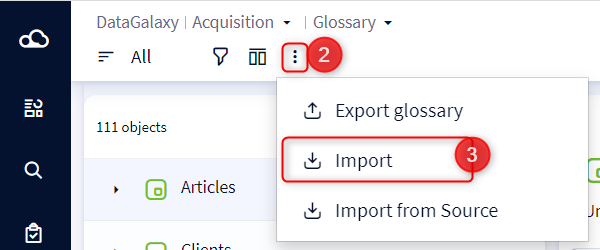
4. Select or drag and drop your file to be imported into the CSV File area available at the top left.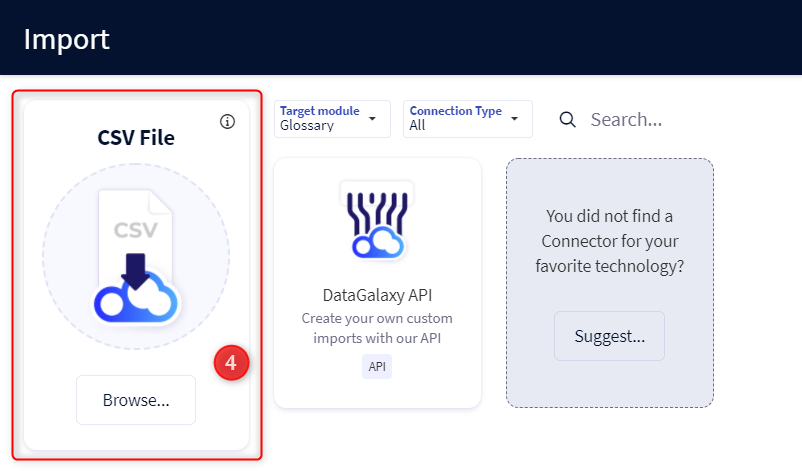
If some options can be set later, the file to be imported must always contain the following columns:
- The object path
- The object type
- + a column for each attribute that is part of the object card that you want to import
Example of a file to import:
"Path";"Type";"Status";"DataOwners";"Summary";"CDPEtiquetteGlossaire"
"\Age";"\Indicator";"Proposed";"dataowner@datagalaxy.com";"client's age";"Sales"
"\Marketing\Commerce\Civility";"\Universe\Concept\Business Term";"Valided";"dataowner@datagalaxy.com";"";"Adresse"
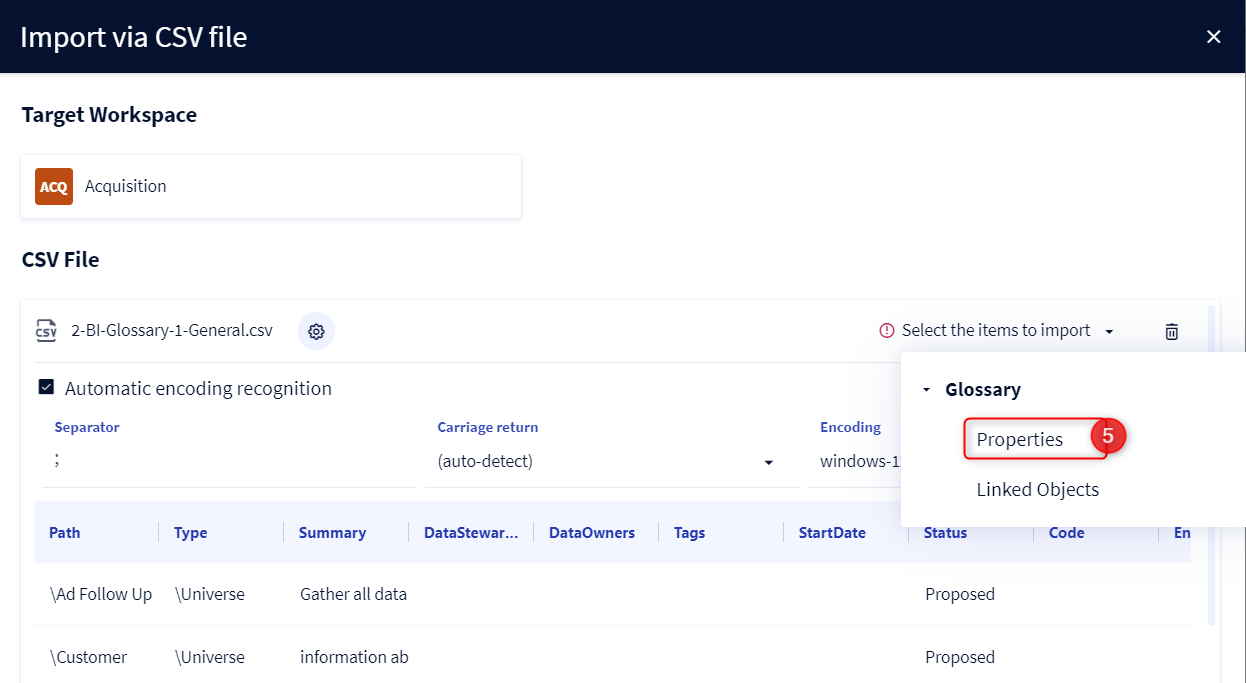
5. Select Properties in the Glossary module and click on the Next button
The central area allows you to adjust the technical parameters of the file (encoding, separator) and the table gives you an overview of the file content.
6. The next step allows you to map properties and perform functional checks before importing. When possible, an automatic mapping between source and target fields is performed and the verification of your file is launched.
- If the mandatory fields are not mapped, the verification is not launched and the import is not possible.
- if the check is sucess, the import is avaible (the Import button is immediately active).
- if the check is failure, the checking are in the Cheks tab.
By clicking on the check status, the tab opens with the list of failures checking has been detected:
- When a blocking error can be solved, the solution is in the "Action" column.
- These controls are mandatory and must be re-launched when a modification in the Mapping tab is made.
7. Check the accuracy of the fields to be recovered in the Mapping tab
- You have to drag the fields of the left column on the corresponding fields on the right.
- Only the fields type and path, identified in red, are mandatory.
- For files with many attributes: it is possible to search for attributes and hide the fields used by checking the box.
NB : In the case of updating your objects via this import, if you import empty values of the attributes in your file, which are already filled in your object cards, these empty values will be ignored by default and your existing values are saved. But, by checking this option (figure below), they will empty the existing values. 
8. The Preview tab allows you to preview the values for each attribute to be imported, for which a match has been defined.
9. When these steps are completed and the check is successful, the Import button becomes active. Click on Import to launch the import.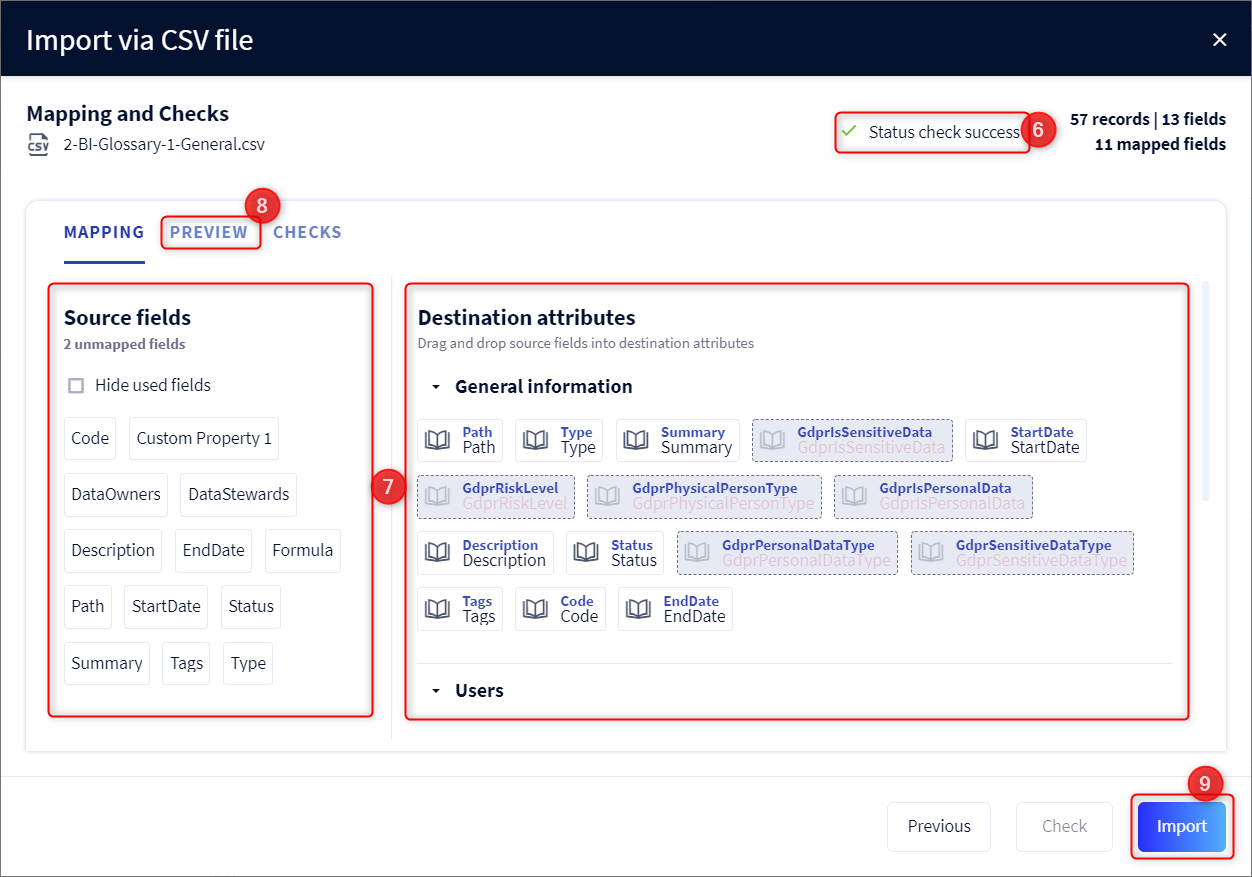
Import related objects (relations + implementations)
It is possible to import:
- relations (logical links not visible in the lineage)
- implementations (physical links with the dictionary visible in the lineage)
To do this you need to:
1. Go to the Glossary module
2. Click on the 3 dots icon
3. In the drop-down menu, click on Import
4. Select or drag and drop your file to be imported into the CSV File area available at the top left. 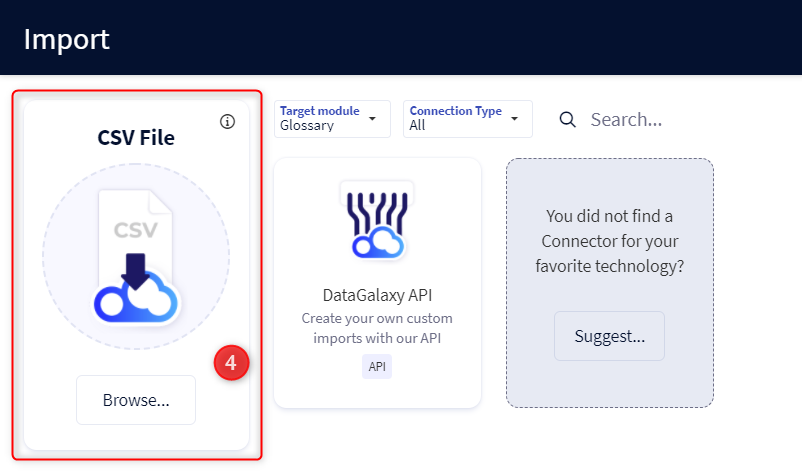
The file to be imported must always contain the following columns:
- The path of the source object
- The type of the source object
- The type of the relationship
- The path of the target object
- The type of the target object
Example of a file to import:
"SourceEntityPath";"SourceEntityType";"EntityLinkType";"LinkedEntityPath";"LinkedEntityType"
"\Age";"\Indicator;"is a synonym of";"\Seniority";"\Indicator"
"\Age";"\Indicator";"uses";"\e-Commerce\BUY_ARTICLE\IdAge";"\Database\Table\Colonne"
5. Select Linked Objects in the Glossary module and click on the Next button
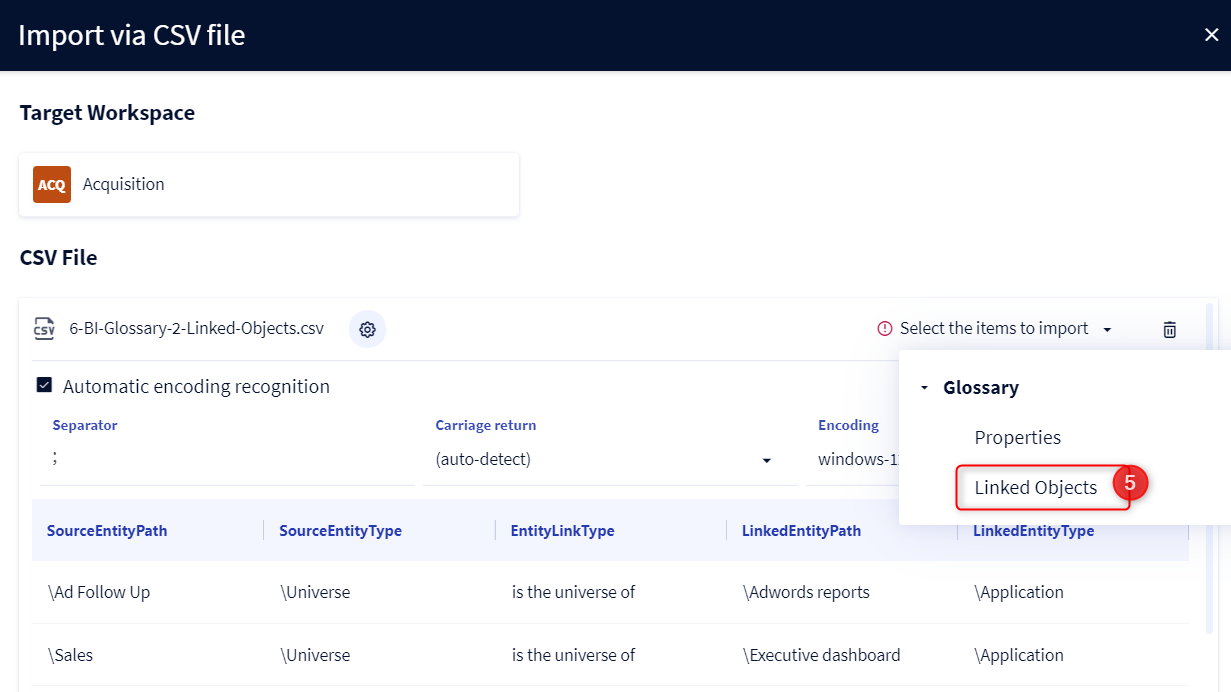
6. The next step allows you to map properties and perform functional checks before importing. The operation is identical to that of the import of objects.
7. Check the accuracy of the fields to be recovered in the Mapping tab
8. The Preview tab allows you to preview the values for each attribute to be imported, for which a match has been defined.
9. When these steps are completed and the check is successful, the Import button becomes active. Click on Import to launch the import.
Releases
| Date | Plugin version | DataGalaxy release | Desktop connector version (minimum) | Description |
| 26/07/2024 | 5.0.1 | v3.62.0 | 5.0.3 | Migrated from java 11 to java 17 |