
This article provides a detailed overview of the user access rights management system within a workspace. It explains how to assign access rights, define rules, and control access to modules and data sources based on your organization’s needs.
Only workspace administrators are authorized to manage access rights.
Default access to a new Workspace
When a user creates a new workspace, it is automatically set to closed by default. The creator becomes the primary administrator of that workspace.
This means that:
- Only the administrator has immediate access to the workspace.
- No other user can access it until specific access rules have been defined.
The administrator is responsible for managing access rights. They can grant access to other users by creating and applying appropriate access rules (per user or by team).
Adding an Administrator to the Workspace
By default, the creator of a workspace becomes its first administrator. To reflect this right, a system rule is automatically created in the Access tab, under the Feature section, within the workspace administration settings.
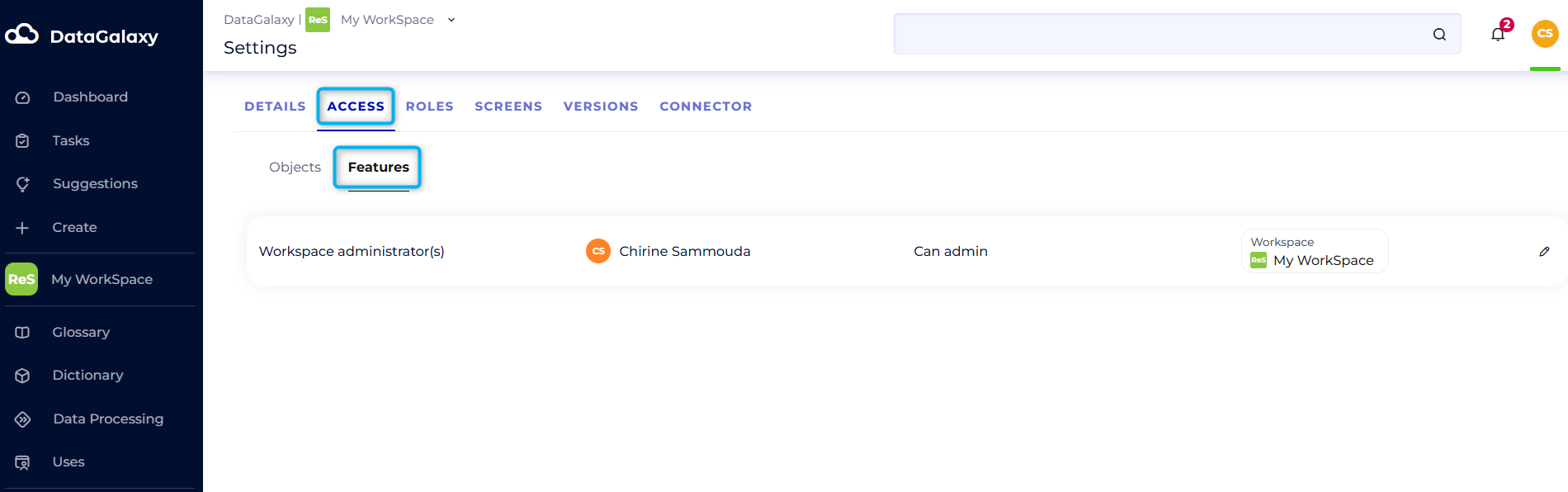
This system rule cannot be deleted, but it can be modified to add additional administrators. To do so, follow the steps below:
- Click the Settings button to access the workspace administration panel.
- Go to the Access tab.
- Select the Feature sub-tab.
- Click the pencil icon to edit the system rule that defines the administrators.
- In the dropdown list, select one or more users to add as administrators.
⚠️ Only users with a Steward license will appear in this list and can be designated as workspace administrators.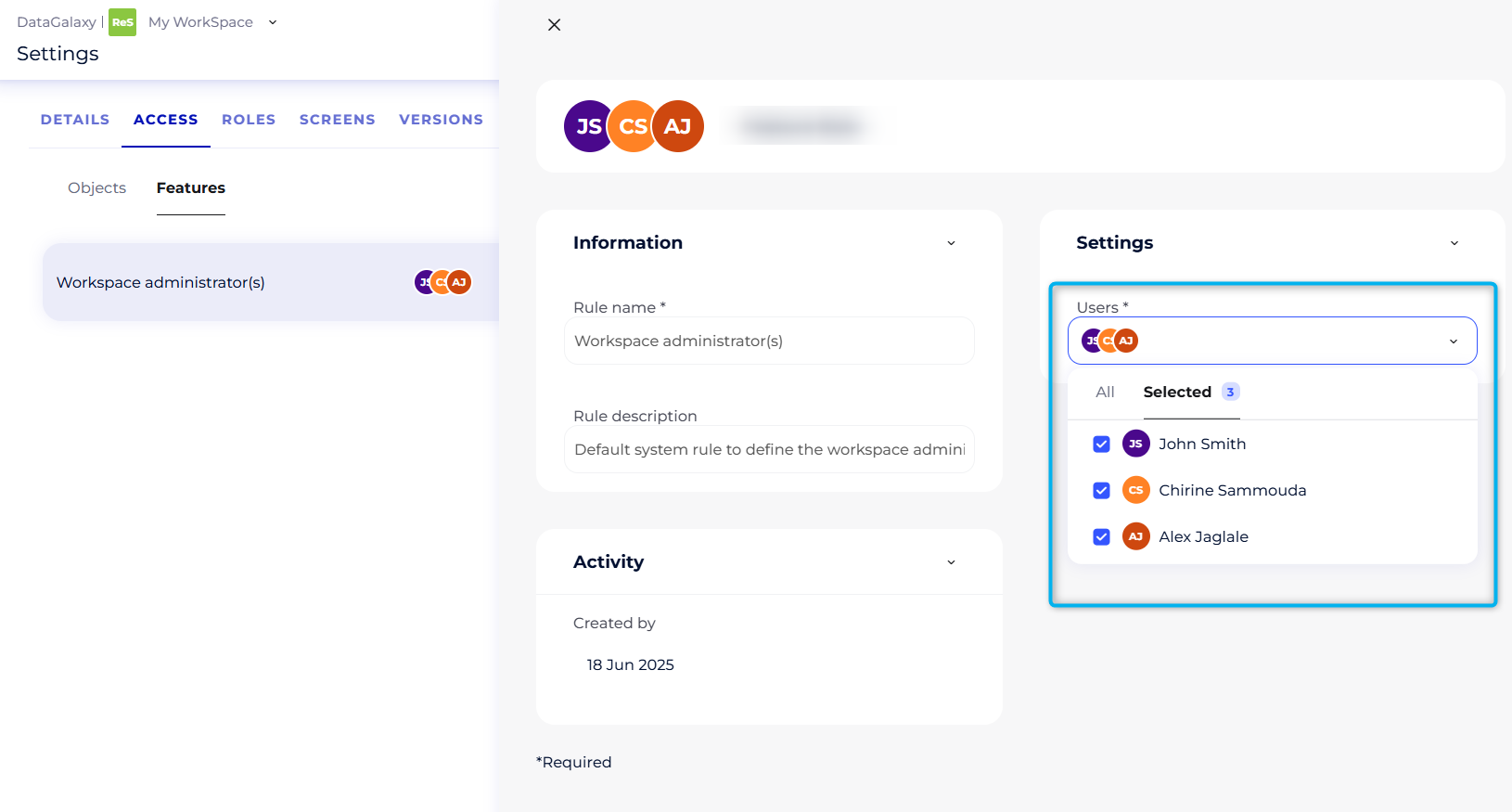
Workspace Administrator Permissions
When the administrator assigns the administrator role to a user within the workspace, that user gains full access to the following features:
- Modify all objects, modules, and data sources
- Manage and run online connectors
- Manage user access rights within the workspace
- Manage version control
- Manage roles within the workspace
- Manage workspace screens
- Create and delete campaigns
- Customize the workspace homepage
- Manage workspace details and information
Managing User Access
Since every workspace is closec by default, no users (other than the administrator) have access to modules or data sources when the workspace is first created.
To allow specific users or teams to access the workspace’s modules and/or sources, the administrator must create custom access rules.
These rules allow you to:
- Define who can access the workspace (individual users or teams)
- Specify what they can access (modules and/or sources)
- Determine the level of access granted (view or edit)
Fine-grained access control is therefore based on the creation of these rules, which can be tailored to organizational needs, user profiles, or specific use cases.
Granting Access to a specific module or source by creating a rule
Access to one or more modules or data sources is granted by creating a custom rule. This rule allows you to precisely target specific users or teams and define the desired permission levels.
The access rights management system uses two permission levels:
- Can view : The user can view modules and data sources but cannot modify them.
- Can edit : The user can create, view, modify, and delete objects in modules and data sources.
The access management system allows a rule to be applied to one or more users, depending on your needs. You can target:
- A single user
- Multiple users
- A team
- Multiple teams
- A combination of users and teams
The rule will apply to all selected members, whether individuals or teams.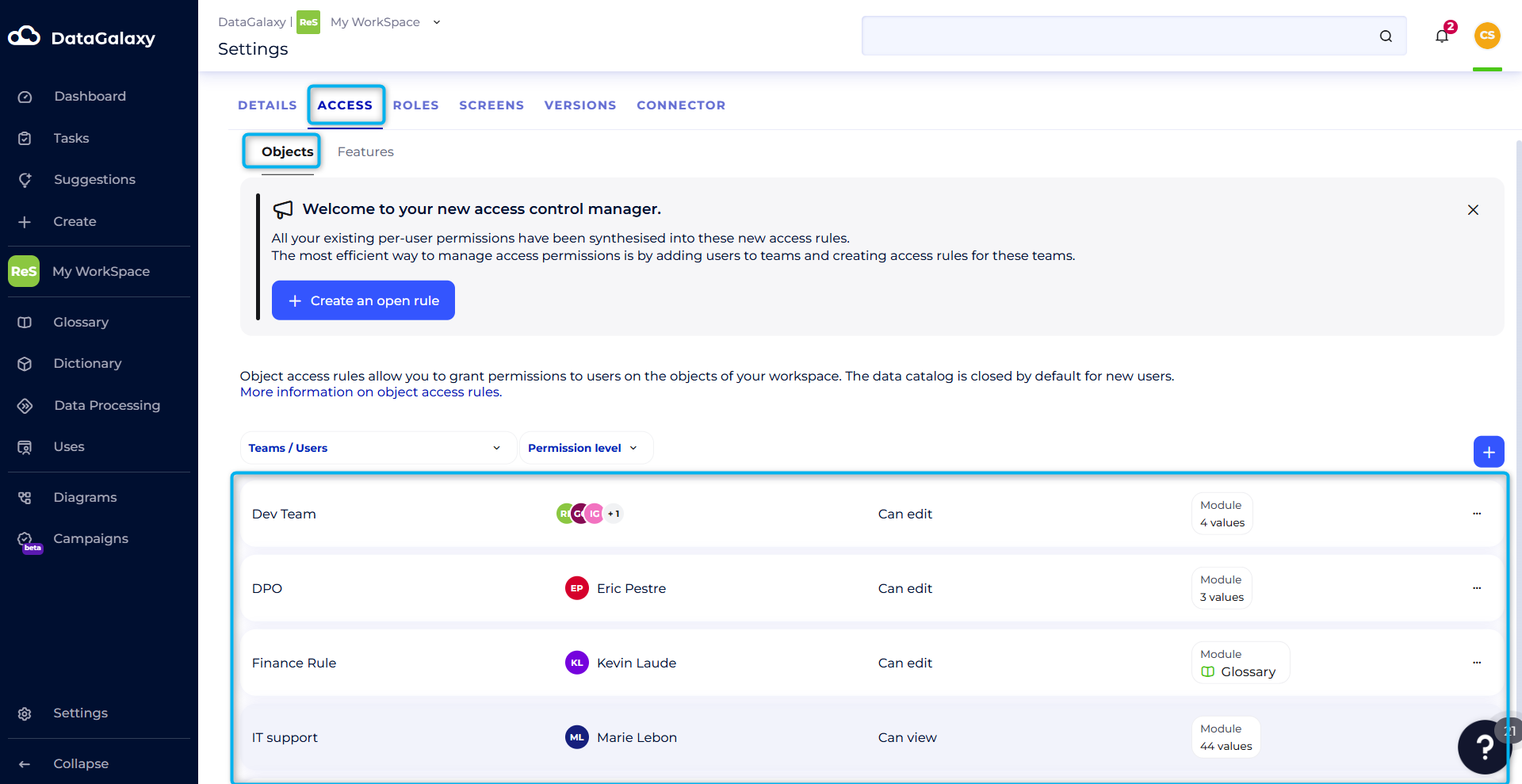
To create a new rule, the administrator must:
- Click the “+” button in the Access tab within the workspace administration panel.
- Fill in the following fields
- Rule name
- Targeted users and/or teams
- Permission level: Can view or Can edit
- Modules and/or sources affected by the rule - Click the Create button.
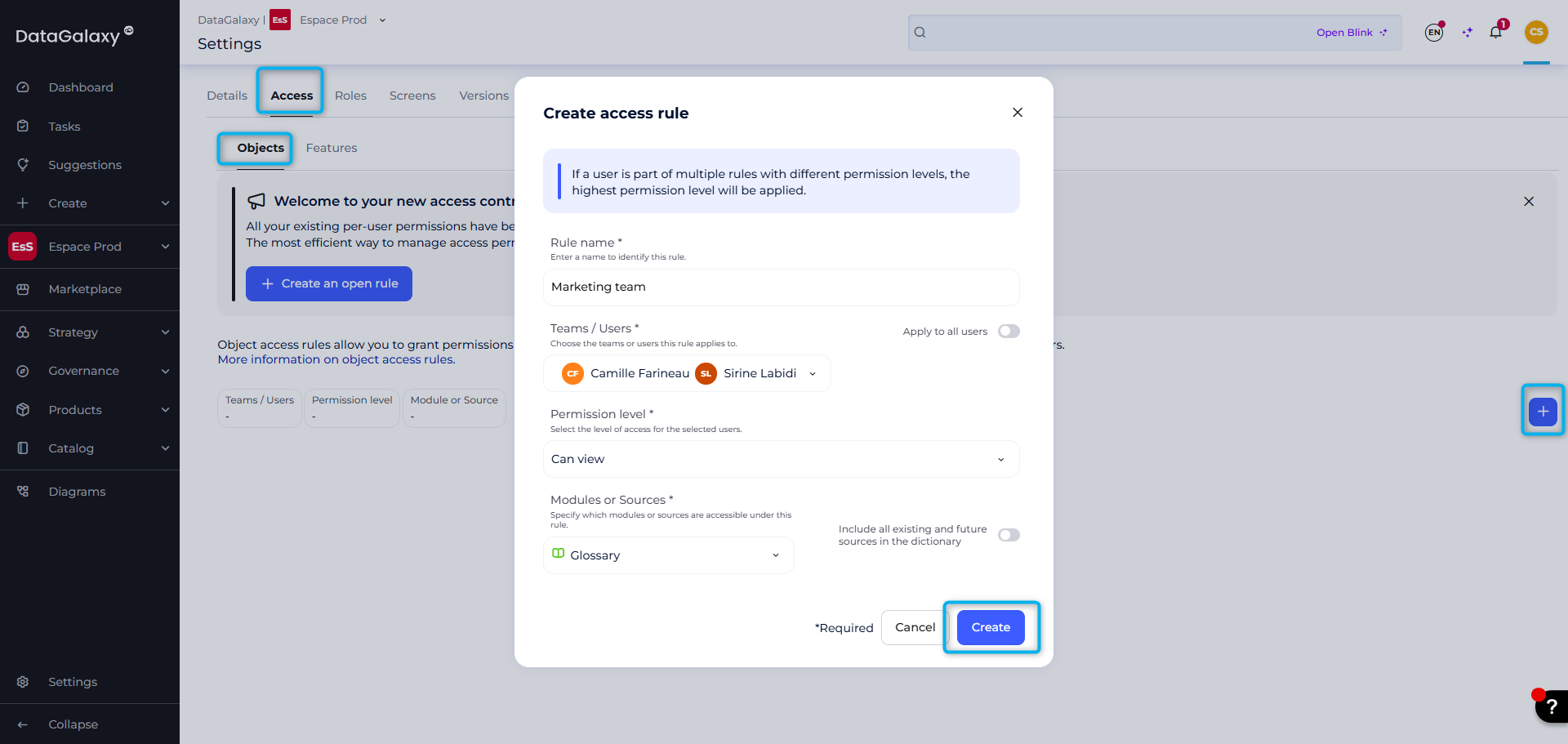
It is possible to choose the Apply to all users option, which means that all existing users with a license will be included in this rule, as well as any future users that will be created (for example, via auto-provisioning).
Note:
For the Dictionary module :
- If you choose to select the entire dictionary, the rule will apply to all existing sources in the dictionary at the time the rule is created.
- If you select only certain existing sources, the rule will apply only to the selected sources.
- If you choose to select the entire dictionary and check the Include all existing and future sources option, the rule will apply to all existing sources as well as any future sources that will be created.
Creating an Open Access Rule
By default, every new workspace is closed: only administrators have access. However, the administrator can open access to all users within the client space in just a few clicks, allowing them to view all modules in the new workspace.
To do this, simply create an open access rule by following these steps:
- Click the Create an Open Access Rule button.
- Verify the pre-filled fields:
- Selector: All users
- Selector: All modules and sources
- Access level: Can view - Click the Create button.
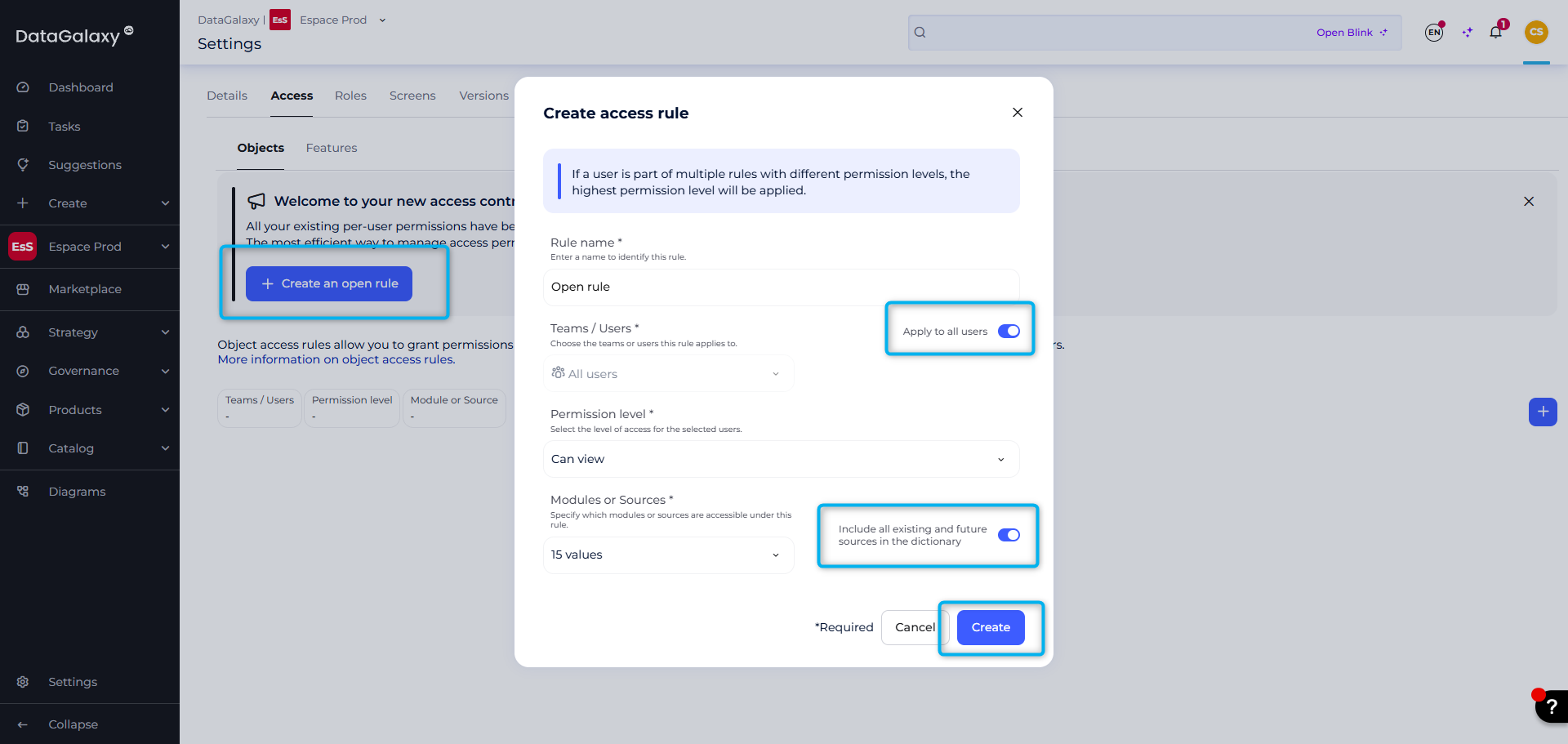
By confirming the rule as is, an open access rule is created within seconds. It grants read-only access to all users in the client space across all modules and sources within the workspace.
This is a dynamic rule that automatically applies to both current and future users, with no need for manual updates.
How does the platform appear to a user without access rights to a module?
- If a user does not have access rights to a module or source, this will be hidden in the navigation sidebar, the breadcrumb and in the object creation modal. As a result, the user will not be able to consult the object cards associated with this module.
Example of a user with no access rights to the glossary :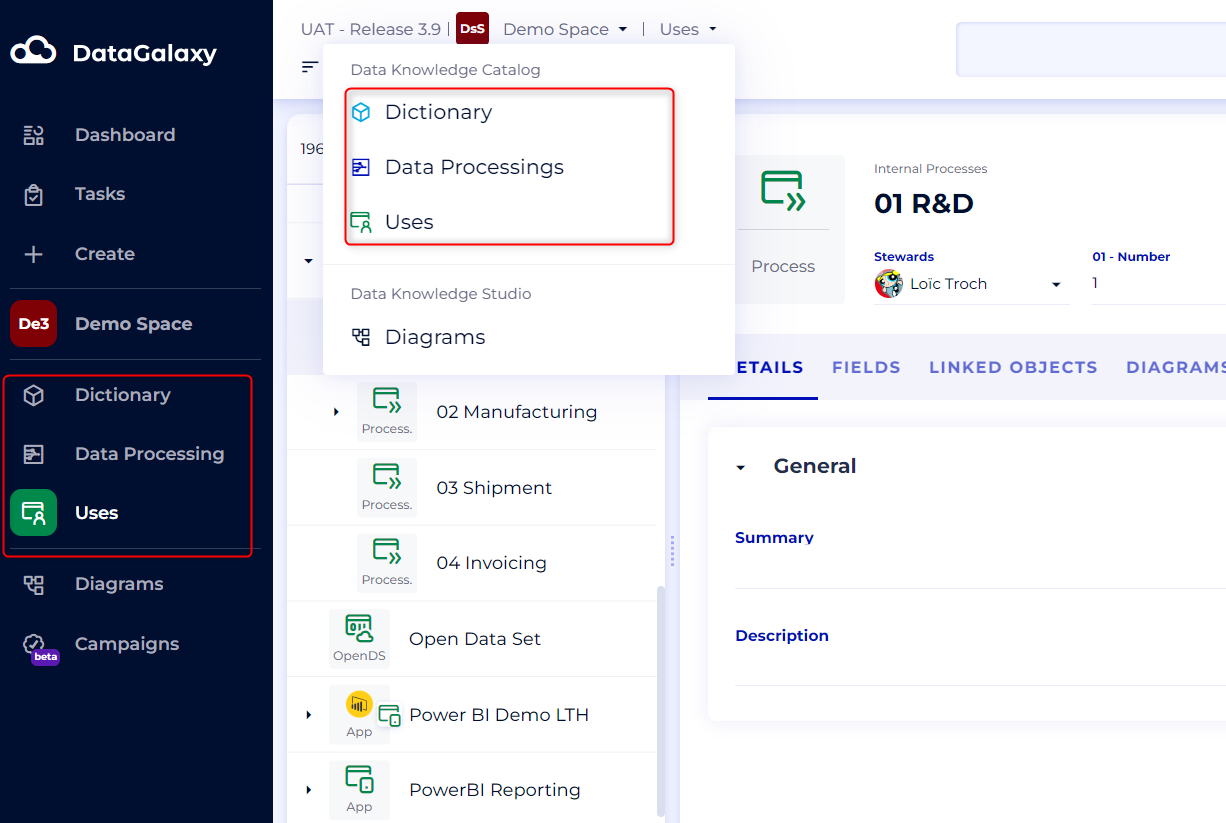
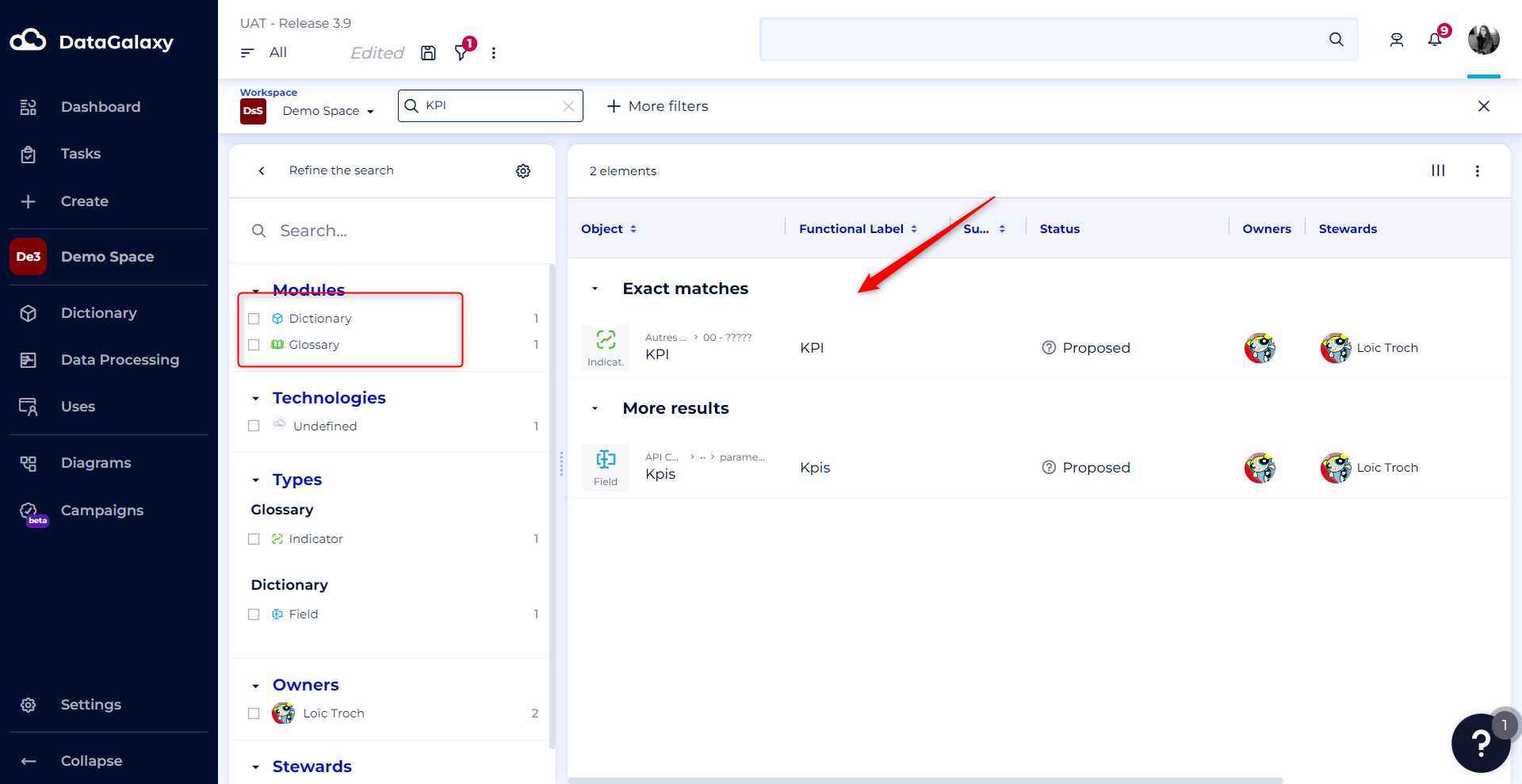
- If a user does not have access rights to a module or source, non-accessible objects will never be displayed in the search results. All filters related to inaccessible objects will also be hidden.
Example of search results for a user who does not have usage access rights:
If a user does not have access rights to a module, they will not be able to see the MetaBot suggestions associated with objects that are not accessible.
Example of link suggestion display for a user with access rights to all modules:
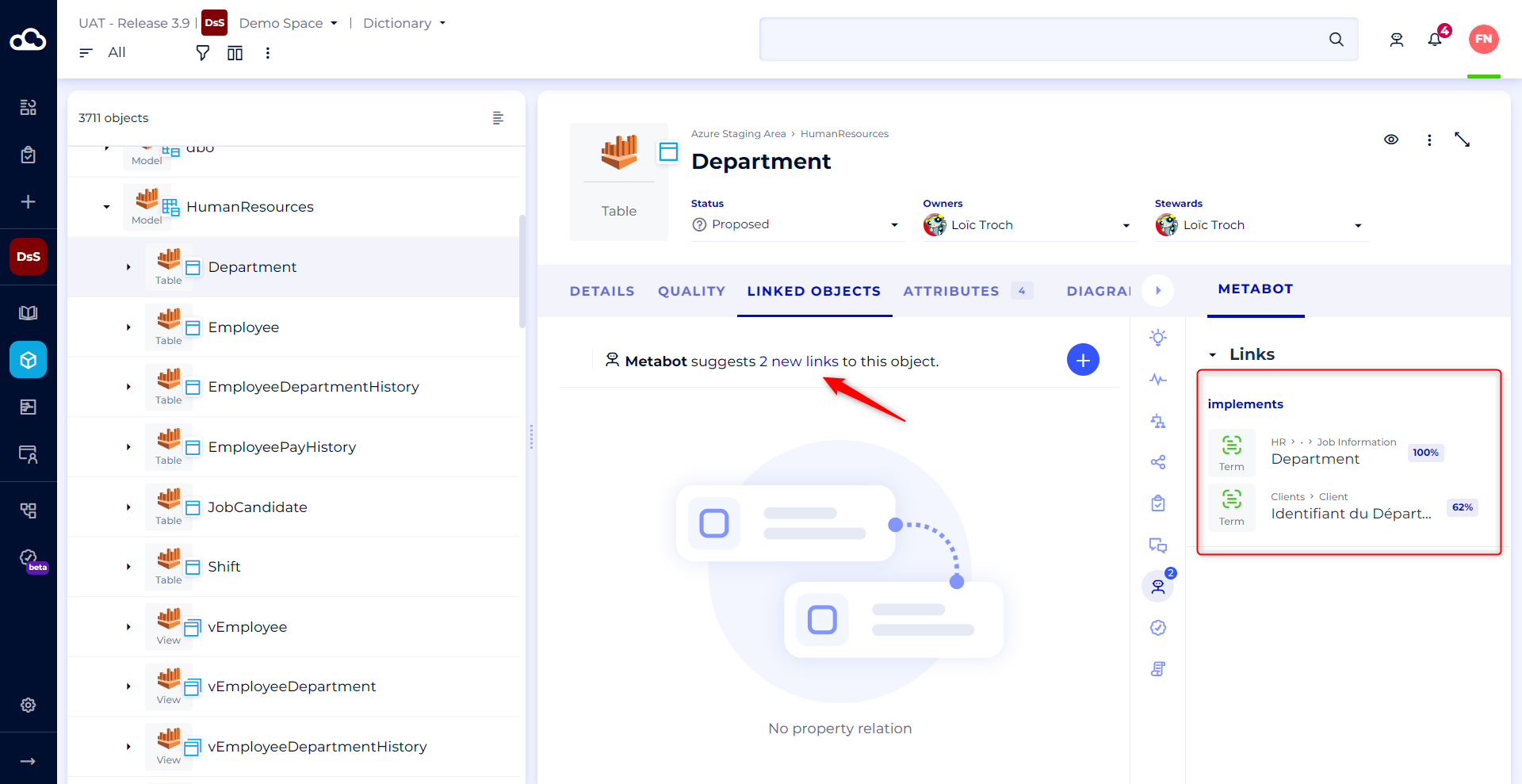 Vs Example of link suggestion display for a user who does not have access rights to the glossary :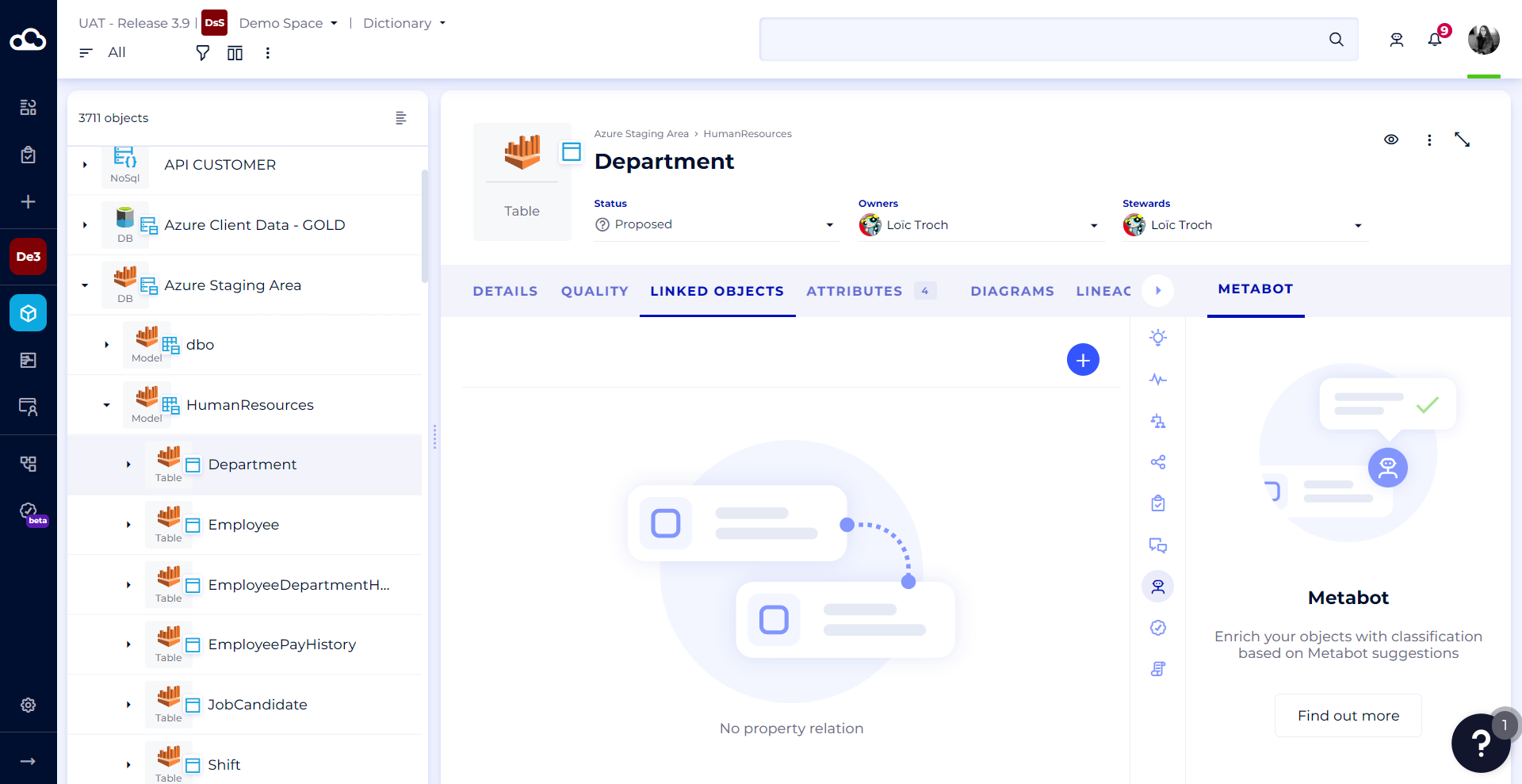
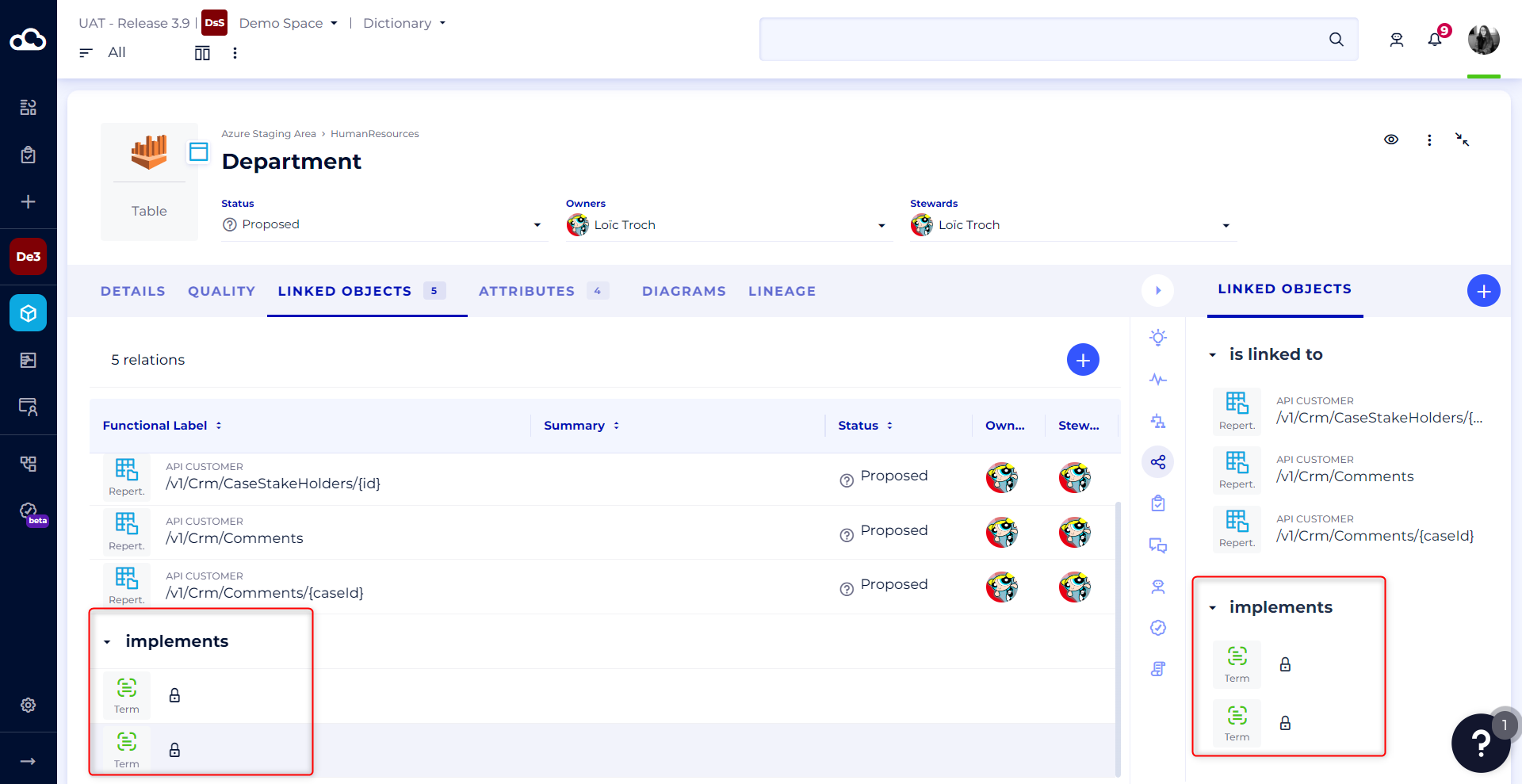
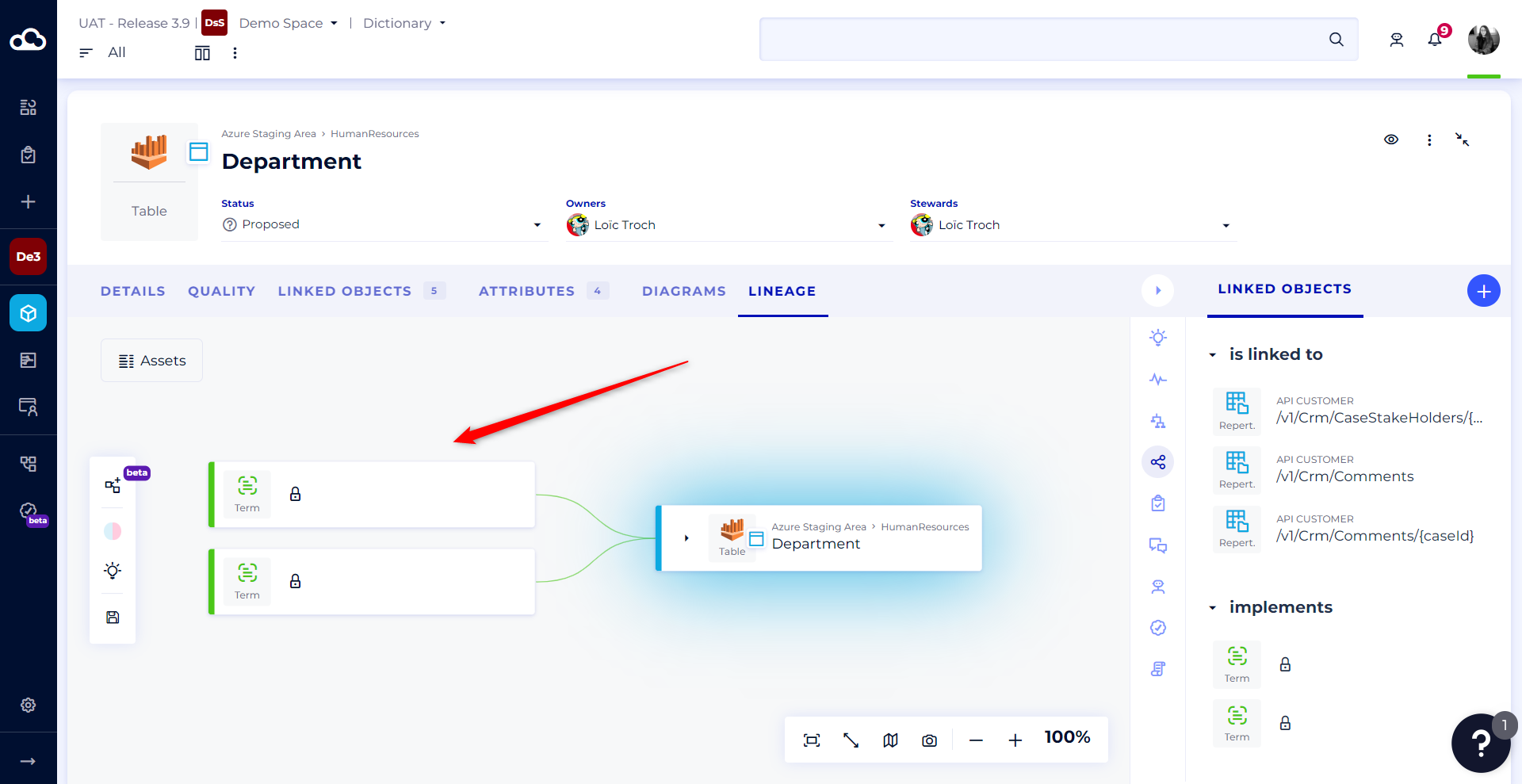
If a user doesn't have access to a module, but objects in that module are linked to objects in an accessible module, they will be shown the existence of the link. However, they will not be able to see the label of the linked object, nor display its preview. In addition, when the module is exported from the accessible module, non-accessible objects will not be included in the CSV files.
Example of the display of linked objects for a user who doesn't have access rights to the Glossary :
 Example of how the lineage is displayed for a user who doesn't have access rights to the glossary :
 Example of how a diagram is displayed for a user who does not have usage access rights :
 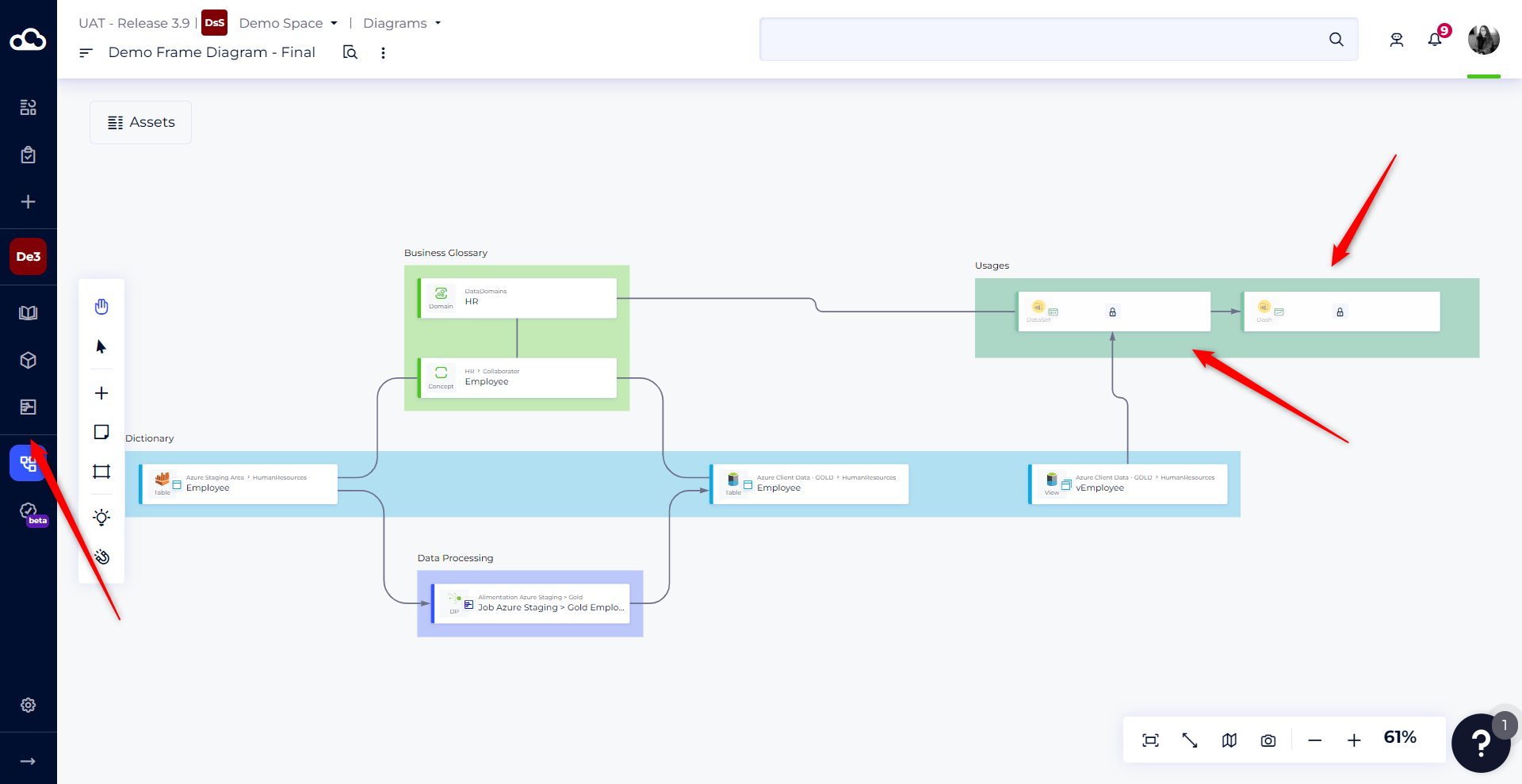 To summarise, on all the platform's screens, such as the Implementation tab, Dashboard & widgets, Tasks, Analytics, etc., users can never consult the object cards for objects that are not accessible, or see their labels displayed.