This article aims to explain the dashboard in DataGalaxy.
This concept being recent, it is likely to evolve in the next versions.
What is the DataGalaxy dashboard?
The dashboards in DataGalaxy is composed of customizable widgets that translate statistics on selected spaces and versions.
You can create as many dashboards as you want.
1 - Who can access the dashboards?
There are two types of dashboards:
- Private: Only the dashboard creator can read and modify it.
- Shared: All users can access the dashboard. But only the client space administrators can edit/delete all shared dashboards, even those created by other users.
2 - What are the different types of widgets?
Please read this article to understand the meaning of each of the widgets : [Basics] Widgets
3 - How to access it?
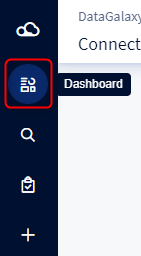
Click on the icon corresponding to the dashboard in the side navigation bar.
How do I create and edit dashboard properties?
Just click on the name of the dashboard to display the dashboard list panel.
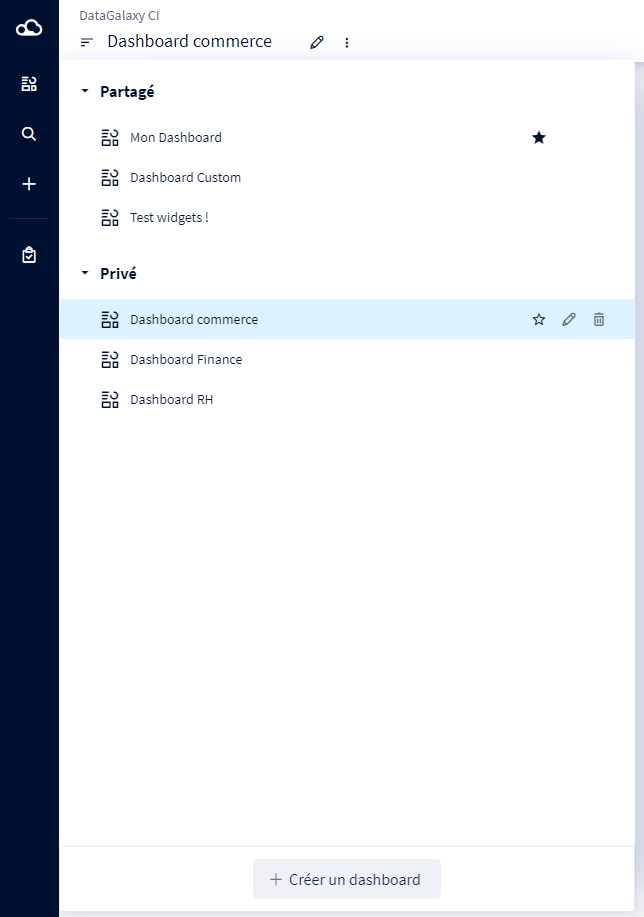
Dashboards are sorted according to their type: shared or private.
When you hover over the line of dashboards you have created, the following actions appear :
- Default dashboard: When you click on the dashboard icon in the side navigation bar, you will be automatically redirected to this dashboard.
- Edit: When you click on this button, a modal opens allowing to update the name, the description and the type of the dashboard.
- Delete: You will be asked for confirmation before performing this irreversible action.
The button at the bottom of the dashboard list panel allows you to create a new dashboard.
How do I edit the dashboard widgets?
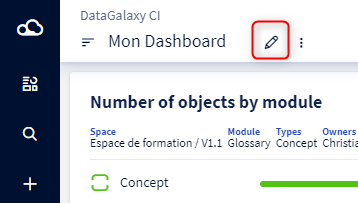
To edit a dashboard you have to click on the pencil to activate the edit mode.
1 - Add a widget
- Click on the icon to open the widget library
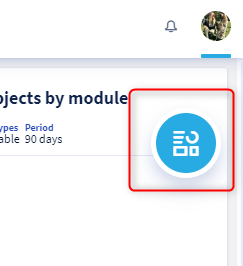
- Choose the type of widget you want to create
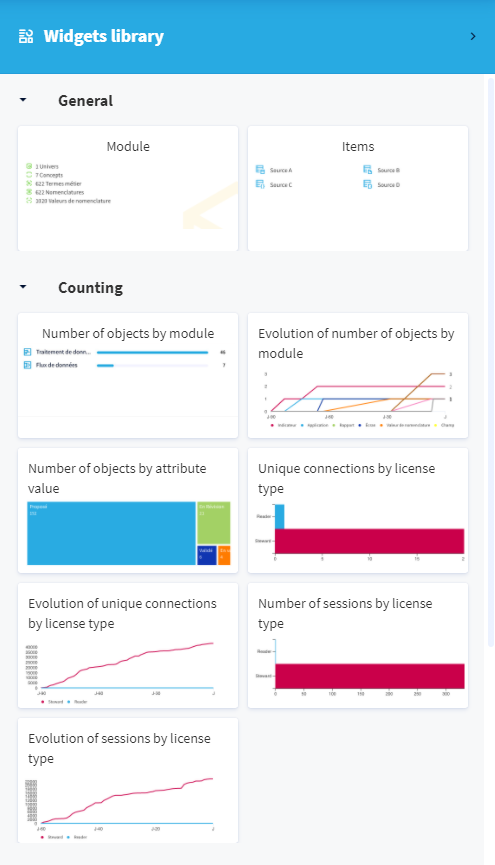
- A new section appears in your dashboard and the configuration panel opens automatically.
- Fill in all the fields then click on "Create".
2 - Edit a widget
- Click on the three small dots at the top right of the section
- Click on Configure
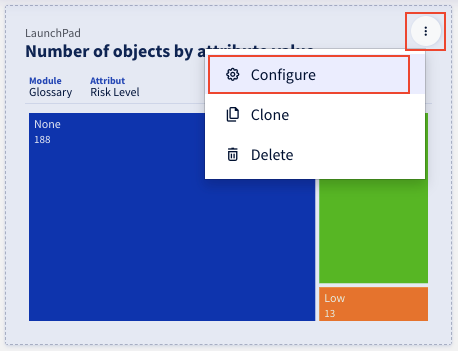
- Fill in all the fields then click on "Save".
3 - Cloning a widget
- Click on the three small dots at the top right of the section
- Click on Clone
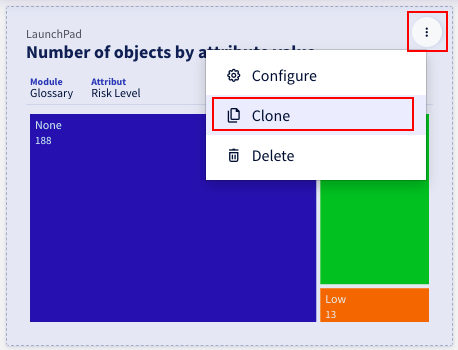
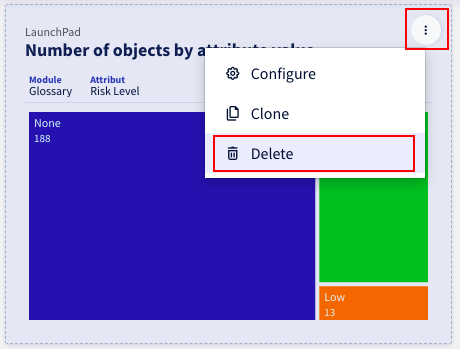
4 - Deleting a widget
- Click on the three small dots at the top right of the section
- Click on Clone
5 - Enlarge or move a widget
- To enlarge a widget, place your cursor on its ends and stretch with the arrow.
- To move a widget, place your cursor in the center of its section, then move your widget to the desired position while holding the click.
6 - Save a dashboard
After you have made all your changes, click this button to save the dashboard. 
7 - Undo changes
- To cancel the current changes and return to the previous version, click this button.

- To return to the DataGalaxy default configuration:
- Exit the edit mode
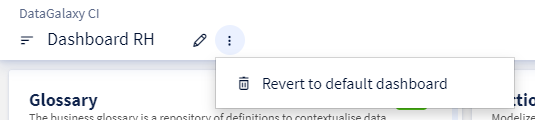
- Click on the three small dots
- Then on "Revert to default dashboard"