
This article aims to explain the different widgets available within dashboards.
To learn more about creating, editing and deleting widgets, please read this article: [How to] Manage the dashboards.
There are 3 categories of widgets :
- General: These are the historical DataGalaxy widgets that allow you to quickly view the content of your modules.
- Counting: These are the widgets that allow you to follow the count and the evolution of the number of objects in your modules.
- Activity: These are the widgets that allow you to track user activity in the clientspace.
- Quality: These widgets translate the quality of your catalog through the filling* and completeness* of your attributes and objects.
General
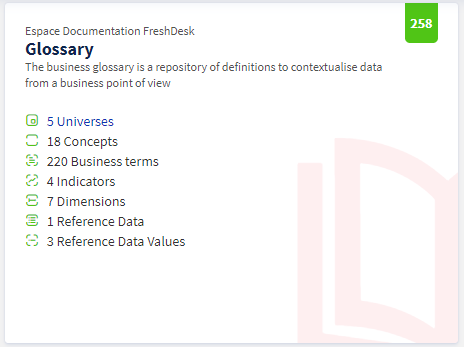
1 - Module
- Description: This widget allows you to list all the objects present in a module selected from Glossary | Dictionary | Data Processing | Uses of a selected space.
- Example: Enumeration of all the objects present in the Glossary of the Workspace version V1.
- Format of the representation: List
2 - Items
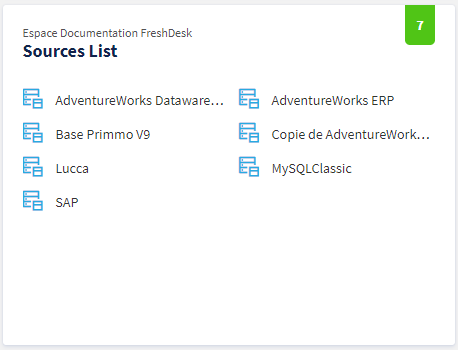
- Description: This widget allows you to list the data sources of the objects present in the Dictionary module of a chosen space.
- Example: Listing of all the data sources of the objects present in the Dictionary of the Workspace version V2.
- Format of the representation: List
Counting
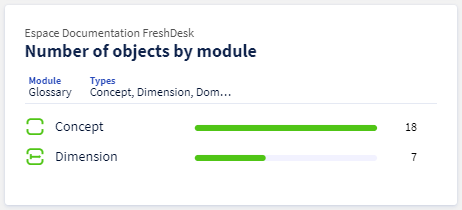
1 - Enumeration of objects by module
- Description: This widget allows to count the objects of a module in a chosen space with the possibility to filter on the Owner(s), the Steward(s) and one or more labels.
- Example: Enumeration of objects (business term, universe, concept) in the Glossary of the Workspace space, where the Owner is Owner, the Steward is Steward and the label is CRM or Marketing.
- Format of the representation: Bar Chart
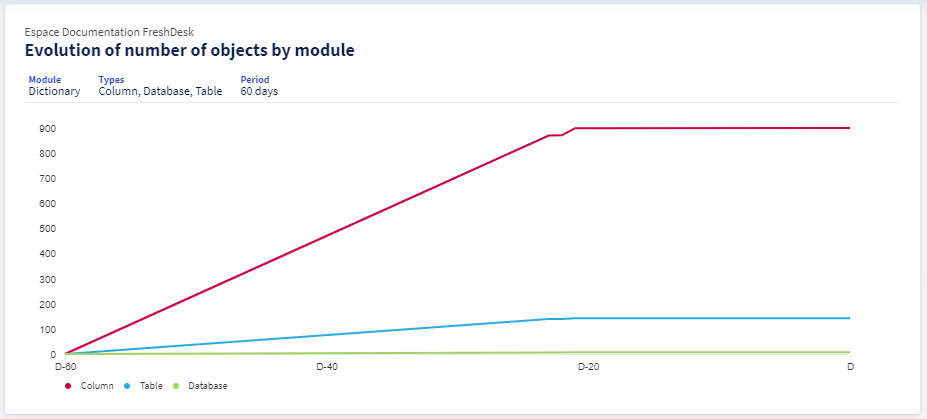
2 - Evolution of the number of objects per module
- Description: This widget allows you to follow the evolution of the number of objects of a module in a chosen space over a period of time among 30 days, 60 days or 90 days.
- Example: Evolution of the number of objects (indicator, group of indicators) in the Workspace Glossary over the last 60 days.
- Format of the representation: Curved diagram
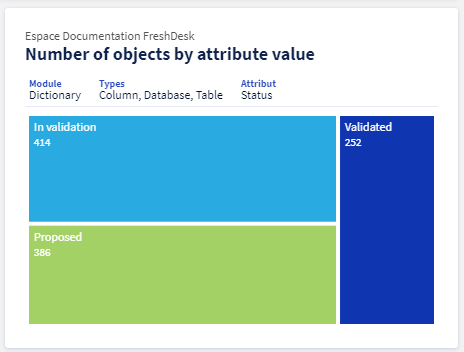
3 - Enumeration and distribution of objects
- Description: This widget allows you to count the objects of a module in a chosen space and to distribute them according to a distribution key among (Status | DCP Risk) with the possibility to filter on the Owner(s), Steward(s), status(s) and labels.
- Example: Enumeration and distribution of the objects (domain, dimension, indicator) in the Glossary of the Workspace space whose Owner is Owner and whose status is validated according to the DCP Risk distribution key.
- Representation format: Treemap
Activity
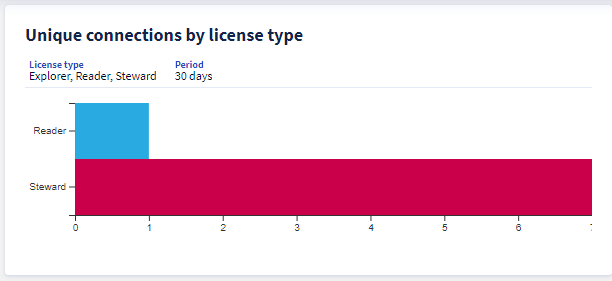
1 - Unique connections by type
- Description: This widget allows you to track the number of unique connections per license type. It is possible to choose one or more license types from Explorer | Reader | Steward as well as a filter on the analysis period from 1 day | 7 days | 30 days. (NB: The number of connections of day d are not taken into account, the calculation is made from d-1)
- Example: Number of unique connections from Stewards in the last 7 days.
- Format of the representation: Bar Chart
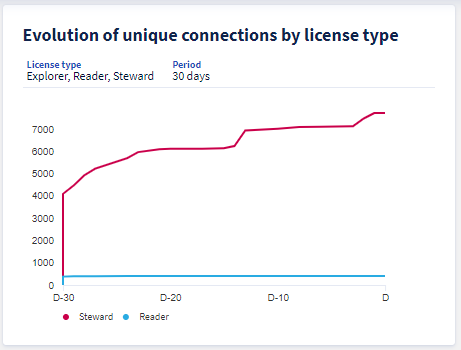
2 - Evolution of unique connections by license type
- Description: This widget allows you to track the evolution of the number of unique connections by license type among. It is possible to choose one or more license type among Explorer | Reader | Steward as well as a filter on the analysis period among 30 days | 60 days | 90 days. (NB: The number of connections of day d are not taken into account, the calculation is made from d-1)
- Example: Evolution of unique Explorer and Reader connections over the last 30 days.
- Format of the representation: Curved diagram
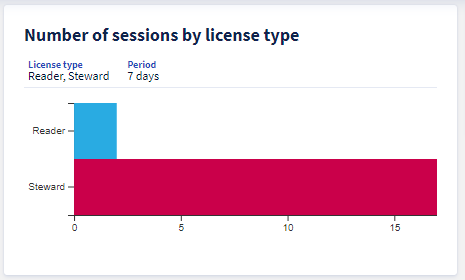
3 - Number of sessions per license type
- Description: This widget allows you to track the number of sessions per license type. It is possible to choose one or more license type from Explorer | Reader | Steward as well as a filter on the analysis period from 1 day | 7 days | 30 days. (NB: The number of connections of day d are not taken into account, the calculation is made from d-1)
- Example: Number of Explorer and Steward sessions in the last 30 days.
- Presentation format: Bar Chart
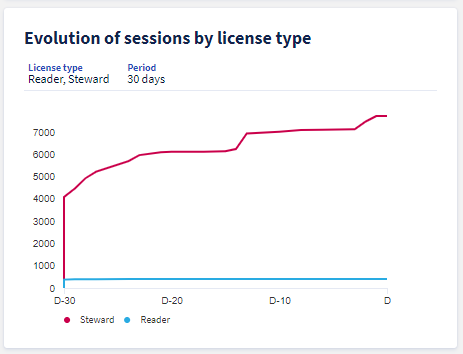
4 - Evolution of sessions by license type
- Description: This widget allows you to follow the evolution of the number of sessions per license type. It is possible to choose one or more license types from Explorer | Reader | Steward as well as a filter on the analysis period among 30 days | 60 days | 90 days. (NB: The number of connections on day d are not taken into account, the calculation is made from d-1)
- Example: Evolution of the number of Stewards' sessions over the last 90 days.
- Format of the representation: Curved diagram
Quality
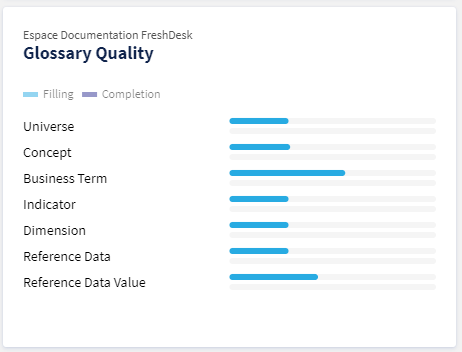
1 - Graph
- Description: This widget allows you to evaluate the quality of a module selected from Glossary | Data Processing | Uses of a selected space. The quality of a module is measured according to the fill rate of the objects.
- Example: Quality of the objects present in the Workspace Uses version V1.
- Format of the representation: Bar Chart
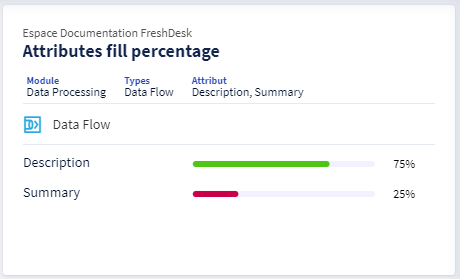
2 - Fill rate by attribute
- Description: This widget allows you to present the attribute fill rates (Summary | Description | Custom attribut Free Text) of a selected object in a module of a chosen space.
- Example: The fill rates of the Description and Summary attributes in the Data Flow and Data Processing objects in the Workspace Processing module.
- Format of the representation: Bar Chart 100%
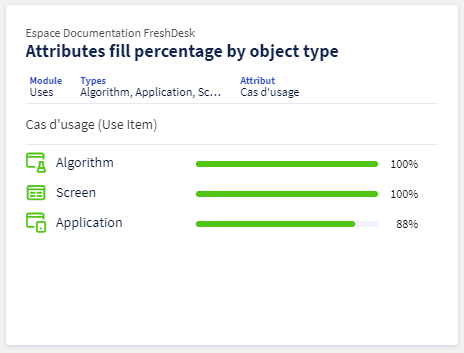
3 - Attribute fill rate by object type
- Description: This widget allows you to present the fill rates of an attribute chosen among (Summary | Description | Custom attribut Free Text) by type of object in a module of a chosen space.
- Example: The fill rate of the Description attribute in Report or Dashboard type objects in the Workspace Uses module.
- Format of the representation: Bar Chart 100%.
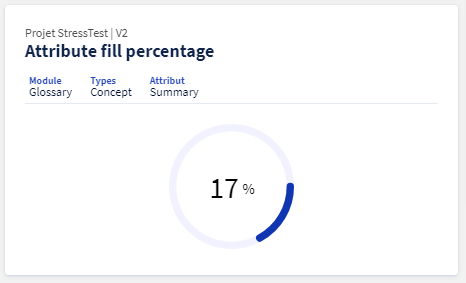
4 - Filling rate of an attribute
- Description: Presentation of the fill rate of an attribute selected from (Summary | Description | Custom attribut Free Text) in several objects at the module level of a selected space.
- Example: The fill rate (combined) of the Summary attribute in the Field, Column and Database in the Workspace Dictionary.
- Format of the representation: Doughnut 100%
* The meaning of the indicators present in the widgets can be found in this article: [How to] Indicators