This article explains how to import objects with the Online Connector.
For an introduction to the Online Connector, you can read this article.
This feature is available for workspaces administrator users from the following entry points:
- From the "Shortcuts" widget on the home screen of a client space or a workspace
- From one of the modules when it is empty
- From the contextual menu of one of the modules, on the right of the filtered views
- From the Connector tab available in the workspace settings screen
Import objects
Follow these steps in order to import objects from a connection :
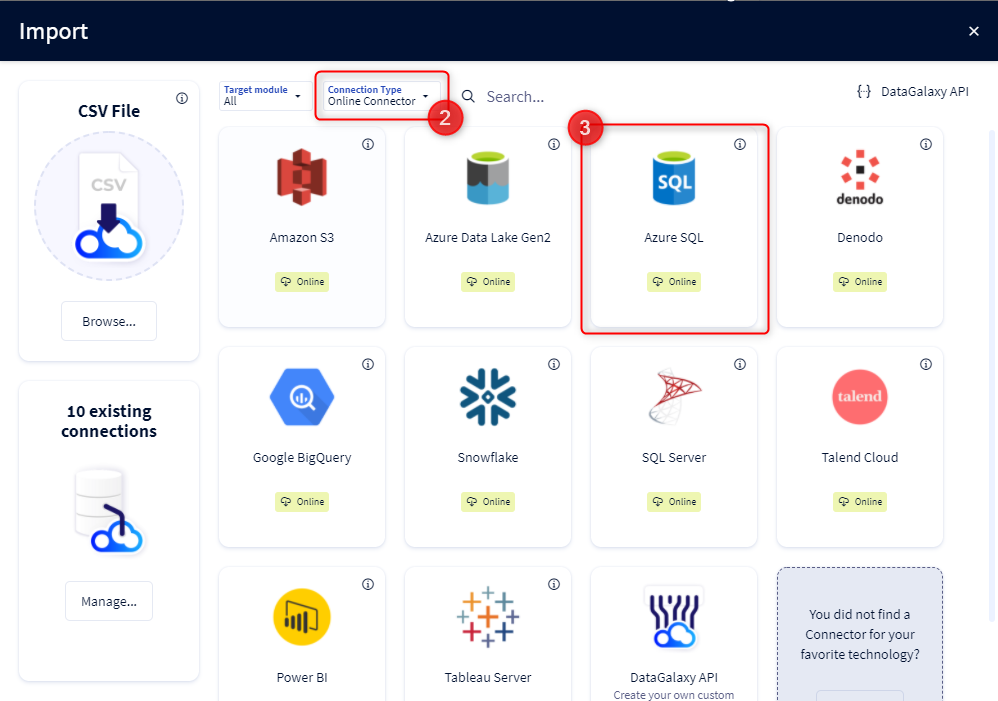
1. Click Import button from a workspace welcome screen
2. Filter on Online Connector for Connection Type
3. Click on the technology whose metadata you want to import
4. Fill in the name of the connection
5. Choose an integration token or your personal access token
6. Select a target source object (only when importing into the Dictionary module)
7. Then click on Set Connection to connect to the source system: 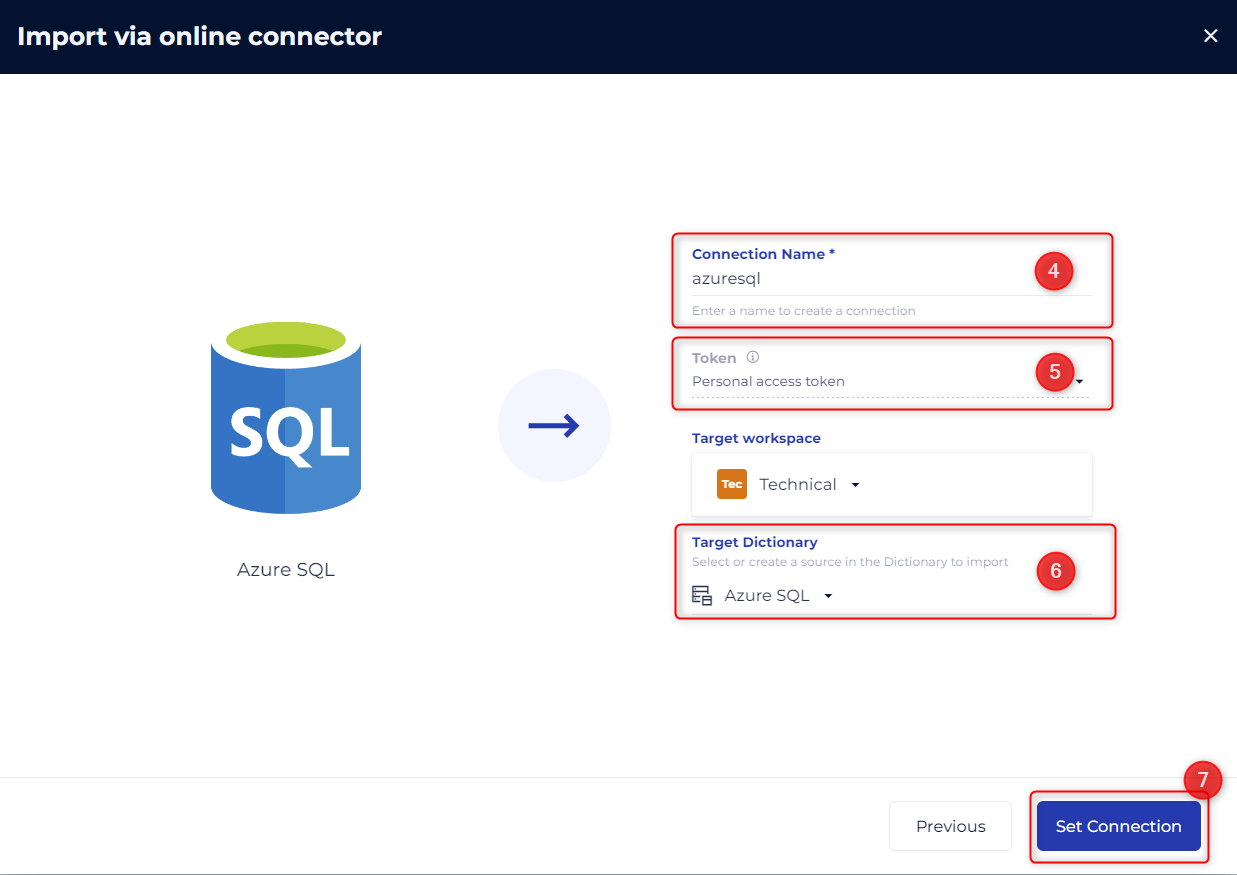
8. After entering all the information, test the connection (connection is saved automatically when testing the connection).
- If the test is successful, the Import button becomes active.
- If not, the test is failed, the Import button is inactive and the details of the error are available by clicking on Error detail :
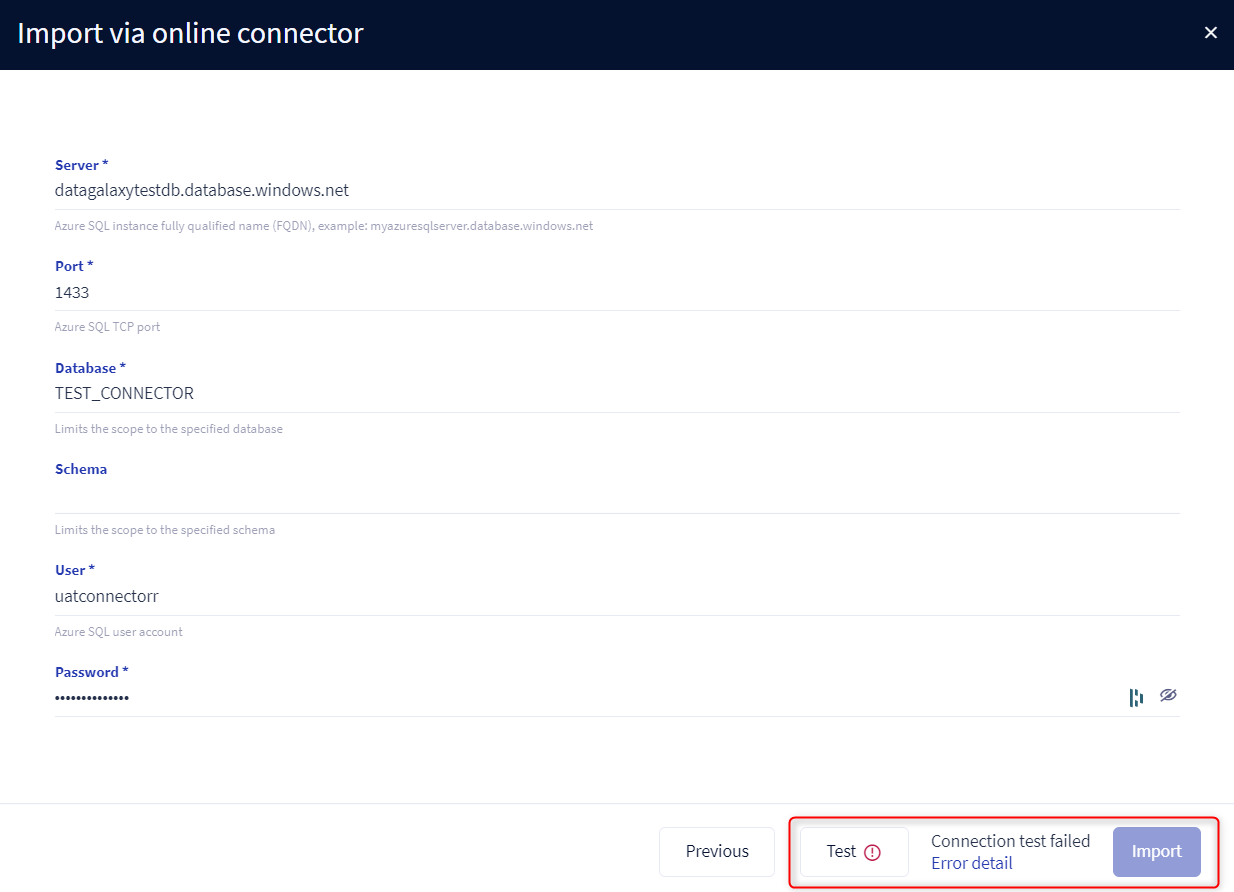
9. Click on Import to start importing data.
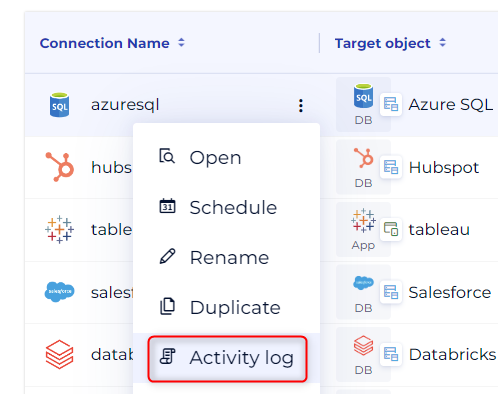
10. Access the runtime monitoring screen from the workspace settings > Connector tab : 
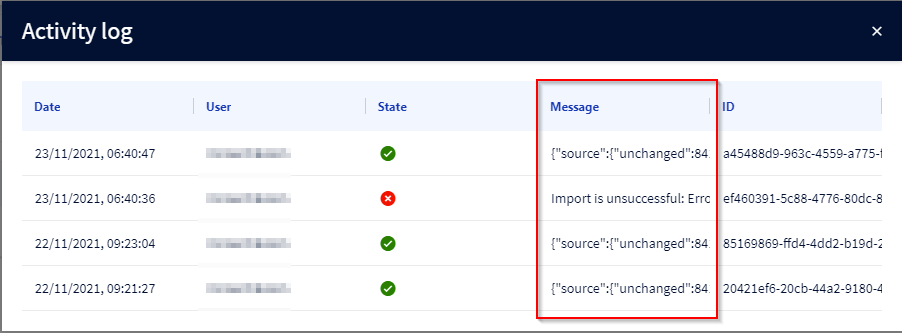
11. An execution log is available for every connection and contains a summary message of the result or the error if any:
Schedule an import
Following steps explain how to schedule an import using an existing connection
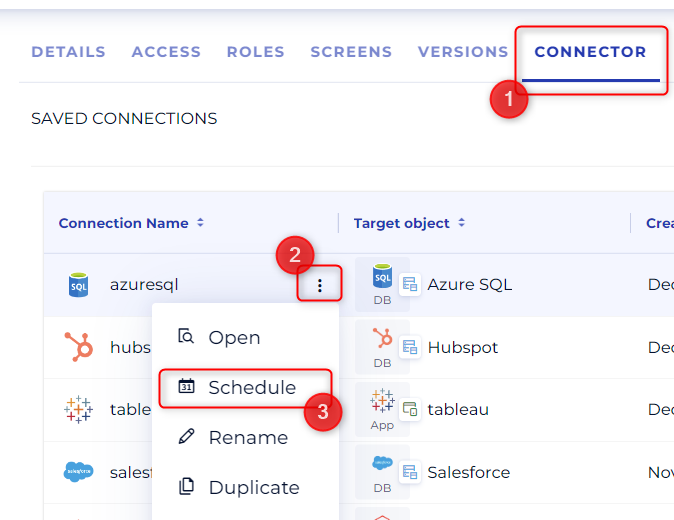
1. Access saved connections from workspace settings > Connector tab
2. Display action menu for the connection for which you want to schedule the metadata extraction
3. Click on Schedule:
4. Select the frequency and days of your schedule
5. Select the Timezone and enter import start time: 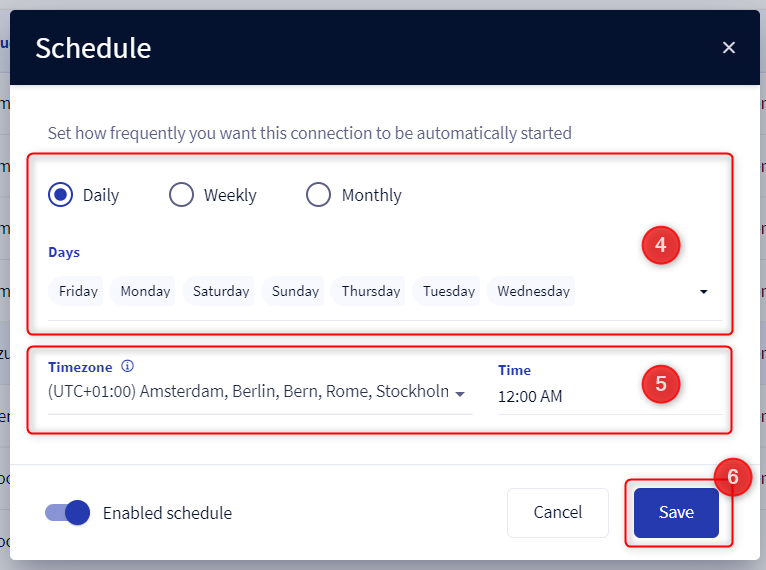
6. Click on Save to make the schedule effective.
To deactivate a schedule, disable the Enabled schedule option
7. After saving, the date and time of the next execution is filled in, converted in your local time zone:

8. Execution is done in the background, you will be able to check its status from the connection configuration screen.
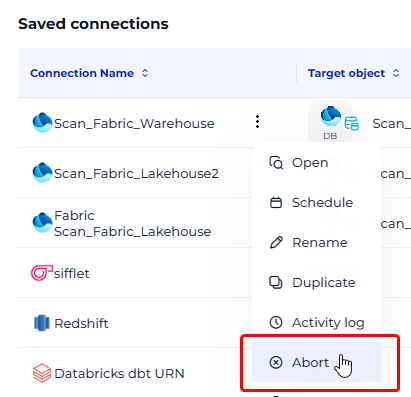
Abort a running connector
Select Abort in the connection's menu to abort the last running execution.