
The purpose of this article is to introduce you to the concept of tasks and comments that represent two central collaboration features in DataGalaxy.
The concept of tasks and comments is linked to the concept of objects, which is explained in this article. Indeed, comments and tasks are performed on objects.
The real-time collaborative aspect is a major feature of the DataGalaxy application. All users have the possibility to comment on the main objects via comments and tasks and thus notify the community.
Comments
Comments provide additional information about the objects and are visible to all users who have access to the workspace concerned by the object. Each comment is associated with an object, and all objects are concerned by the comments. It is possible to identify in the comment a user having access to the workspace concerned by the object by using the "@" in the comment entry, which will send them a notification. If you have the user teams defined, you can tag a
1 - Who can access the comments?
All users with authorized access to a workspace can create and view comments on the objects it contains.
It is possible to delete the comments that you have created.
2 - How to create a comment?
Access an object page or a preview of an object
- Go to the Object Tools
- Choose Comments
- Type your comment
- Tag users/user groups if necessary. Please, note: in this case users with enabled notifications will be notified
- Send the comment by pushing a button
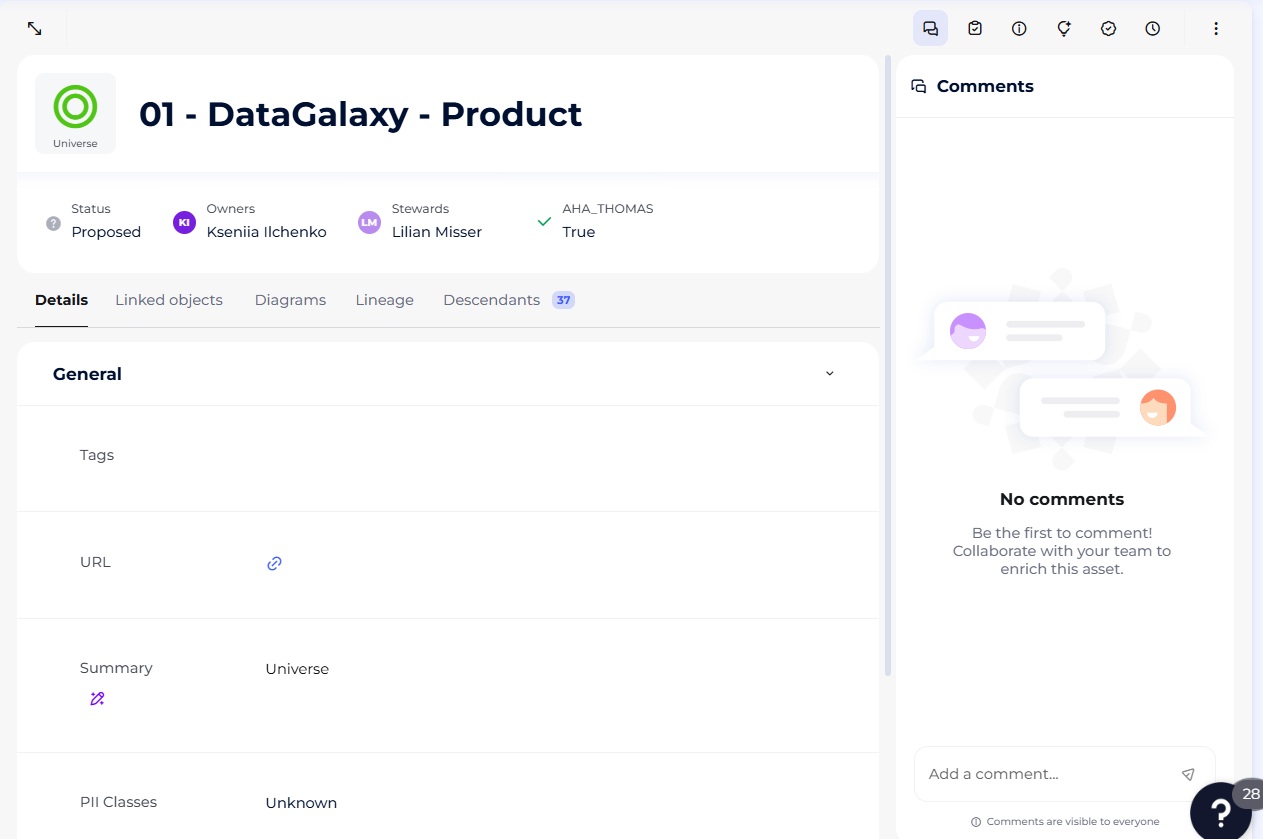
Please note, we do not allow to modify comments for avoiding any tracebility issues. Thus, for any modification, please delete and create the comment back.
3 - How to delete a comment?
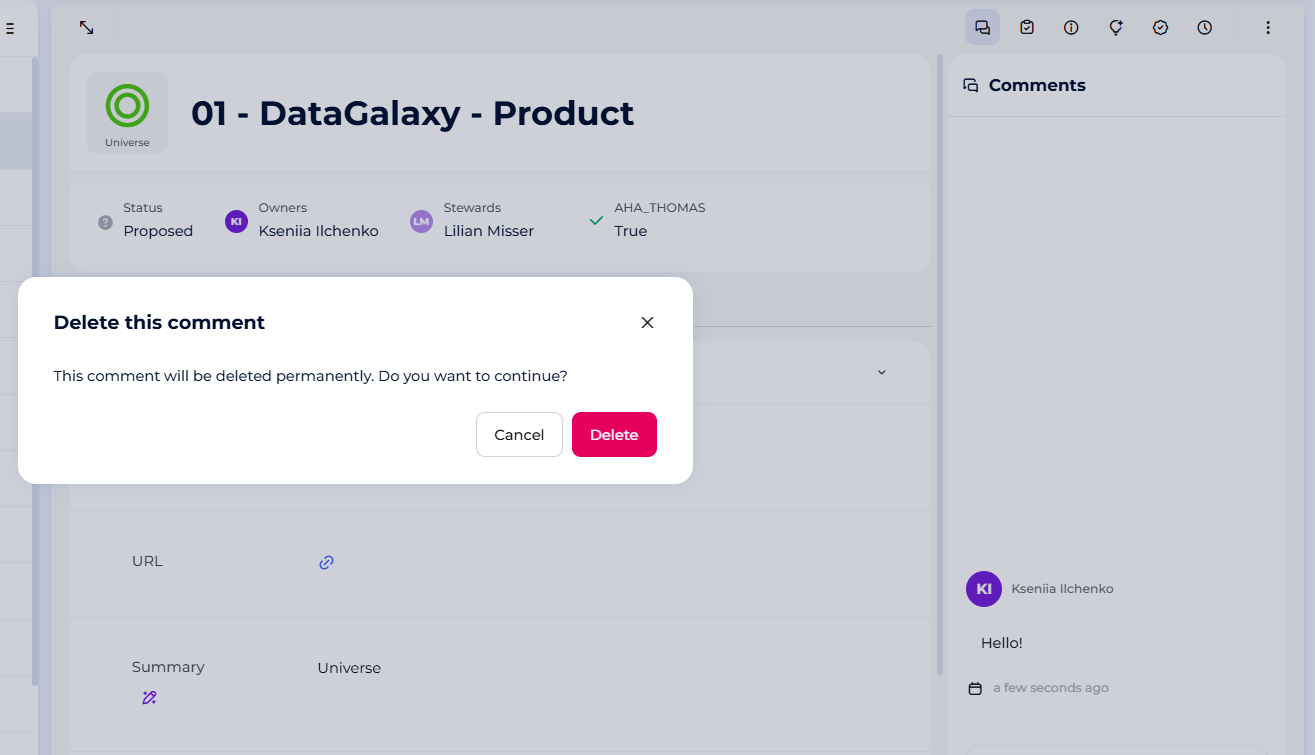
Follow the steps below to delete a comment:
- Go to an object
- Open the Comments section
- Click the bin icon that appears when you hover over the comment of your choice.
- A confirming deletion modal is opened
- Click on the "Delete" button to validate your choice to definitively delete the comment
The tasks
The tasks allow a user to request changes to objects and are visible to all users with access to the workspace concerned by the object. Each task is associated with an object, and all objects are concerned by the tasks.
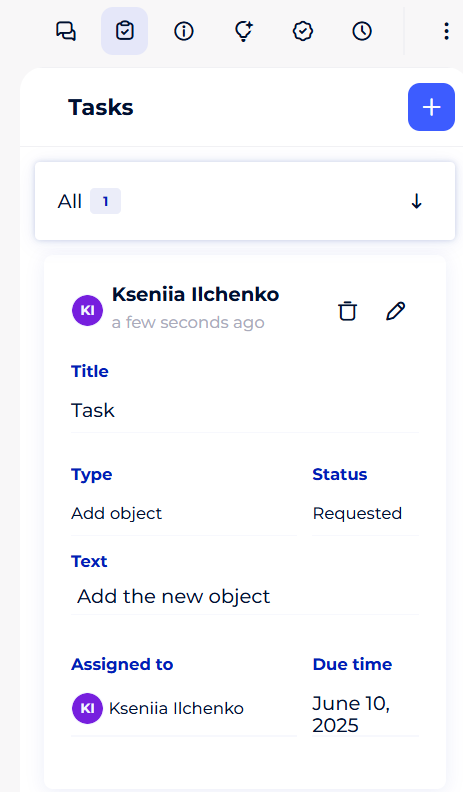
Each task is composed of:
- A title
- An assigned person in charge (this can be any user with a steward licence, and access to the workspace associated with the object concerned by the task)
- A type among: (this field is not mandatory)
- Add object
- Update an attribute
- Update contact
- Move an object
- Grant new access
- Validate a change
- Update description
- Duplicate issue
- Question
- A due date (this field is not mandatory)
- A text: It is possible to identify in the text of a task a user having access to the workspace concerned by the object by using the "@" which will send him a notification.
- A status allowing a precise follow-up
- Requested
- In progress
- Executed
- Refused
- An answer
1 - Who can access the tasks?
All users with authorized access to a workspace can create tasks. Vieving and additing the tasks is possible for task creators or assignees.
2 - How to create a task?
There are several ways to create tasks:
Via the Object Tools
- Access an object
- Open the docking panel on the right side of the object card
- Go to the tasks section
- Click on the "+" button in the top right corner of the panel.
- The task creation modal opens up
- Fill in the required fields
- Click on the "Create" button to publish your task
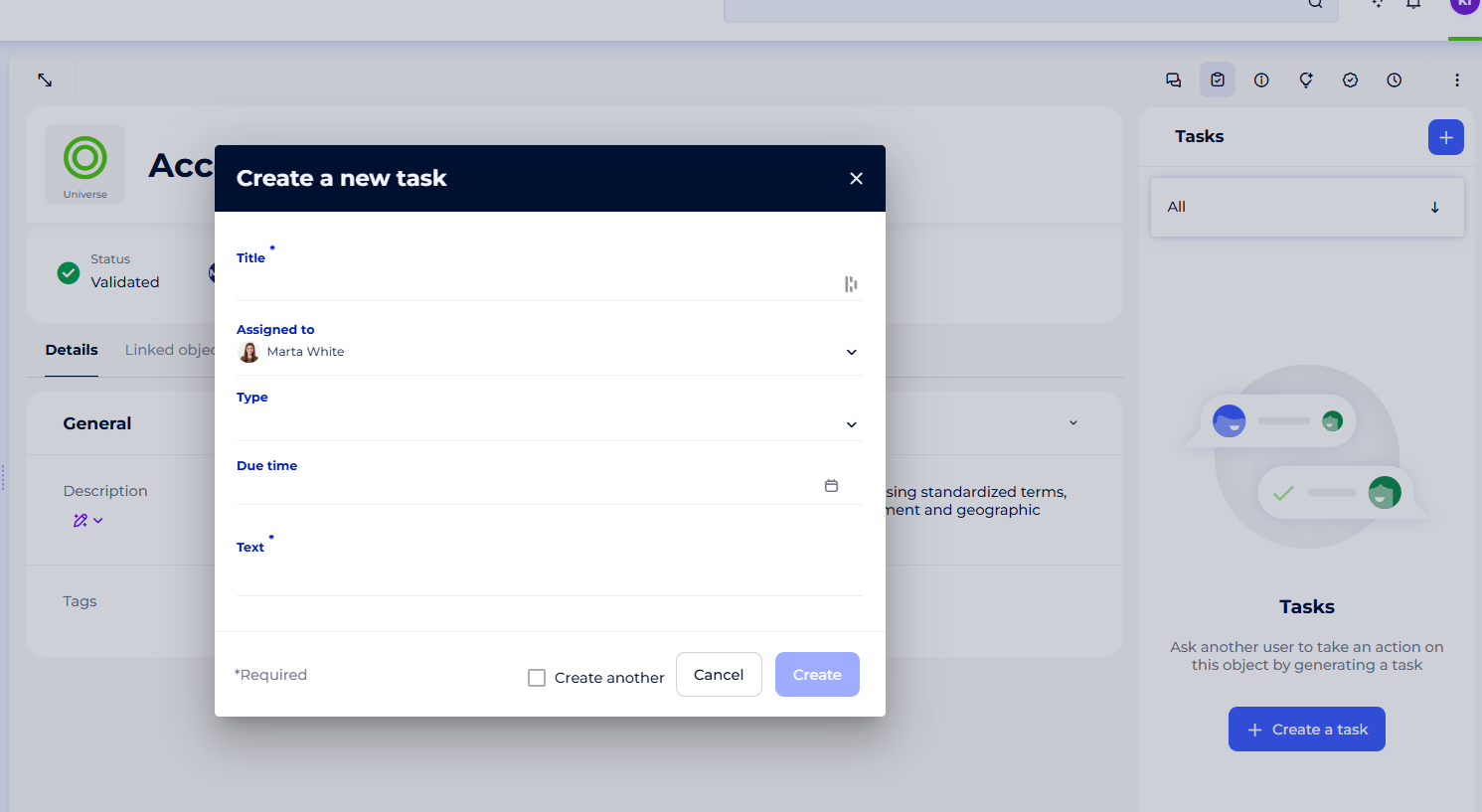
By default, a task is always created with the status "requested" and is assigned to the first owner of the object.
3 - How to modify a task?
Follow the steps below to modify a task:
- Go to an object
- Open the utility panel of the object at the right top corner
- Go to the tasks section
- Click the pencil icon that appears when you hover over a task of your choice.
- Modify the fields of your choice
- You can change status according to the following logic :
- Requested --> In progress
- Requested --> Executed
- Requested --> Refused
- In progress --> Executed
- In progress --> Refused
- You can change status according to the following logic :
- Click on the "Validate" button to save the changes
4 - How to delete a task?
Follow the steps below to delete a task:
- Go to an object
- Open the utility panel of the object at the right top corner
- Go to the tasks section
- Click the trashcan icon that appears when you hover over the task of your choice.
- A confirming deletion modal is opened
- Click on the "Delete" button to validate your choice to definitively delete the tas
5 - How to visualize the tasks?
There are 3 ways to visualize the tasks:
- Via the utility panel when you are on the card of an object
- Via the preview panel
- Via the tasks basket. This section is accessible from the side navigation bar and allows you to gather all the tasks of a selected workspace and version, of which you are the creator or the assigned manager, in a table