
You can contact our support at any time for several purposes:
- To ask us a question: when you have a doubt about the use of a functionality
- To report a problem: when you have a functional problem with the use of a feature
- For all evolution requests: please contact your DataGalaxy Account Manager
It is possible to create a question or incident ticket from the DataGAlaxy application or from the knowledge base portal.
Create a ticket from the application
To do this, you just have to:
1 - Click on your profile picture located at the top right of your screen
2 - Click on "support"
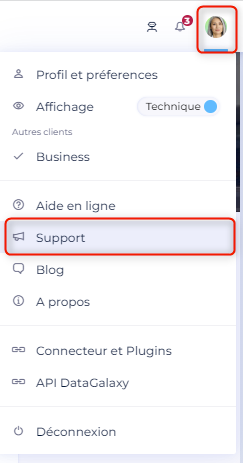
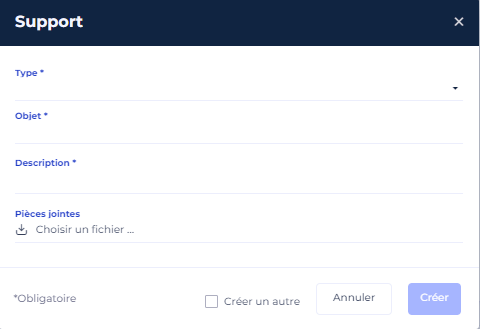
3 - Select the type of your message.
4 - Describe your message as precisely as possible.
5 - Import attachments to illustrate your message if possible.
6 - Click on "submit".
Create a ticket from the portal
- Log on to https://datagalaxy.freshdesk.com
- Click on "submit a ticket"

Capture and export a HAR file
When something goes wrong we may ask you to provide a HAR file to help us diagnose the problem. This file captures a web browser’s interaction with a site and may provide insight into where and why a specific request is failing.
HAR files may contain sensitive data as they include any pages you visited and associated cookies whilst recording. Depending on what has been recorded, this may allow someone with your HAR file to impersonate accounts or any other personal information submitted during recording.
Chrome
- Press F12 to open developer tools.
- Click the Network tab in the panel after it loads.
- Click the Record (round gray button) in the upper left of the tab, it should turn red to indicate the session is being recorded.
- Check the Preserve log box.
- Click the Clear button (circle with a slash through it) to remove any existing network recordings in the current session.
- Follow the same steps you did initially to reproduce the issue or unexpected behavior.
- Once you have completed the reproduction steps, click Download.
- Save the file to your computer, selecting Save as HAR with Content.
Firefox
- Press F12 to open developer tools.
- Click the Network tab in the panel after it loads.
- Click the Clear button (trash bin in upper left) to remove any undesired existing network recording in the current session. Recording should start automatically.
- Follow the same steps you did initially to reproduce the issue or unexpected behavior.
- Right click anywhere under the File column and select Save all as HAR, saving the file to your computer.
Edge
- Press F12 to open developer tools.
- Click the Network tab in the panel after it loads. Recording should start automatically.
- Follow the same steps you did initially to reproduce the issue or unexpected behavior.
- Click Export HAR (down arrow in upper right), saving the file to your computer.