
Authentication
Our API uses token-based authentication. Every request must contain an Authorization header containing an access token.
Use either a DataGalaxy integration token or a personal access token as your API calls' token. For this example, we will create an integration token. An integration token is scoped to the entire DataGalaxy environment and does not depend on individual user access rights.
Creating an integration token
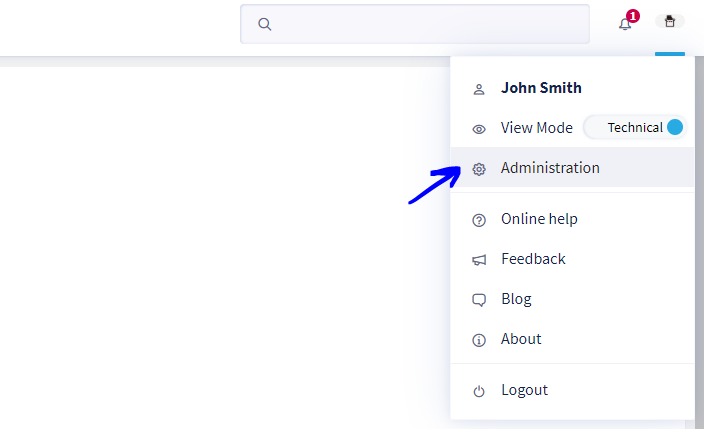
First, sign into your DataGalaxy instance as a client space administrator. Next, navigate to your administration page by clicking on your profile menu at the top-right corner of the page then clicking on the "Administration" link.
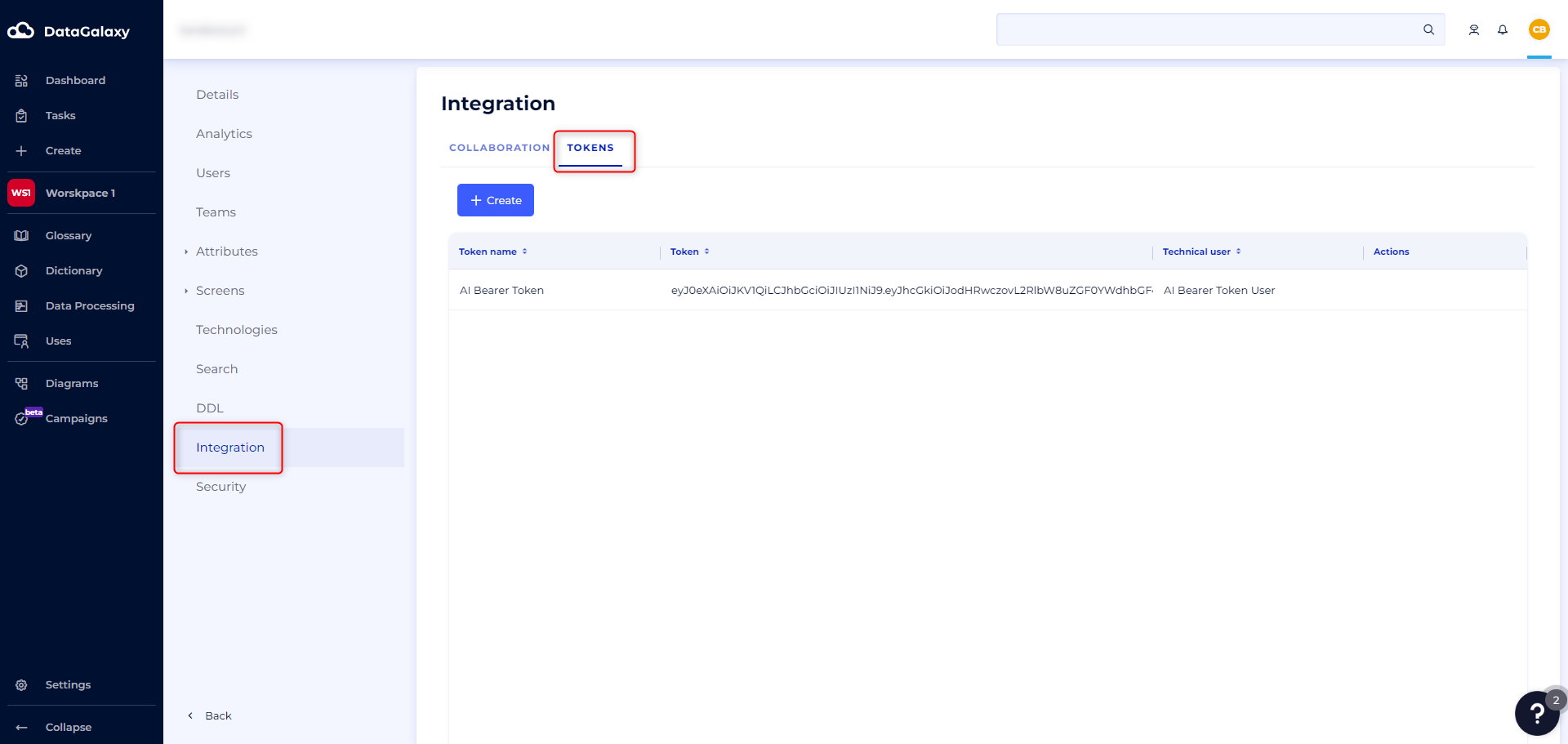
Next, click the "Integration" link in the second menu on the left then click the "Tokens" tab. On this page you can manage existing integration tokens or create a new one.
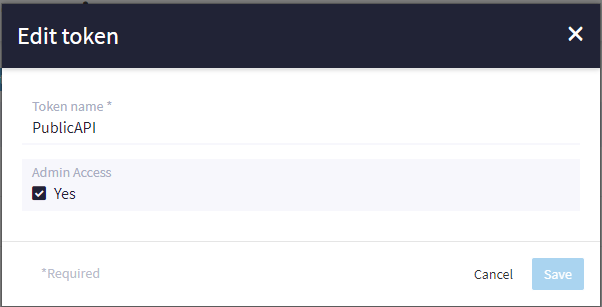
Click the "+ Create" button to open a modal to create a new integration token. Enter a descriptive name to help identify it later. If you plan to use the API to create users, update users, or update licenses then select the "Admin Access" option. Click the "Save" button to create the integration token. Use the token's value in your API calls' Authorization header.
The API base URL
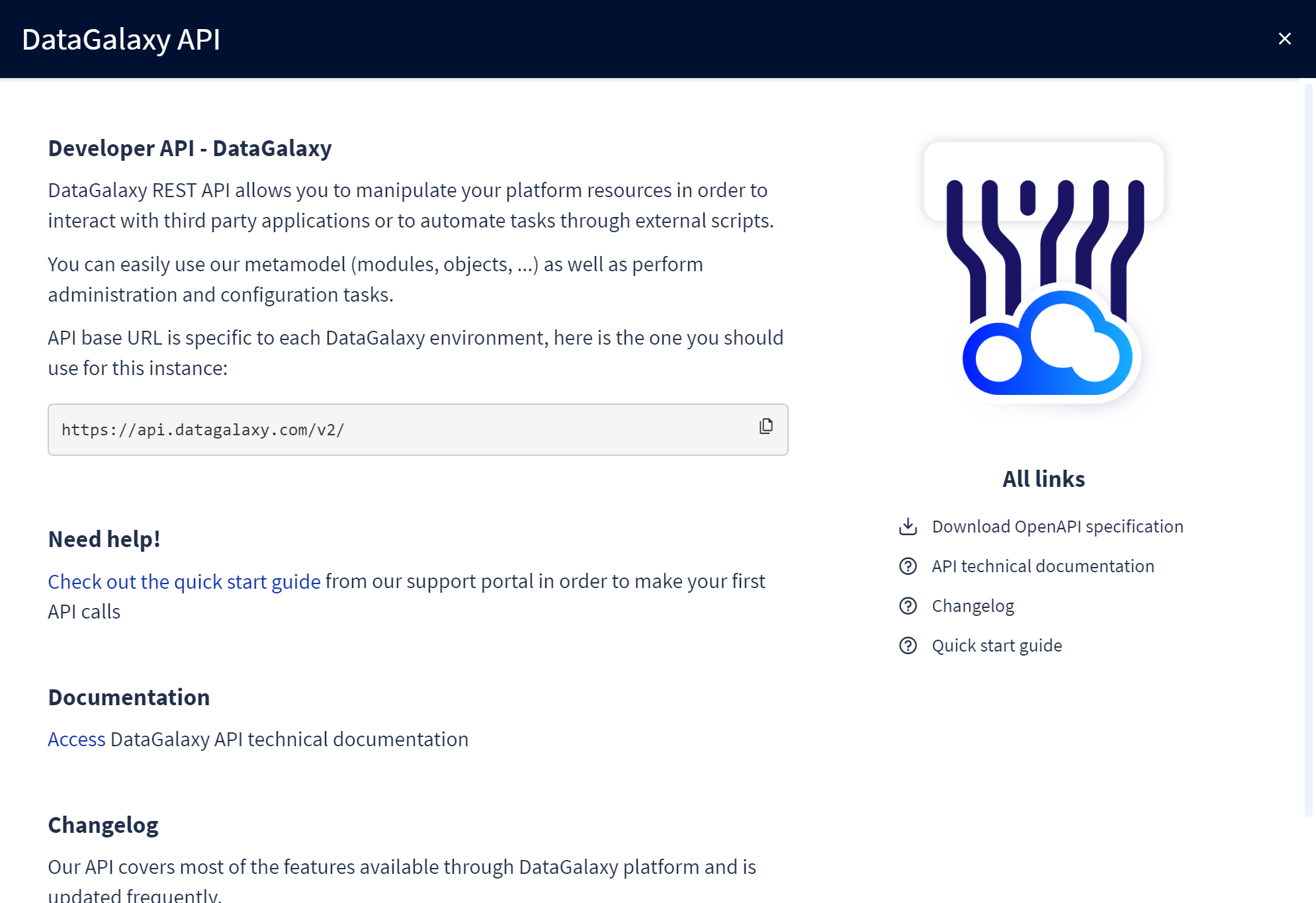
Every DataGalaxy environment has an associated API base URL. The base URL is the host name and base path of your API calls' request URLs. Find your environment's base URL at the DataGalaxy API page in the portal.
Click on your profile menu at the top-right corner of the page then click the "DataGalaxy API" link to load a modal that has more information about the DataGalaxy API. Note the API base URL near the center of this modal.
Example: Creating a source object
With an access token you are now able to manage your DataGalaxy entities. The following example goes through the workflow to create a source object in your default workspace. A source object has a number of dependencies, and those dependencies can be retrieved via the DataGalaxy API.
Our workflow has the following steps:
- Call the GET /v2/workspaces route to retrieve your workspace and workspace version IDs
- Call the GET /v2/users route to retrieve your owner and steward users' email addresses
- Call the GET /v2/tags route to retrieve valid tags to assign to the new source object
- Call the POST /v2/sources route to create the source object
Please note the following code samples use the curl command line HTTP utility. API responses here are formatted for readability, but live API responses are a single line of JSON content.
Step 1: get workspaces
All DataGalaxy objects are associated with a workspace. Begin by retrieving your workspaces. Workspace and workspace version IDs are UUIDv4 formatted strings.
$ curl --header 'Authorization: Bearer <access token>' \
  'https://<API base URL>/workspaces'

{
  "organizations": [],
  "projects": [
    {
      "defaultVersionName": "v1",
      "defaultVersionId": "<version ID>",
      "isVersioningEnabled": true,
      "description": null,
      "canCreateEntities": true,
      "id": "<workspace ID>",
      "name": "My Workspace",
      "parentId": null
    }
  ]
}
Note the version ID in the response. Use this ID in the URL path in your next requests to target that workspace version.
Step 2: get users
$ curl --header 'Authorization: Bearer <access token>' \
  'https://<API base URL>/users/<version ID>?module=catalog'

{
  "pages": 1,
  "total": 17,
  "results": [
    {
      "userId": "<user ID>",
      "licenseLevel": "Admin",
      "firstName": "John",
      "lastName": "Doe",
      "email": "john.doe@example.com",
      "licenseId": <license ID>,
      "title": null,
      "service": null,
      "role": null
    },
    {
      "userId": "<another user ID>",
      "licenseLevel": "Steward",
      "firstName": "Jane",
      "lastName": "Doe",
      "email": "jane.doe@example.com",
      "licenseId": <another user ID>,
      "title": null,
      "service": null,
      "role": null
    },
    ...
  ]
}
Note the email addresses of your data owner and data steward users. In this instance these addresses are "john.doe@example.com" and "jane.doe@example.com".
Step 3: get tags
$ curl --header 'Authorization: Bearer <access token>' \
  'https://<API base URL>/tags'

{
  "pages": 1,
  "total": 6,
  "results": [
    {
      "name": "GDPR",
      "description": "Data covered by the General Data Protection Regulation"
    },
    {
      "name": "CRM"
    },
    {
      "name": "Marketing"
    },
    ...
  ]
}
Note the names of the tags in the response. For this example we'll assign the "GDPR" tag to the source object.Step 4: create the source
Now you've got everything you need to create a source object. A source has the following properties:
- name: (required) The object's name
- type: (required) The object's type. Source object types can be one of the values "Relational", "NonRelational", "NoSql", or "TagBase"
- status: The object's status, one of the values "Proposed", "InRevision", "Validated", "InValidation", or "Obsolete"
- owners: A list of the email addresses of this object's owners
- stewards: A list of the email addresses of this object's stewards
- tags: A list of tag names to apply to the object. Tags can help categorize the object and make it more searchable
- summary: A brief description of the object
- description: A detailed description of the object
- upsert: (boolean) If true then update an existing object with the same technical name instead of creating a new object
- technicalName: A unique name to identify the object for automated systems
In this example we'll set the required name and type fields along with the new object's tags, owner users, and steward users. The source object looks like the following when expressed as JSON:
{
  "name": "My NoSQL source",
  "type": "NoSql",
  "tags": ["GDPR"],
  "owners": ["john.doe@example.com"],
  "stewards": ["jane.doe@example.com"]
}
Use this JSON object in the body of the next API request to create a source. If successful, then the API returns the source's ID as a UUIDv4 formatted string and a URL path that it can be accessed at in future API calls.
Note that this API call also sends a Content-Type request header. Some create and edit operations accept varying input formats. The "Content-Type: application/json" header instructs the API to parse the input as JSON.
$ curl --request POST \
  --header 'Authorization: Bearer <access token>' \
  --header 'Content-Type: application/json' \
  --data '{
  "name": "My NoSQL source",
  "type": "NoSql",
  "tags": ["GDPR"],
  "owners": ["john.doe@example.com"],
  "stewards": ["jane.doe@example.com"]
}' \
  'https://<API base URL>/sources/<version ID>'

{
  "id": "<new source ID>",
  "location": "sources/<version ID>/<new source ID>"
}
There, you have successfully created a new source!
Further steps
The DataGalaxy API gives near full control over everything in your environment. Explore our API documentation to see what's possible.