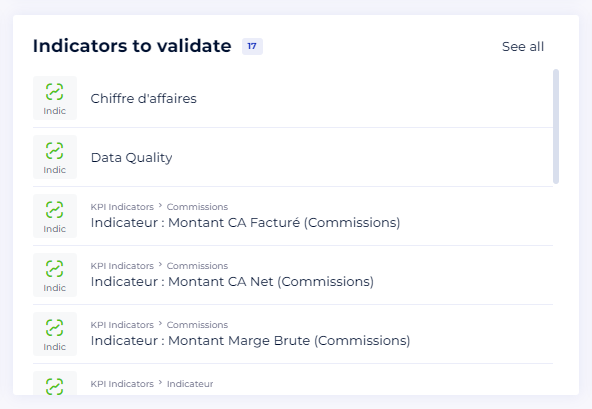
The purpose of this article is to present the content of the home page.
The objective of the home page is to allow users to access knowledge quickly by gathering the search bar and shortcuts to the catalog.
As the home page can be customized by workspace administrators, its content may vary according to the modifications made.
Access
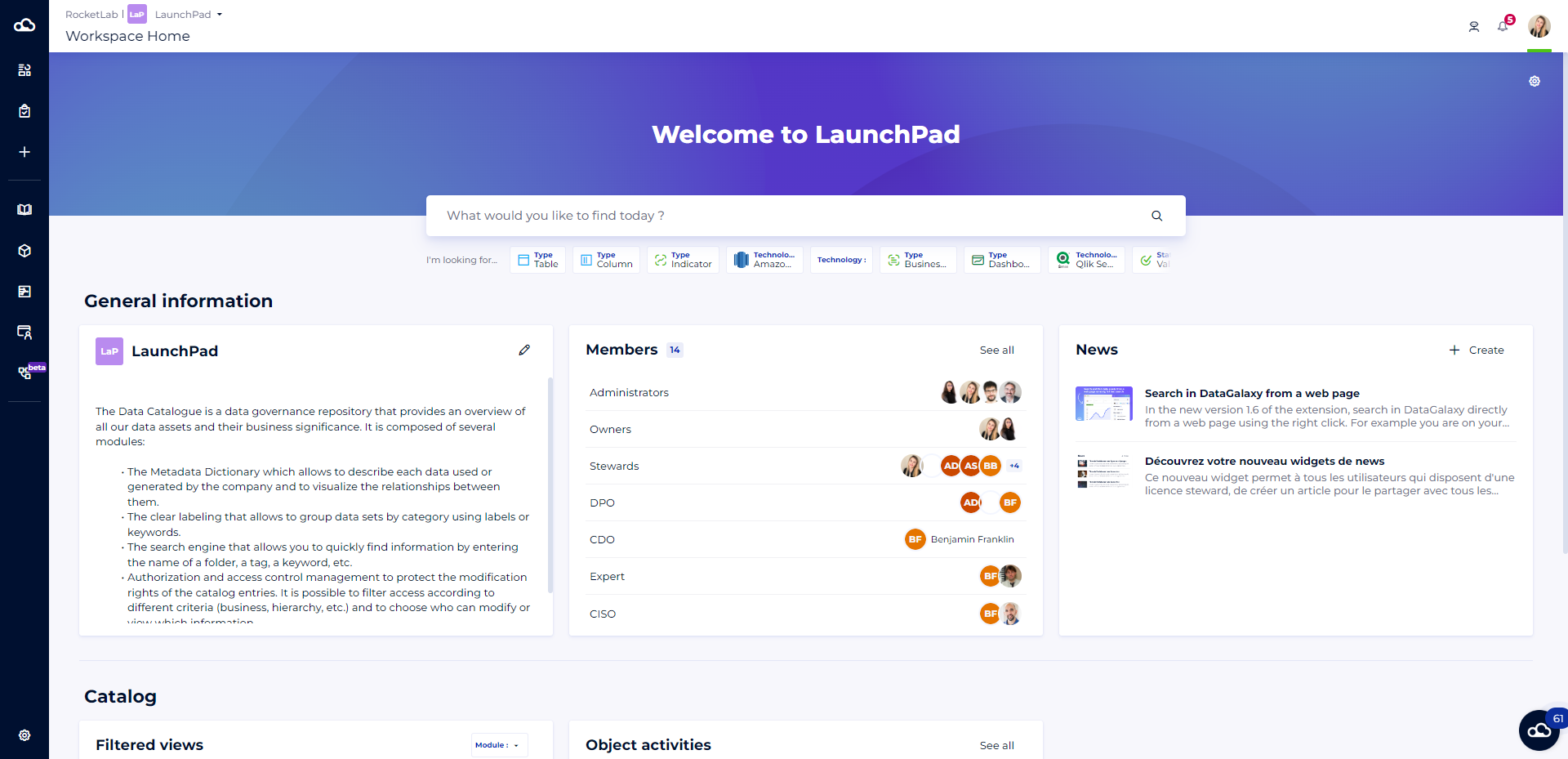
To access the home page of the current workspace, click on the cloud in the upper left-hand corner of the side menu.
If you are a multi-workspace client, navigation between workspaces is done from the breadcrumb trail at the top left of your screen. By clicking on a workspace in the list, you will be automatically redirected to its home page.
The search bar
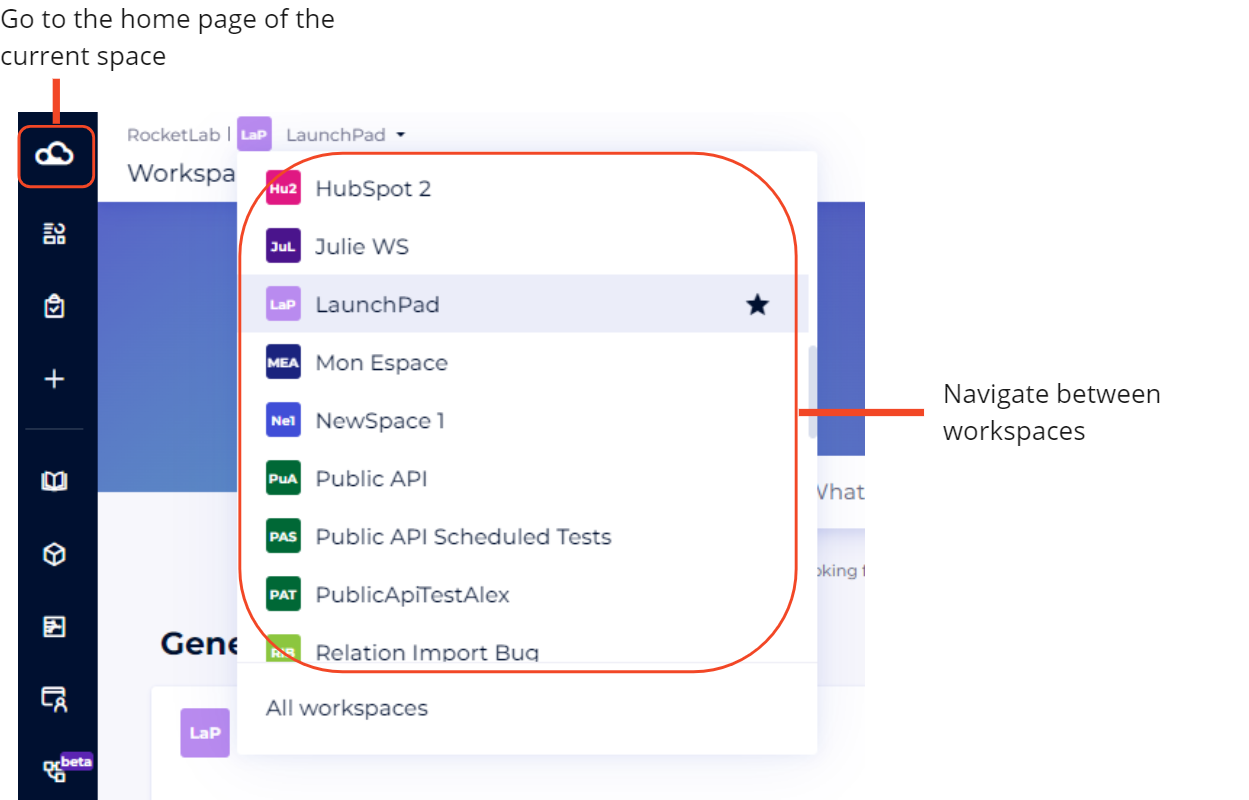
From the home page of a workspace, you can launch a search by entering keywords or by using the quick filters. To know everything about the use of the search bar, read this article: Using the search engine
The widgets
Here is the list of widgets available.
Depending on the settings made by your workspace administrators, some widgets may not appear on your home page.
1 - "Description" widget
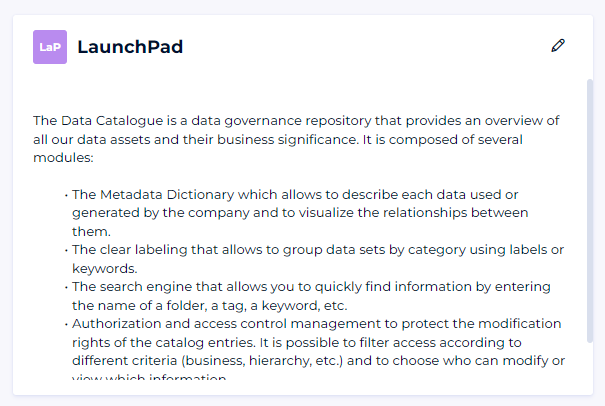
This widget displays the workspace description that is set by the workspace administrators.
To know how to edit this description, please read this article: Customize the home page
2 - "Members" widget
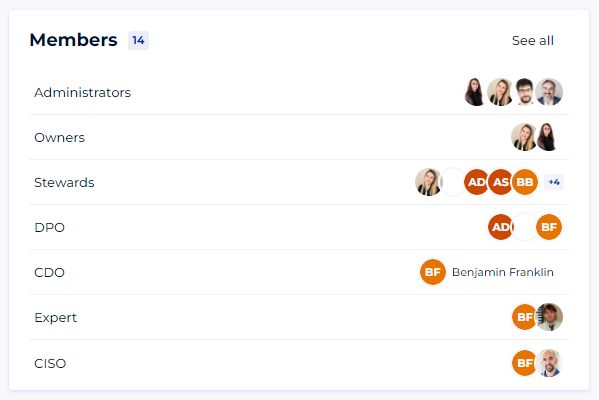
This widget lists all users who have access or who have a role in the workspace concerned by the home page.
To display the list of all users who have access to the workspace, click on the View All button: a side panel opens and lists all users with their email address.
You can also display the list of users who have a role by clicking on the name of a role in the widget.
3 - "News" widget
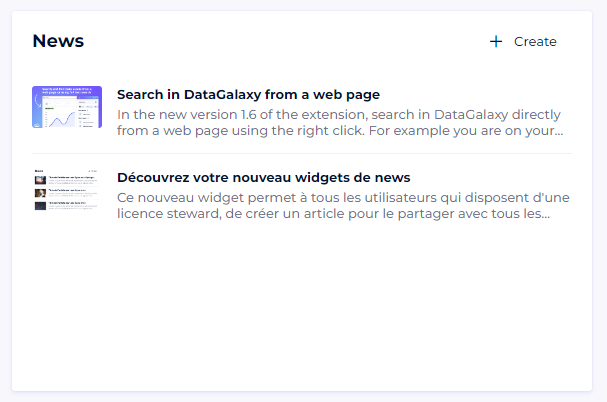
The news widget will allow you to animate the governance within your company, by writing and sharing articles with all users having access to a workspace.
To learn more about managing articles, read this article: Managing news
4 - "List of filtered views" widget
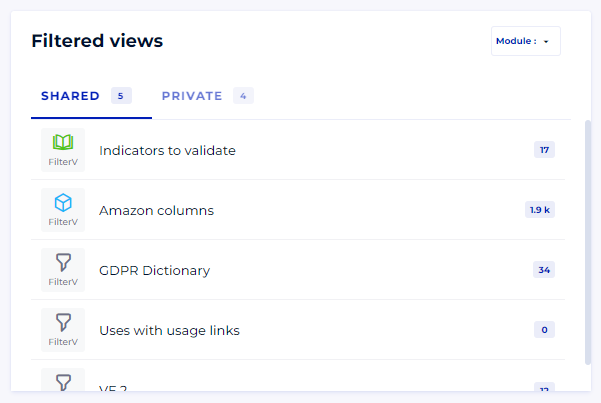
This widget allows you to access all the filtered views of a workspace: those that group objects from a single module, but also cross modules.
To learn more about managing filtered views, read this article: Managing filtered views
5 - "Objects Activities" widget
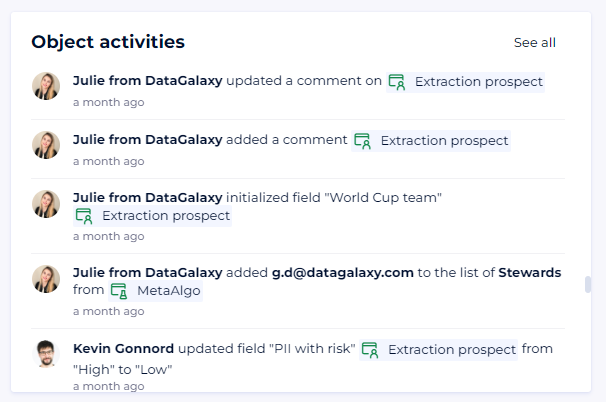
The object activity widget lists all actions that have been performed by users on objects in the space in a chronological way.
You can open the preview of an object by clicking on its label.
The "View all" button at the top right of the widget allows you to open a side panel for a better reading of the activities. From this panel, you can also filter the activities according to :
- The type of action (comment, task, or modification)
- The user who performed the action
- The date when the action was performed
6 - "Objects in a filtered view" widget
This widget lets you highlight objects in a public filtered view from the home page, and provide quick access to this filtered view.