
The purpose of this article is to explain how it is possible to choose the quick filters available to users.
Who can access them?
Only the administrators of the client space have access to these settings.
How to access them?
To administer the quick filters:
- Open the menu from your profile at the top right of the screen
- Click on Administration
- Then go to the Search tab
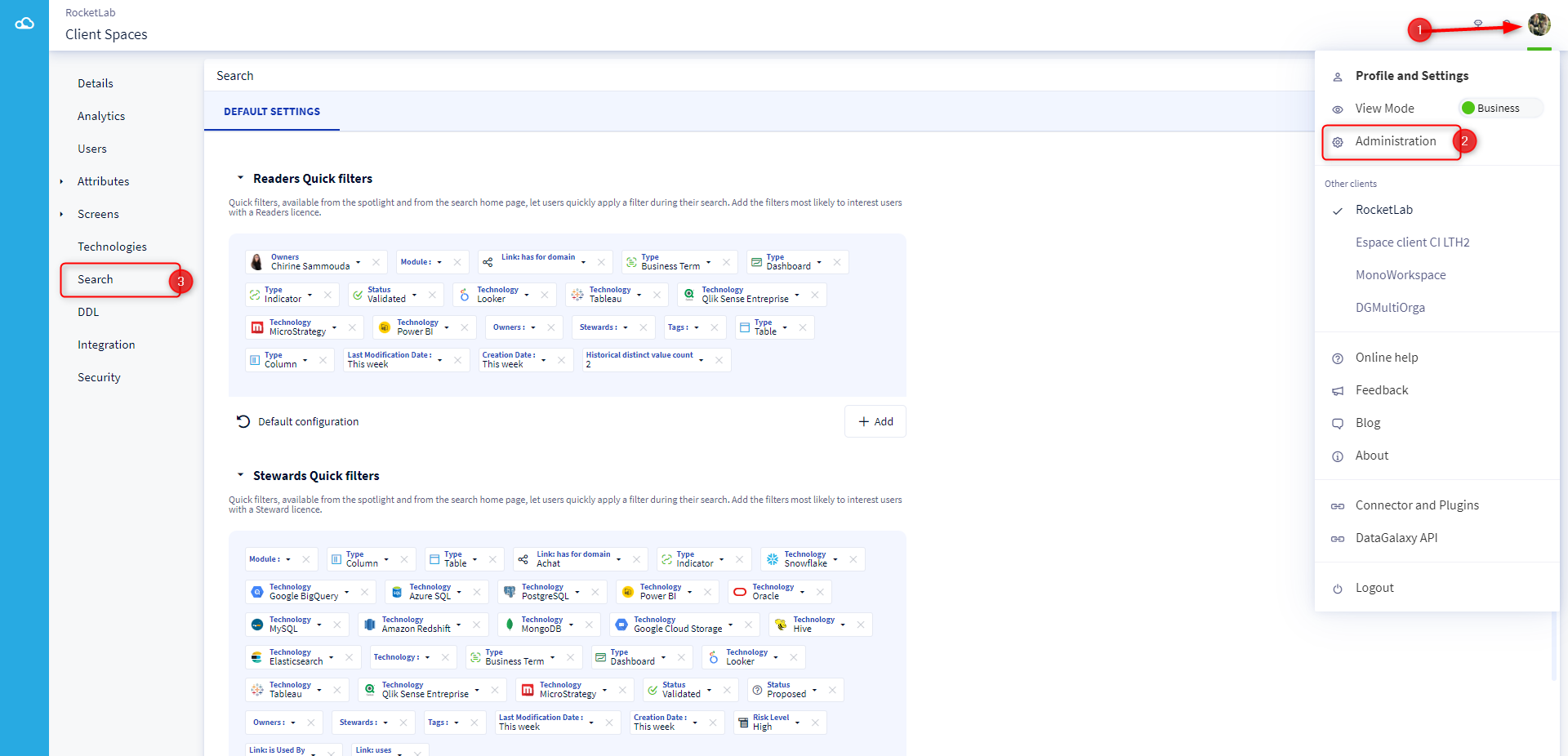 How to manage the quick filters?
NB: When you edit the quick filters, the saving is automatic.
1 - Add a quick filter
For each section, you can add as many quick filters as you want. Please note that only the first 12 quick filters that return results based on the input and the filters already applied will be displayed in the quick filters section. For each filter you add, you can only select one value.
To add a quick filter you must:
- Click on the Add button at the bottom right of the quick filter section
- Select the attribute of your choice from the drop-down list
- You can either select a value for this attribute, or let the user choose (depending on the filter) when he will apply the quick filter
2 - Move a quick filter
You can choose the order in which the quick filters are displayed in the section.
To move a quick filter you must:
- Click on a quick filter
- Drag the quick filter to the desired position while holding the click
- Drop the filter by releasing the click
3 - Removing a quick filter
If you no longer wish to display a quick filter, you can remove it from a section. This will not remove the attribute, only the filter will be removed. Please note that it is not possible to remove all quick filters from a section: quick filters are very useful to help users start their searches, so we encourage you to set up as many filters as possible that are relevant to your collaborators. If there is only one quick filter left in the section, the delete cross will be inactive and you will not be able to remove this filter.
To remove a quick filter you need to:
- Hover over the quick filter you want to remove
- Click on the small cross that appears on the right side of the filter
4 - Return to the default configuration
For each section, DataGalaxy proposes a list of default quick filters.
To go back to the default configuration, click on the Default configuration button available under the quick filters section. Be careful, the saving is automatic: once you have clicked on this button, your configuration will be lost and it will not be possible to go back.