
MetaBot, the suggestion engine, guides you in your data classification by labeling objects via the tag suggestion as well as identifying the sensitivity of the data.
For more information, please consult the following article :
Where to find the suggestions?
MetaBot suggestions are available for contributors users, and can be found :
- At the attribute level in the object card
- In the MetaBot tab in the service panel
- In the suggestion panel
Object card
Suggestions are visible directly at the attribute level in the object card and are represented by the flashing MetaBot icon indicating the existence of new suggestions
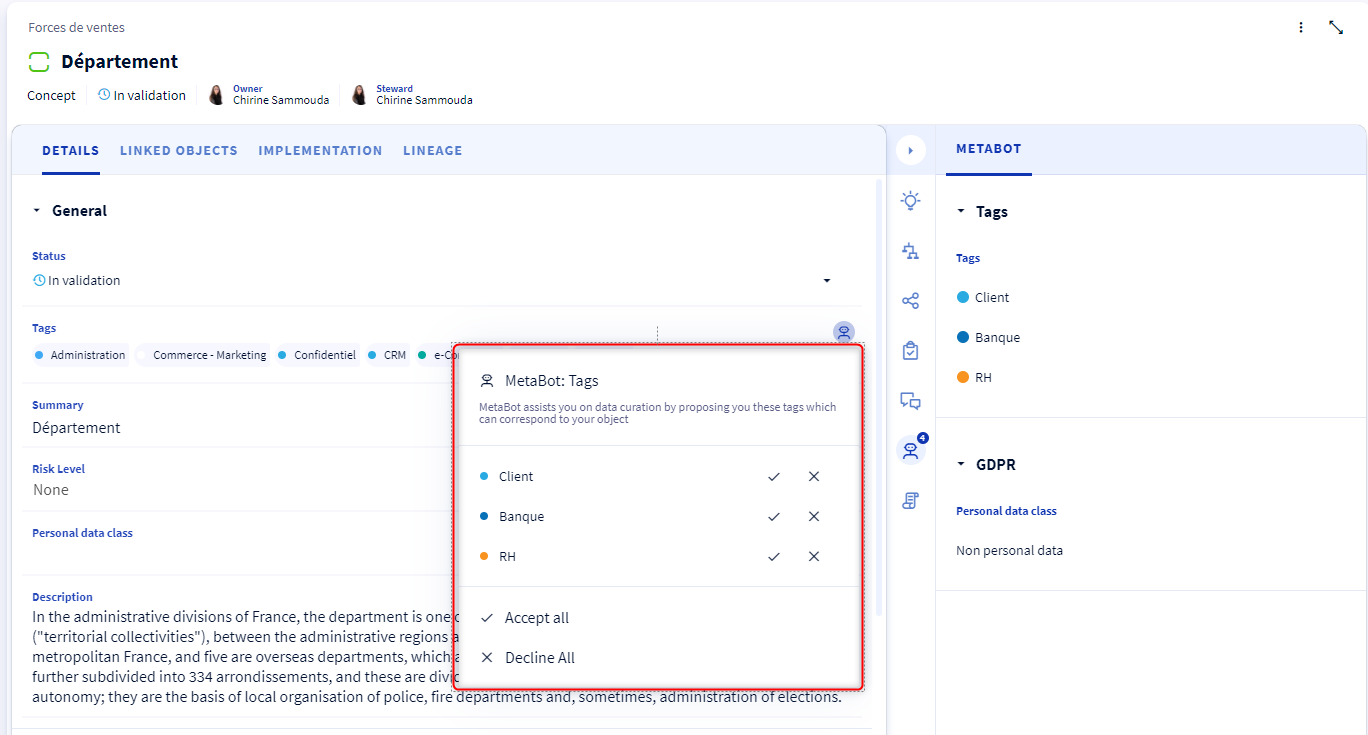
If you decide to accept a tag suggestion, for example, its value is added to the list of selected tags in the tags field of the object card.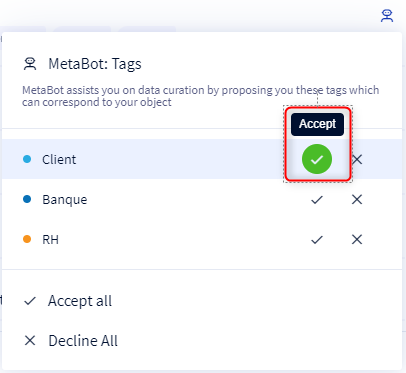
You can also reject a suggestion of a DCP value, for example, in this case the MetaBot disappears from the object card and the total number of suggestions in the docking panel decreases. 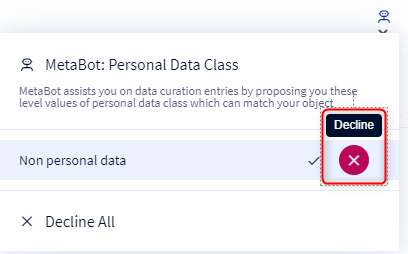
MetaBot Tab at the service panel
The suggestions are also visible in the service panel, on the right-hand side of the screen, in the MetaBot tab and are represented by the MetaBot icon indicating the number of new suggestions. 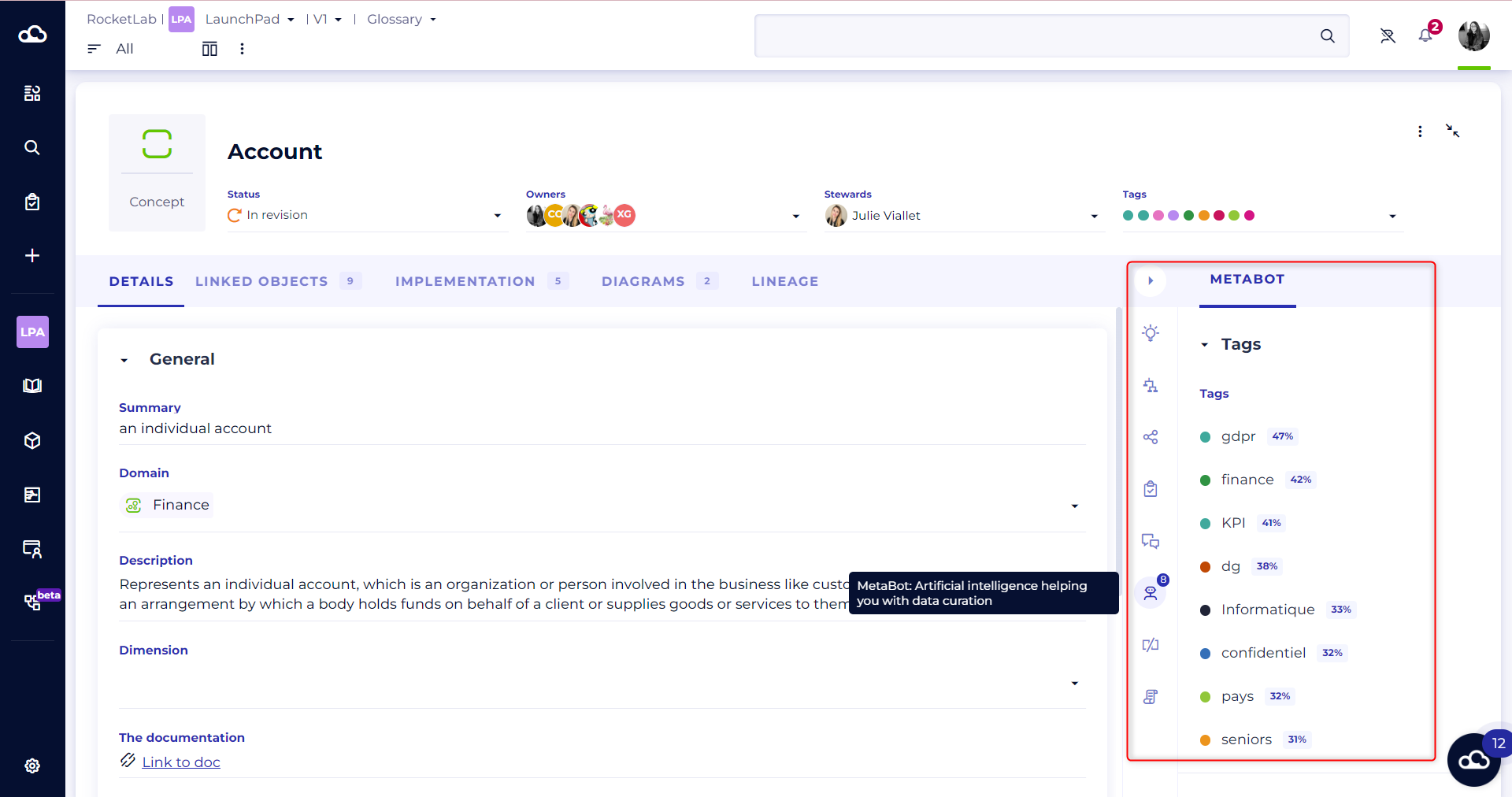
The suggestions in this panel are sorted by suggestion type :
- Tag suggestions, for tag attributes, whether it is the system tag attribute provided by default by DataGalaxy, or the custom tag attributes created by the client space administrator.
- The data class suggestions, related to the sensitivity of the data.
Likewise, you can accept or reject a suggestion in the same way as the attribute in the object card. You can also accept or reject all suggestions in bulk via the buttons appearing when hovering over the type of suggestion.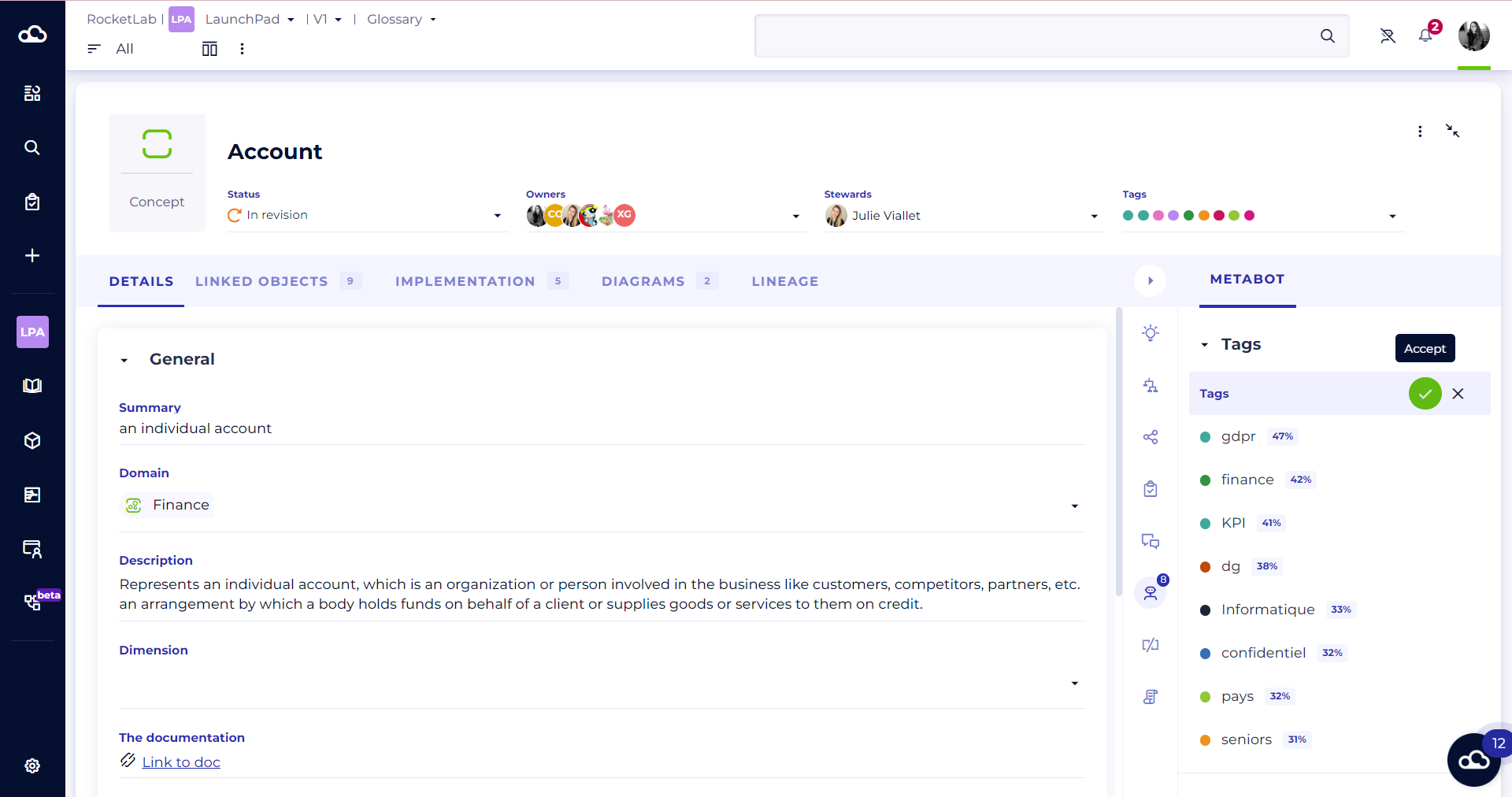
Suggestions panel
All classification suggestions are centralised in the side suggestion panel, which can be displayed from any screen of the platform by clicking on the MetaBot button in the top right corner of the notification centre. In this panel, you will find all the suggestions for all the objects in your 4 modules, and for all the workspaces you have access to.
Warning : this panel is not visible to users with the Reader license.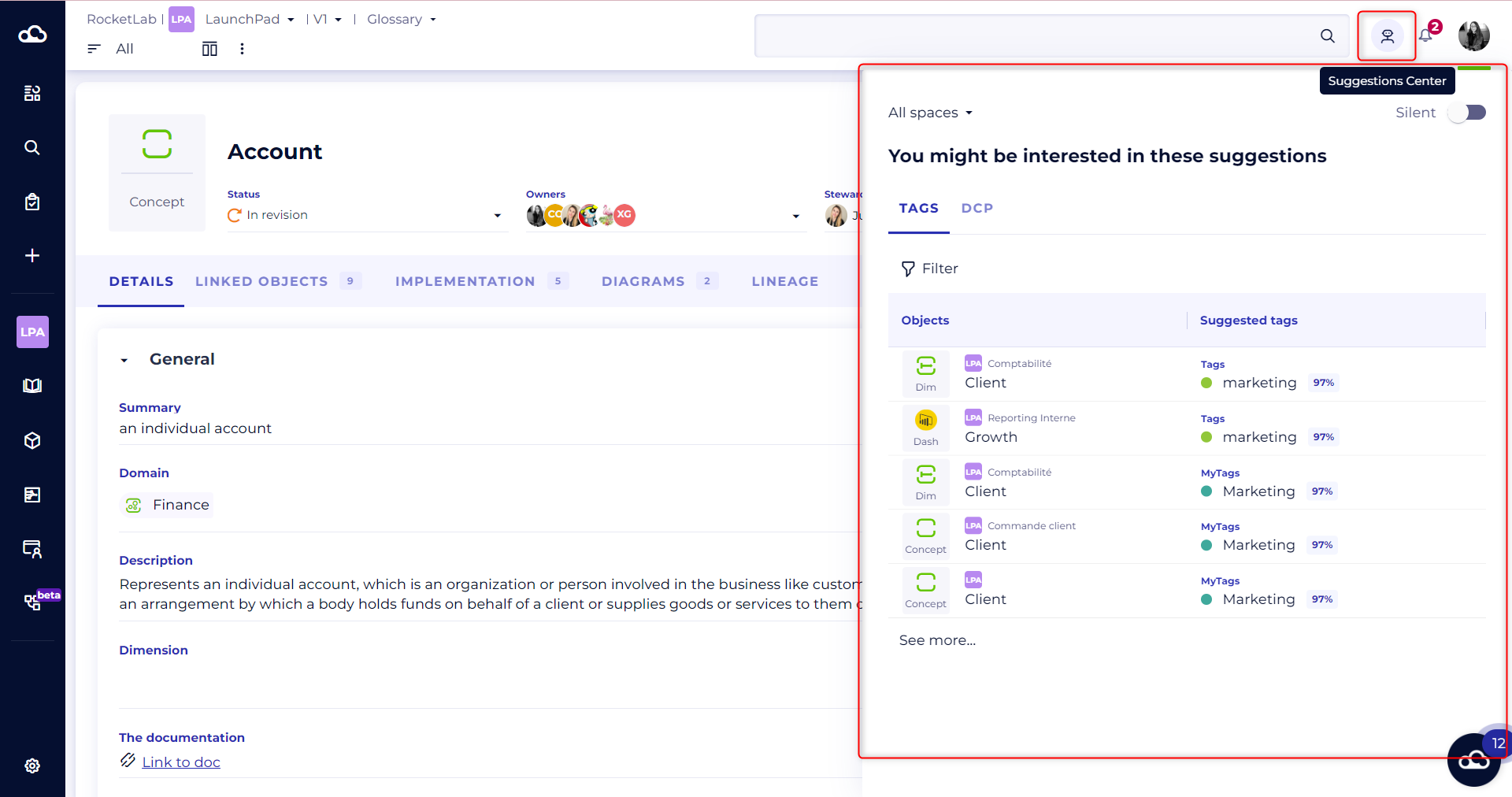
If new suggestions are pending, the MetaBot will flash. If you open the panel, it will stop blinking even though all suggestions are not yet answered.
This panel is split into 2 tabs:
- The TAGS tab, which contains all the suggestions for tagging.
- The DCP Class tab, which contains all the suggestions relating to the sensitivity of the data
Each tab offers you a filter on the workspace which allows you to display only the suggestions for a specific space. If your space is versioned, you can also filter on the version of your choice. 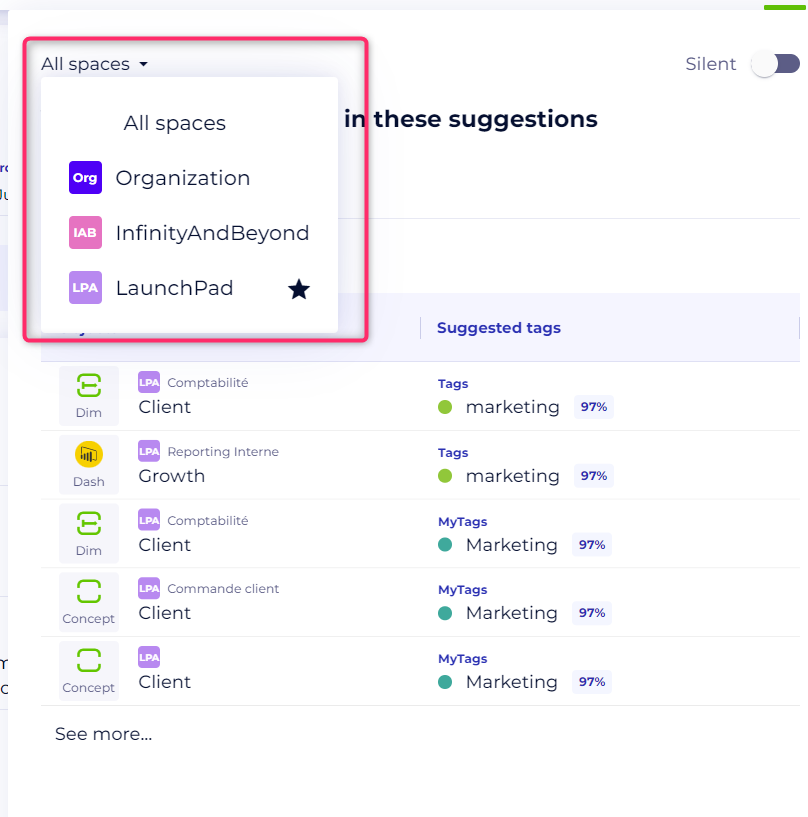
In the TAGS tab, you can apply a filter on the tag that covers the scope of your expertise, in order to display only objects with suggestions related to this tag. For example, if you work in Marketing, and you only want to display suggestions related to this field, simply apply the Marketing filter.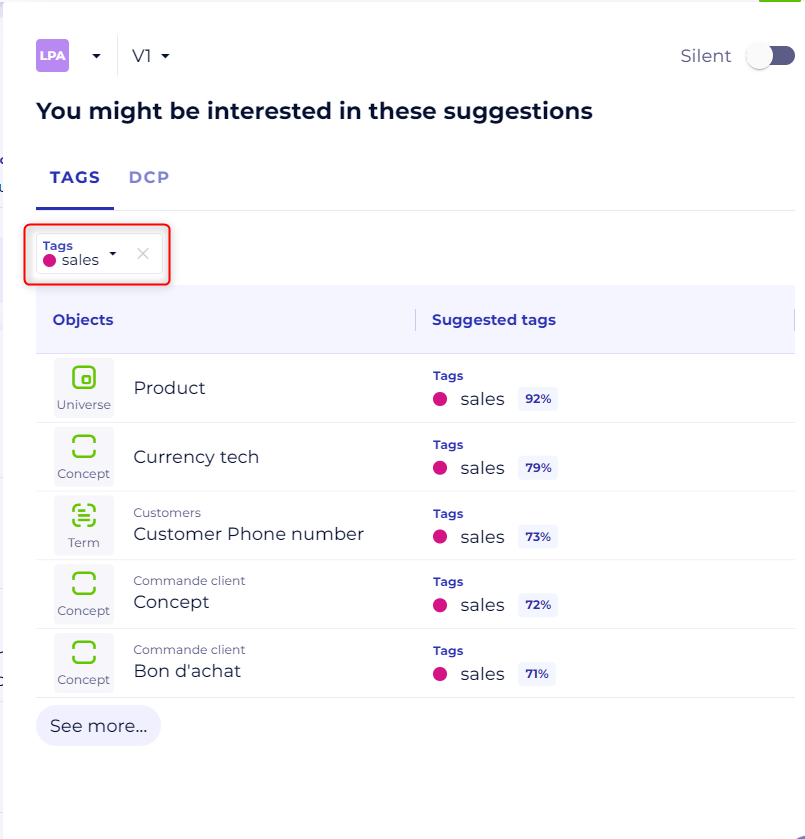
In the DCP Class tab, you can apply a filter on the sensitivity class of your data. If, for example, you are only interested in the classification of sensitive data, you can select this value in the filter, so that all suggestions related to this class will be displayed. 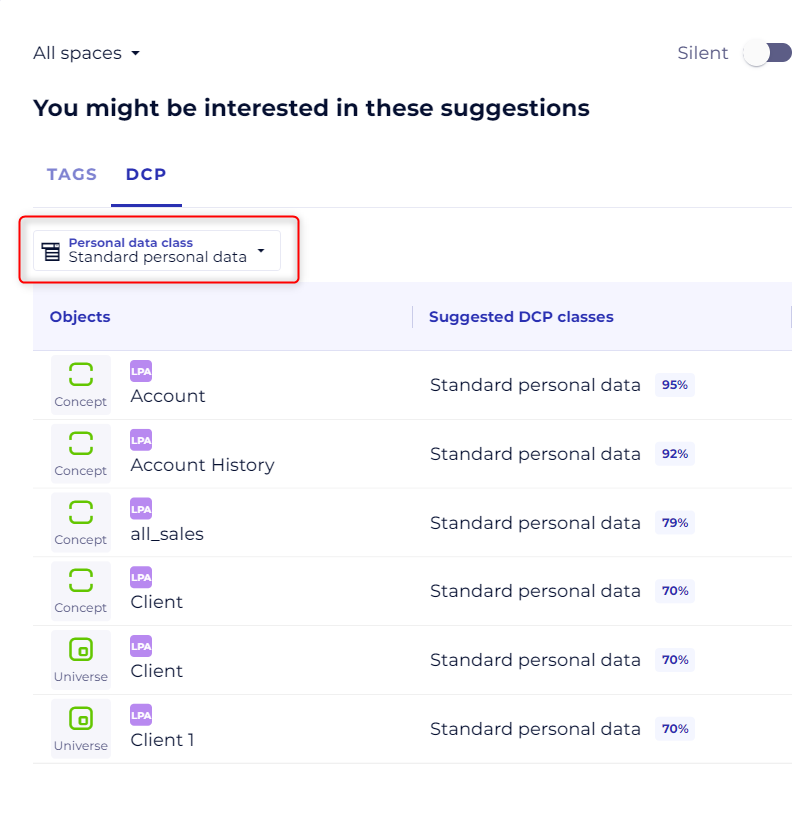
The suggestions with the highest confidence scores are shown at the top of the list, to load more, click on the "See more" button.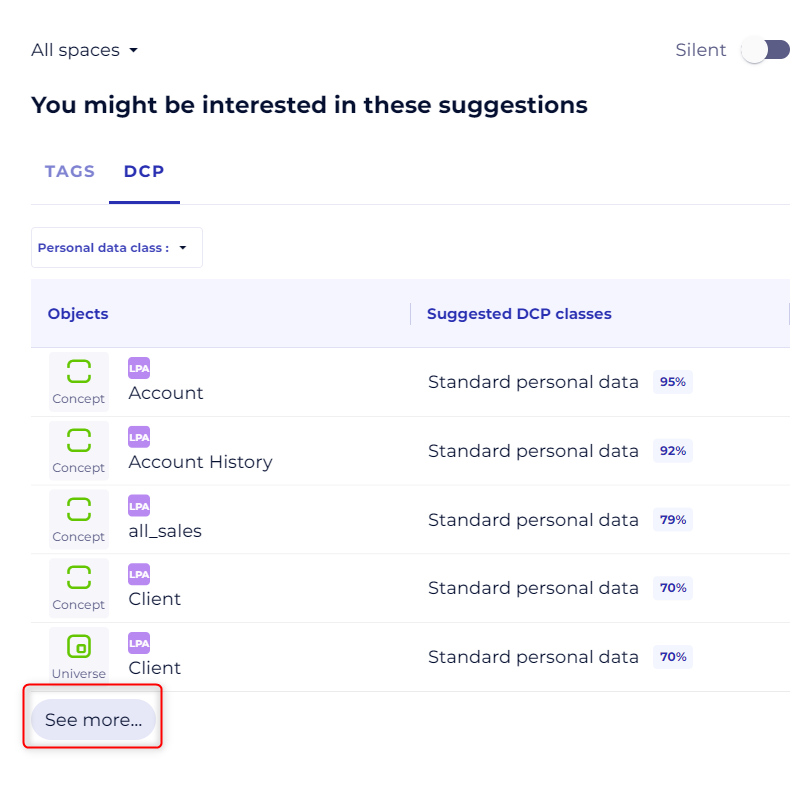
Before accepting or rejecting a suggestion, you can open the object's card linked to the suggestion without leaving the suggestions panel. In this way, you can quickly consult the object's general information, its related objects and its descendants.
This can be done directly from the burger menu which is shown by hovering over the suggestion line in front of the object's name, or by clicking on the object's line which opens its overview with its various tabs.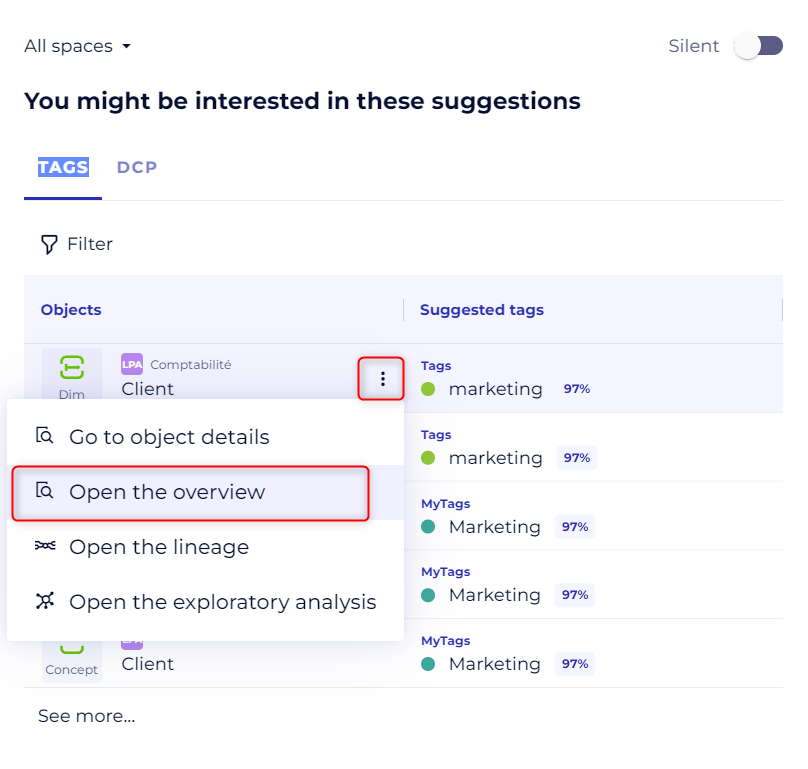
After accepting or rejecting the suggestion, the suggestion line is grayed out, an accept or reject status is displayed, but you can still view the preview of the object as long as you have not closed the panel.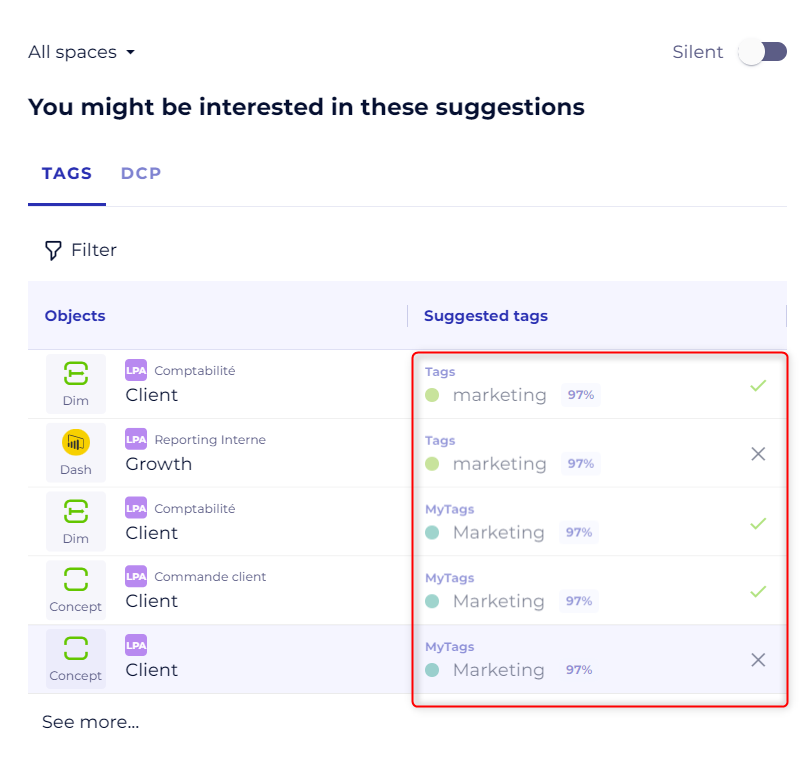 The next time you access the panel, suggestions that have already been processed will disappear and new suggestions will be displayed.