This article aims to introduce you to a Metabot feature: automatic link generation.
One of the goals of governance is to make data assets comprehensible and accessible to all. One way of achieving this is by creating links between data.
MetaBot uses analysis and text processing techniques to identify lexical smiliraities between objects, relying mainly on their labels to suggest links to be created between the objects in your data catalog.
Two types of links are suggested :
- Implementation links, between glossary objects and dictionary objects
- Usage links, between glossary objects and usage objects.
This feature is visible to all users with editing rights to the glossary and/or :
- dictionary (to generate implementation links)
- usages (to generate usage links)
To find out more about MetaBot's features, please consult the following article: MetaBot
Launch automatic link generation
To launch automatic link generation :
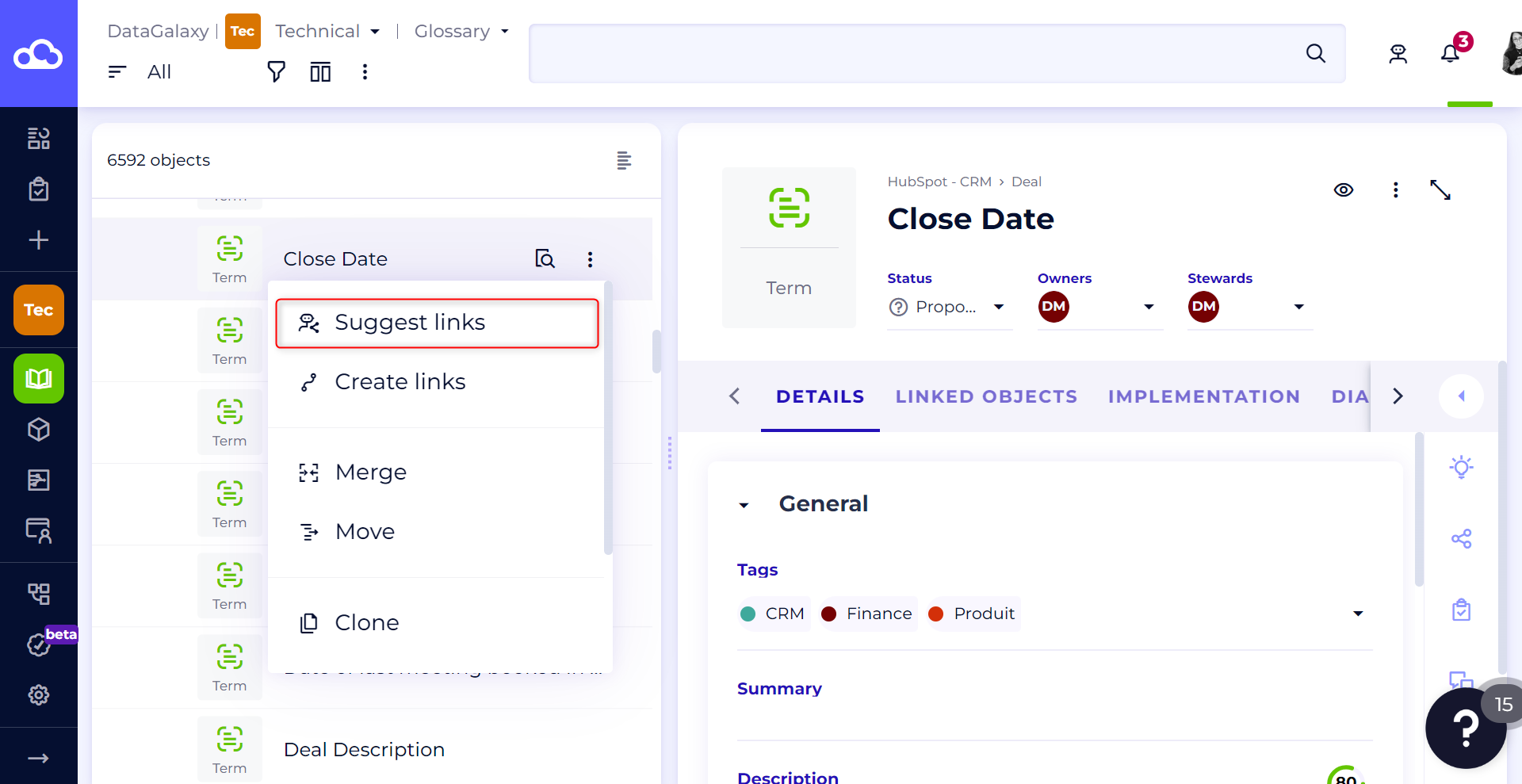
- Click on "Generate links" from the burger menu of any object in the glossary, dictionary or usages.
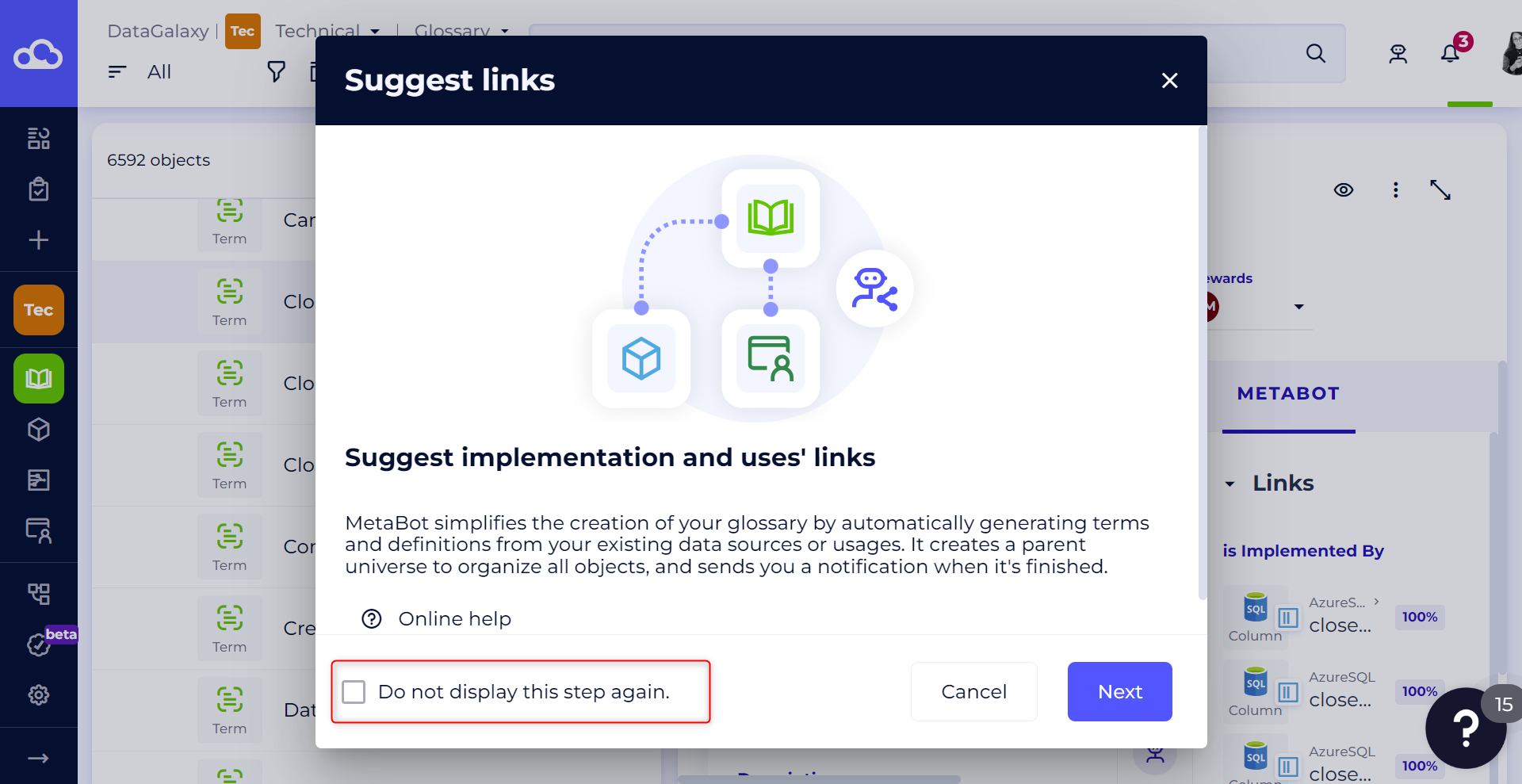
- This modal opens to explain the feature. You can check this box if you don't want it to appear next time.
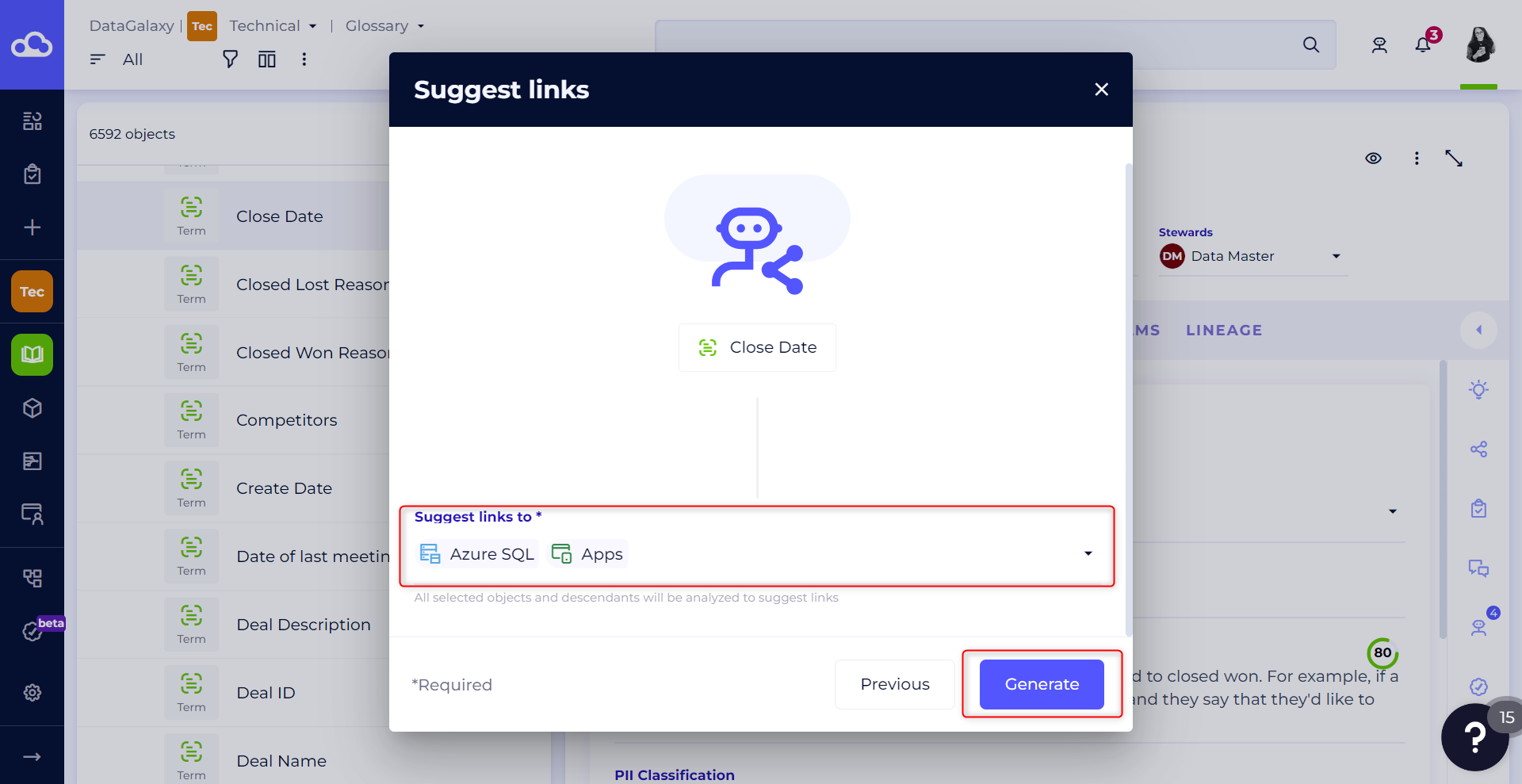
- Select the objects to which you'd like MetaBot to generate links.
- Click on "Generate" to start link generation.
- Link generation may take a few moments. This depends on the volume of objects selected. You can continue browsing the platform until the operation is complete.
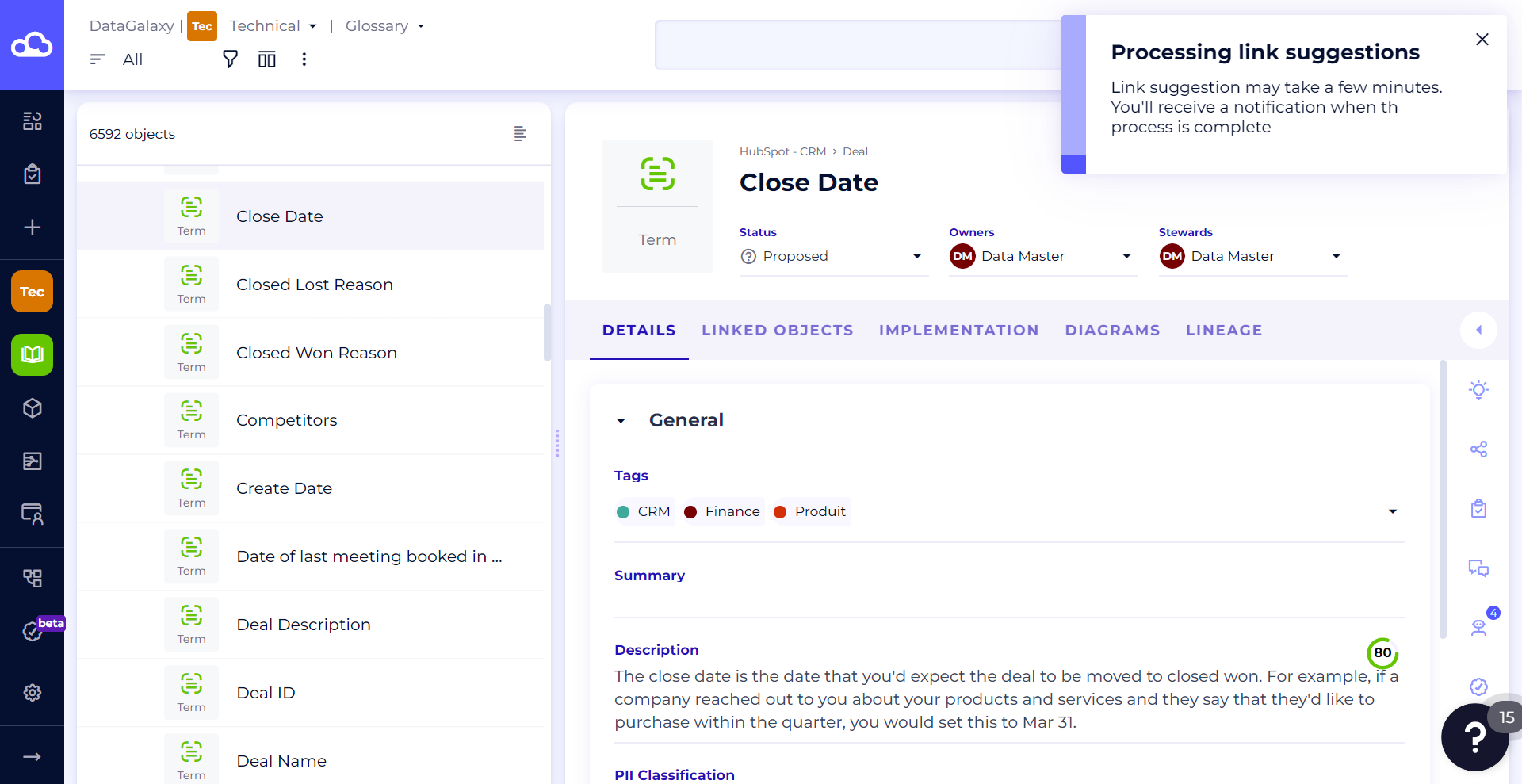
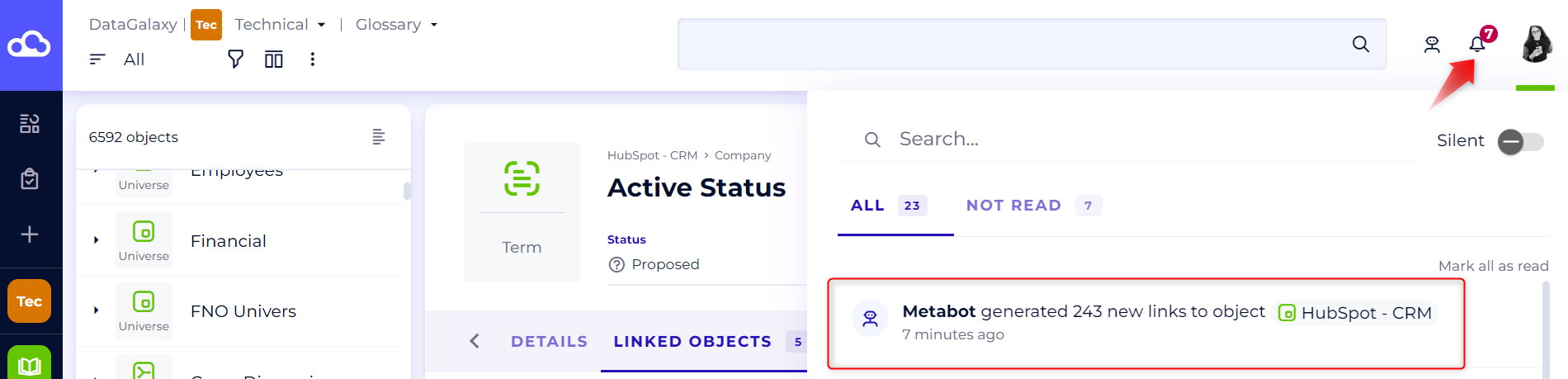
- Once the operation is complete, Metabot sends you a notification to inform you that the links have been successfully generated to the object of your choice.
Managing generated links
From the MetaBot tab of an object card
Once you've launched link generation and the operation is complete, you can consult the list of generated links to validate them. They are visible from an object's service panel, under the MetaBot tab represented by a bot icon.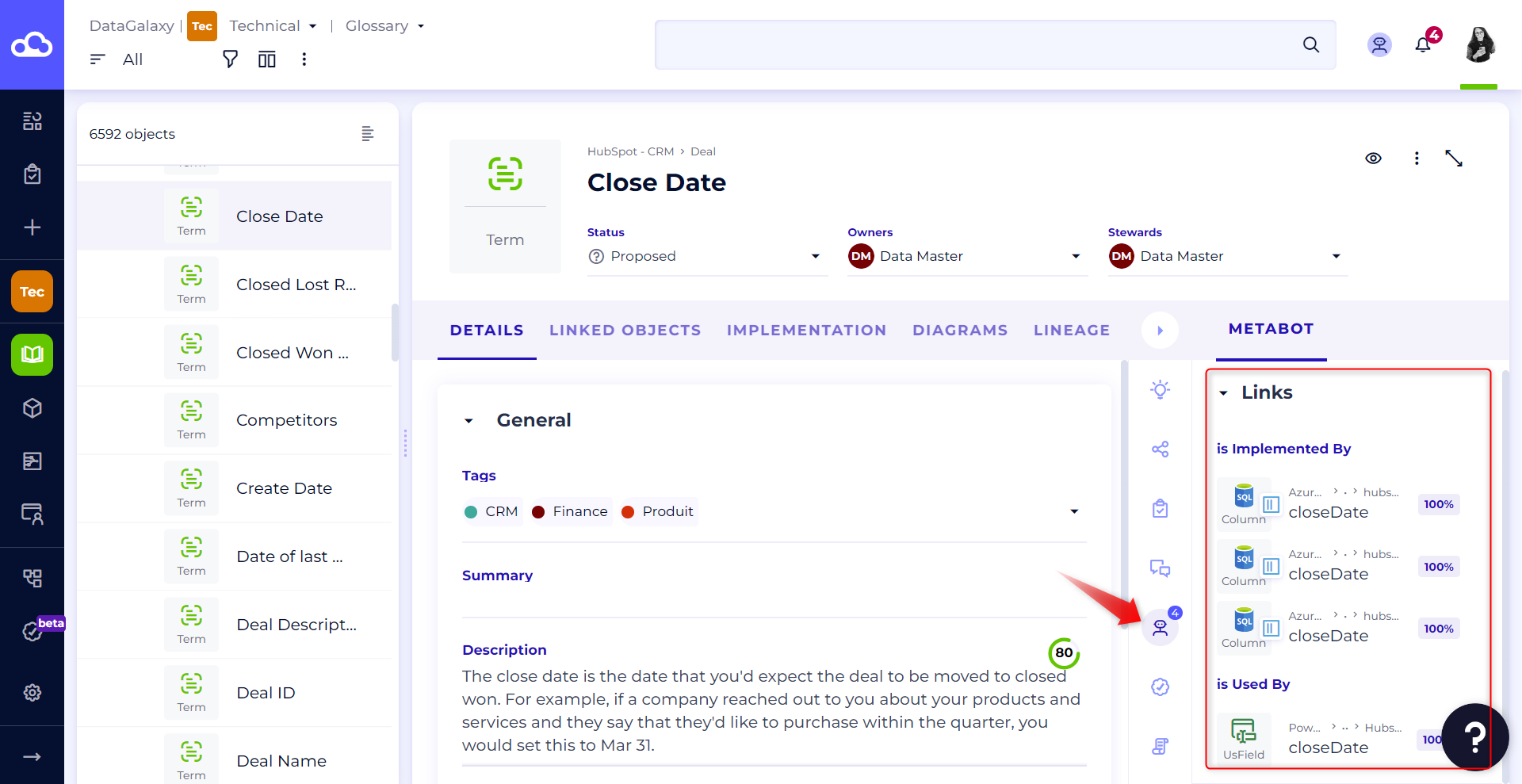
This panel also includes all suggestions for data tagging and classification.
To find out more, read the following article : Data classification via MetaBot
The suggestions in this panel are organized by suggestion type under different sections. There's also a section dedicated to link suggestions. Each suggestion has a confidence score.
If the suggested link seems relevant to you, you can accept the suggestion. A link will then be automatically created between the 2 objects, and will be visible in the linked objects tab, along with the lineage.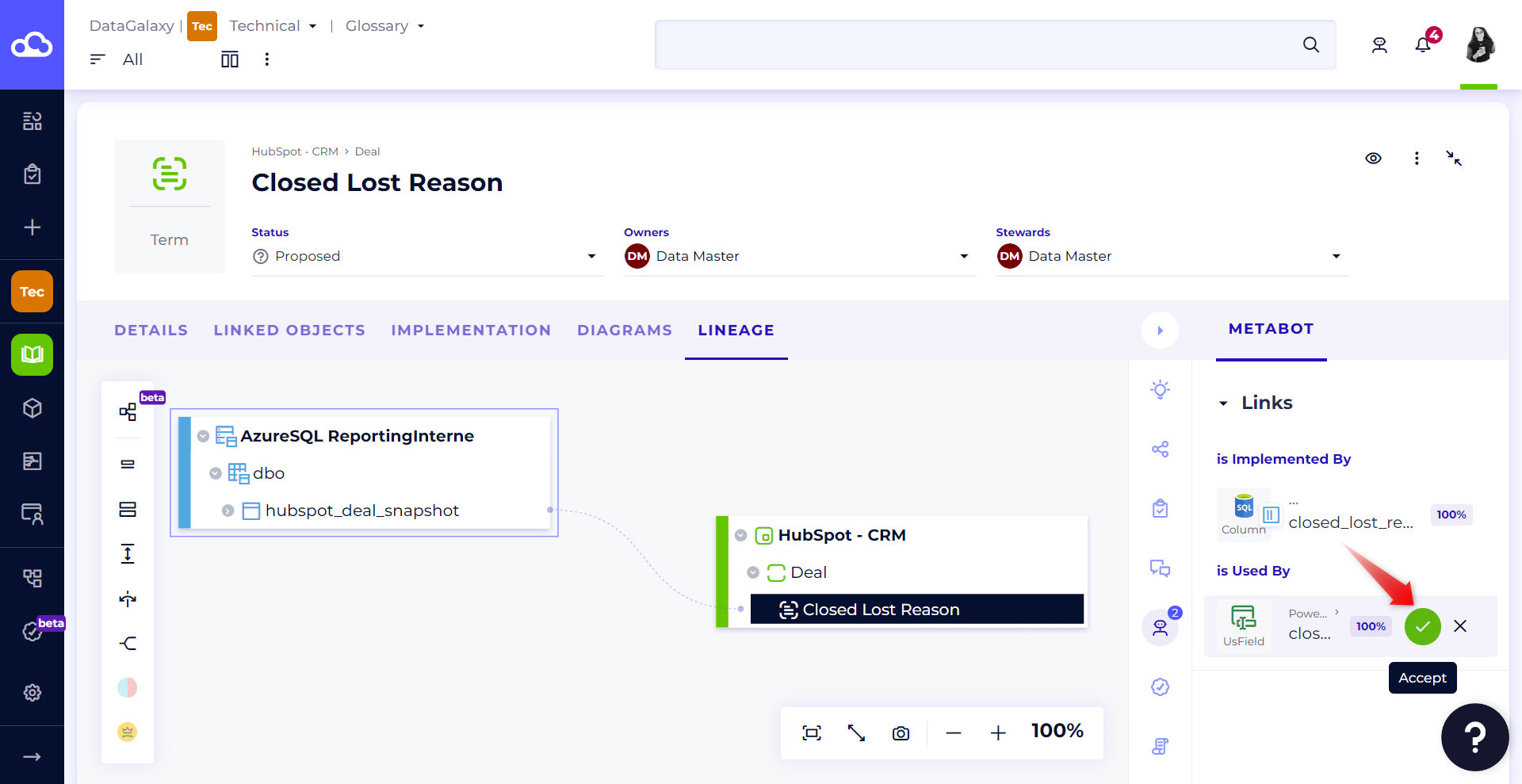
You can also reject a suggestion if it doesn't interest you.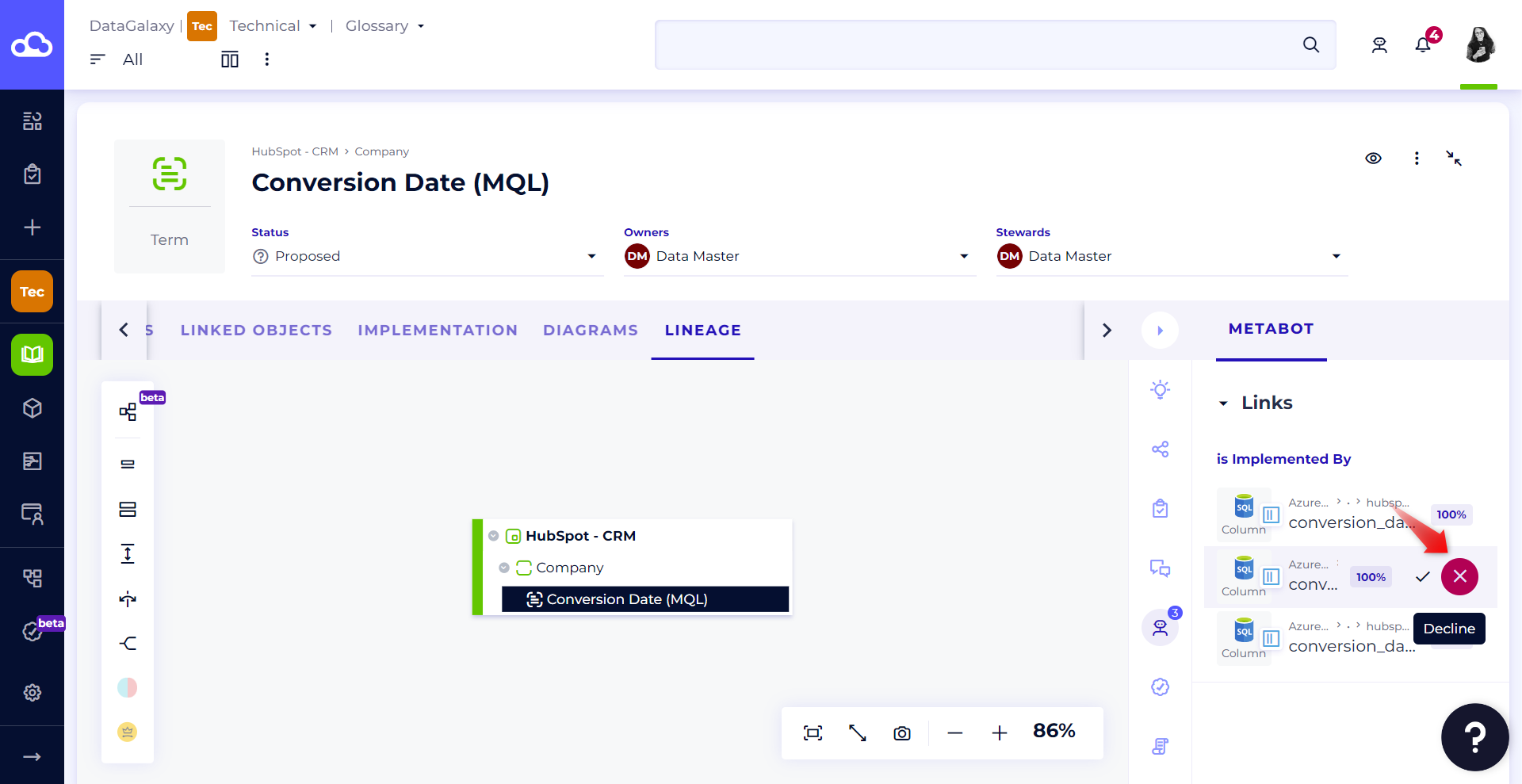
You can also accept or reject all suggestions in bulk via the buttons that appear when hovering over the suggestion type.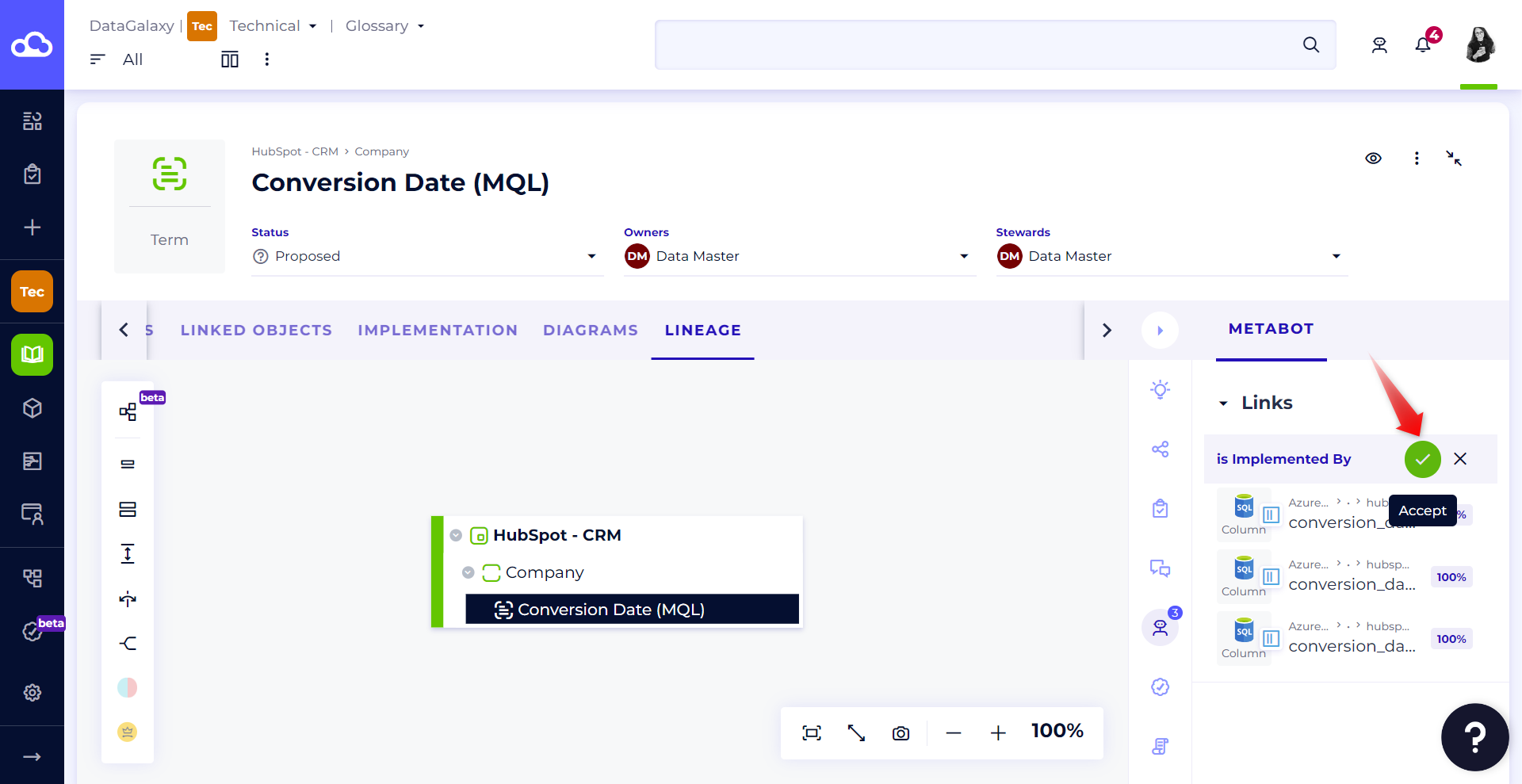
From the MetaBot Center
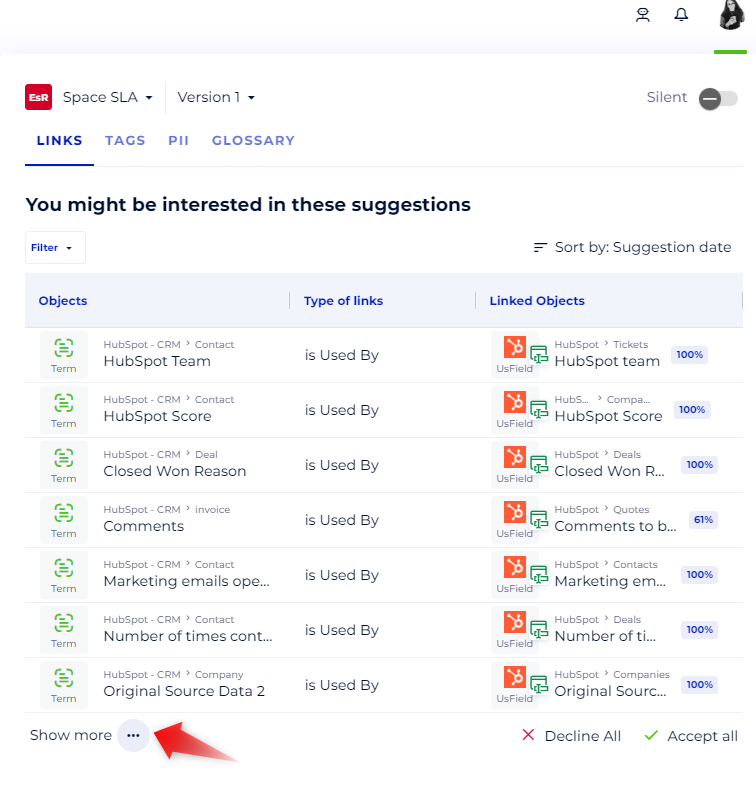
In the MetaBot Center, you'll find a first tab named "links", which groups all suggested implementation and usage links in all the spaces to which you have access. Please note: this panel is not visible to users with a Reader license.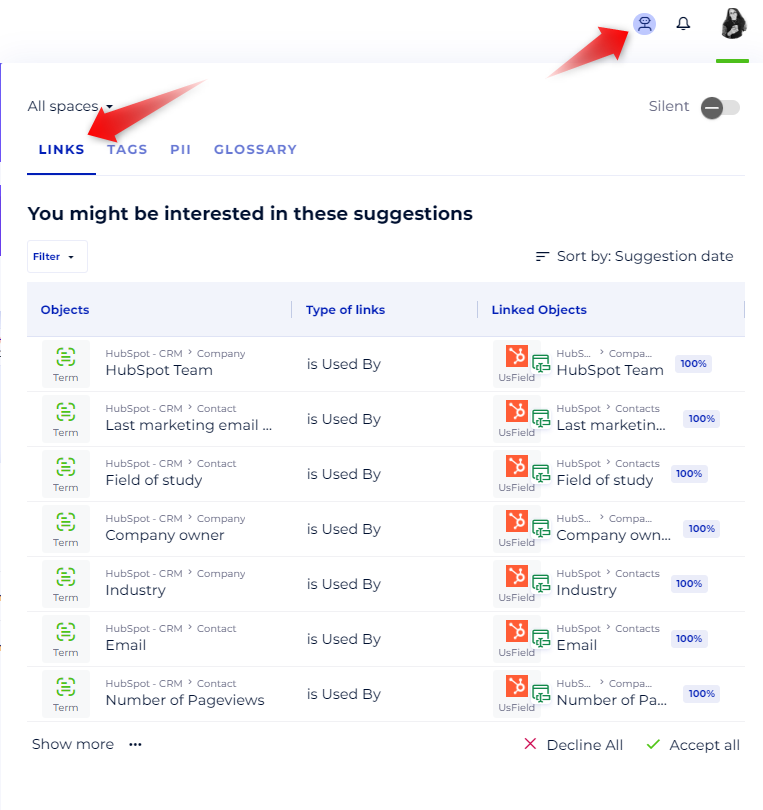
You can filter on the space and version of your choice, to find the suggested links that interest you. The filter applies to all MetaBot Center tabs (except the Glossary tab).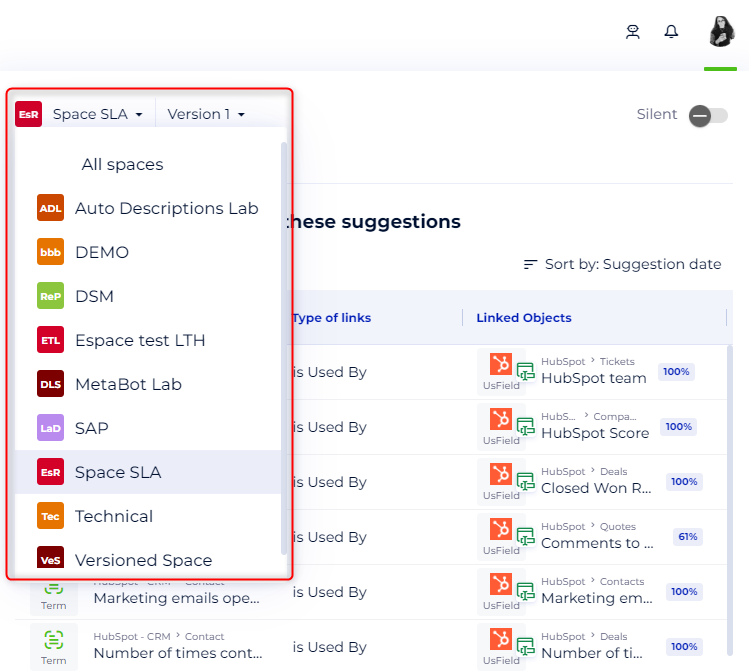
In this tab, each line of the table displayed represents a suggested link made up of
- the glossary object
- the link type (implementation or usage)
- the object to be linked
- the confidence score
When you hover over a line, buttons appear, allowing you to accept or reject a suggested link. If the suggested link seems relevant, you can accept it. As a result, a link will be created automatically between the 2 objects, visible in the linked objects tab and, depending on the type of link, on the lineage.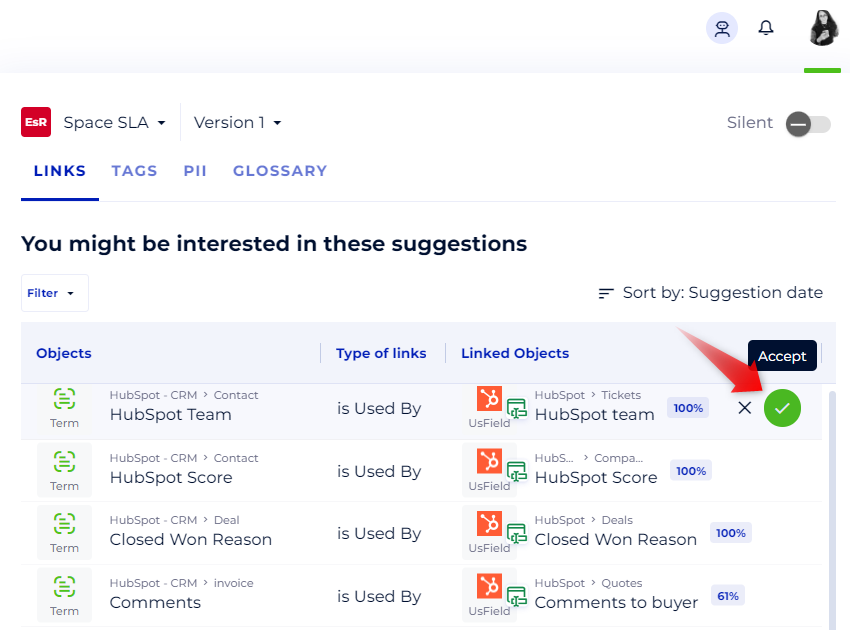
You can also decline a suggestion if it doesn't meet your requirements.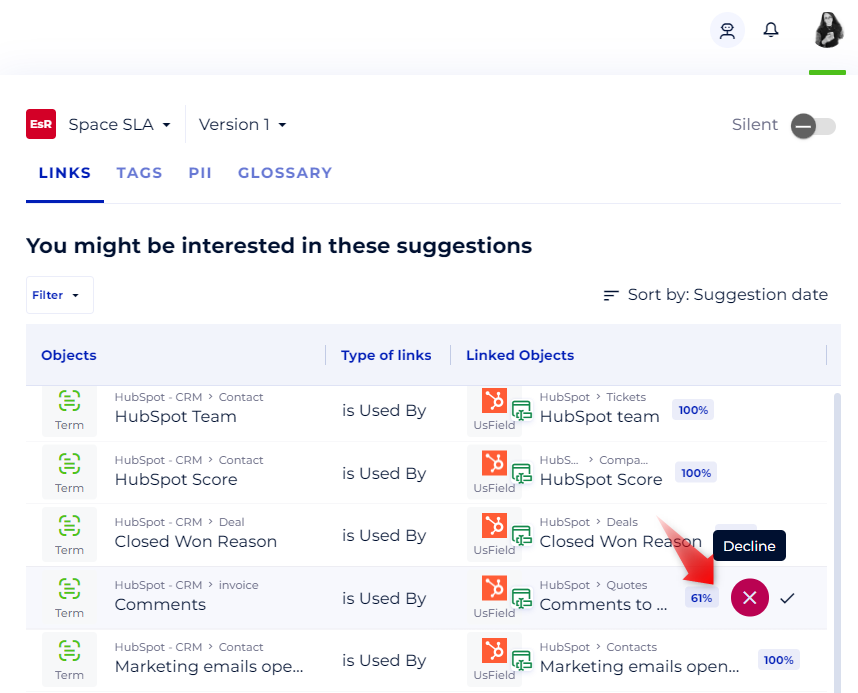
To accept or reject all link suggestions en masse, click on the 'Accept all' or 'Reject all' buttons. Please note that this bulk action applies only to suggestions visible in the panel.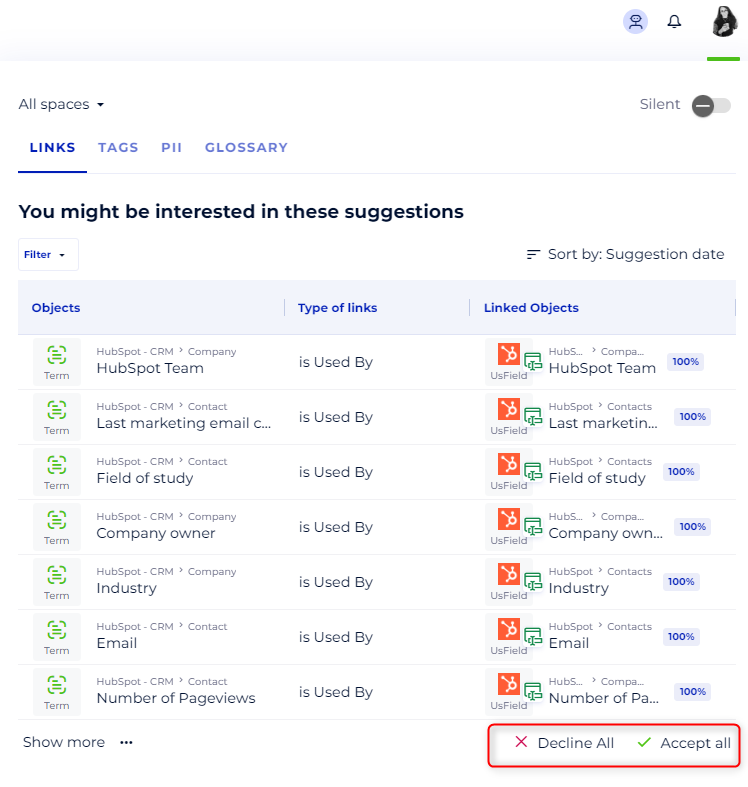
You can also sort the suggestions displayed by last suggestion date or suggestion confidence score.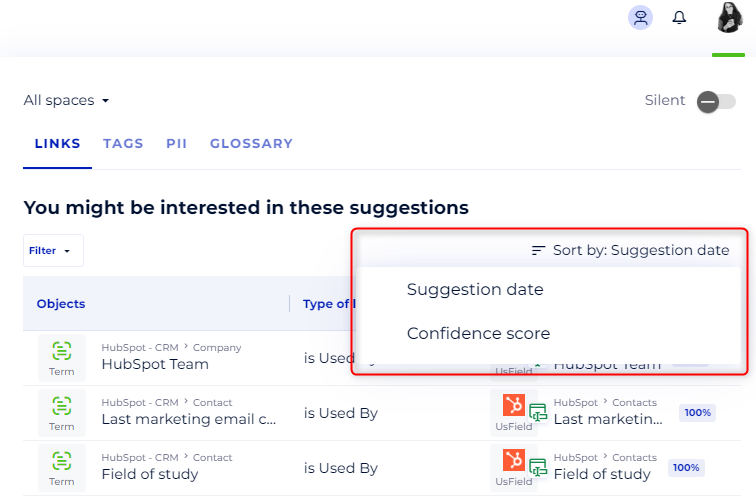
To load more suggestions, just click on this button (see figure below) to display other pending suggestions.