
New object page interface is available from May, 20th, 2025
All Object Tools are available in the top-right corner of the object card. The content of this toolbar is contextual, adapting to the selected object or space. It displays the most commonly used commands.
Insights: Displays first-level information about the current object, such as creation and modification dates, and the creator’s name.
Tasks: Lists all tasks associated with the current object.
Comments: Shows all comments related to the current object.
AI Suggestions: Lists all available AI-generated suggestions. A counter indicates if new suggestions are available.
Version Comparison: Allows you to compare changes between different versions of the object. This option is only visible when versioning is enabled.
Activity: Displays a chronological list of actions performed in the application, with links to the related objects. Logs are available at multiple levels of the application:
The home page shows all activity within the customer space.
Additional logs are available for the following object types: organization/sub-organization, project, model, glossary property, processing, and usage objects.
- Campaigns: Allows you to track the execution of workflows across a set of objects defined in DataGalaxy.
- Watch Object: Enables you to receive notifications about any changes made to an object you are tracking, ensuring you don't miss important updates.
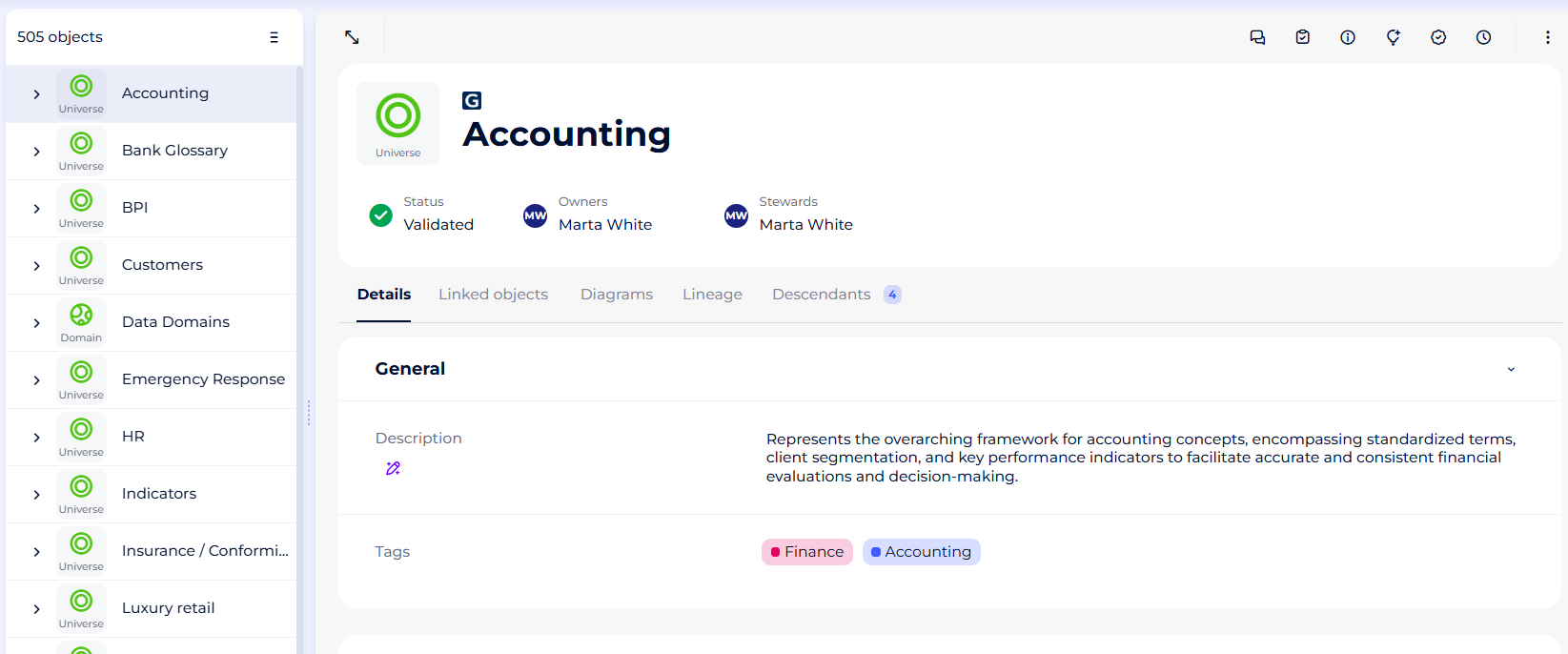
In addition. in-page menu consists of actions that allow to clone, merge, export or delete an object.
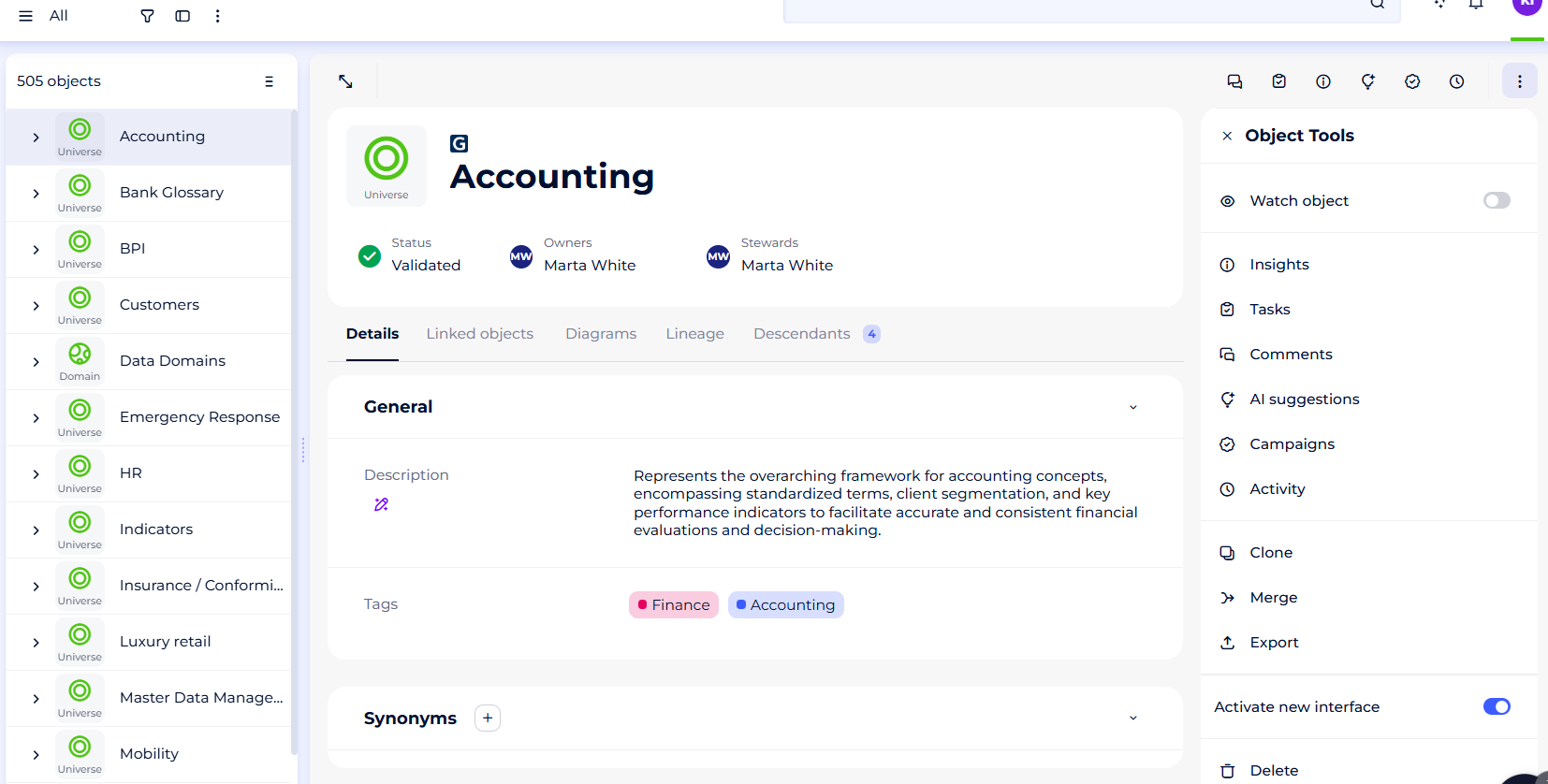
We allow users to switch between new andold interface till August. 2025 Please use toggle to desactivate new interface if needed.
Known Limitations in the Activity log
- Search and Advanced Filters
It is not possible to perform a search in the log or apply advanced filters to refine the results.
- Log Export
Log export is not available. Data must be viewed directly in the interface.
- User Filtering
The "Users" filter displays all users in the workspace, not just those who have performed an action in the log.
It is not possible to filter by a technical user.