
Horizontal navigation bar

- At the top left is the breadcrumb that allows you to navigate between the parent pages.
- Then you have the search bar which searches on the space and version you are in.
- Click on the bell to open the task notifications and comments panel. Notifications are possible in all rich text type text boxes. They allow you to create a notification to the user concerned and take the form of a hyperlink. The visual indicator in the navigation bar allows you to quickly distinguish the number of new notifications. It is therefore possible to notify :
- Comments and tasks to alert the user.
- Directly notify another user individually (@JohnDoe) or groups of users.
- By clicking on your icon, you access a drop-down menu allowing you to :
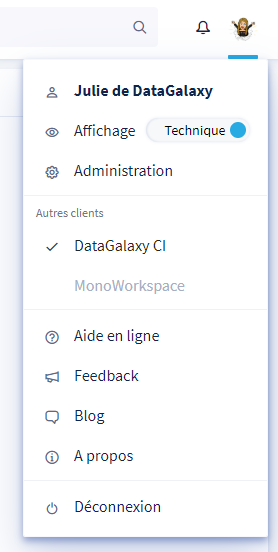
- Access your profile by clicking on your name
- Change the view of the platform between technical and functional
- Access the administration capabilities of the clientspace. (for administrators only)
- Navigate in all the clientspaces to which you have access
- Access online help
- Share all your feedback with us
- Visit the DataGalaxy blog
- Consult the version of DataGalaxy as well as the associated release note.
- Log out
Sidebar navigation
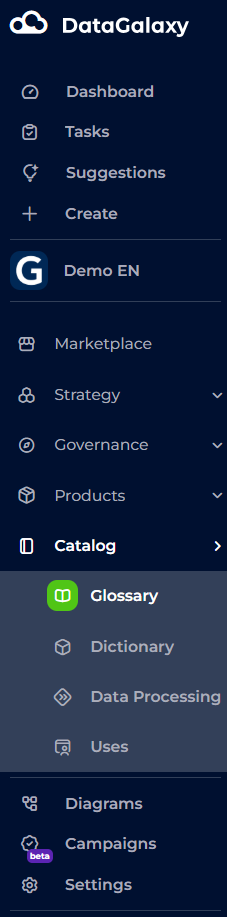
- The cloud redirects to the home page od the clientspace for the multiworkspaces client, and to the home page of the workspace for the monoworkspace client.
- The icon below indicates the dashboard.
- The magnifying glass is used to perform a search.
- The task basket references all the tasks assigned to you or that you have created.
- The "+" button is used to add an object. It is present only when you have creation rights.
- For more information about workspace permissions, see this article: [Basics] Overview of user administration by workspace
- The workspace icon only appears for multiworkspace clients when you are positioned on a workspace. When you click on the icon, you will be redirected to the workspace home page.
- [Basics] The home page of the workspace
- The 4 modules only appear when you are positioned on a workspace. You can navigate between these modules by clicking on their respective icons.
- Impact analysis is available when you are positioned in a workspace.
- The "Team" and "Settings" sections are reserved for space administrators.