
The purpose of this article is to explain how to customize the Workspace screens. This process is similar to the customization of the clientspace screen customization but the inheritance rules are not the same.
To go further
- Consult this article to understand more precisely the concepts of client space and workspace.
- Consult this article to understand how to customize clientspace screens.
- Consult this article to understand the concept of Object card.
The customization will have:
- Zero impact on the screens of other workspaces.
- Zero impact on the existence of an attribute: attributes are managed at a clientspace level. At a Workspace level, you can only choose to display them or not.
- An impact on the data import forms.
- Won't be synchronized with changes made to screens from the Administration menu.
Please note that these settings are only available if you have several workspaces. If your instance comes with only one workspace, the settings will be available under Administration > Screens.
Follow these steps to customize the screen:
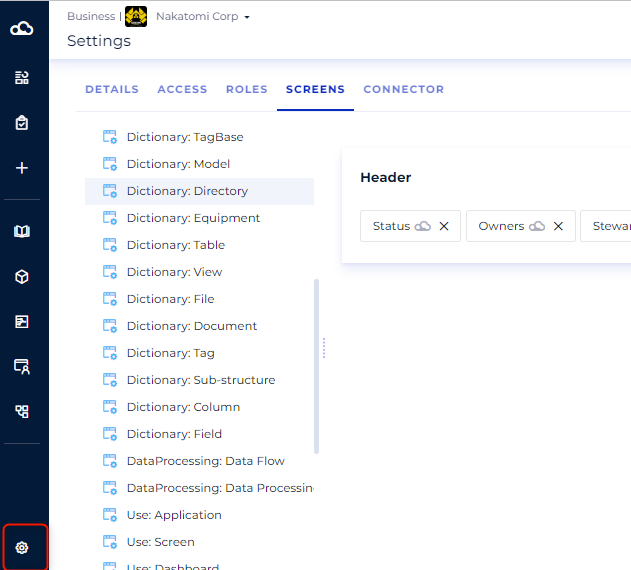
1. In your workspace, click on the settings button to access the customization capabilities (if this button is not available, you are not the workspace administrator),
2. Click on screens,
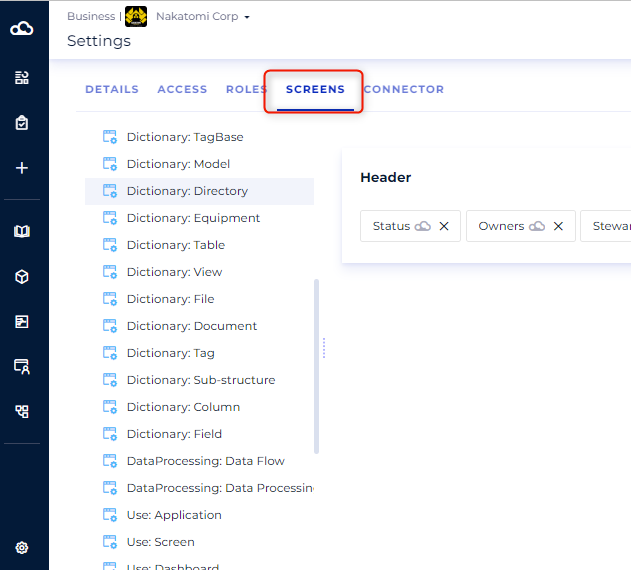
3. Chose the module and the object you wish to customize. You can:
- Create, modify and delete a category.
- Drag & Drop the fields from the list on your right into the category.
- Notice a few specificities:
- "General" and "Ownership" categories can't be renamed
- "Synonyms" category,available on some of the business glossary objects can't be removed or renamed.
- "Header" category can't be removed, renamed or hide. Some other limitation applies on this category such as: Text, Rich text, Value list and Hierarchical list can't be set on the header category and there is a limitation to 5 attributs that can be set for visibility reasons.