
The purpose of this article is to explain how to customize the Client Space screens. This process is similar to the customization of the Workspace screens customization but the inheritance rules are not the same.
To go further:
- Consult this article to understand more precisely the concepts of client space and workspace
- Consult this article to understand the concept of Object card
- To find out if you are eligible to customize clientspace screens, you can read this article, which explains how rights work at the clientspace level.
The customization of the screens at the Client Space Level will have an impact on all the Workspace. This will be the default screen version.
How to customize the screens of the clientspace?
To customise the clientspace screens, you must first ensure that you are a clientspace administrator and therefore have a Data Steward licence. To verify this, the "Admin Access" box in your profile must be checked.
The customization of the screens at the clientspace level will have an impact on all DataGalaxy workspaces, except those where the screen has been edited within a workspace' settings . This will be a "default" version of the application.
Follow the steps below to customize the screens:
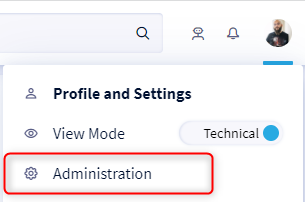
- Access the Administration space by clicking on the drop-down menu at the top right under your profile picture.
- Click on the Screen tab
- Chose the module and the object you wish to customize.
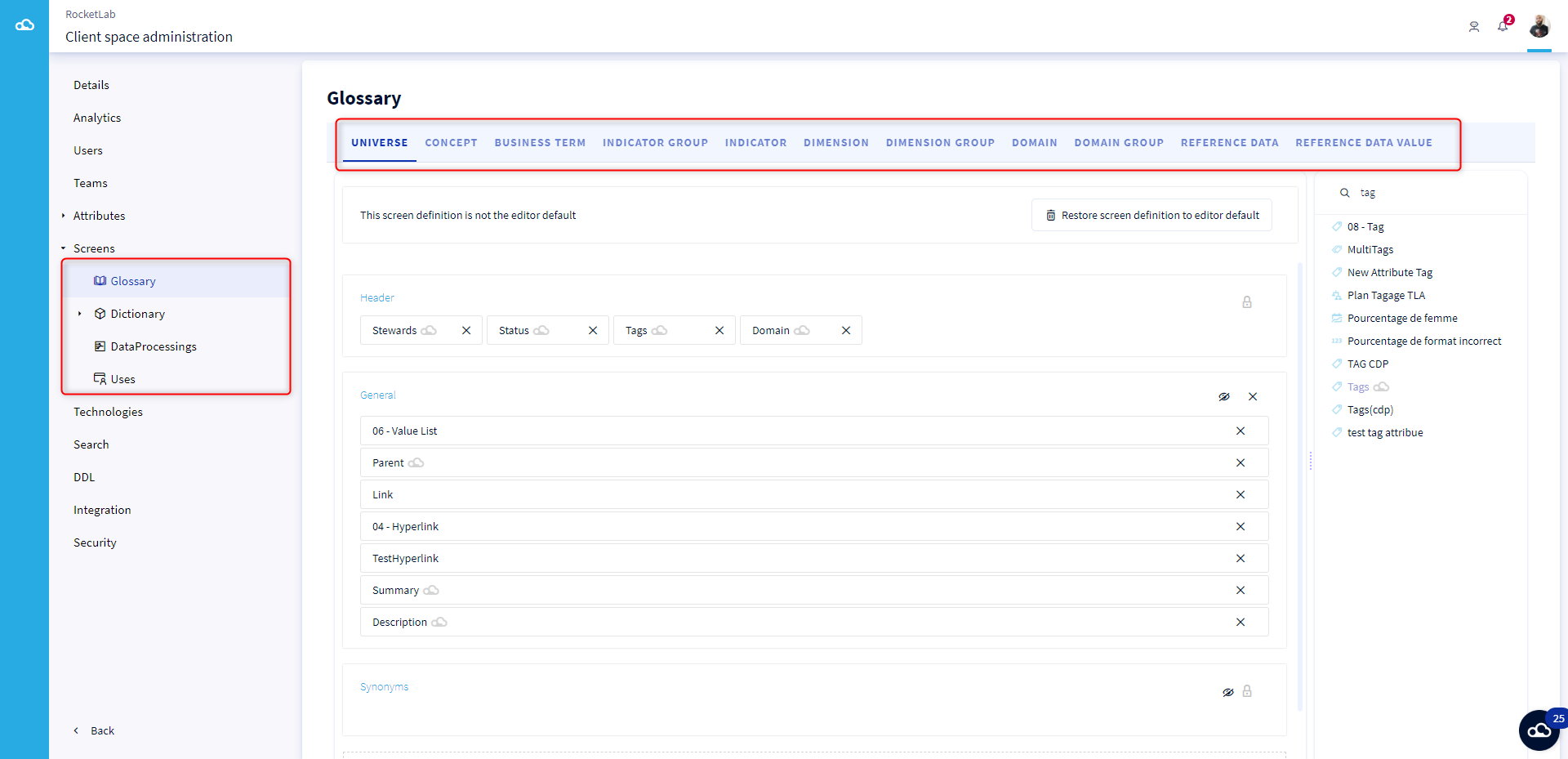
- Add or remove categories. Note, however, a few peculiarities:
- The categories "General" and "Manager" cannot be renamed.
- The "Synonyms" category present on some glossary objects cannot be removed or renamed.
- The "Header" category cannot be removed, renamed or hidden. In addition, there are some limitations on this category. Text, Rich Text, Value List and Hierarchical List attributes cannot be positioned in the header and the number of attributes in the header is also limited to 5 for readability reasons.
Drag the fields of your choice into the categories. All available fields are listed on the right.