
DataGalaxy API is secured and requires an authentication token. Two token types exist:
- Personal Access Token (PAT): associated with your personal account, it has the same rights and uses the same license as your account.
- Integration token : the creation of an integration token must be done from the platform by an administrator. It automatically creates an associated user, on which rights and restrictions can be defined, in the same way as for a classic user.
See this article for more details about authentication and how to use our APIs
Using an integration token is preferable when you need to be isolated from your user account's context, for example:
- When you want to restrict or extend the possible operations (i.e. you personally have administrator rights, which are not needed for the tasks you want to perform via API)
- When you want to ensure that these operations will continue to be operational if your account is deactivated (i.e. for synchronization of metadata in DataGalaxy from a third party system)
This feature is to be distinguished from other integrations capabilities available in the tab settings.
Activate your Personal Access Token
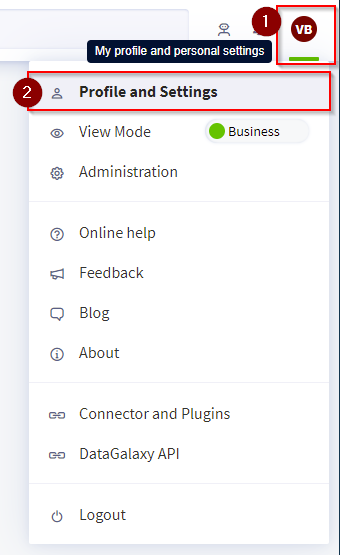
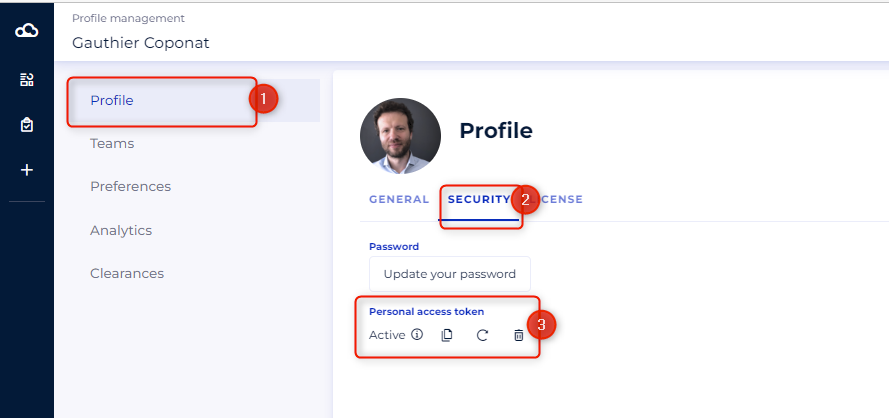
By default, the access token associated with your account is not activated. You must go to your profile page to check if it has already been set and, if so, generate it.
1. Go to your profile administration page
2. Check if a token has already been activated, and if so, generate it
Creation of an integration token
Creation of an integration token requires an administrator license.
Follow these steps:
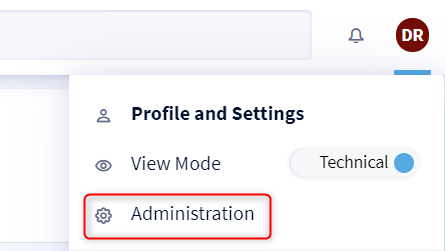
- Open the administration screen.
2. In the integration tab, click on create.
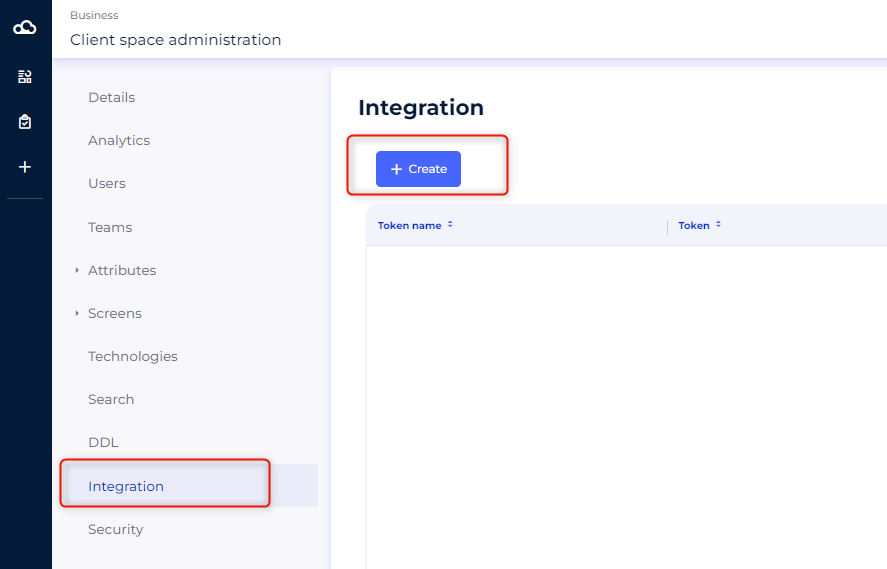
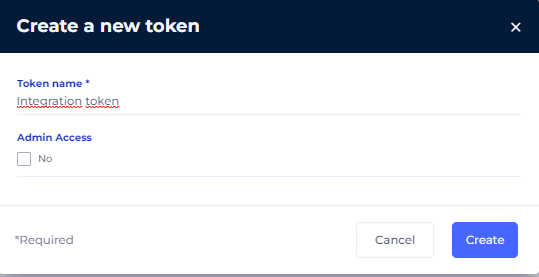
3. Name your token and click on create.
If you want to create users or update licenses via API, Admin Access will be required
4. The token appears in the list.

5. The integration tokens created will generate technical users with a Steward license. The technical users created will appear in the Users tab of the administration console. A small padlock indicates that they cannot be modified.
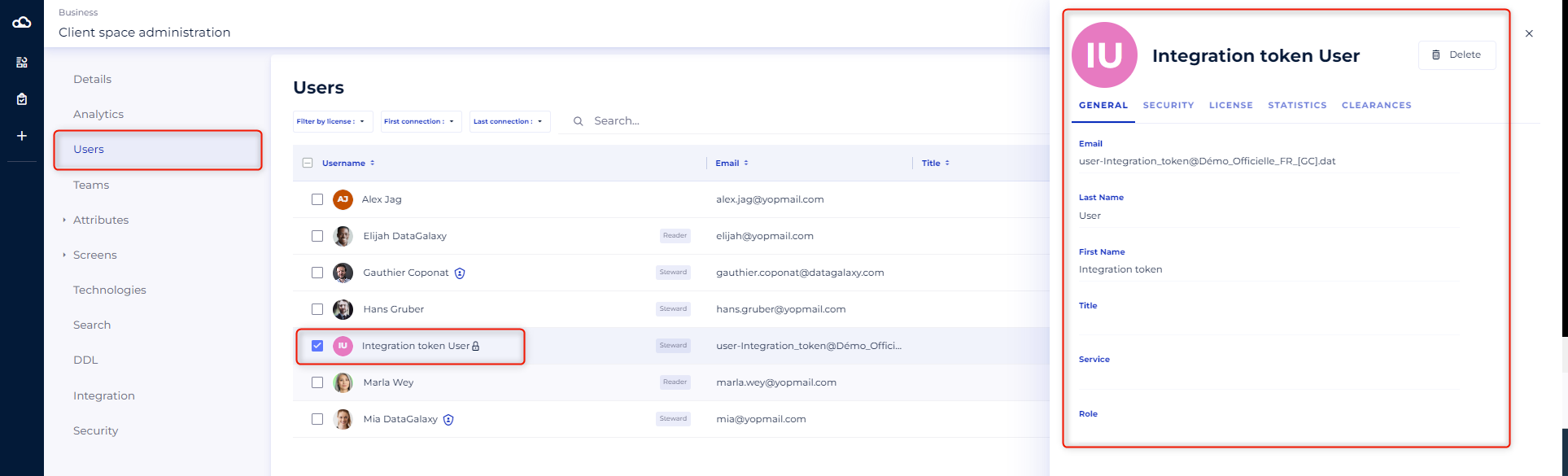
6. Final step: add these technical users to Teams and grant them access rights to Workspaces. See: Managing user access rights.