You don't use DataGalaxy on a daily basis, but you'd like to stay informed when a user mentions you, or when your watched objects are modified?
Then don't wait any longer, and activate the integration between DataGalaxy and Teams right now.
This integration enables you to receive all your personal DataGalaxy notifications, directly in Teams.
Connecting DataGalaxy and Teams from administration
To receive your notifications in Teams, a clientspace administrator must first connect your Teams account to DataGalaxy.
To do so, the administrator must:
- Access the Integration section of the administration panel
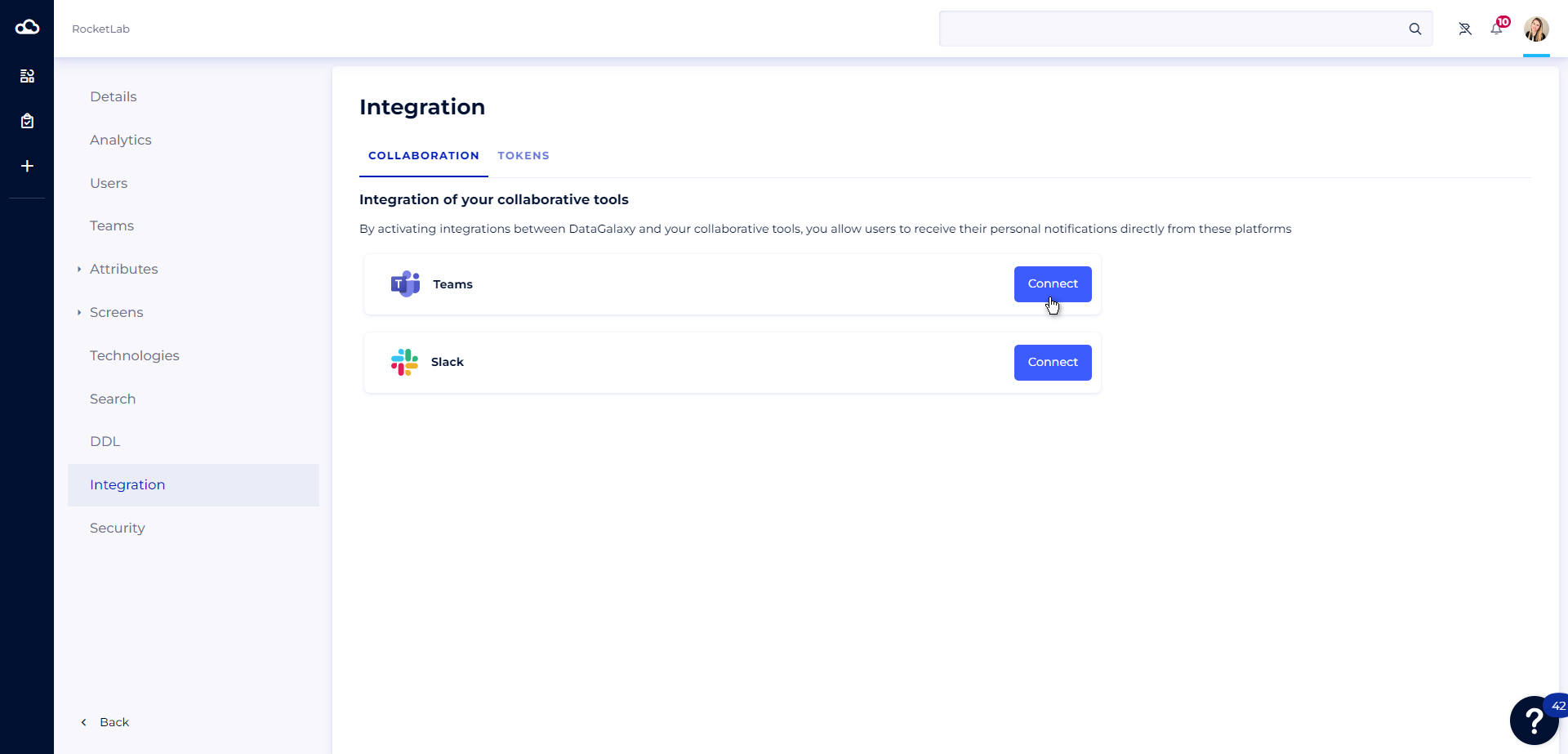
- Click on the Connect button in the Teams tool
- A modal opens
- The tenantId, which links your Teams account to DataGalaxy, is pre-filled with your domain name. You can change it to update the tenantId.
- Click on the Connect button
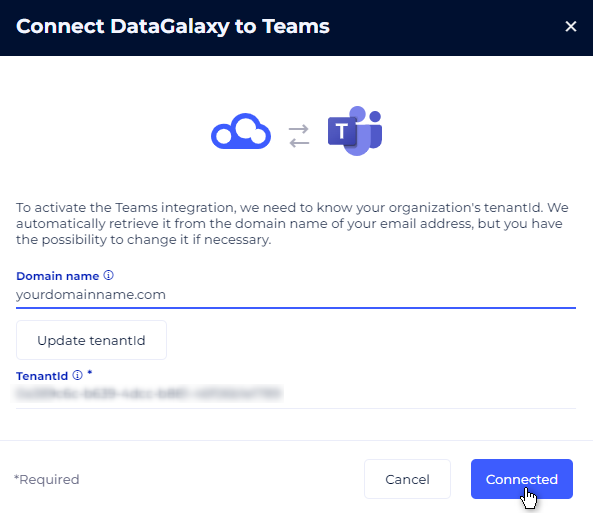
The administrator can deactivate the Teams integration at any time by clicking on the Deactivate button. Please note that this will disable notifications in Teams for all users who have already activated this integration.
Activate my personal notifications in Teams
Once the integration has been completed on the administrator side, each user will receive an InApp notification indicating that they can now receive their personal DataGalaxy notifications in Teams, and can choose whether or not to activate them.
To activate your notifications in Teams, you must first add the DataGalaxy application from within Teams. 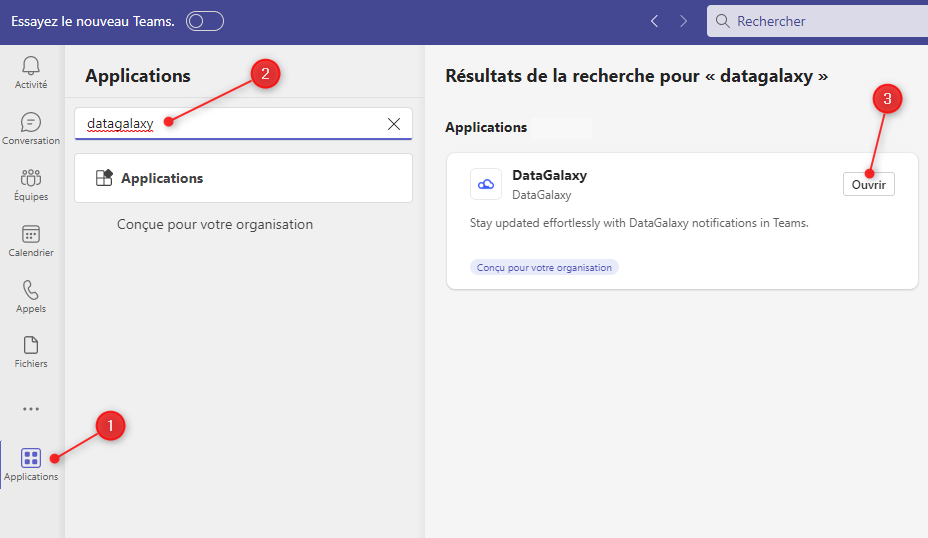
If the application is installed correctly, you will see a welcome message from DataGalaxy.
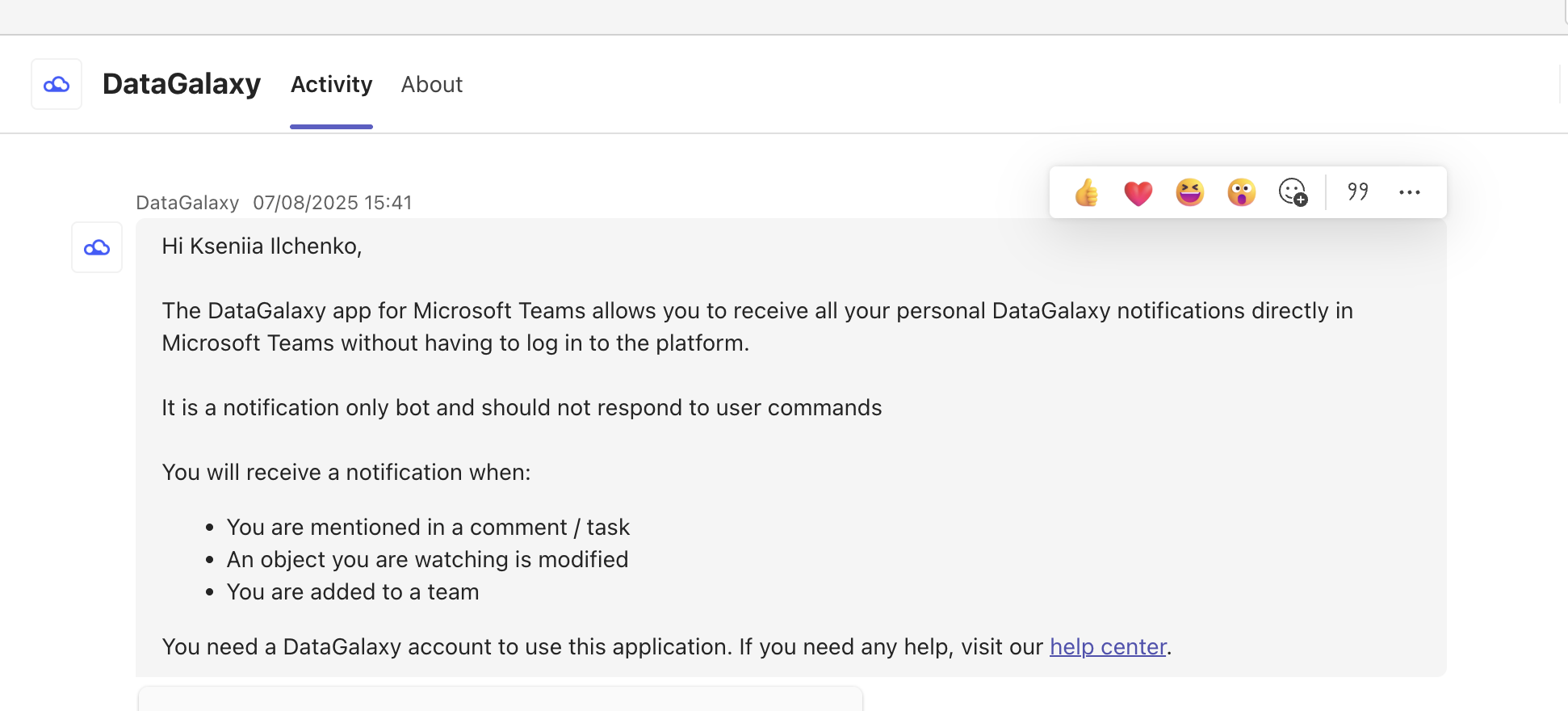
Please note that you cannot activate notifications until the app has been installed.
Then you have 2 options for finalizing notification activation:
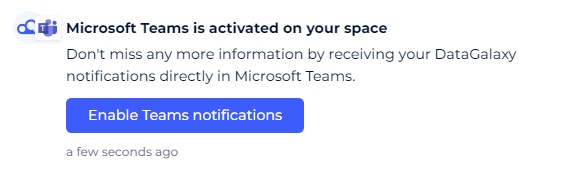
1 - From the integration activation notification
To activate your personal notifications in Teams from the integration activation notification, you need to:
- Open the Notifications panel
- Find the integration activation notification
- Click on the Enable Teams notifications button
2 - From your profile
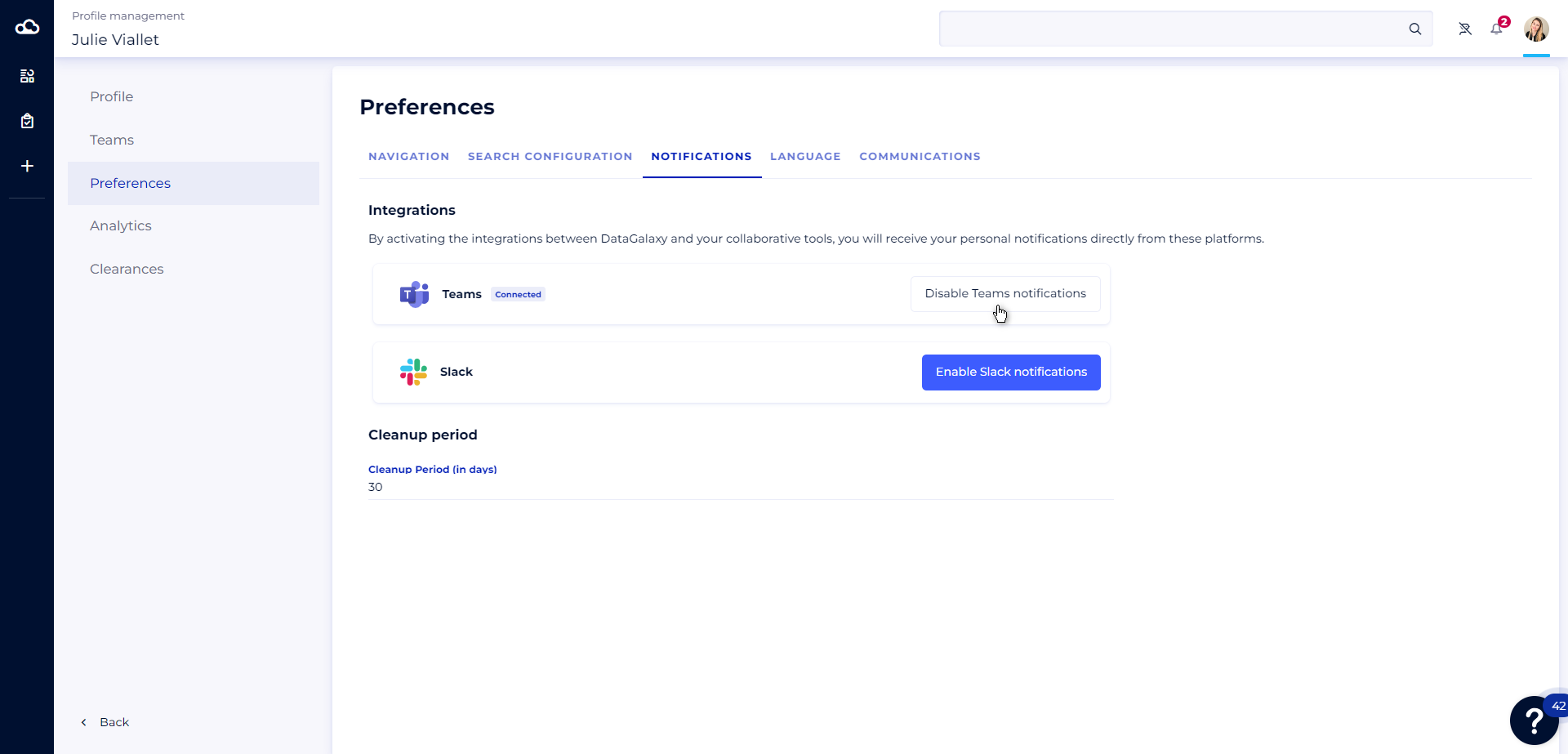
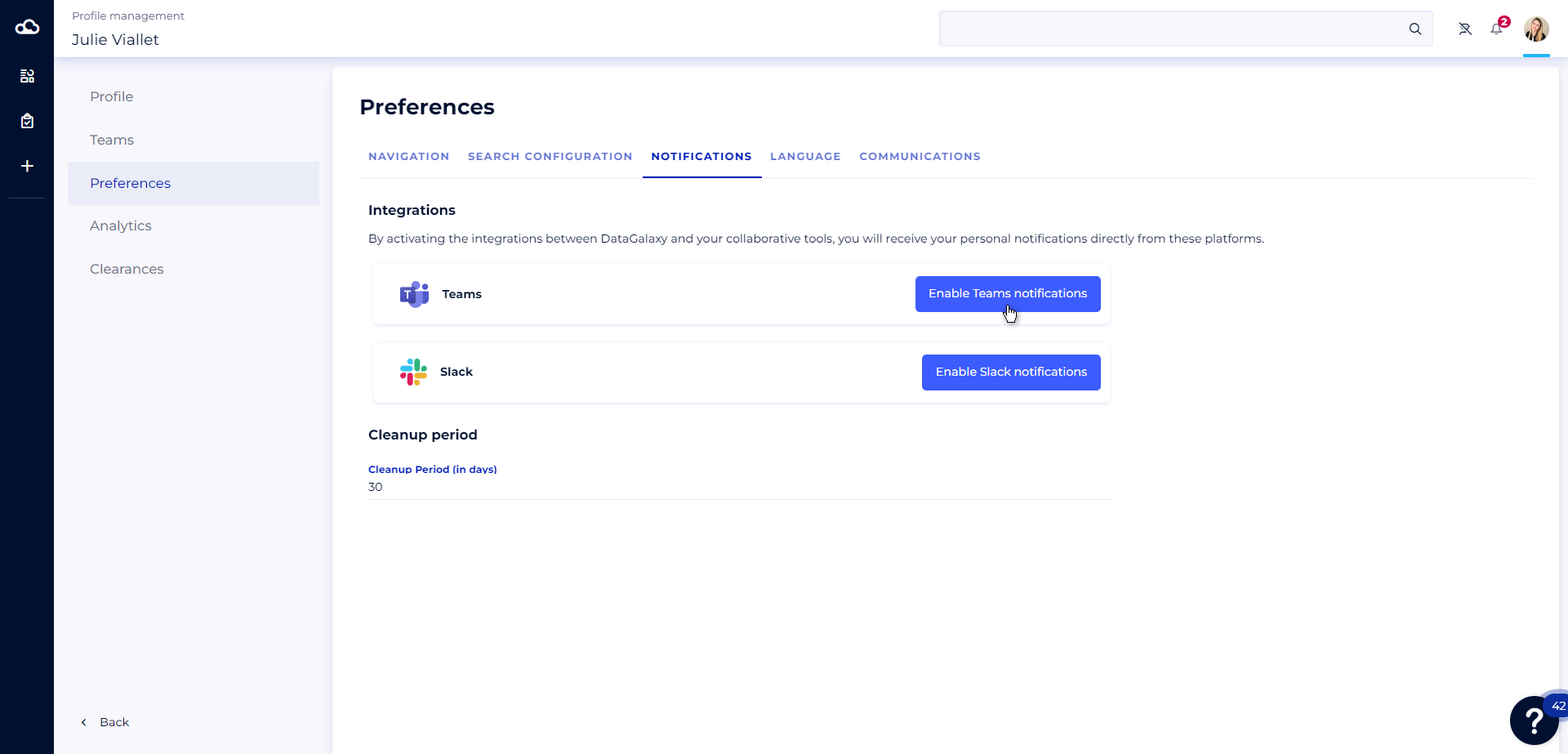
To activate your personal notifications in Teams from your profile, you need to :
- Click on the icon at the top right of the screen
- Click on the Profile and Preferences section
- Go to the Preferences section
- Go to the Notifications tab
- Click on the Enable Teams notifications button
NB: If the integration has not been done on the administrator side, you can send a request to the clientspace administrators asking them to activate the integration.
Deactivate my personal notifications in Teams
If you no longer wish to receive your personal DataGalaxy notifications in Teams, you can deactivate this option from your profile.
To do this:
- Click on the icon at the top right of the screen
- Click on the Profile and Preferences section
- Go to the Preferences section
- Go to the Notifications tab
- Click on the Disabled Teams notifications button