
This article aims to explain how to use data lineage, a feature of impact analysis.
To understand more precisely the concept of impact analysis, you can consult this article.
Start a data lineage analysis
A data lineage allows discovering the traceability of an object by visualizing both the objects impacted by this object and what impact this object.
- Search an object of your choice.
- The object is displayed on the screen with its different links to the other objects.
You can zoom in and zoom out. You can move all the containers and collapse them if needed.
Warning: in case of huge lineages there is a limit applied to preserve a smooth navigation within the lineage. This limit consists in hidding the more detailed elements (descendants) in the defaut lineage display. You can show detailed hierarchy of each object on demand using the unfild button described below.
Unfold the hierarchies
In the Data Lineage, for each hierarchy, you can group objects together. For instance, columns are gathered in the table and tables are gathered in the model.
- Search for an object in the Data Lineage
- Click on the arrow > to group objects together
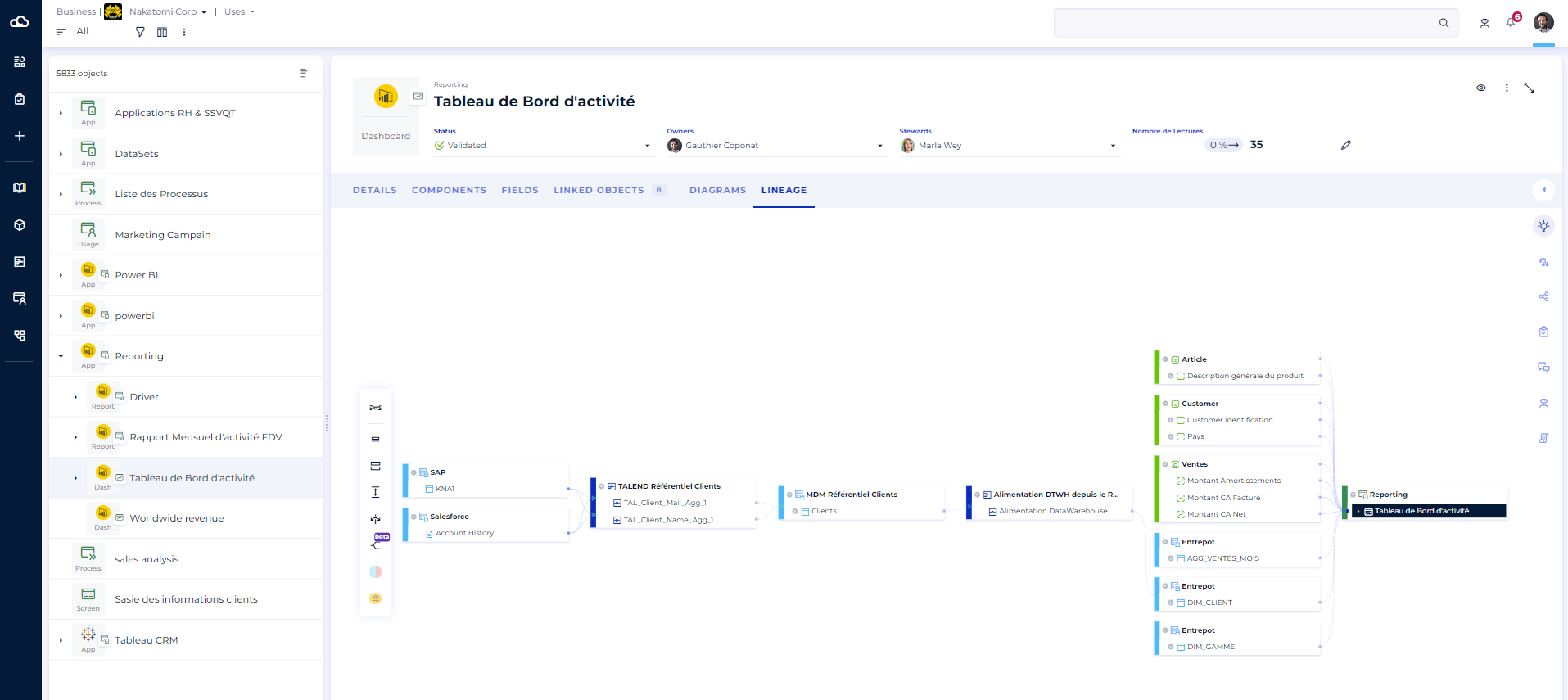
It is also possible to change the view from the module navigation toolbar that proposes 3 views:
- Simple: display the highest level of hierarchy of objects. It is the most synthetic view.
- Intermediary: display the n-2 level from the highest level of hierarchy.
- Detailed: display the fully detailed lineage. It is the most detailed lineage possible. Warning: huge lineage may slow down your browser capability in order to be dispayed.
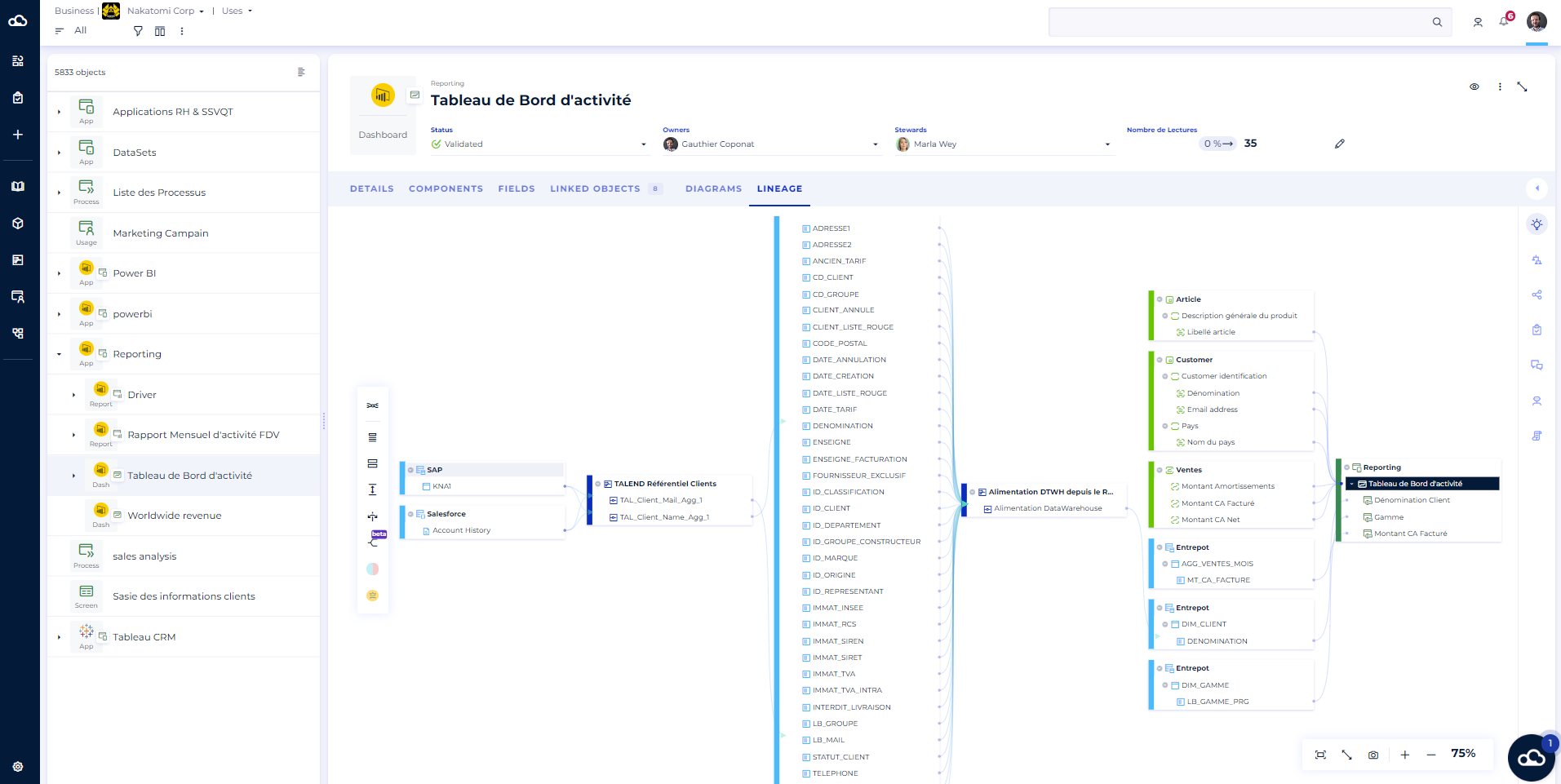
Load Dataprocessing Items sibling's paths (Beta)
Since version v3.2, in order to help with difficulties to deal with large lineage, the default display focuses only on paths linking objects through dataprocessing items. Meaning peripherical paths are no more loaded by default in order to obtain more easy to read and more straight forward lineages in impact analysis cases. Doing this will reduce lineage's loading time.
The lineage displayed is similar to the highlight path tracker feature explained later in this article.
It is still possible to display the peripherical links using the button : "Load Dataprocessing Items sibing's paths"
The button allows to load paths which do not directly impact the source object of the displayed lineage, but which come into play in certain common processing operations (corresponding to the default display before version v3.2).
It is possible to switch from one display to another using this button.
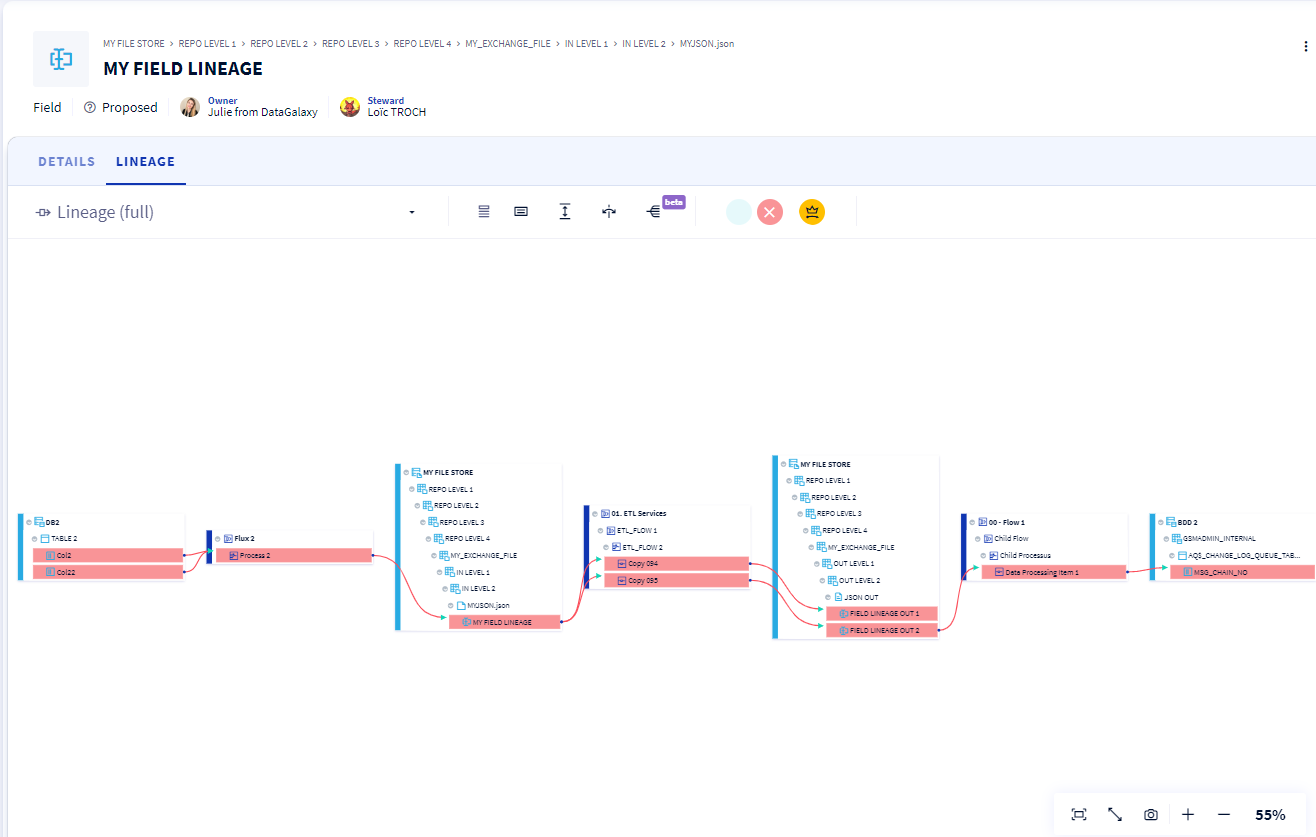
New default display, corresponding to the Path tracker feature result:
Bellow, the red highlighted items are the "Path tracker" display, we observe that only those highlighted items are shown.
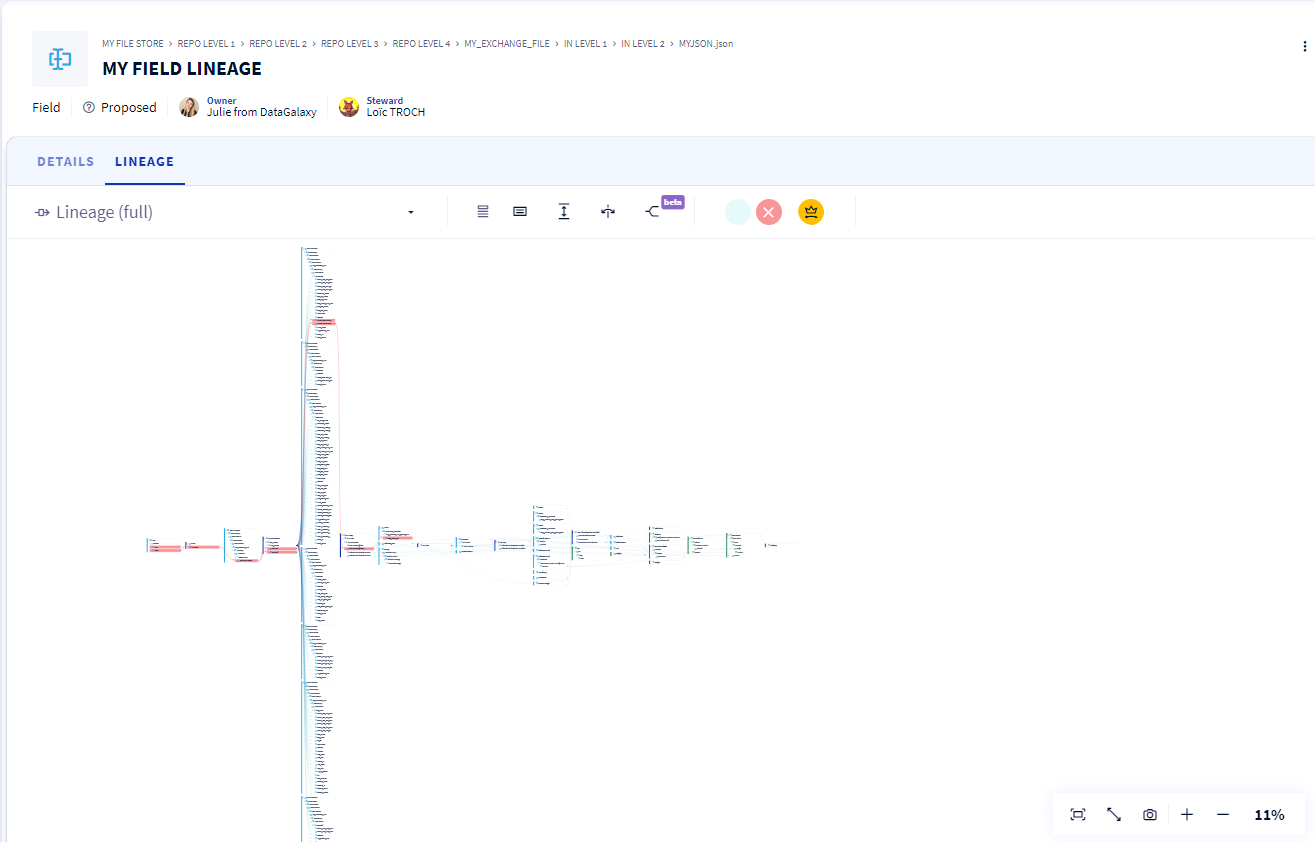
Display with the dataprocessing items sibling's paths (old default display)
Bellow, the red highlighted items are the "Path tracker" display, we observe that many other highlighted items are shown because of paths which do not directly impact the source object of the displayed lineage, but which come into play in certain common processing operations
Important : seules les lineages qui incluent des unités de traitements sont potentiellement impactés par ce nouvel affichage par défaut. Les traitements sans unité de traitement ou les liens entre objets qui ne sont pas des traitements produiront les mêmes résultats peu importe le mode d'affichage de cette fonctionnalité "Beta".
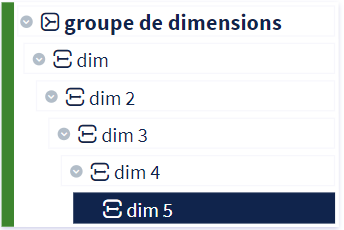
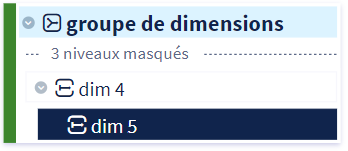
Hide the intermediate levels of the hierarchy
When you have a linked object in the data lineage, its entire higher hierarchy appears to provide context. In some cases, your hierarchy can be too large and therefore sometimes provides too much information. It is then possible to hide all the intermediate levels of the hierarchy to show only the direct parent object, and the highest parent object in the hierarchy.
To do this, simply click on the following icon:

Reverse the direction of the data flow
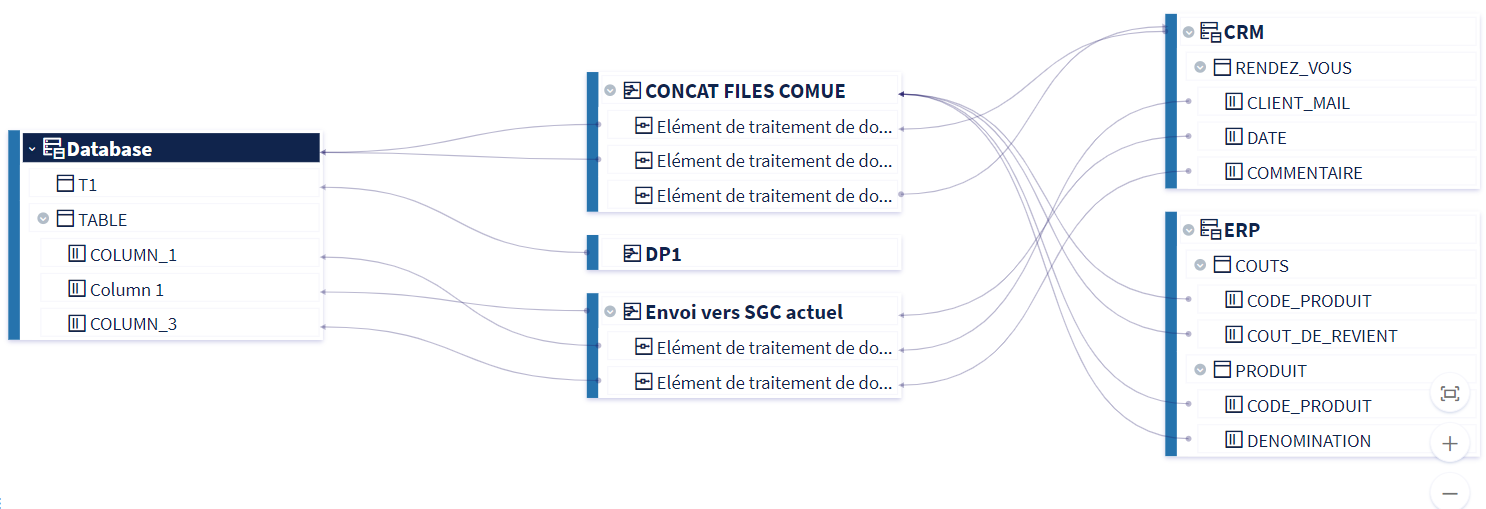
Depending on your use cases, it may be interesting to see the path of your data in a different direction.
To reverse the direction of your data lineage, click on this icon :

Use the path tracker
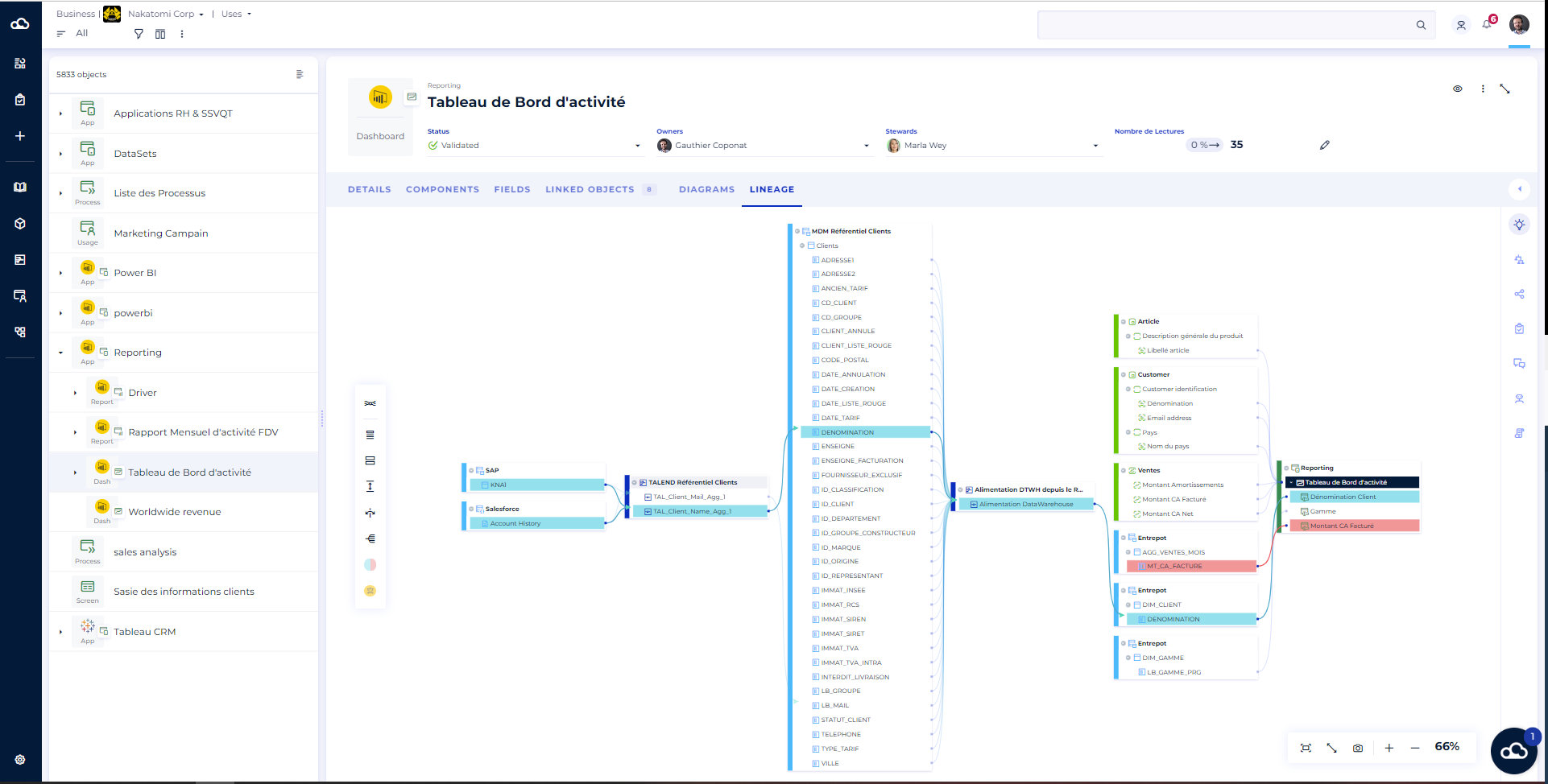
The path tracker allows you to understand the impacts of your objects.
This feature is available in the menu located on the right of the object label: you have the choice between 2 possible path colours : the blue path and the red path. Objects that are covered by both paths will appear in purple.
To remove a path, simply click on the circle of the path colour in the actions section at the top of the screen.
Ungroup/group objects
You have the option of ungrouping and grouping objects from the dictionary and processing.
For dictionary objects (data sources and containers):
- The separation is made on the tables → The source object is divided into as many linked tables as it contains.
- The source object can also be separated into a single object if it has direct links.
For data processing objects (dataflow):
- The separation is made on the data processing operations → The source object is divided into as many linked data processing as it contains
- The source object can also be separated into a single object if it has direct links
Displaying a lineage of another object
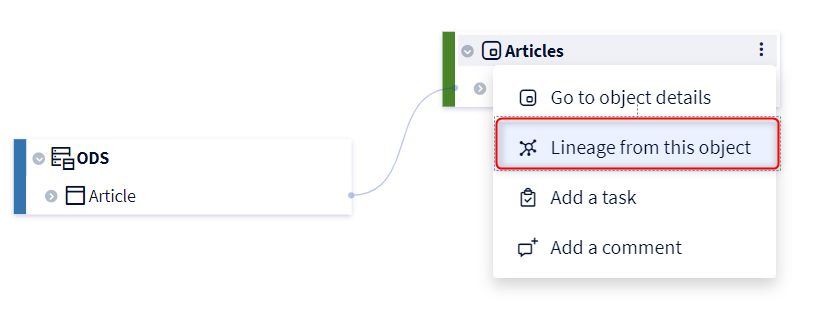
In the Data Lineage of an object you can also display the lineage of another object presented in the Data Lineage. This feature is available in the menu on the right of the object label by clicking on "Lineage from this object".
Adapt the display to your screen
These different buttons allow you to optimize the display of your lineage.

- Screenshot: This allows you to save an image of your lineage at time T in .png format.
- Ideal Zoom: This allows you to resize and center your display to fit your screen perfectly.
- Full-screen mode: This allows you to display your lineage on your entire screen for more comfort.
- Zoom in
- Zoom out