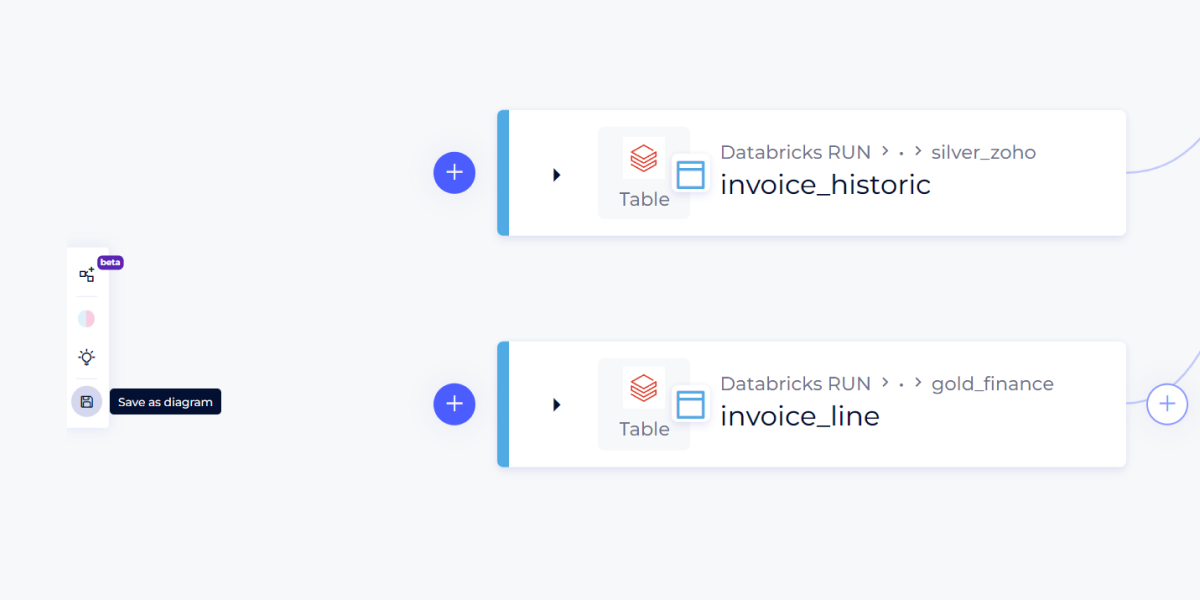
The Exploratory Data Lineage is our brand-new data lineage system, designed to optimize and enrich your data management experience. This major advancement is based on innovations such as hierarchical boxes, virtual links, and improved exploration and visualization capabilities. Let's look in detail at what this brings to your daily work.
Discover the New Features:
Hierarchical Boxes
These structures allow you to see how data is connected from the most general level down to very specific details such as columns. They organize data by families or kinships, helping you clearly see how each data set is related to others.
Link Visualization: Allows viewing connections between descendants of a specific object, enhancing understanding of data flows.
Hierarchical Grouping: Organizes objects by kinship under the same box, facilitating navigation and comparison between similar data groups.
Restoration Capability: Significantly improves lineage analysis capabilities, with the ability to zoom down to the column level as needed.
How to Use It?
Detailed Exploration: Zoom in to explore details at the column level and understand specific data transformations.
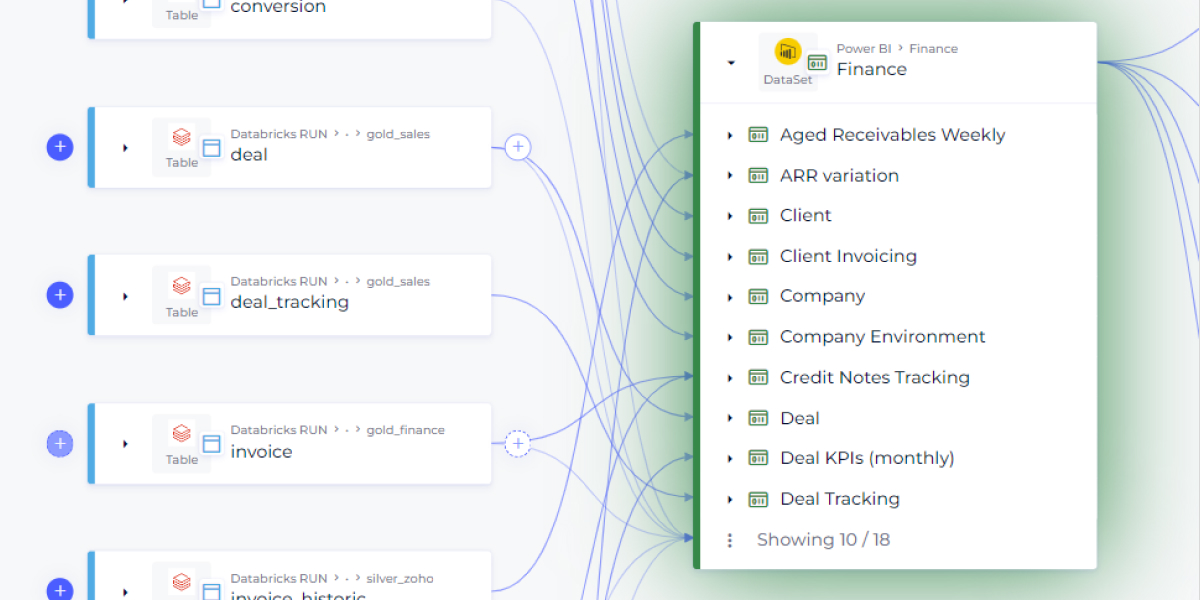
Virtual Links
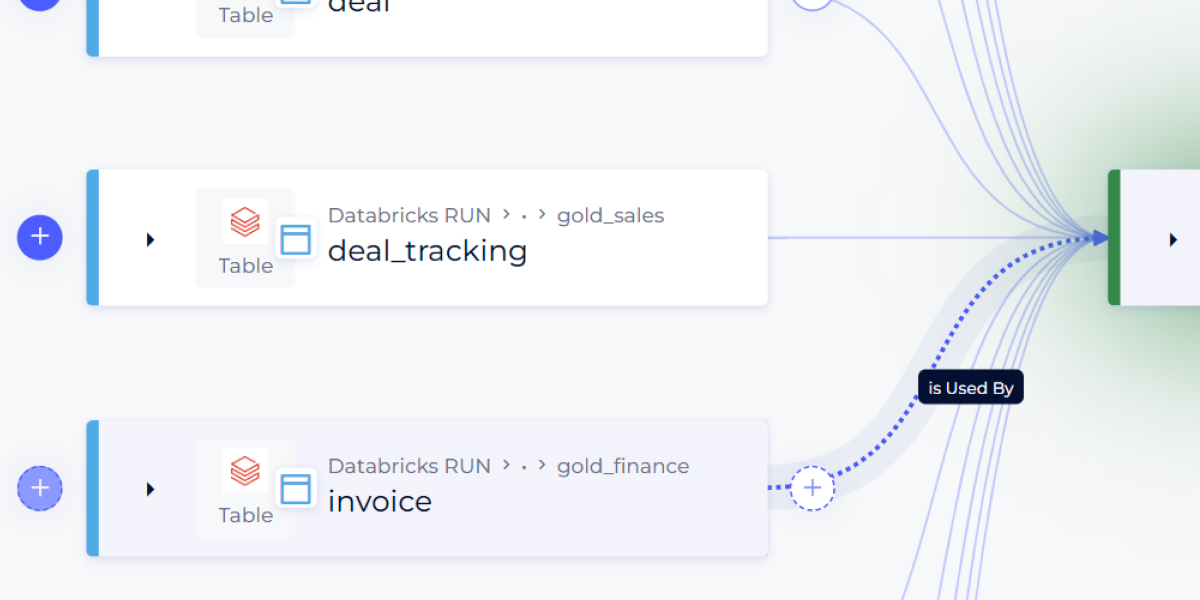
Links are displayed discreetly and become more visible (dotted) upon hovering, revealing the existence of hidden connections between objects not displayed on the screen.
How to Use It?
Hover: Move your cursor over objects to reveal virtual links.
Virtual Exploration
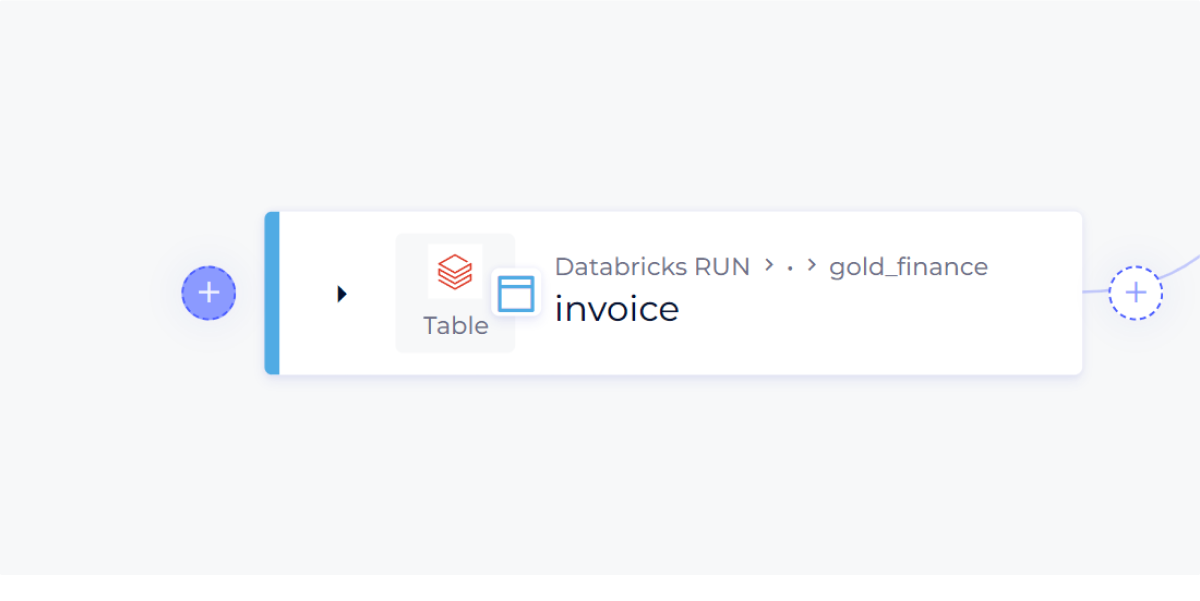
Your journey through the data universe should not be linear or rigid. Dotted (+) buttons invite spontaneous exploration, allowing the discovery of links between descendants of an object without displaying these descendants.
How to Use It?
Click on the (+): Each click reveals new connections and pathways, enabling you to navigate intuitively through complex lineages.
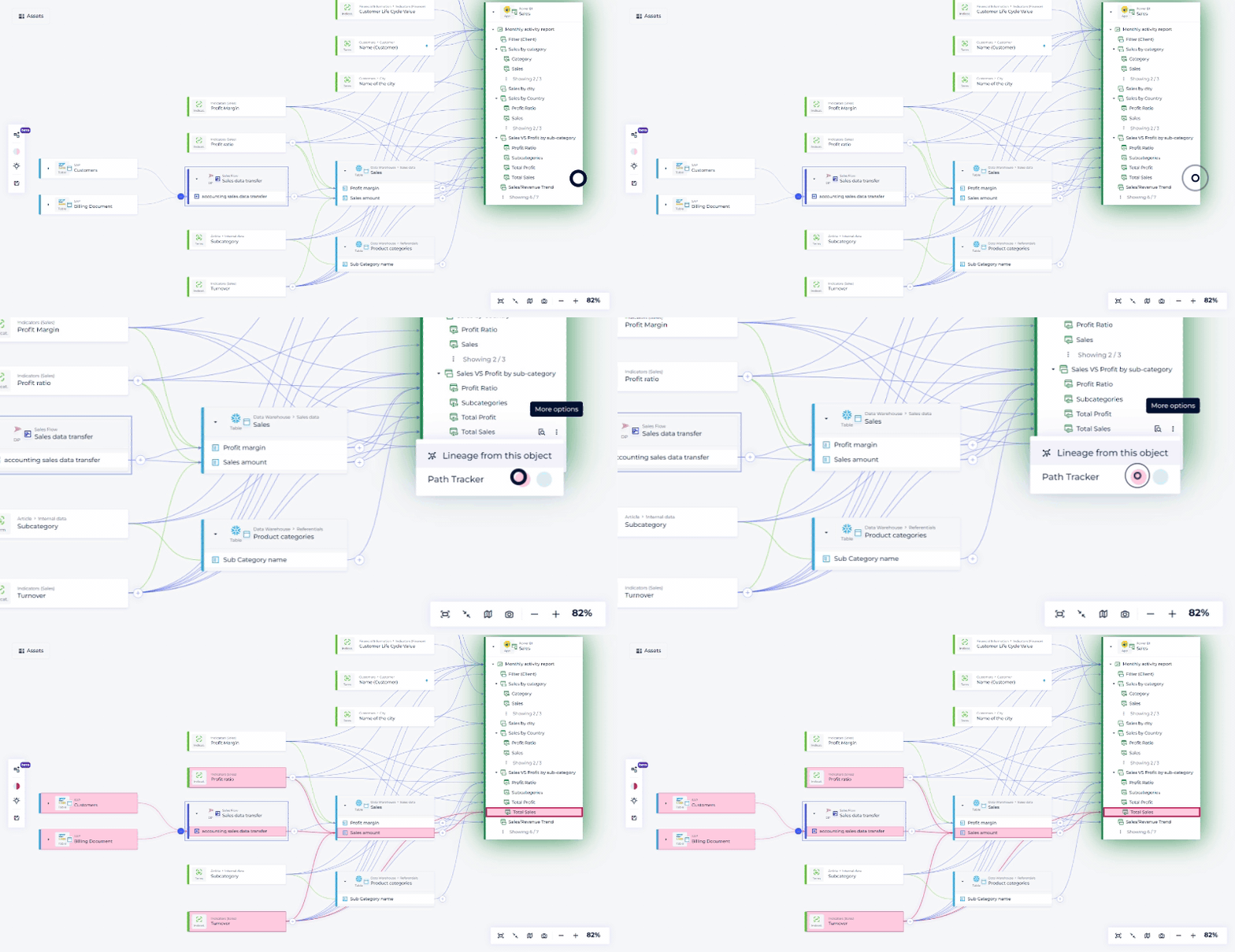
 Path Tracker Improvement
Follow the path of your data with unmatched precision. The path tracker adjusts its display in real-time as you explore different branches of the lineage.
How to Use It?
Click on the Dots: Activate this feature to visualize the complete data path as you explore different sections.
Grouping Objects Under Their Parent
Automatic organization: Groups objects under their parent once the number of children exceeds 10, limiting the display to essential elements for better readability.
How to Use It?
Automatic Grouping: Let the system organize your data, showing only relevant information and reducing visual clutter.
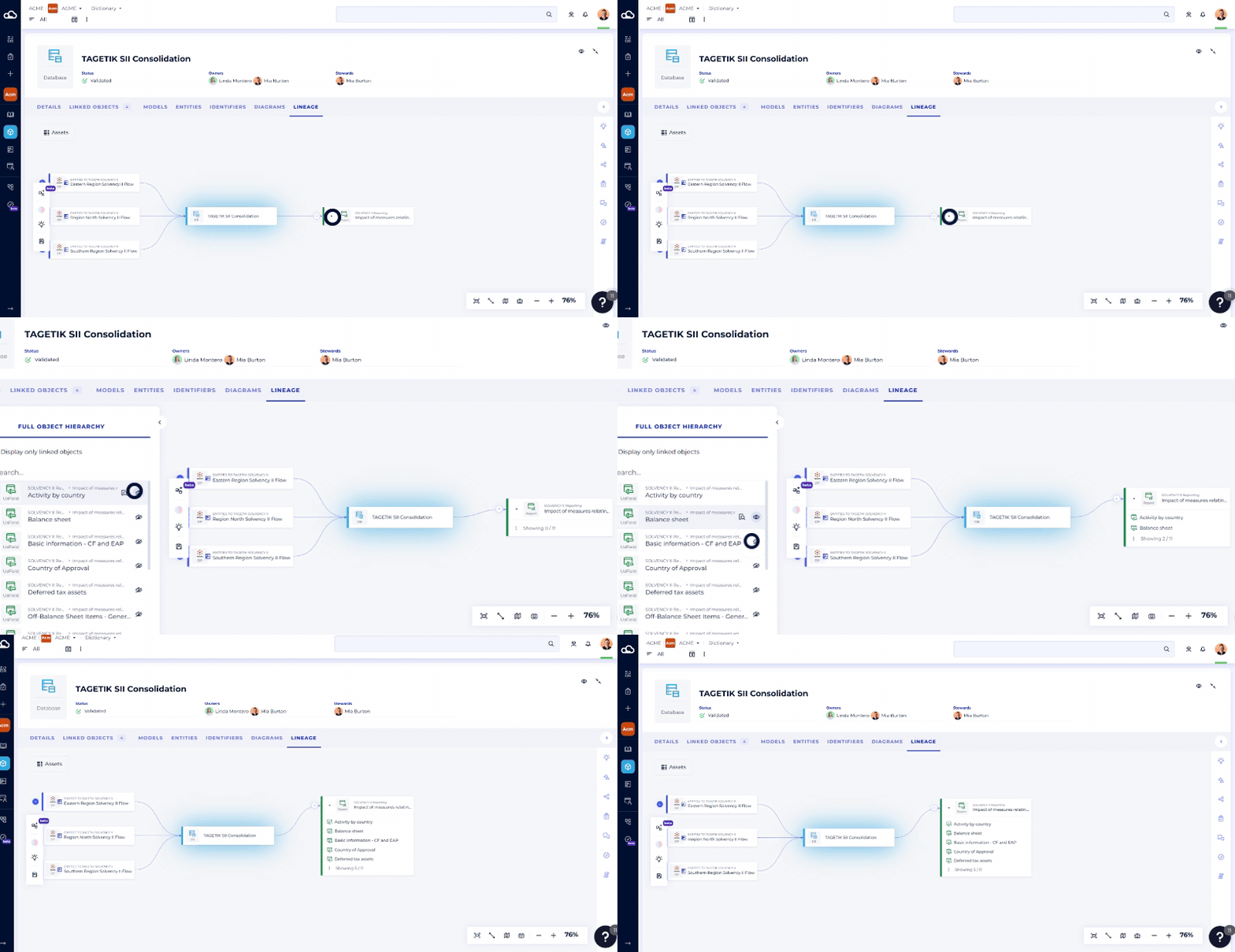
Hierarchy with Object Selector
Control which objects are displayed or hidden in your hierarchy, allowing you to customize the view according to your analytical needs.
How to Use It?
Custom Selection: Specifically choose which objects to display for a more targeted analysis using the points located to the right of the object's name.
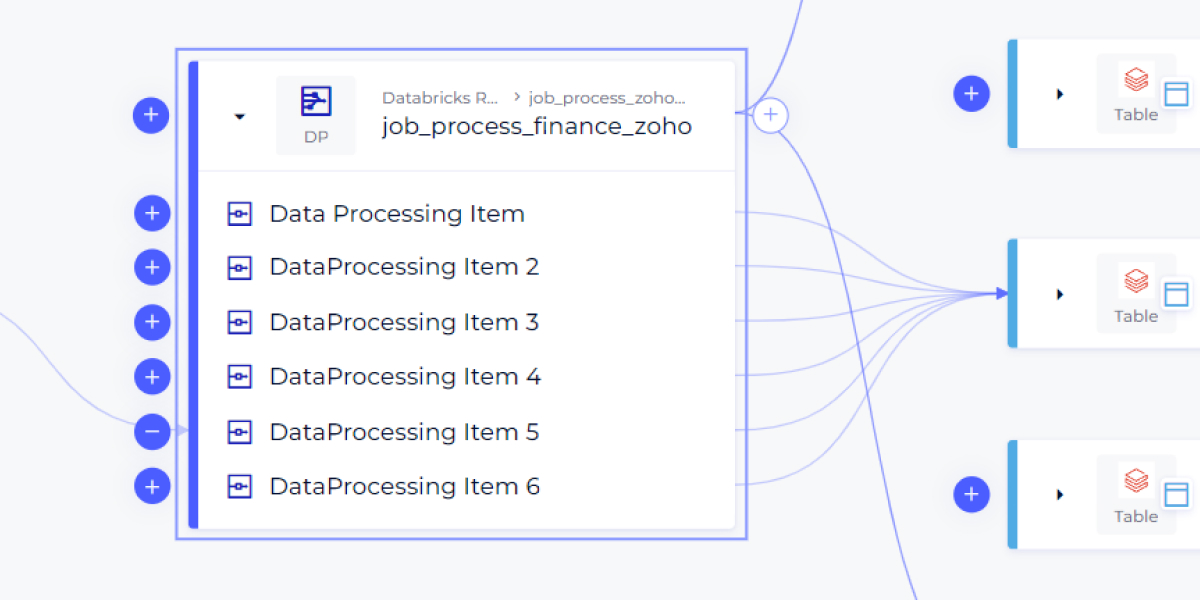
DPI-Level Display
Enjoy an extremely detailed visualization, perfect for analyses requiring high precision at the column level.
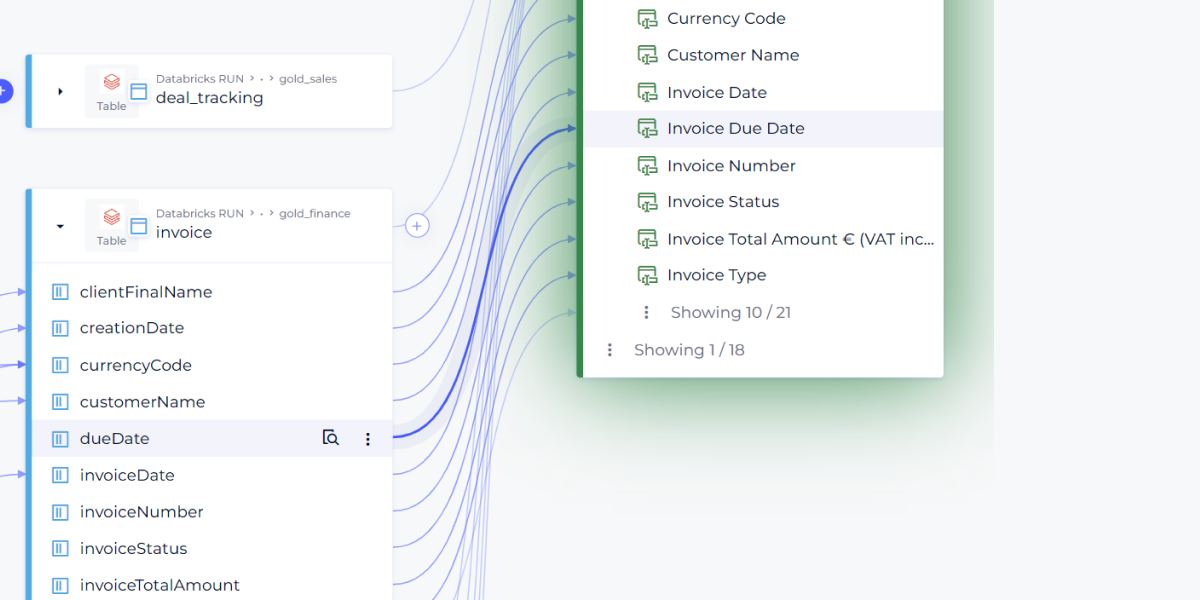
Highlighting Links and Objects Upstream and Downstream
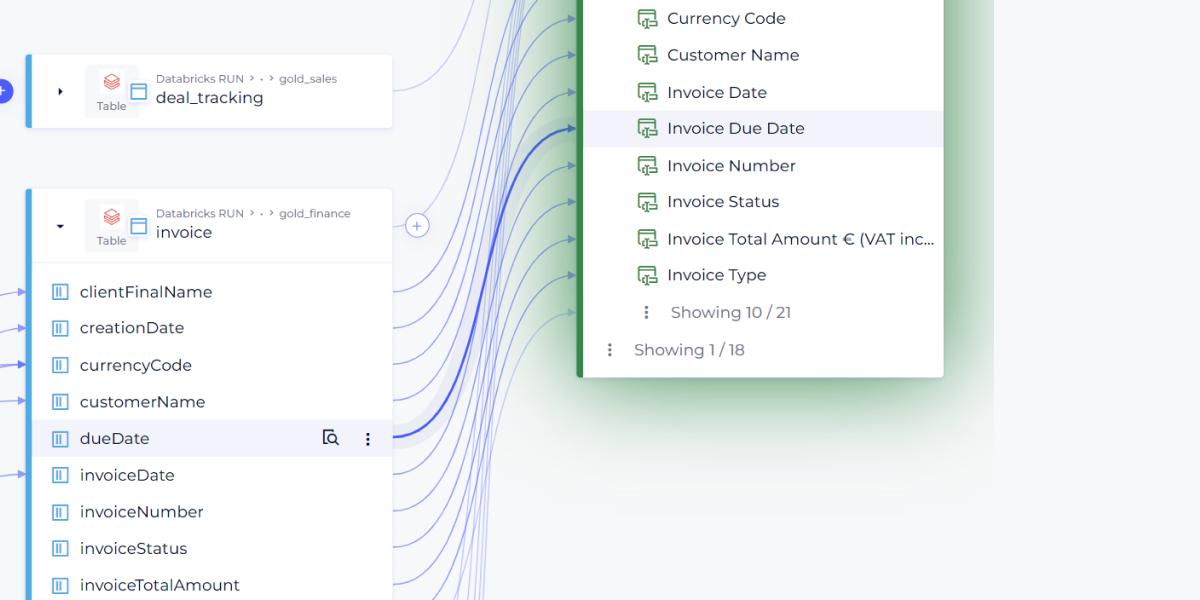
Instantly visualize the impacts of data modifications thanks to the illumination of paths upstream and downstream during hovering.
How to Use It?
Hover and Visualization: Immediately discover critical data flows and their interdependencies by simply moving your cursor over the concerned elements.
Display of Extra Data at the Parent Level
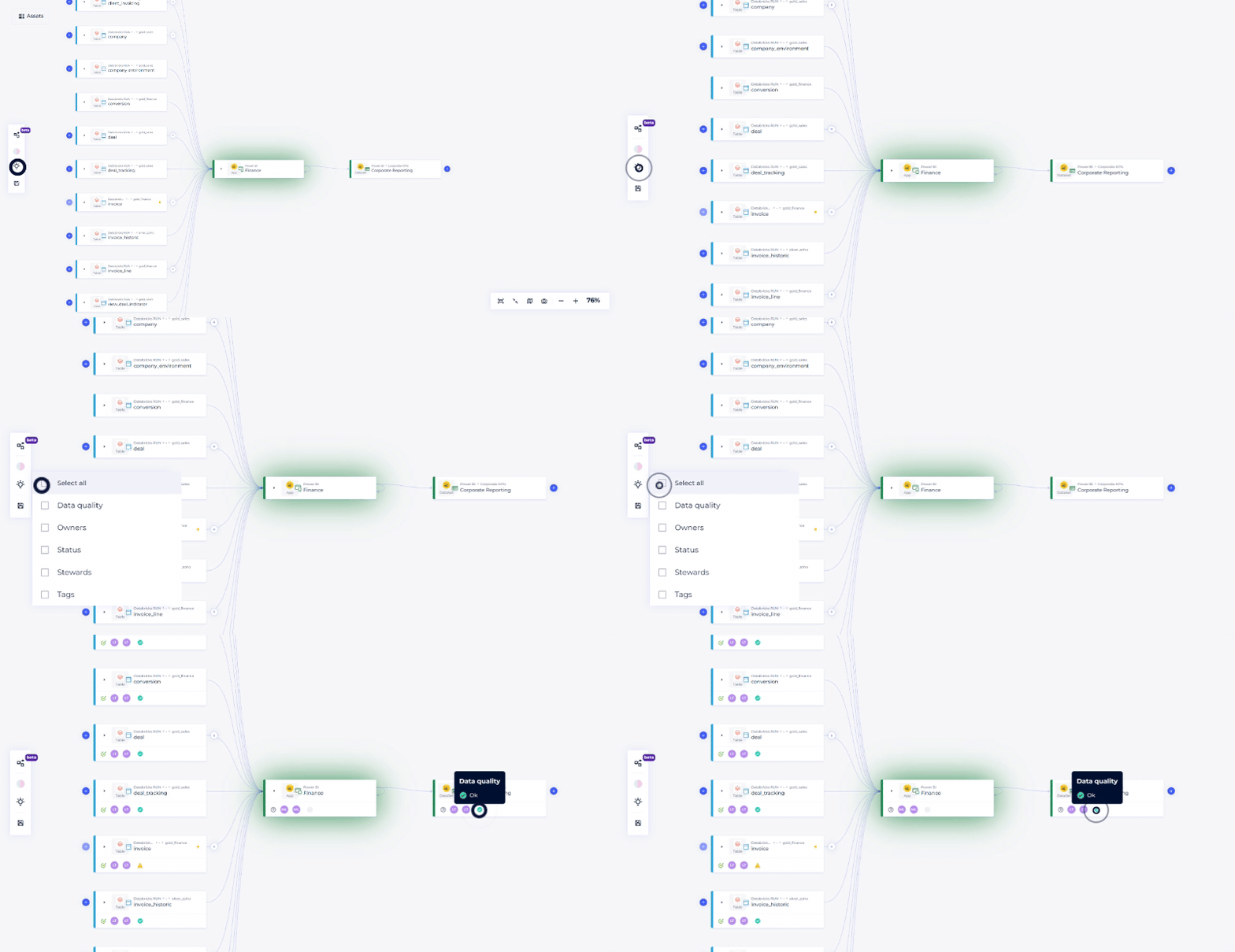
This feature groups additional information at the parent level for an enriched overview, planning to extend this functionality to children for an even richer overview.
How to Use It?
Click on the Icon (bulb): Use the icon in the menu to choose the additional data you want to display on your lineage.
Soon: Evolution of the 'Save as Diagram' Feature
Anticipate future improvements based on your feedback to make this feature even more suited to your needs.