
Download
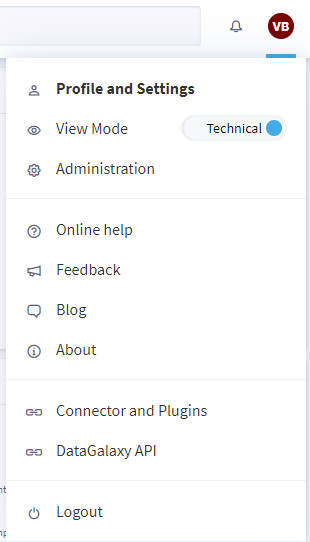
Download the connector and its plugins directly from DataGalaxy portal, either from the menu available under your profile icon:
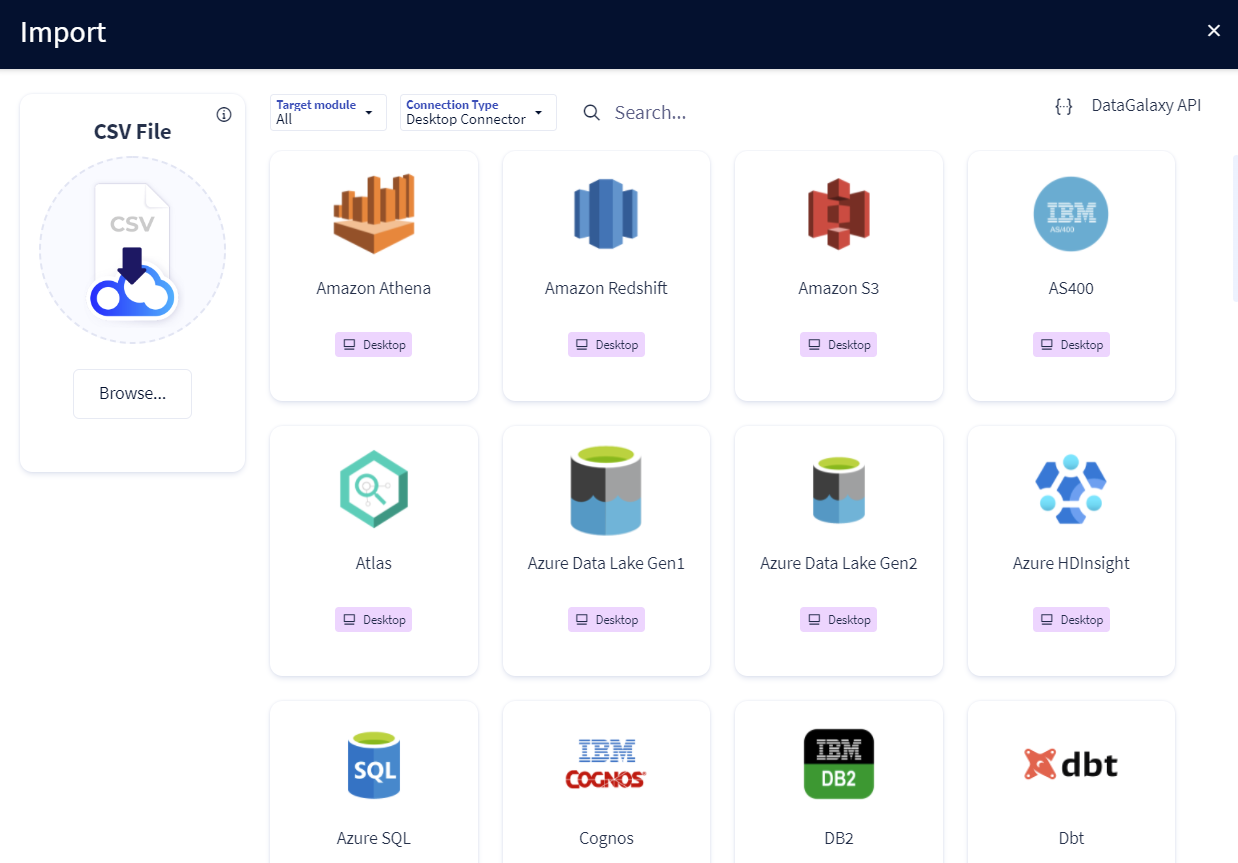
Either via the import option which is available:
- from the "Import" button of the "Shortcuts" widget on the home page of the clientspace or workspace
- fromt he "Import" button of one of the modules when it is empty
- from the contextual menu of one of the modules, to the right of the filtered views
Installation
The installation of the connector is done by simply unpacking the downloaded archive. By default, the connector does not contain any technology (except the JDBC advanced connection mode). You will therefore have to download additional technology plugins and copy them into the /lib directory of the connector in order to use them.
System requirements
DataGalaxy Connector is a Java application, Java version 17 (minimum) is required (a JRE is embedded in the download archive). The connector is available in 32 and 64 bit versions. The following configuration is recommended to run the connector:
- 4 processors
- minimum 4GB of memory, 16GB recommended
- 2GB of disk space
- Windows and Linux operating systems are supported (Mac OS is not yet officially supported by the connector).
Note that RAM can be heavily used when the quantity of source objects is large, typically when importing metadata from a datalake. In such case, you should use the 64-bit version of the connector and consider using a machine with more memory (e.g. 16GB).
Some technologies require a specific configuration to allow metadata fetching from the connector (Token API, client secret, ...). These configurations are usually documented on the editors' websites or in DataGalaxy online help, but do not hesitate to contact us if you experience difficulties.
Desktop Connector application components
Following items are part of the connector installation archive (some of these items require the connector to have been run before in order to be created)
| Chemin | Composant | Description |
|---|---|---|
| datagalaxy-desktop-connector-64.exe | Connector executable | Execution file of the connector in graphic interface mode |
| /log/out-[YYYYMMDD]T[HHMMSS].log | Connector's log files | A new log file is generated each time the connector is run. It can contain detailed information when the verbose mode of the connector is activated (important when you encounter an error or want to analyze the connector behavior) |
| /conf/logback.xml | Log configuration files | Allows you to modify logging behavior, in order to deactivate them or to redirect them for exemple. |
| /conf/application.properties | Application configuration file | Contains configuration information, such as default URL of the Datagalaxy API server |
| /connexion | Saved connexion folder | Folders containing all connection files saved in the application |
| /jre[xxx] | Application | Folder containing the Java Runtime Environment required for the application to run |
| /lib | Librairies, Plugins and JDBC drivers | Folders containing the java libraries (.jar) used by the connector. The downloaded plugins must be copied here, as well as complementary JDBC drivers |
| /queries | SQL queries | Configuration files containing the queries used to retrieve metadata in JDBC mode |
| /sample | Sample files | Contains configuration file templates used by plugins (mapping, plugin specific configuration files, ...) |
| /script | Script executable files | Executable in script format (.bat and .sh) |
| /token | DataGalaxyAPI Integration Token files | Contains tokens added in connector, used for data export thought DataGalaxy API's |
Proxy setup
If the resources exploited by the connector requires the use of a proxy, it must be configured in the DataGalaxy Desktop application through the graphical interface.
To access the settings, launch the application and click on Settings > Proxy : 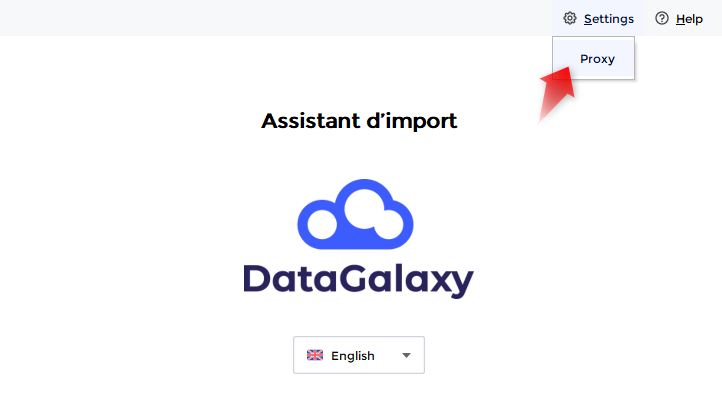
One of the following option must be selected :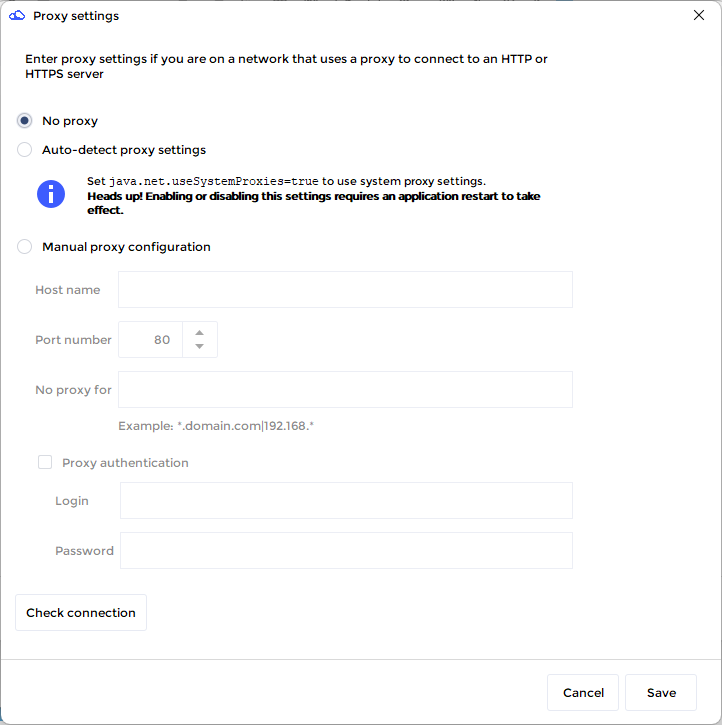
- No proxy : the application won't use a proxy.
- Automatic detection of proxy settings : detect and use the proxy configuration of your operating system (activating this option requires restarting the application).
- Manual proxy configuration : manually configure a proxy.
Button Test Connection can be used to check the access to a resource, whatever the chosen configuration. Click on Save to save the settings (the configuration is saved in the application.properties file).
Certificate Management
Errors such as "PKIX path building failed: sun.security.provider.certpath.SunCertPathBuilderException: unable to find valid certification path to requested target" appear when Java is unable to validate the authenticity of the remote server with which the connector is trying to establish a secure connection.
This means that Java did not find a CA certificate matching the domain name of the remote server. Java ships with public CA certificates, but if your company uses private Certificate Authorities, the corresponding CA certificates will not be known by the Java environment. If you have already added your private CA certificates and the error still occurs, also make sure that there is no domain name mismatch on the remote server.
The following sections describe the different solutions depending on your environment.
Under Windows
Option 1 (recommended): update the Desktop Connector to version 5.14 or higher
On Windows, the .exe and .bat files of connector version 5.14+ automatically use the Windows certificate store. If your company uses private Certificate Authorities, it is very likely that the corresponding CA certificates are already deployed on all Windows machines.
This eliminates most PKIX certificate-related errors without any additional configuration.
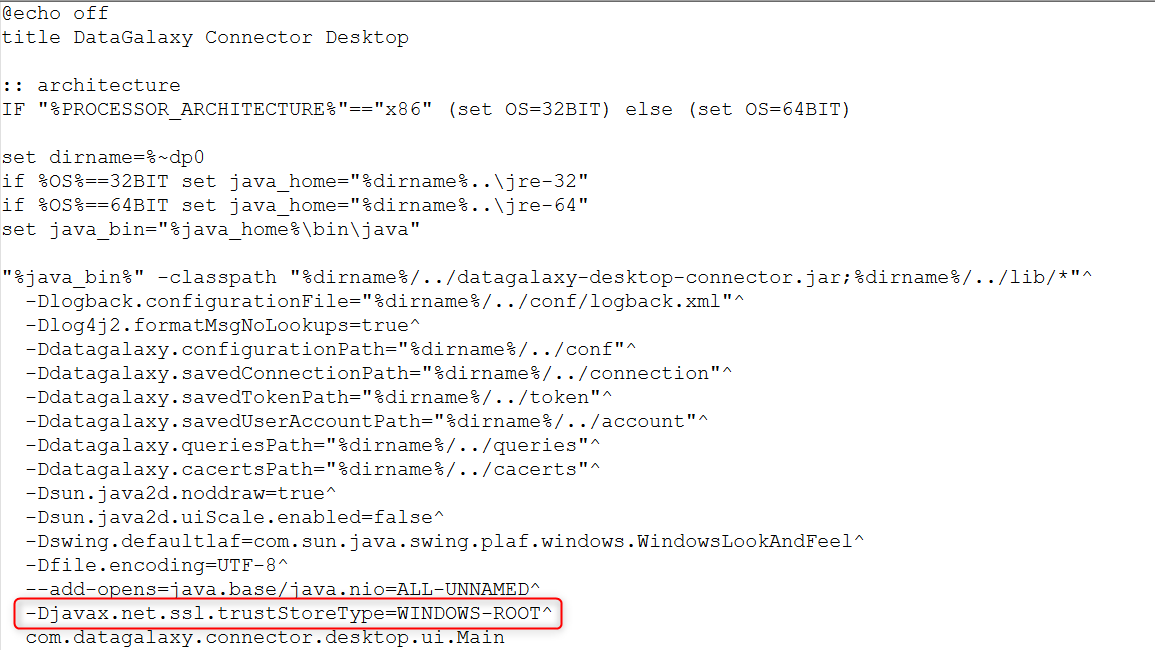
Option 2: force the use of the Windows certificate store (if updating is not possible)
If you cannot update the connector, it is possible to force Java to use the Windows certificate store.
Open the script folder of the Desktop Connector, then edit the file datagalaxy-ui-connector.bat (or datagalaxy-cli-connector.bat, depending on which executable you intend to use) by adding the following line:
-Djavax.net.ssl.trustStoreType=WINDOWS-ROOT^
You must then launch the connector via the .bat file you have just edited.
Option 3: use a custom truststore (advanced method)
This option is useful when you need to manually manage the CA certificates used by Java.
- Step 1 – Retrieve your required private CA certificates
- Step 2 – Check and note the validity dates of your private CA certificates. When the private CA certificates you add expire, you will need to update them using the same procedure, so it is advisable to record this date in your calendar.
- Step 3 – Import the certificates into the Desktop Connector’s cacerts file
You can import certificates:
Using relative paths:
From the \jre-64\lib\security folder of the Desktop Connector, run the following command:
....\bin\keytool -import -trustcacerts -file "your certificate.crt" -alias my-certificate -keystore cacerts
(the default keystore password is "changeit")
Using absolute paths:
Edit the following command with the absolute paths to your Keytool, your certificate, and the Desktop Connector’s cacerts file:
\path\to\keytool.exe -import -trustcacerts -file \path\to\certificate.crt -alias my-certificate -keystore \path\to\cacerts
(the default keystore password is "changeit")
You must then launch the Desktop Connector using one of the .bat files.
Under Mac/Linux
Option 1: use a custom truststore
Open the /script folder of the Desktop Connector, then edit the file datagalaxy-ui-connector.sh (or datagalaxy-cli-connector.sh, depending on which executable you intend to use) by adding the following line (you must specify the correct path to your cacerts):
-Djavax.net.ssl.trustStore=/your/path/to/cacerts
You must then launch the connector via the .sh file you have just edited.

Option 2: import certificates into the Desktop Connector’s cacerts file
- Step 1 – Retrieve your required private CA certificates
- Step 2 – Check and note the validity dates of your private CA certificates
- Step 3 – Import the certificates into the Desktop Connector’s cacerts file
You can import certificates:
- Using relative paths:
From the \jre-64\lib\security folder of the Desktop Connector, run the following command:
../../bin/keytool -import -trustcacerts -file "your certificate.crt" -alias my-certificate -keystore cacerts
(the default keystore password is "changeit")
- Using absolute paths:
Edit the following command with the absolute paths to your Keytool, your certificate, and your cacerts file:
/path/to/keytool -import -trustcacerts -file /path/to/your/certificate.crt -alias my-certificate -keystore /path/to/your/cacerts
(the default keystore password is "changeit")
You must then launch the Desktop Connector using one of the .sh files.