
Context and support
To gather user feedback, we offer early access to features in preview before their general availability. These previews can be public (available to all customers) or private (requiring a specific request to your Account Manager for participating in the test program).
Support for these non-definitive versions may differ from that of the platform's other features: You will be in contact with the Product Manager in charge of the feature. They can provide information on the testing framework, including the current limitations or prerequisites of the preview.
Warning! Previews are by definition not finished. These versions have been less tested than final ones and can be incomplete in terms of functional perimeter. It is not recommended to use them in production workspaces.
In any case, please contact your Account Manager if you would like to test preview features, so that we can best support you in this experience.
Activating preview features in the Desktop connector
Regarding connectors, the preview features can be tested using the Desktop version. To connect to the DataGalaxy API, it is advised to setup the connector on a sandbox workspace as to not impact your production worksapce.
Activating the preview features in the Desktop connector is done by setting up an environment variable on the system running the connector. This variable is DATAGALAXY_CONNECTOR_FEATURES. It can contain several features codes separated by commas.
A simple way of configuring this environment variable is to use the launch scripts of the connector. These scripts are available in the script directory of your Desktop connector package. You only have to add a single line to set the variable with a list of values. This line has to be set before the Java command that executes the connector. After modifying the script, simply run it to start the connector with preview features enabled. For safety, it is best practice to copy the script to a new file (e.g., adding "-preview" to the filename) before modifying it. This facilitates an easy rollback if needed.
Here is an example of the datagalaxy-ui-connector.bat script (that launches the Desktop connector in graphical mode on Windows):
Add the line: set DATAGALAXY_CONNECTOR_FEATURES=urn,enable-governance-features
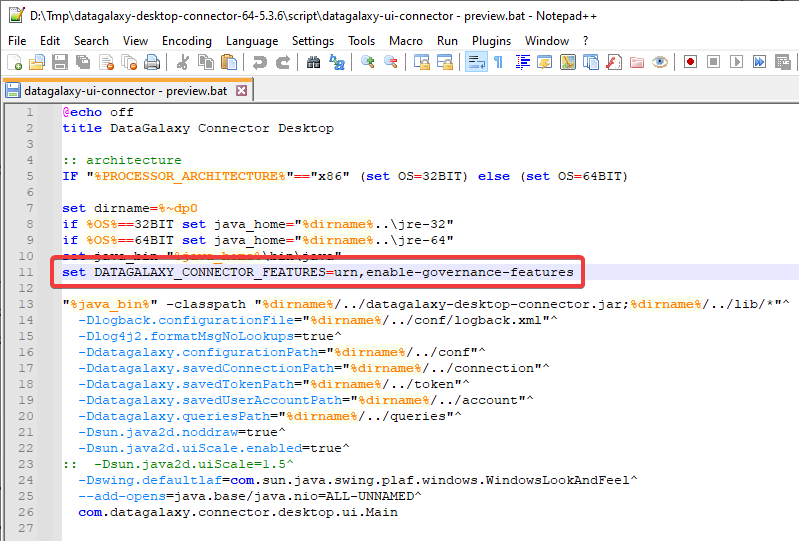
Preview features currently available
Data quality monitoring in Snowflake with Data Metric Functions (DMF) code "syncdmf"
Data Metric Functions are a new Snowflake Enterprise feature, allowing to calculate metrics on Snowflake tables and to store results in a table provided by Snowflake. It is a quick method for setting up an observability system on Snowflake for simple data quality monitoring use cases.
Warning: the DMF integration feature is not yet compatible with the URN mode. You can activate all the preview features in your connector environment variable, but you will have to deactivate the URN mode in the connector if you want to test the DMF.
Before starting, please discover how DMF works by reading the Snowflake documentation. You will then create your DMF, associate them to your tables and schedule their execution.
Snowflake prerequisites
Once you have setup your DMF in Snowflake and metrics arrive automatically in the results table, you are only one step away from retrieving that information in DataGalaxy using our Data Quality monitoring module: you only have to configure thresholds which, for a specific rule, will translate the value of the metric into a status OK, Warning or KO.
To do this, you will have to create two objects in Snowflake: a thresholds table (DMF_THRESHOLDS below) and a status view (DMF_STATUS below) which will do the jointure between the thresholds table and the Snowflake metrics results table. Our advice is to create a DataGalaxy dedicated schema for those objects.
Creating and feeding the DMF_THRESHOLDS table (thresholds values proposed as an example):
-- Create the thresholds table
CREATE OR REPLACE TABLE PUBLIC.DMF_THRESHOLDS (
    dmf_ref_id VARCHAR(36) NOT NULL,
    low_threshold INT,
    high_threshold INT,
    status VARCHAR(20)
);

INSERT INTO PUBLIC.DMF_THRESHOLDS (dmf_ref_id, low_threshold, high_threshold, status)
VALUES
    ('1bde6306-541d-40dc-ab6c-db5a4bb417e1', 0, 1, 'PASSED'),
    ('1bde6306-541d-40dc-ab6c-db5a4bb417e1', 2, 10, 'WARNING'),
    ('1bde6306-541d-40dc-ab6c-db5a4bb417e1', 11, 1000, 'FAILED');
The GUID dmf_ref_id is not a random value: it is the GUID provided by Snowflake when you associate the DMF with your table, which you can find in the REF_ID column in the SNOWFLAKE.ACCOUNT_USAGE.DATA_METRIC_FUNCTION_REFERENCES view.
Creating the DMF_STATUS view:
-- Create DMF_STATUS getting last 5 DMF results for each reference_id
CREATE OR REPLACE VIEW PUBLIC.DMF_STATUS AS
WITH Last5Values AS (
    SELECT
        reference_id,
        METRIC_NAME,
        METRIC_RETURN_TYPE,
        VALUE,
        TABLE_DATABASE,
        TABLE_SCHEMA,
        TABLE_NAME,
        measurement_time,
        ROW_NUMBER() OVER (PARTITION BY reference_id ORDER BY measurement_time DESC) AS row_num
    FROM
        SNOWFLAKE.LOCAL.DATA_QUALITY_MONITORING_RESULTS
)
SELECT
    l.reference_id,
    l.METRIC_NAME,
    l.METRIC_RETURN_TYPE,
    l.VALUE,
    l.TABLE_DATABASE,
    l.TABLE_SCHEMA,
    l.TABLE_NAME,
    l.measurement_time,
    t.status
FROM
    Last5Values l
JOIN
    PUBLIC.DMF_THRESHOLDS t
ON
    l.reference_id = t.dmf_ref_id
    AND l.value BETWEEN t.low_threshold AND t.high_threshold
WHERE
    l.row_num <= 5;
The value 5 that you can see in the view definition query is the number of metric records which will be exposed by this view. You can adjust the value as you wish. The connector will then retrieve all values exposed by the view to send them to DataGalaxy (here, we would get maximum 5 values in DataGalaxy for a rule and an object at the first launch of the connector).
You can check that everything is working properly with a query on this view, which should show you the metrics and their translation into corresponding statuses.
Configuring the Snowflake connector
The code "syncdmf" activates the data quality monitoring feature and the retrieval of statuses in DataGalaxy. A new checkbox will appear in the connector for getting data quality information. You will have to specify the path of the DMF_STATUS view you will create for this purpose.

After running the connector, translated metric results will appear as statuses in DataGalaxy's Data Quality tab for the corresponding objects. Rules are created with a default name, which you can change for better clarity for non-technical users. The connector uses the rule's Code (the GUID from the previous paragraph), so you can modify other rule parameters without affecting the connector, provided the GUID remains unchanged.