
Introduction
The connector allows you to import metadata from your existing storage systems into the DataGalaxy platform. In this article, we explain how to configure these imports by source type, and which metadata will be imported into the platform.
To apply the items presented in this article, you will need to download the connector and the associated plugins (see this article)
The working of the connector in graphic interface mode is explained in detail in this article
If necessary, specific documentation articles for each technology and plugin may be available to detail their particularities.
Import metadata into a relational source (database)
Following table details the objects supported in your source systems and the corresponding DataGalaxy objects:
| Système source | Objet DataGalaxy | Commentaires |
|---|---|---|
| Schema | Model (container) | |
| Table | Table (Structure) | Comments are mapped in the DataGalaxy Technical Comment attribute |
| View | View (Structure) | Comments are mapped in the DataGalaxy Technical Comment attribute |
| Column | Column | Name, data type (size and precision), description, order are returned when available. Comments are mapped in the DataGalaxy Technical Comment attribute. |
| Primary Key | Primary Key | This information will be used to link tables in DataGalaxy diagrams |
| Foreign Key | Foreign Key |
The import of metadata from a database works in a generic way, whatever the technology of the source system. It is based on the use of a JDBC driver specific to each technology. Here is an example of a connection from for the AzureSQL technology: 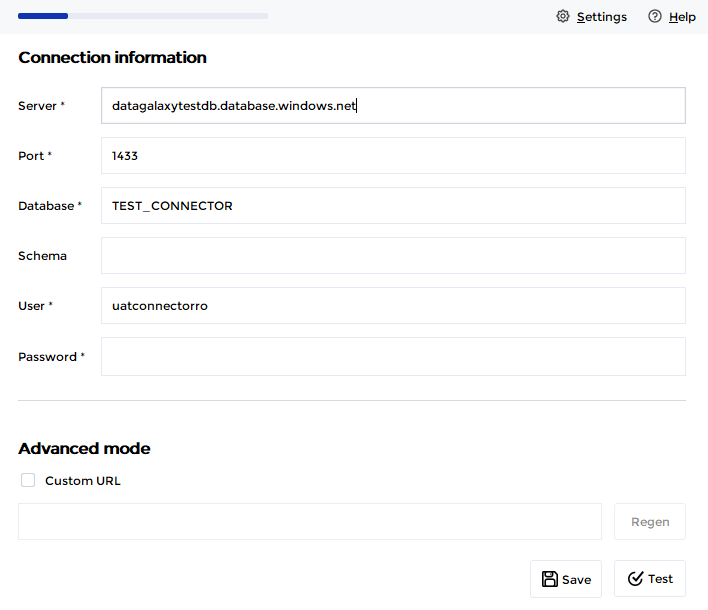
This screen can be different depending on the technology you are using.
The advanced mode allows you to see and modify the JDBC URL that is generated in the background of this form. You can activate it to add parameters that would not be exposed by default, or copy it to reuse it in advanced JDBC mode (see below).
The following screen lists the tables and views identified on the connection you have set up, and allows you to limit the scope of your export if necessary: 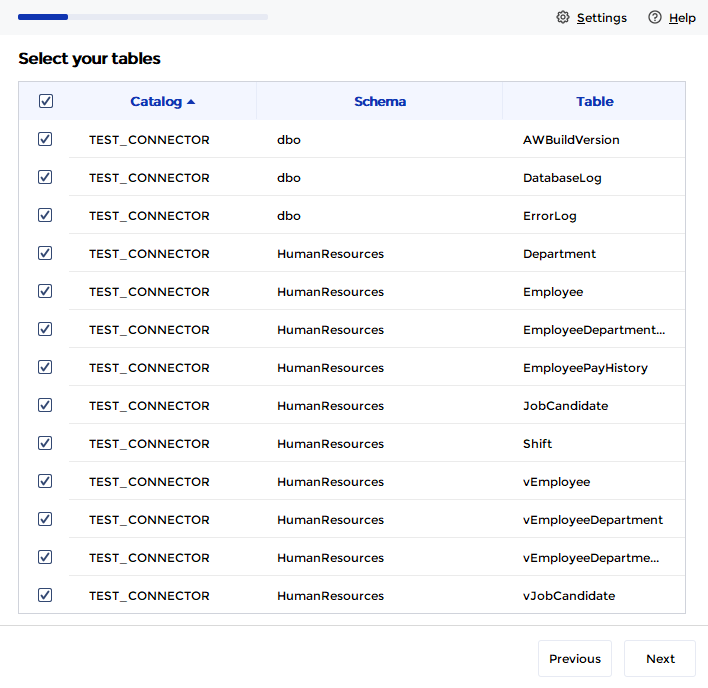
Import metadata into a non-relational source (file system and datalake)
The following table details the objects supported in your source systems and the corresponding DataGalaxy objects:
| Source system | DataGalaxy object | Comments |
|---|---|---|
| Folder | Directory (Container) | |
| File | File (Structure) | Files can be grouped by defining masks when the option is proposed (see below) |
| Field (CSV file only) | Field | Currently only CSV files are browsed, and column types are returned as strings by default. |
The connection screen allows you to define masks that will be used to filter and/or group the identified files: 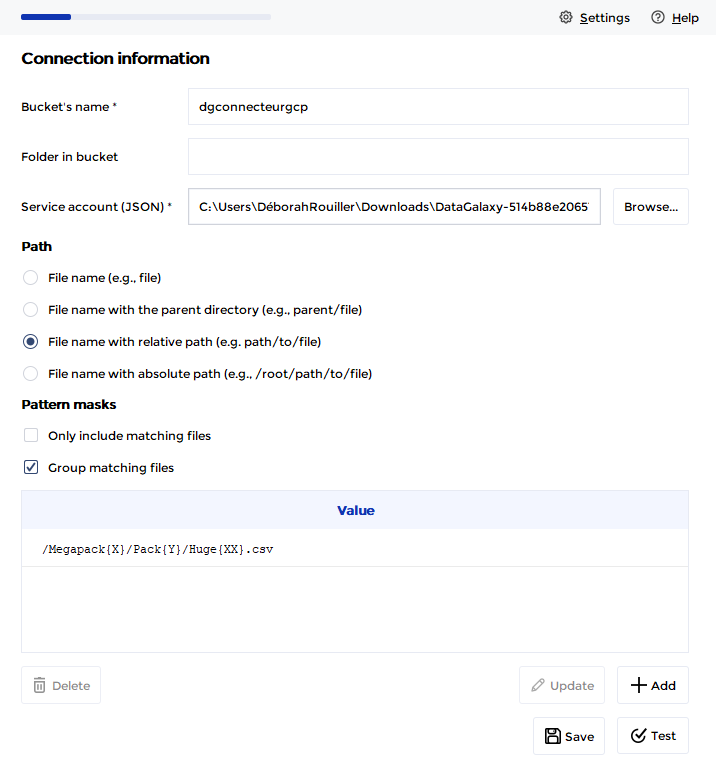
The "Add new pattern" button gives additional information on the syntax to use: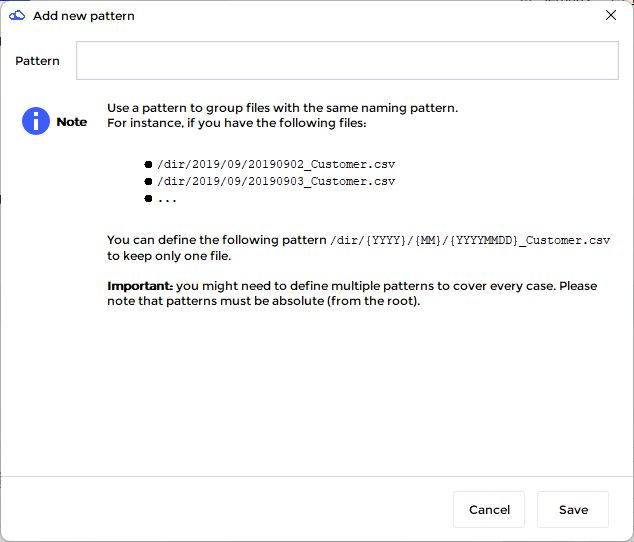
Added masks, filtering and grouping options are stored in the connection files
The following screen lists the identified files and allows you to select a subgroup if you wish to limit the scope of the import
Masks are not applied to results displayed in this screen
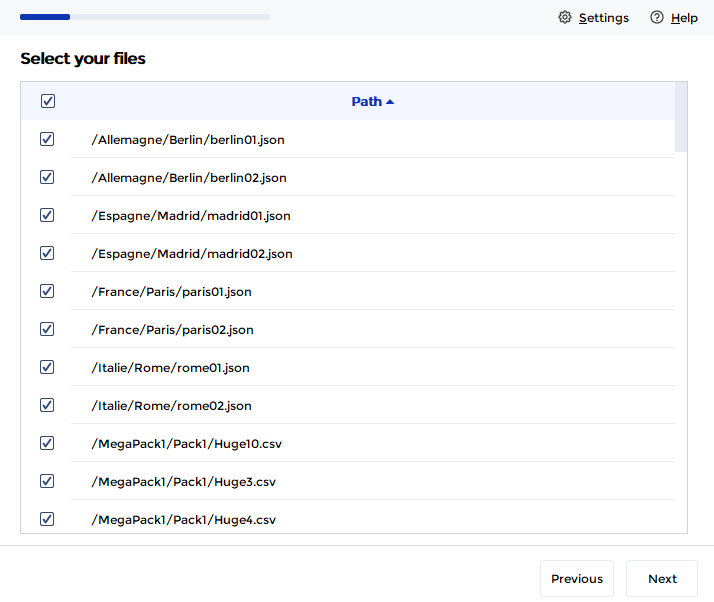
In this example, we can define the following masks to have a grouping of files:
- /AzureDataLake/Allemagne/Berlin/berlin{XX}.json
- /AzureDataLake/Espagne/Madrid/madrid{XX}.json
- /AzureDataLake/France/Paris/paris{XX}.json
- /AzureDataLake/Italie/Rome/rome{XX}.json
- /AzureDataLake/Portugal/Lisbonne/lisbonne{XX}.json
- /Megapack{X}/Pack{Y}/Huge{XX}.csv
A mask is a set of characters between {} that will replace the exact number of characters in the file name. The objective is to replace repetitive strings.
Releases
| Date | Plugin version | DataGalaxy release | Desktop connector version (minimum) | Description |
| 26/07/2024 | 5.0.1 | v3.62.0 | 5.0.3 | Migrated from java 11 to java 17 |