
The purpose of this article is to explain how to manage the official roles for objects within a workspace.
Who can manage these roles?
Workspace administrators can manage these roles to control the access to data.
To know how to define a user as a workspace administrator, see this article: [How to] Manage users at a workspace level.
Where can these roles be managed?
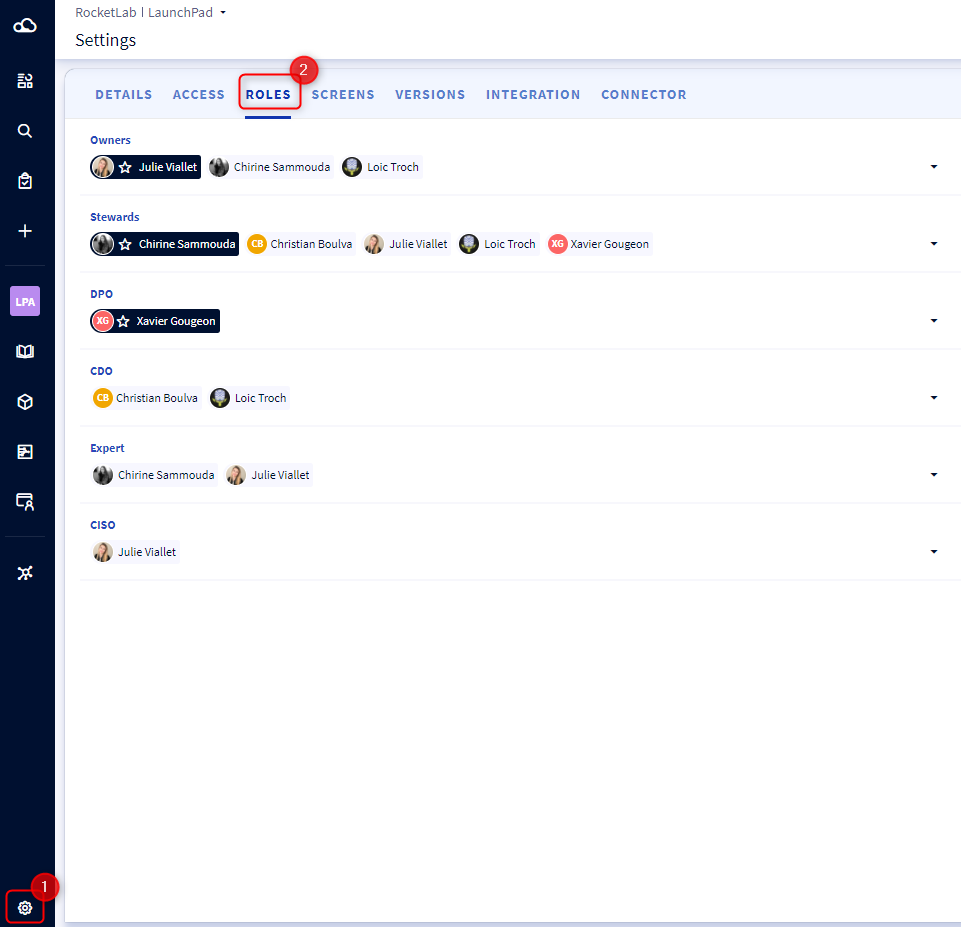
To access the management of official roles:
- Click on the Settings section on the left side navigation bar
- Position yourself on the Roles tab
What are the official roles?
In DataGalaxy, we consider the following data managers as official roles:
- The Owner: Is responsible of the integrity, the quality, and the use that is made of the data. He is the unique interlocutor of the business lines concerned by the objects of his perimeter.
- The Steward: He supervises and evaluates the quality of the data, and ensures the proper documentation of the data dictionary. He has a consolidated and transversal view of the data.
- The CDO: The Chief Digital Officer applies the data governance policy, and is responsible as well of aligning the repository and data quality in line with the company's challenges.
- The DPO: The Data Protection Officer is responsible of ensuring that the personal data protection compliance in order to ensure complies with the GDPR (General Data Protection Regulation) standards.
- The Expert: This is the person who is recognized by everyone as being the most knowledgeable. The expert will be the one able to settle data related debates thanks to the in-depth knowledge of the history of the objects and its usage between the different services.
- The CISO: The Chief Information Security Officer guarantees the security, availability, and integrity of the information system and data.
What are the rights of the official roles?
All the users who will be defined in the lists of official roles will be assignable as responsible for the objects. Depending on their role and workspace authorization, as well as the status of the objects, users will have editing rights for the objects. For more information on the life cycle of objects and the user rights matrix, please see this article: [Basics] Object life cycle.
Which users are eligible for official roles?
All users, whether they have a license or not, whether they have access to the workspace or not, are eligible for official roles. For example, if you want to define a person who does not have access to the DataGalaxy platform as an owner, you just have to create a user account without assigning a license.
How to add a user to a list?
Once you have accessed the role management page, to add a user you must:
- Position yourself on the list of the official role of your choice,
- Open the drop-down list,
- Click on the line of the user you wish to add to the list.
When a user is added to the list, his name appears in the field (within the limit of display capacity which is 2 lines), and the box on the left is checked in the drop-down list.
How to define a default user?
The default user of an official role will be used to fill this official role for all the new created objects in the following cases:
- Creation of objects vi imports
- Creation of objects via API
When creating an object via the interface, several cases are possible:
- If the object created is at the root (that it does not have a parent) AND you are part of the list of official roles, then you will be defined by default as the owner and steward of the object.
- If the object created is at the root AND you are not part of the list of official roles, then the users defined by default for these roles will be assigned by default.
- If the created object is a child (it has a parent), then the owners and stewards of the parent object will be set as default for the created object.
To define a default user in the list of official roles you need to:
- Add the user you want to define as default to the list of the official role of your choice,
- Once added to the list, click on the little star that appears to the right of the user's name in the drop-down list.
- The user will then be displayed first in the field with a blue dot and a star.
The default user for the role of Owner and Steward is mandatory. This field will already be filled in with the information you have specified when creating the workspace.
To learn more about creating a workspace, please refer to this article: [How to] Create and delete workspaces
How do I remove a user from a list?
All users can be deleted from a list of an official role as long as they do not have this role assigned to any object within any workspace. In this case you will have to remove them from all these objects thanks to a mass edit for each module which will allow you to make these modifications quickly.
For public and private diagrams, you'll want to open the object to edit the owner and/or steward like so:
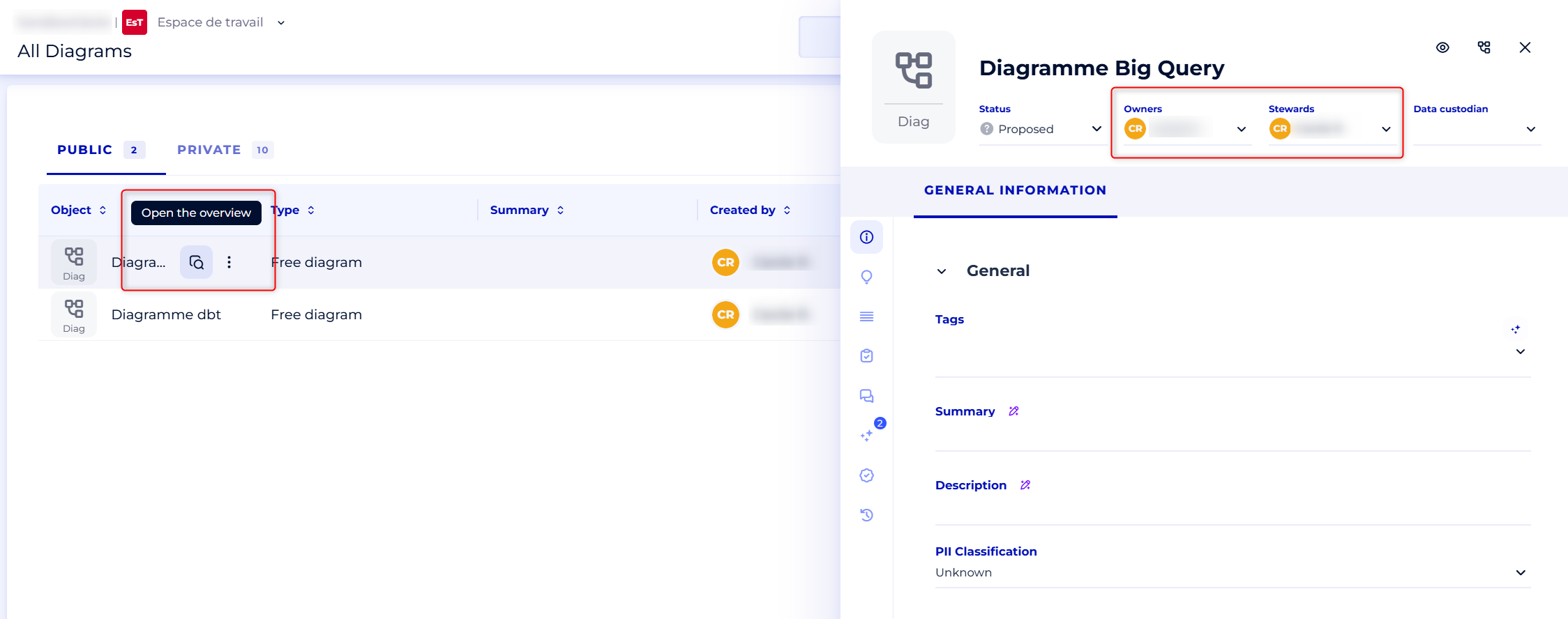
Once done, you'll be able to remove a user from a list with these steps:
- Position yourself on the list of the official role of your choice,
- Open the drop-down list,
- Click on the line of the user you want to remove from the list.
When the user is removed from the list, the user's name is removed from the field, and the box to the left of the user's name is unchecked in the drop-down list.