
The Desktop connector can be run from the command line. This mode of operation is useful when you want to restart an import without going through all the steps of the interface, or to automate the execution of an import.
The connector does not currently allow for a scheduled execution. If you want to schedule a regular execution, we recommend that you create a script file to launch the connector, and schedule it via the host operating system (Windows scheduled task, Linux cron) or any other scheduler available in your information system.
The command line executable of the connector is located in the /script directory of the connector. You need to run the file datagalaxy-cli-connector.sh or .bat depending on your operating system.
This command line executable can be made available to you as a docker image. Contact us if you want to have more information about it.
Execution parameters
Several types of parameters can be used when running in command line mode:
datagalaxy-cli-connector [options] [command] [command options]
Options are as follow
| Option | Description |
|---|---|
| --help | Displays the connector command line help (list of options) |
| --version | Displays the connector version and the installed plugins |
The following parameters can be used when running in command line mode:
| Command | Option | Mandatory | Description |
|---|---|---|---|
| plugins | Display the manifests (description) of the installed plugins | ||
| plugins | --name | Display the manifest of the plugin passed in parameter | |
| import-api | Import metadata via API | ||
| import-csv | Extraction of metadata in CSV format | ||
| import-api / import-csv | --config | Yes | Path to the configuration file. These files are automatically generated in the /connection directory of the connector when you register a connection via the GUI. As the format of these files is different for each technology, it can be complex to build them manually.We advise you to generate them by saving a connection from the graphical interface of the connector. |
| import-api / import-csv | --verbose | No | Activate the verbose mode in order to have more information about the actions performed and the errors |
| import-api / import-csv | --mapping | No | Path of the mapping file used for processing technologies |
| import-api / import-csv | --password | No | Passwords or secrets to be used to connect to the source technology:
|
| import-csv | --output-directory | Yes | Destination directory to save the files generated during an extraction in CSV format |
| import-csv | --output-files-suffix | No | Add a suffix to all CSV output files generated (before file extension) |
| import-api | --server-url | No | DataGalaxy API server URL. If the option is not set, the value of the datagalaxy.api.url property present in the /conf/application.properties file will be used |
| import-api | --token-value | Yes (one of the 2 parameters must be used) | Path to the file containing the integration token to use to connect to the DataGalaxy API |
| import-api | --token | Integration token to use to connect to the DataGalaxy API. These files are automatically generated in the /token directory of the connector when you register a token via the GUI | |
| import-api | --project-name | Yes | Functional name of the DataGalaxy workspace |
| import-api | --version-name | No | Functional name of the version of the project into which the data will be imported if the project is versionned |
| import-api | --source-id | Only for dictionary import (one of the 2 parameters must be used) | Technical identifier of an existing model in the DataGalaxy Dictionary (see below for more information) |
| import-api | --source-name | Functional name of an existing model in the DataGalaxy Dictionary | |
| import-api | --create-source | No | Create the source indicated with the --source-name parameter if it does not exist |
| import-api | --orphaned-objects-handling | No | Choose how to handle orphaned objects. Orphaned objects are DataGalaxy objects that don't exist anymore in the source. This option does not work when using the URN feature. Accepted values are:
|
Example of command
API Import
The following command line will work under Windows, and will read the connection file: model-azuresql-test-connector.properties. It makes an import via API using the integration token contained in the token.properties file. The target of the import is the Demo workspace. The data source of the dictionary which will receive the result of this execution is called DB AzureSQL
datagalaxy-cli-connector.bat import-api --config "model-azuresql-test-connector.properties" --token "token.properties" --project-name Demo --source-name "DB AzureSQL" --password MyPassword
CSV Import
The following command line will work under Windows, and will read the connection file: usage-powerbi-datagalaxy-secret.properties. It makes an export in CSV format in the directory: C:\Connector Output Folder\Power BI
datagalaxy-cli-connector.bat import-csv --config "usage-powerbi-datagalaxy-secret.properties" --password "PowerBIClientSecret" --output-directory "C:\Connector Output Folder\Power BI"
Launch multiple executions of the connector
If you need to chain executions of the connector with different configurations, you can create a script (.bat on Windows or .sh on Linux) that calls the connector script.
On Windows, be sure to use the call command in your .bat. If not, the script will exit after the first line.
To chain three executions of the connector on Windows, you could create a script that looks like this :
call datagalaxy-cli-connector.bat import-api --config "config1.properties" ...
call datagalaxy-cli-connector.bat import-api --config "config2.properties" ...
call datagalaxy-cli-connector.bat import-api --config "config3.properties" ...
Retrieving DataGalaxy technical identifiers
The technical identifiers used by some parameters (project-id, version-id, model-id) can be recuperated using several methods.
Via API calls
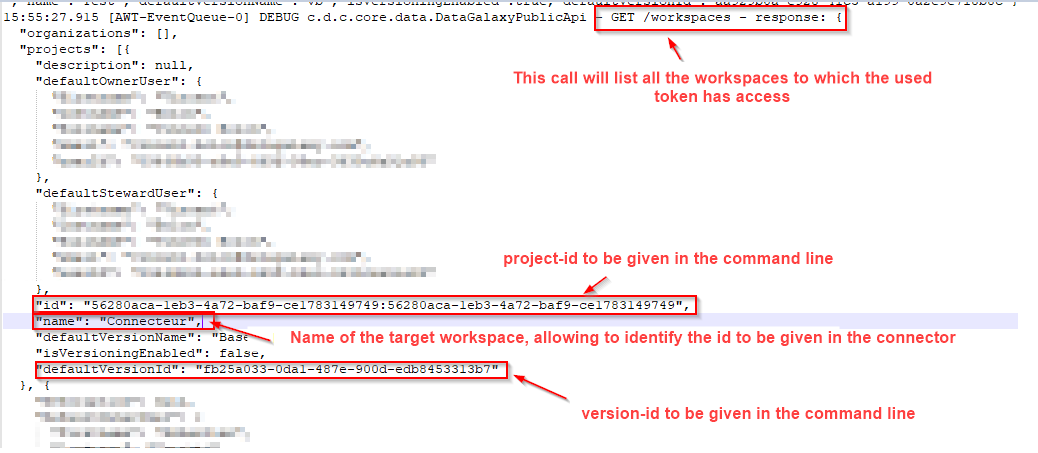
- The /worskpaces method returns the list of workspaces, their identifiers and the version currently active on each of them
- The /versions method returns the list of versions of a given workspace, and their identifiers
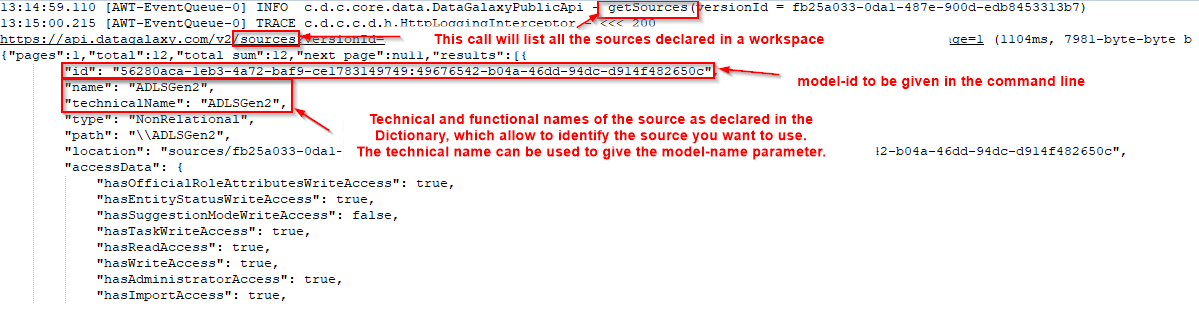
- The /sources method returns the list of sources declared within a workspace, and their identifiers
The results of these calls are conditioned by the rights configured on the integration token used
More information here on how the DataGalaxy API works
Via a log file of the connector
When importing in verbose mode via the graphical interface, the connector generates a log file in the /logs folder of the connector which will contain all the identifiers used.
In this case you will have to identify the calls to the different API functions listed before.
Here is an example of how to collect the default project-id and version-id of your workspaces by calling the /workspaces function
On the same principle, to collect the model-id, you will have to identify the call to the /sources function
FAQ
How to increase the heap size linked with the connector's execution ?
You need to update the script "datagalaxy-cli-connector" with the .bat/.sh extension (based on your OS) to add the following parameters: "-Xms" (initial heap size) and "-Xmx" (maximum heap size).
Script location
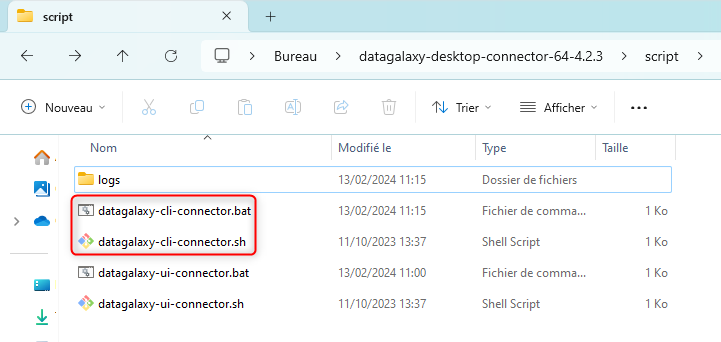
They can be edited in any text editor
Update example on a .bat script
@echo off
title DataGalaxy Connector CLI

:: architecture
IF "%PROCESSOR_ARCHITECTURE%"=="x86" (set OS=32BIT) else (set OS=64BIT)

set dirname=%~dp0
if %OS%==32BIT set java_home="%dirname%..\jre-32"
if %OS%==64BIT set java_home="%dirname%..\jre-64"
set java_bin="%java_home%\bin\java"

"%java_bin%" -classpath "%dirname%/../datagalaxy-cli-connector.jar;%dirname%/../datagalaxy-desktop-connector.jar;%dirname%/../lib/*"^
  -Ddatagalaxy.configurationPath="%dirname%/../conf"^
  -Dlog4j2.formatMsgNoLookups=true^
  -Dlogback.configurationFile="%dirname%/../conf/logback.xml"^
  -Xms2048M^
  -Xmx2048M^
  com.datagalaxy.connector.desktop.cli.Main %*
Update example on a .sh script
#!/usr/bin/env bash
DIR=$(dirname $0)
java -classpath "$DIR/../datagalaxy-cli-connector.jar:$DIR/../datagalaxy-desktop-connector.jar:$DIR/../lib/*" \
  -Ddatagalaxy.configurationPath="$DIR/../conf" \
  -Dlog4j2.formatMsgNoLookups=true \
  -Dlogback.configurationFile="$DIR/../conf/logback.xml" \
  -Xms2048M \
  -Xmx2048M \
  com.datagalaxy.connector.desktop.cli.Main "$@"
Once the updates are saved you can execute the connector again using the usual commands (as shown in the "Example of command" part)
How can we secure the password of our system when we need to schedule the connector in command line?
The password of your system is the only parameter that is never stored by the desktop connector in the connection configuration file, for security reasons. It has to be provided at each run using the argument --password, as explained above.
To know the best practices in your organization for providing this parameter in a secure way at runtime, please reach out to your infrastructure team or an integrator. The options depend on your security policies and the tools you have at your disposal.
We give no advice regarding this, as the context and constraints of our customers are all different.
Do you support vaults?
The connector doesn't come with any native vault support. It is possible to use a vault in your architecture: the password will have to be extracted from the vault at runtime to be provided using the --password argument. This can be done using a script, some orchestrators support to provide secrets from a vault using variables too.
DataGalaxy support team will not be able to give you advice on those integration choices.
If you would like to suggest a different way to provide the password to the connector in CLI mode, feel free to send us a feature request using our User Voice program, our product team will study it carefully.