The purpose of this article is to explain the Analytics section in the Administration, allowing to track the overall activity in DataGalaxy.
As this is a new concept, it is likely to evolve over the next releases.
Who can monitor global activity ?
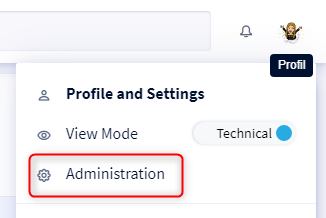
To monitor the global activity, you should be client space administrator. To check if you have these rights, go to your profile and click on the drop-down menu, "Administration" option should be present. If not, you are not an administrator.
How to monitor global activity ?
Administrators who could like to monitor global activity should :
- Click on the icon at the top right of the screen
- Select Administration from the drop-down menu
- Go to the Analytics section
- Reconfigure the widget to analyse the 8 available indicators.
How to edit global activity widget ?
By default, there are filters applied to the different indicators within the widget.
To edit the widget, you have to click on the Configure button to activate the editing mode. The filters can be configured directly on the widget.
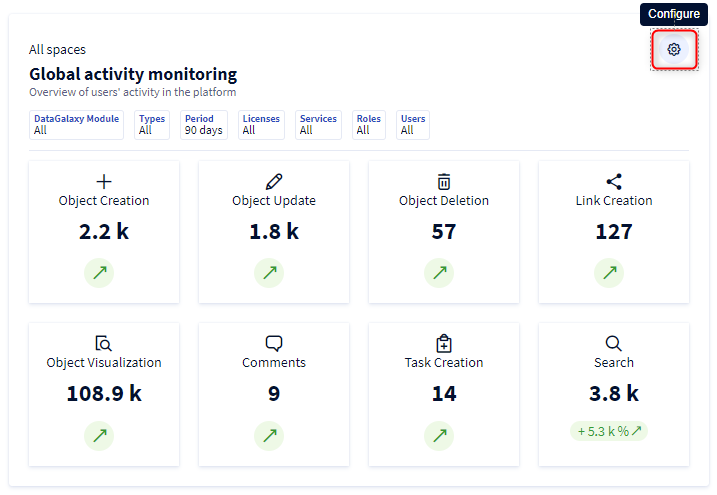
1 - Edit the widget
After clicking on the Configure button, you can :
- Update the workspace and version
- Update the widget title and description
- Update the filters
- Hide the description
- Hide the filters bar
- Show filters bar
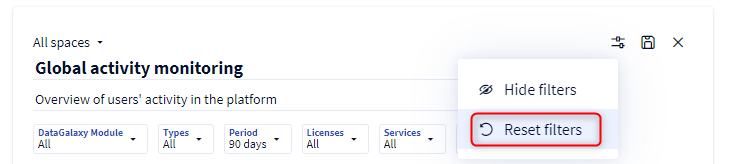
- Reset filters
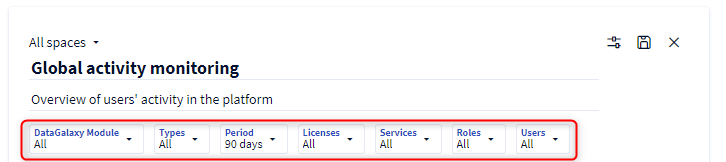
2 - Save changes
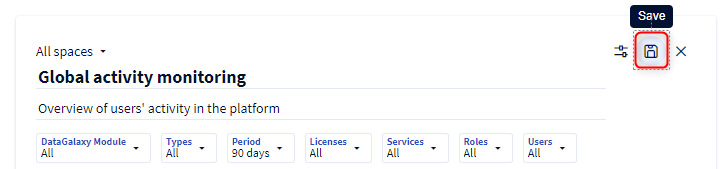
After you have finished with all your changes, click on the Save button to save the widget and exit the edit mode.
3 - Cancel changes
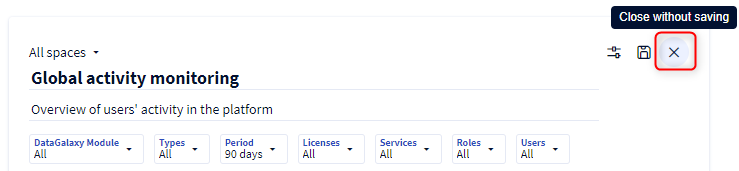
- To cancel the current changes and return to the previous version, click the Close button without saving.
- To return to the DataGalaxy default configuration :
- Click on the "Configure" button to activate the edit mode
- Click on the "Edit" button
- Click on "Reset filters" button