The main purpose of this article is to introduce you to the concept of technology. Why is this information important? How is it used in DataGalaxy?
What is Technology?
The Technology concept is a new type of information that allows to indicate the technology of an object, whether it is an object of the Dictionary, Data Processing, Usage or all three modules.
In addition, it keeps the users informed of the technologies used, whether to store or to exploit the data. It is indeed common to refer to a particular dashboard seen in Power BI or to a specific table existing in Snowflake.
This aspect is essential for users and must be easily reflected in the platform. But the attribute-based approach has its limitations: not graphic enough, not hereditary, etc.
So it was necessary to have a special feature that would allow to clearly :
- Identify on which technology an object is based and by inheritance its descendants
- Display a whole set of objects depending on a technology in one or several modules.
The technology feature enables to display this information in a graphical way directly on the object's card and on its children's cards.
A base of defined technologies
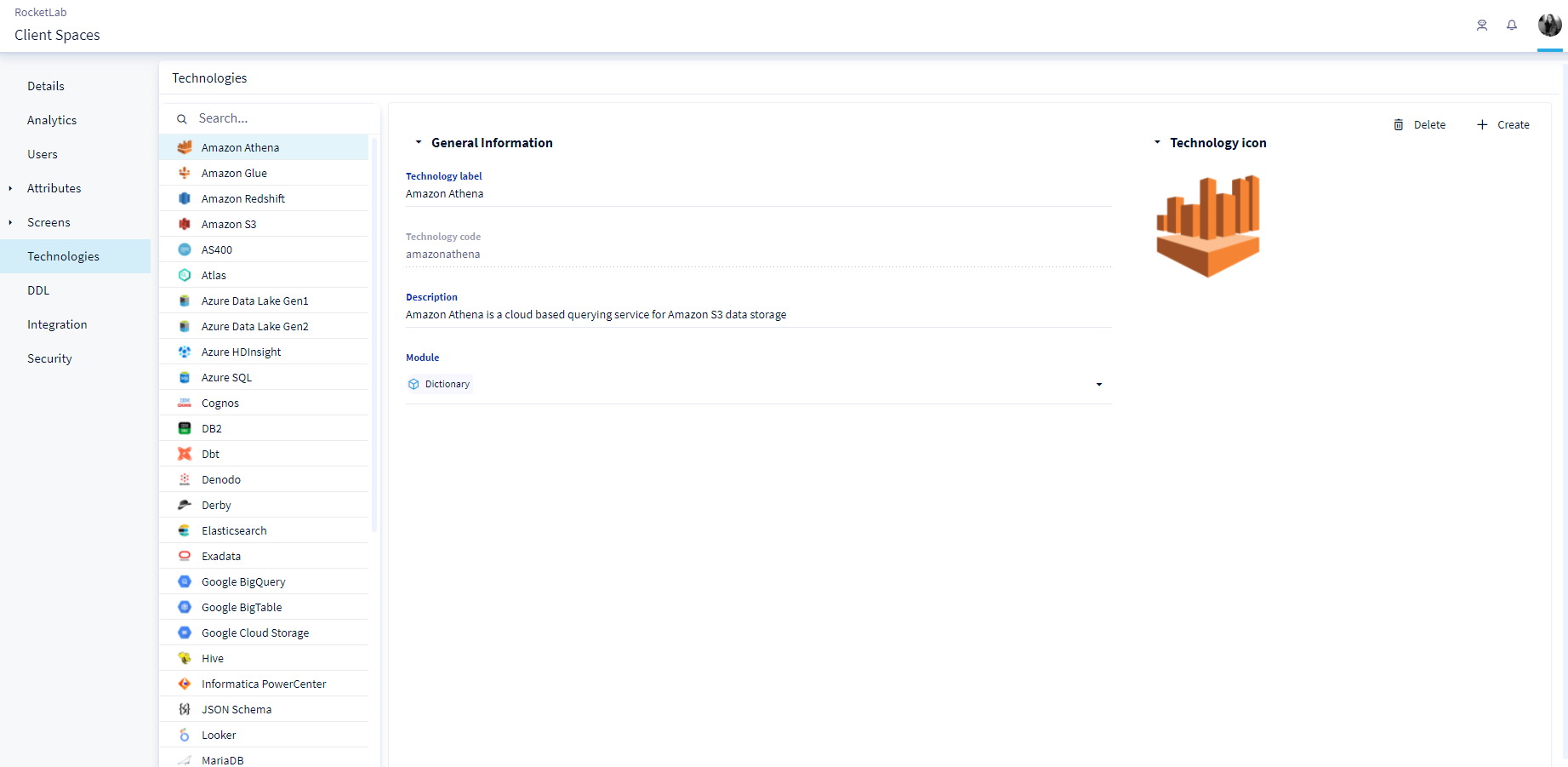
We provide you with technology cards by default, represented by the connectors (desktop and online) available in DataGalaxy. These cards are available at the administration level. You can then associate your objects to these technologies according to the module specified in the technology card.
If you do not find the technology you are using in this list, you have the possibility to create a new one.
To learn how to manage technologies at the administration, we invite you to check this article: Manage technologies
Technology in the object card
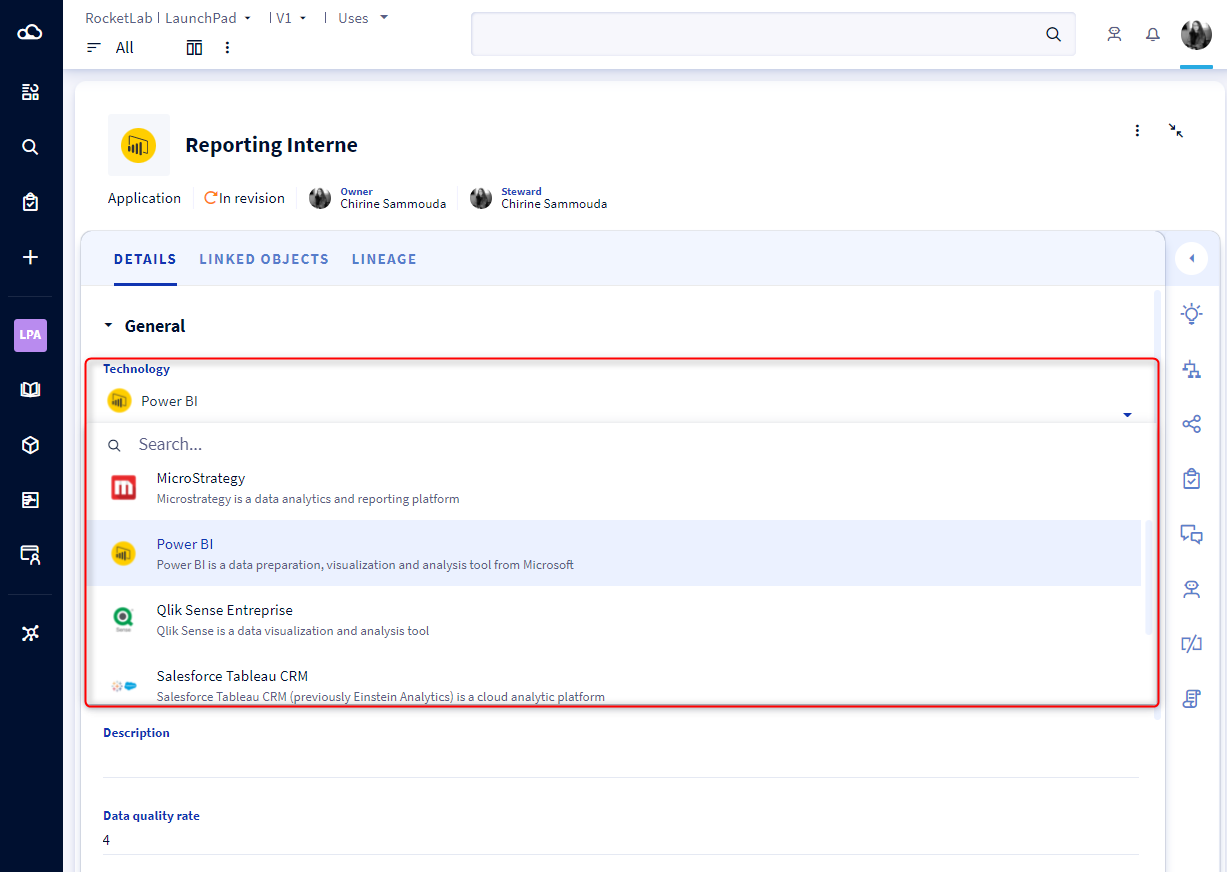
In the object card, you have the ability to add the attribute "Technology" to identify the technology of the object created or imported in DataGalaxy in the 3 modules: Dictionary, Processes and Usages. Due to its icon and description, you can easily select the technology of your object.
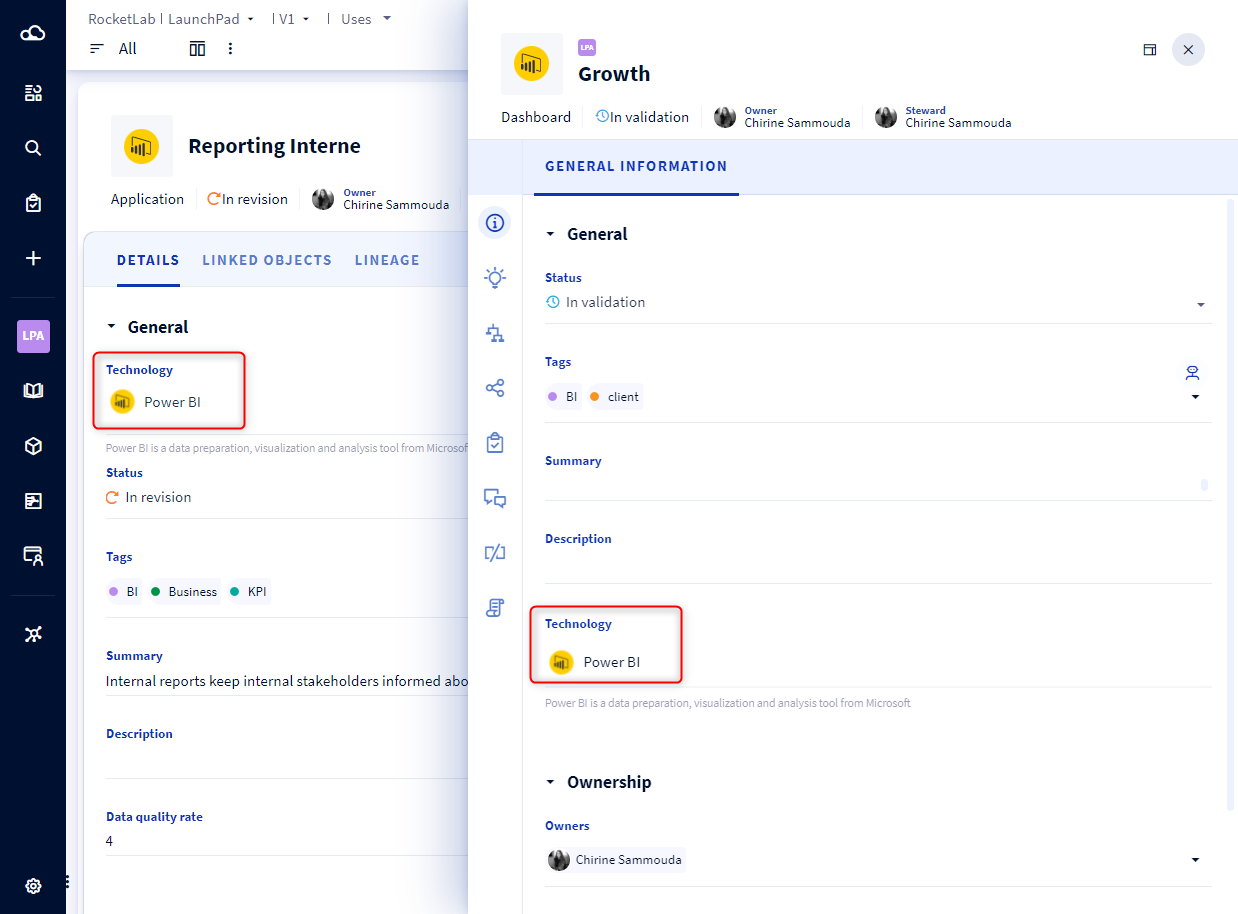
The technology can only be modified at the sources in the Dictionary, Data flows in Data Processing and Applications in Usage. In the other object types, the technology attribute is read-only mode. It is important to know that all the descendants of a root object automatically inherit the technology of the parent.
If you have, for example, an Internal Reporting application in usage and its Dashboard Growth, by associating the MicroStrategy technology to the Internal Reporting application, the Dashboard Growth automatically inherits the technology of its parent.
Once the technology is selected, its icon is visible in the object's card. You also have the possibility to choose the display mode of the technologies in all your objects in the preferences. To learn more, you can consult this article:Manage your technology display preferences
In order to be able to visualize the technology in your object card, it is important to check that the Technology attribute is set in the screens. Because it is possible that you have the attribute created in your administration section but not yet in the screens configuration. In this case, the technologies cannot be visible.
To know more about the screen configuration process, you can refer to the following articles:
Customization of client space screens
Customize the Workspace screens
Technology when creating an object
We have modified the creation modal to now include the technology of the object being created. To learn more about the different methods of creating an object, we invite you to take a look at this articleCreating an object
When you create a source in the Dictionary, a data flow in the Data Processing or an application in the Usages, the technology field is shown in the creation mode. You can then choose the technology of the object you are creating.
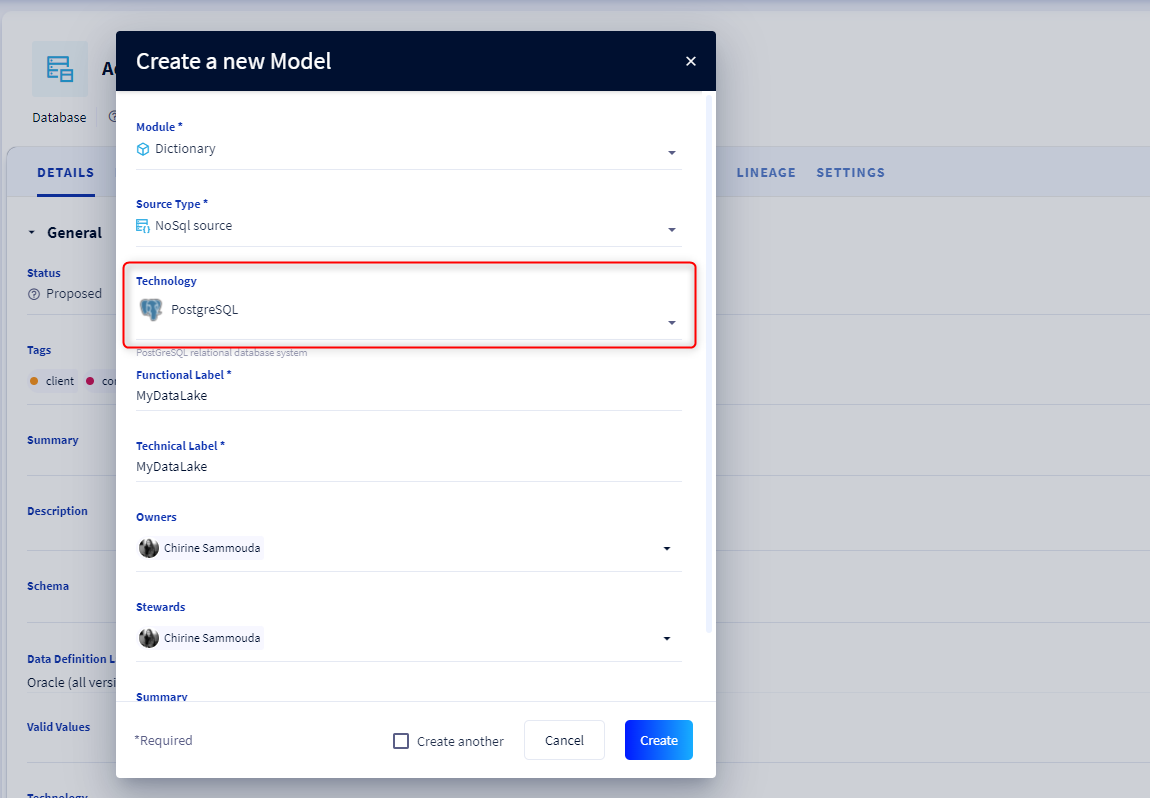
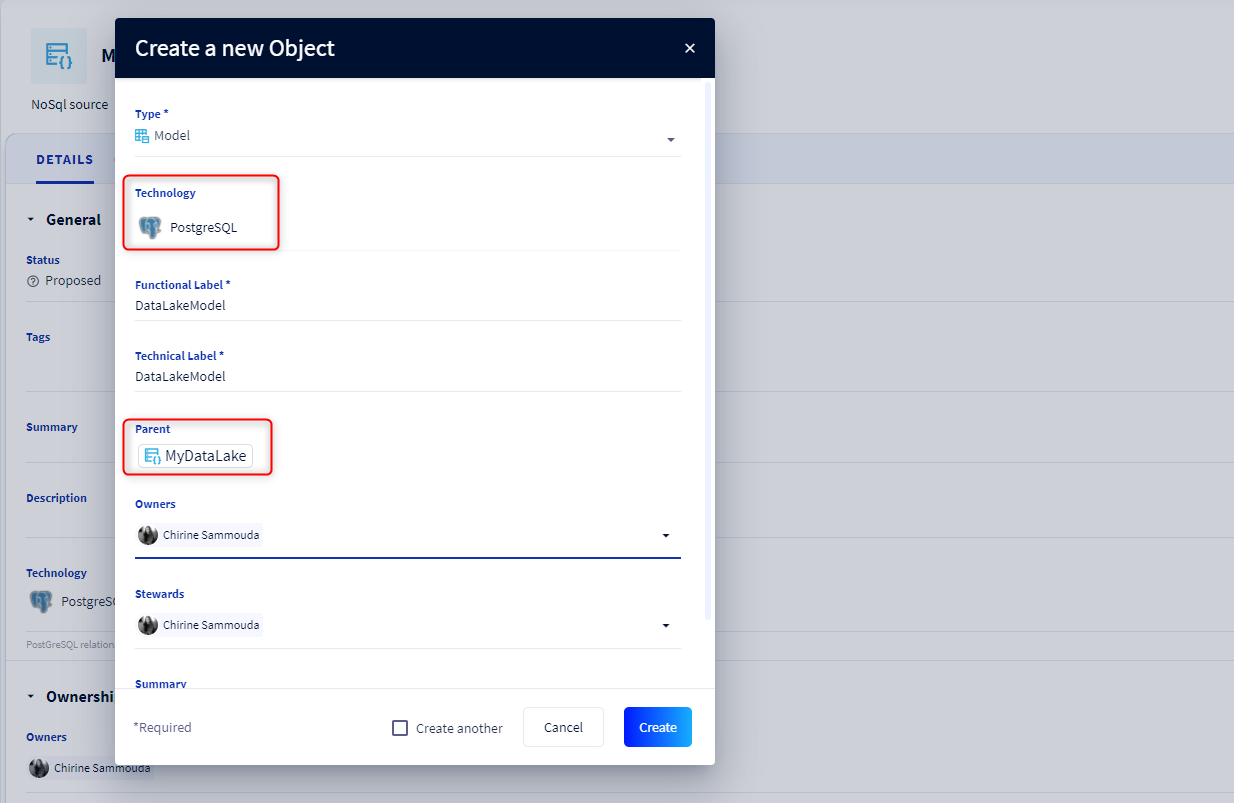
In case you decide to create a child object whose parent's technology is set, then in the child creation mode, the parent's technology is automatically displayed in read-only mode. It is not possible to change the technology of the child object. The child object is created with the technology of its parent.
Technology at the import
When you import a CSV file, it is possible to specify the Technology using its code (Technology code files). If the code does not exist, then the import will not be allowed and you will have to unmap the field to continue the import.
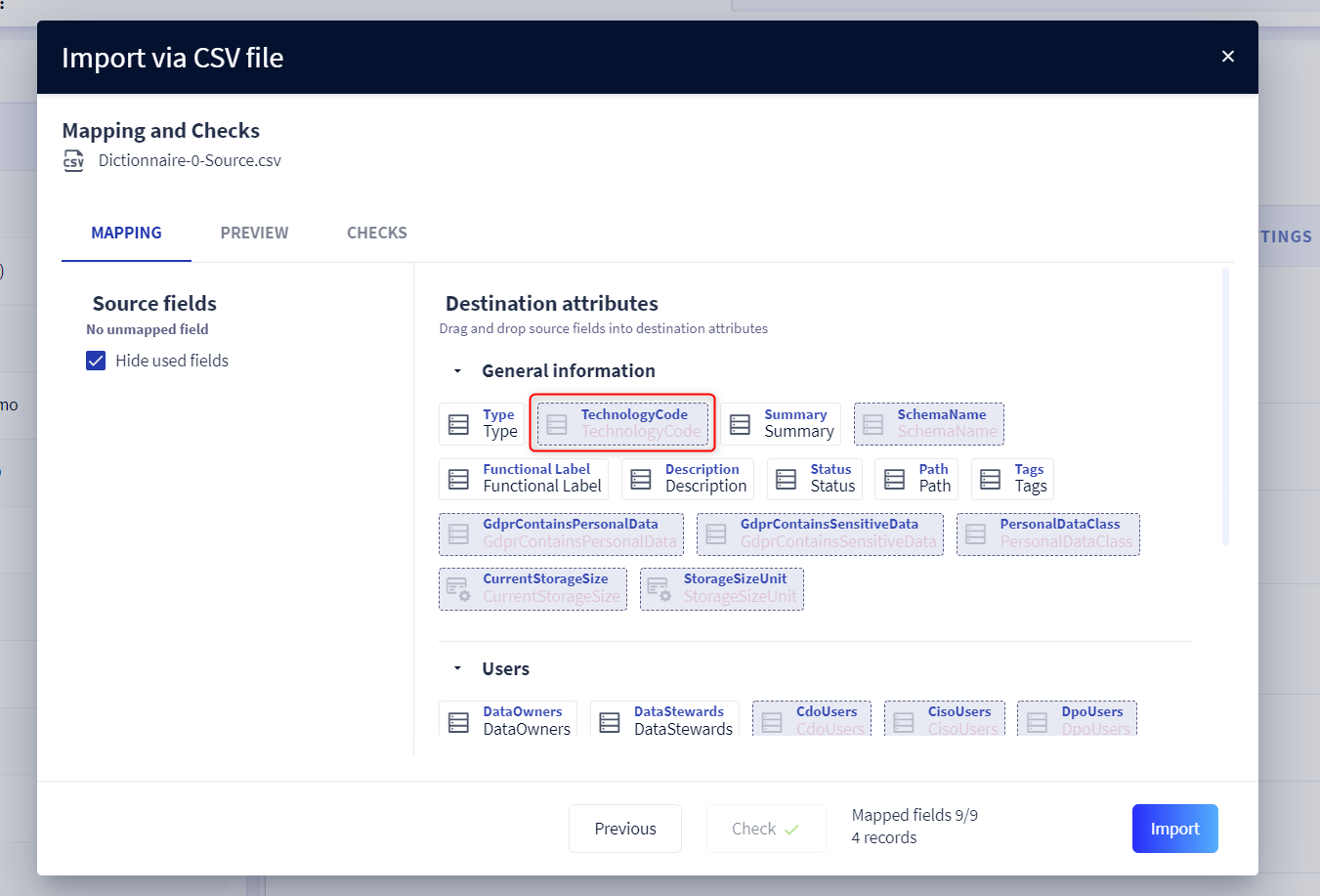
>For imports via Desktop and online connector, the technology is automatically filled in based on the technologies currently available in DataGalaxy platform.
Technology in the facets
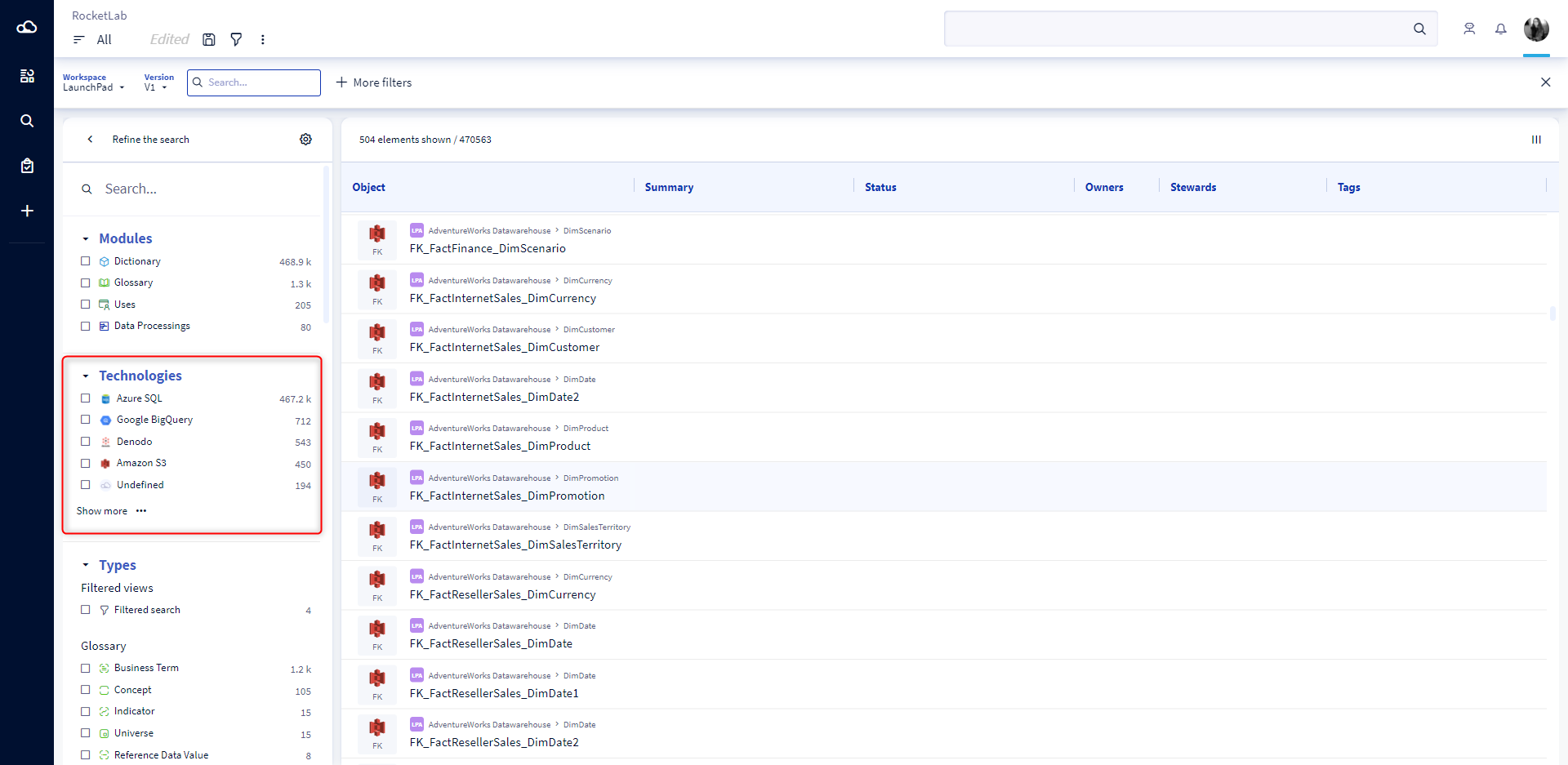
To make it easier to find your objects based on their technologies, we offer a dedicated "Technologies" section in the facets panel. This allows you to quickly refine your search by displaying all objects associated to this technology.
To make it easier to find your objects based on their technologies, we offer a dedicated "Technologies" section in the facets panel. This allows you to quickly refine your search by displaying all objects associated to this technology.
When you click on a Snowflake facet for example, the Snowflake technology filter is automatically displayed in the multi-criteria filter bar. A checkbox on each facet gives you an additional visual cue of which filters are applied to your search.
To understand how to refine the results after launching a search, you can consult this article: Refine a search