
This article explains team management in the client space administration. To learn more about the team notion, you can read this article : Teams presentation.
Who can manage teams ?
To manage the teams, you have to be an administrator of the client space. To check if you have these rights, go to your profile and when clicking on the drop-down menu, the "Administration" option should appear. If it does not appear, you are not an administrator.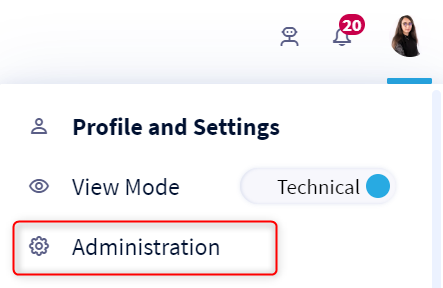
To learn more about the administrator profile and how the permissions and licenses provided by DataGalaxy operate, you can read this article.
How to access the team management page?
To navigate to the team management page, you must :
- Click on your profile icon in the top right corner of the screen
- Click on Administration in the drop-down list
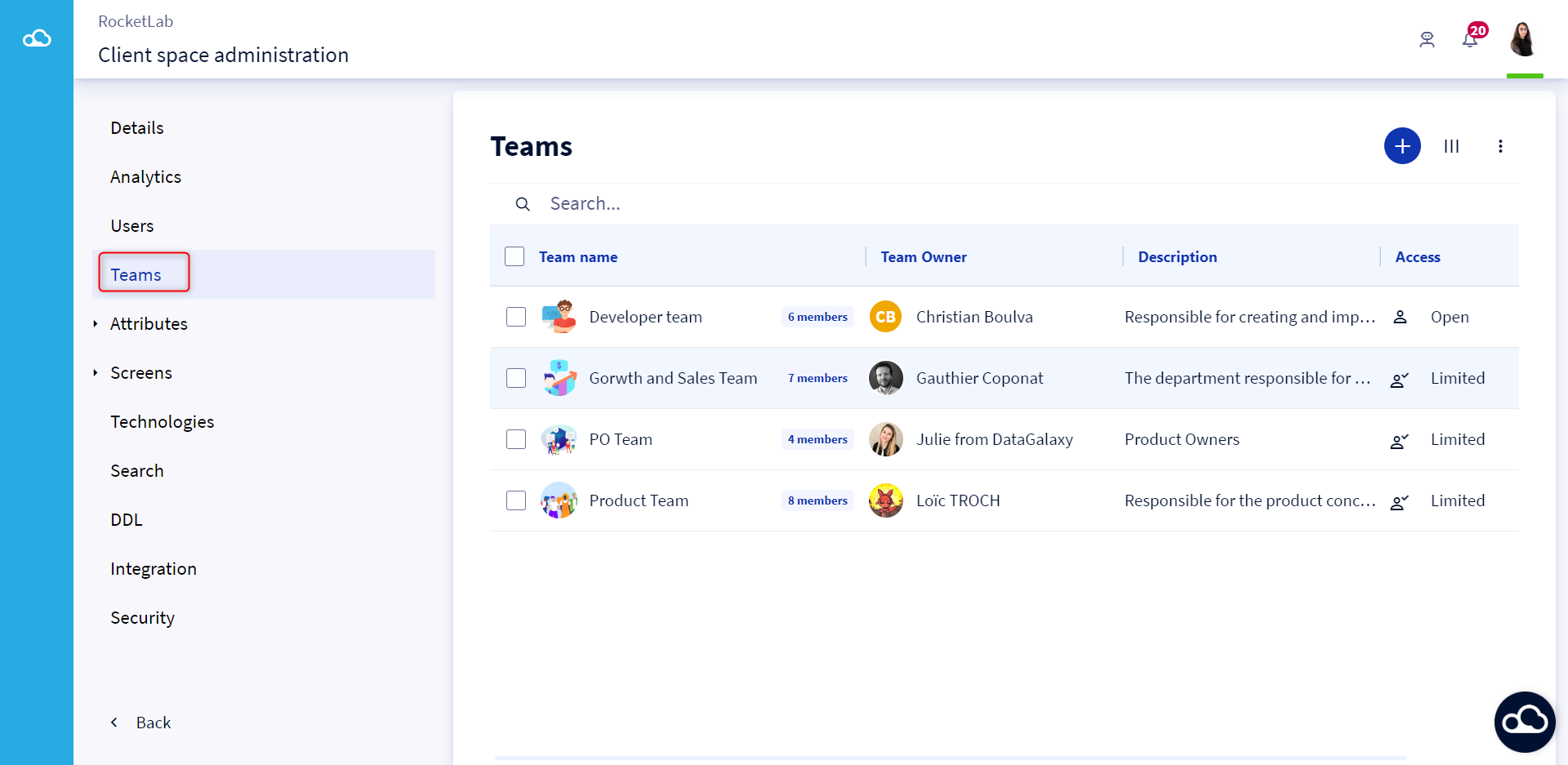
- Click on the teams section in the menu on the left of the screen
- Once on the page listing the teams, you can search for the team you would like to view, edit, modify its members or delete it.
To display more information about your teams, click on the 3 bars at the top right of the screen to manage the columns of the teams table. 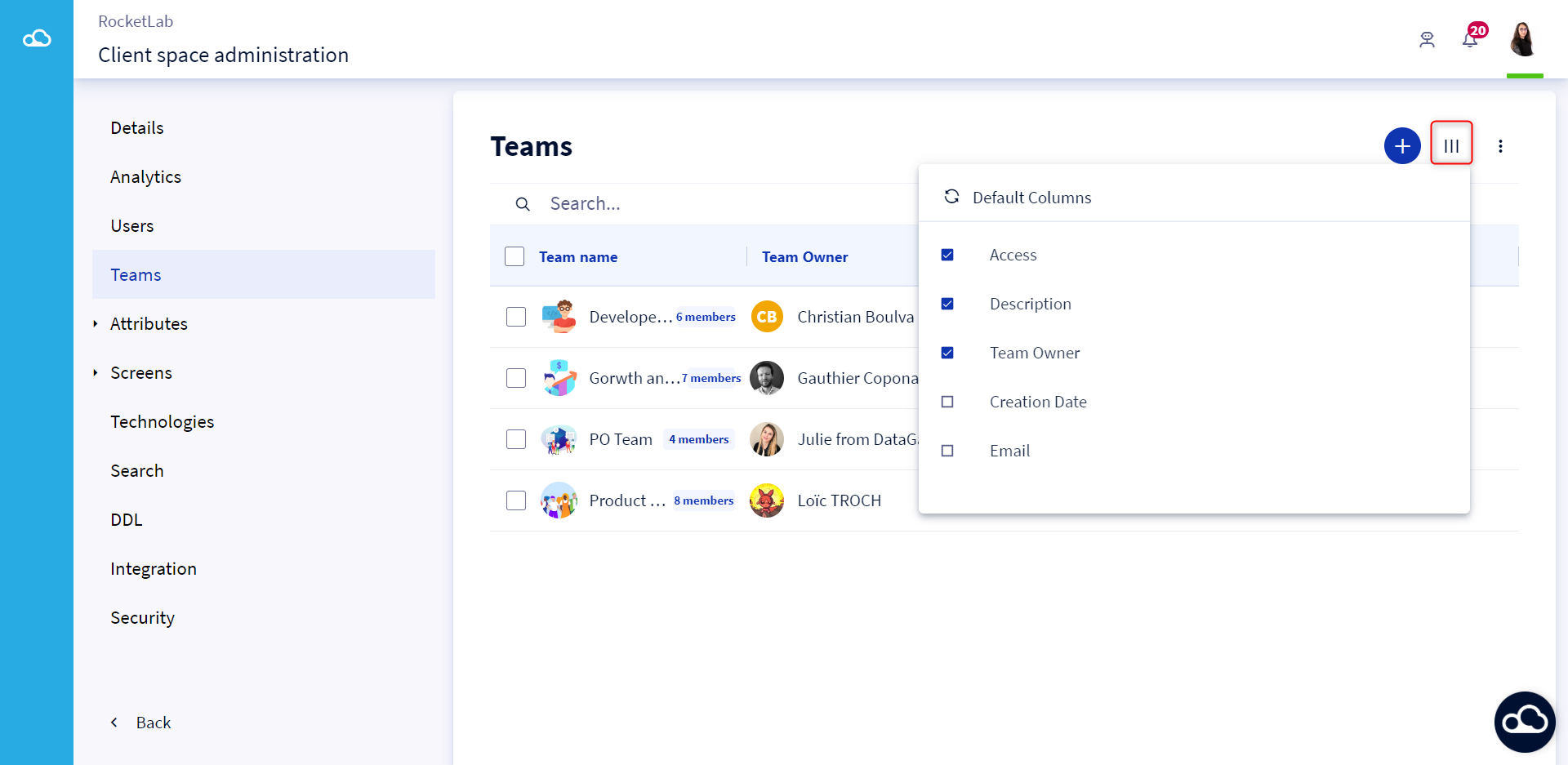
How to manage teams?
1 - Create a new team
To create a new team, you must :
- Click on the Create button at the top right of the screen
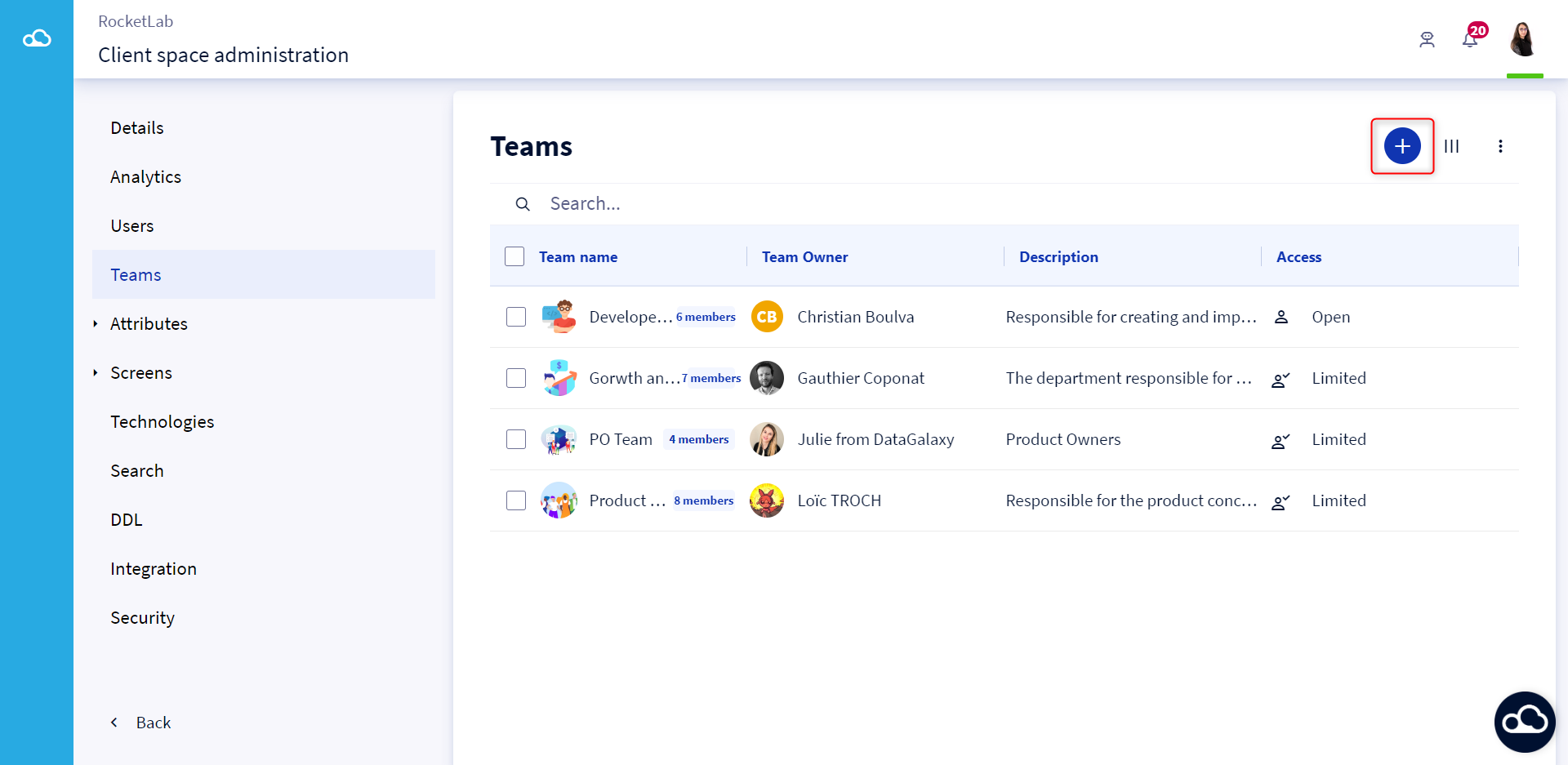
- A modal appears, fill in all the fields and click on Create
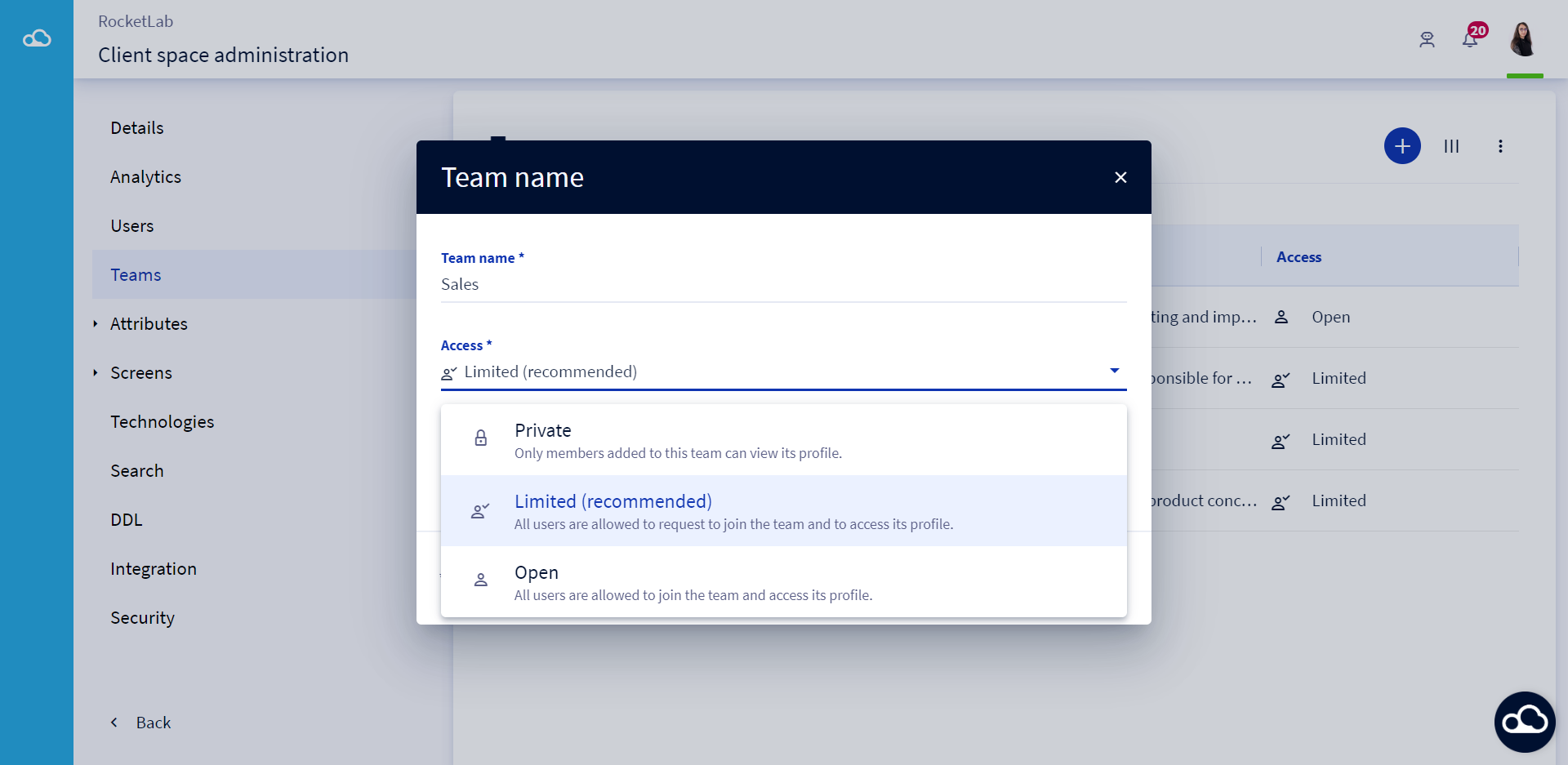
3 types of access to the team are available:
- Private access: By creating a team with a private access, only the members added to this team can consult its card.
- Limited access: By creating a team with limited access, all the users of the client space have the right to consult its card and to ask the team owner to join it.
- Open access: When creating a team with open access, all users of the client space have the right to consult its card and to join it without any request to the team owner.
The team is created automatically by assigning the creator as the team owner. You can still update it. It is also possible to add more than one owner to a team or, the case may be, to have a team without an owner (but this is not recommended).
To learn more about the team owner's role, you can read this article: Team presentation.
2 - Update a team
To update a team, you must :
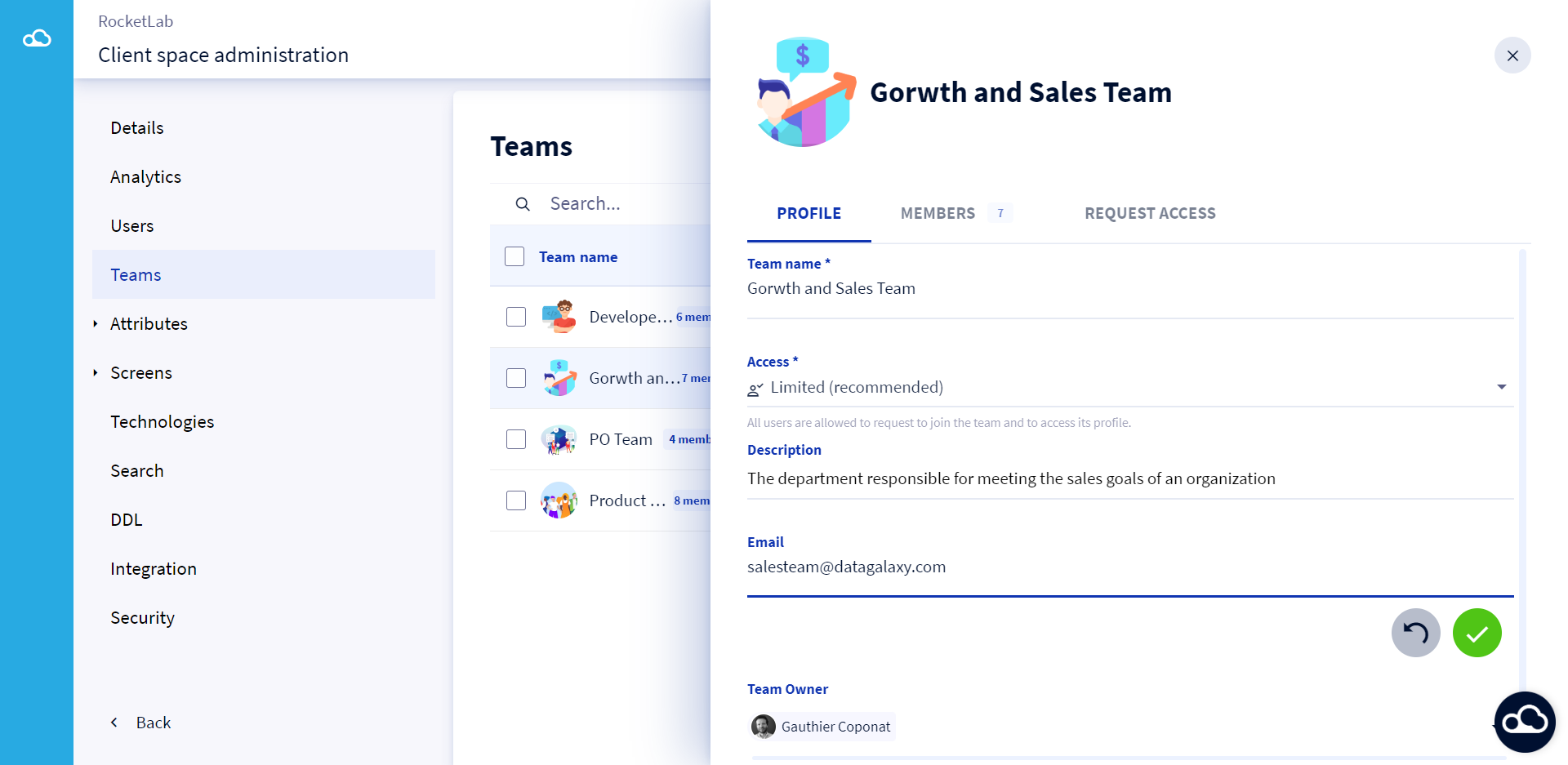
- Click on a team you would like to edit from the team list
- Update the fields in the team's card that opens on the right of the screen
3 - Delete a team
To delete a team, you must :
- Check the box in front of the team you want to delete, from the team list
- Click on the 3 small dots at the top of the team list
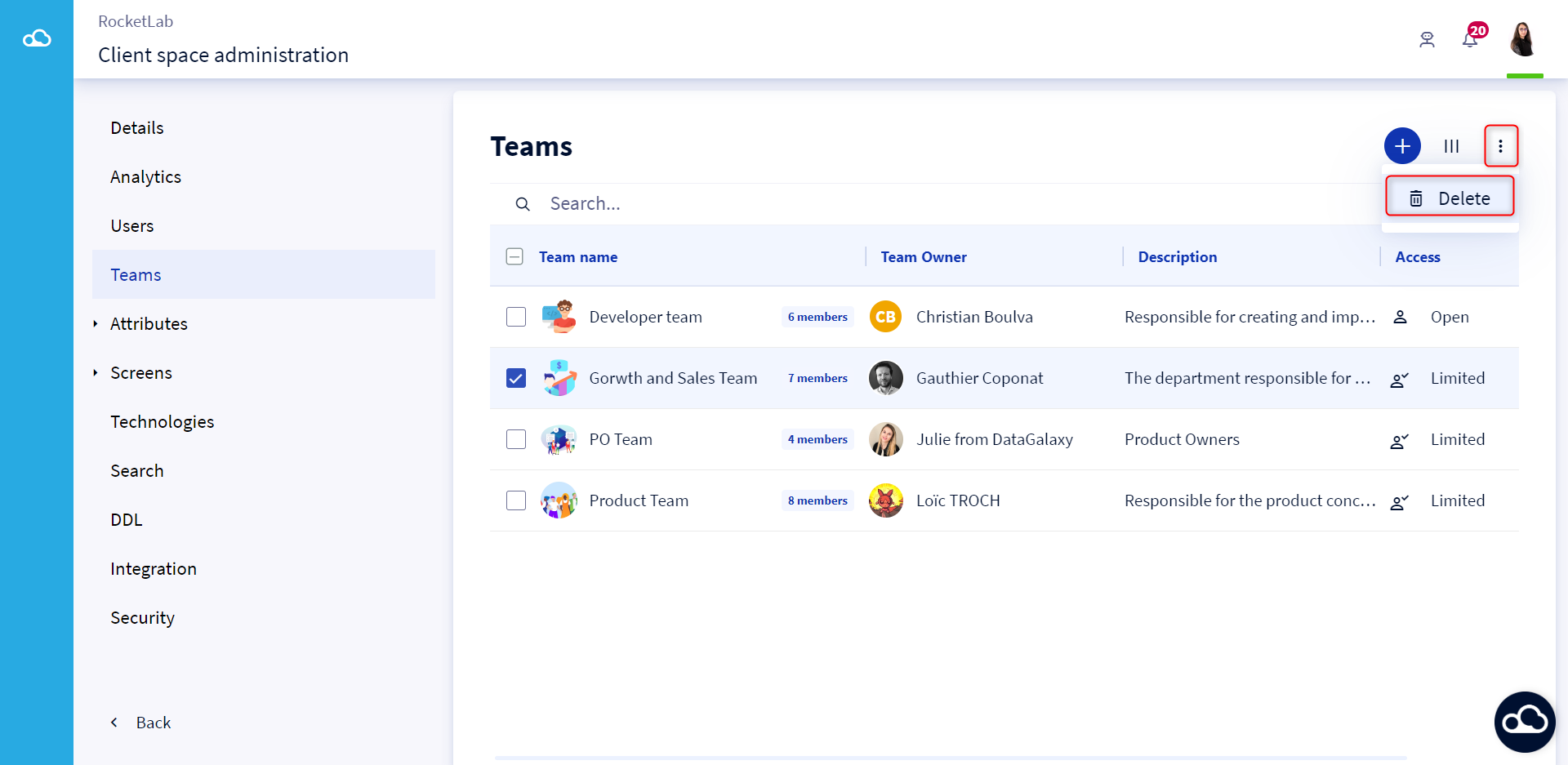
- Click on Delete
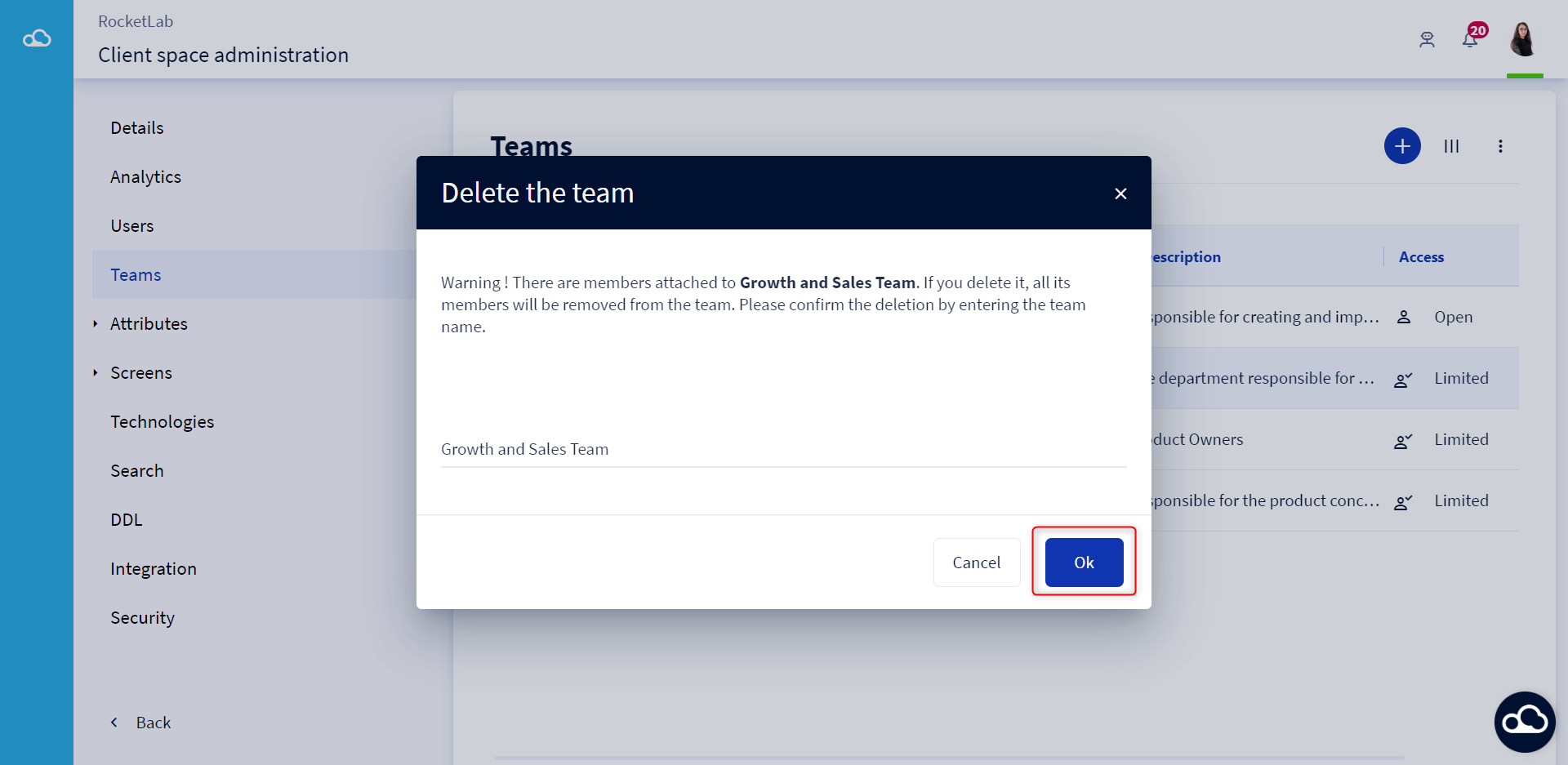
A message box appears. Confirm the team' s deletion by entering the name of the team to be deleted.
How to manage the members?
1 - Add members to a team
To add members to a team, you must :
- Click on a team from the list of teams
- Click on the Members tab from the team card that appears on the right of the screen
- Click on the Add button
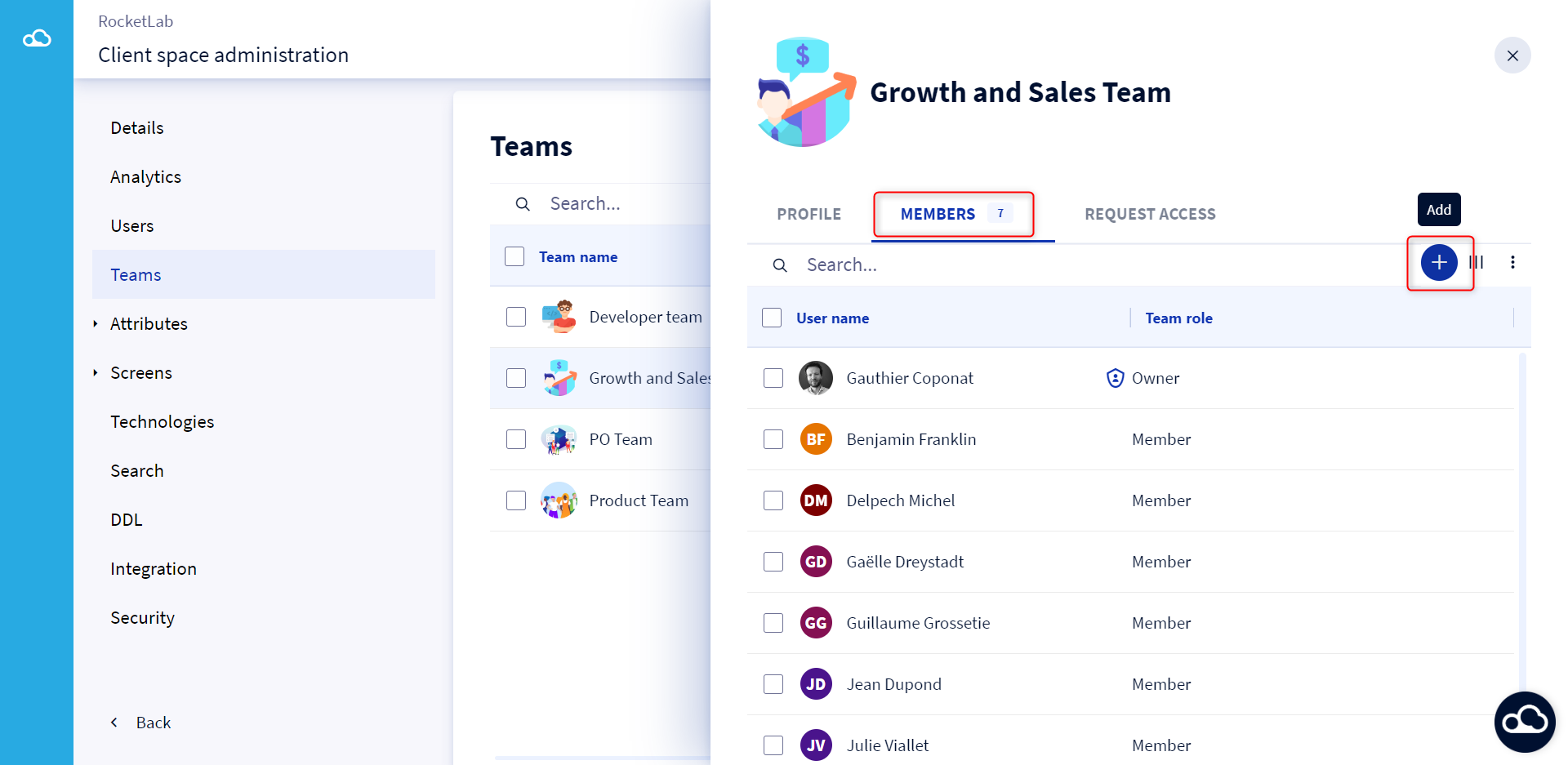
- A modal opens, select the users you want to add to this team
- Click on Add
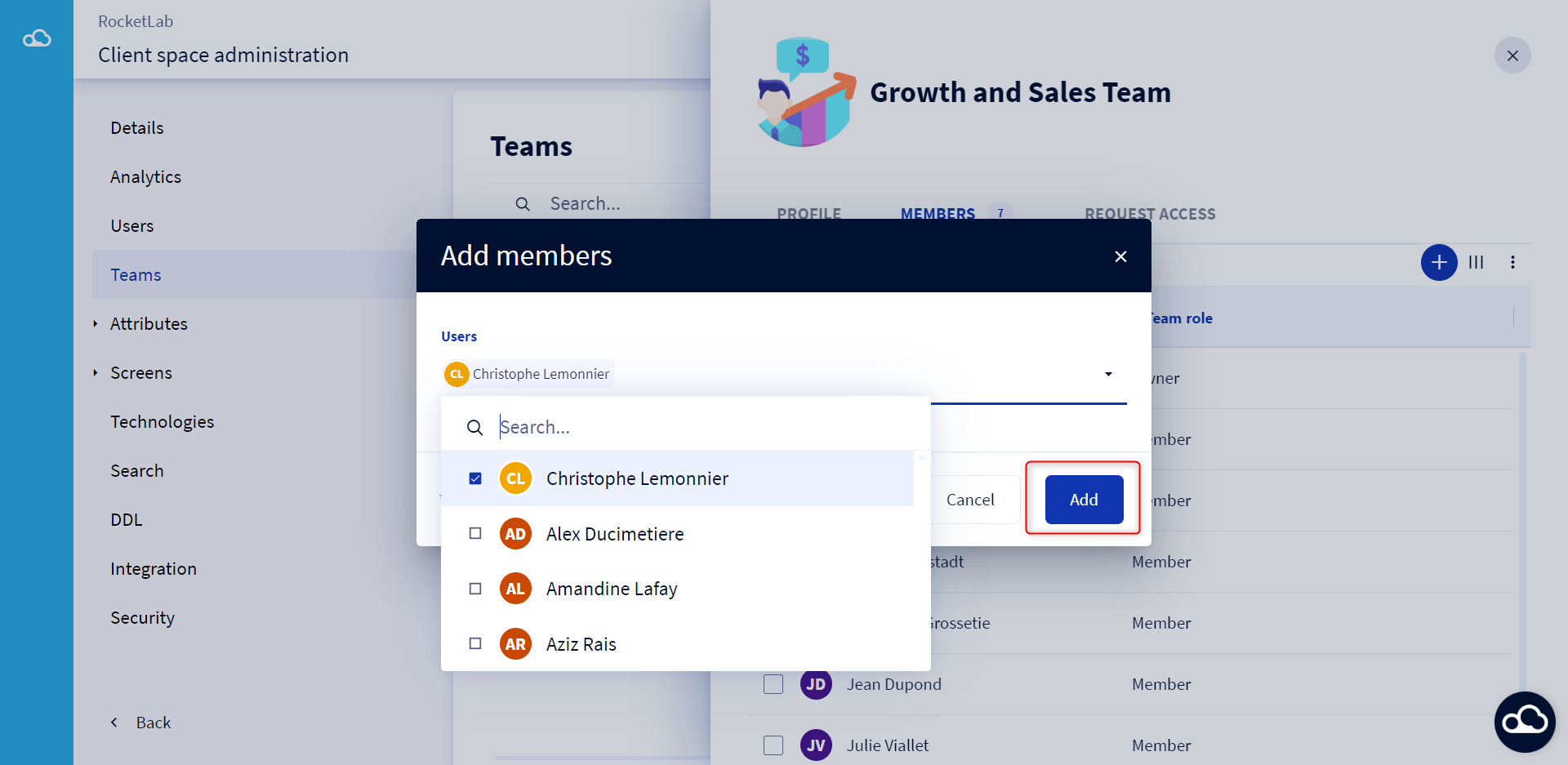
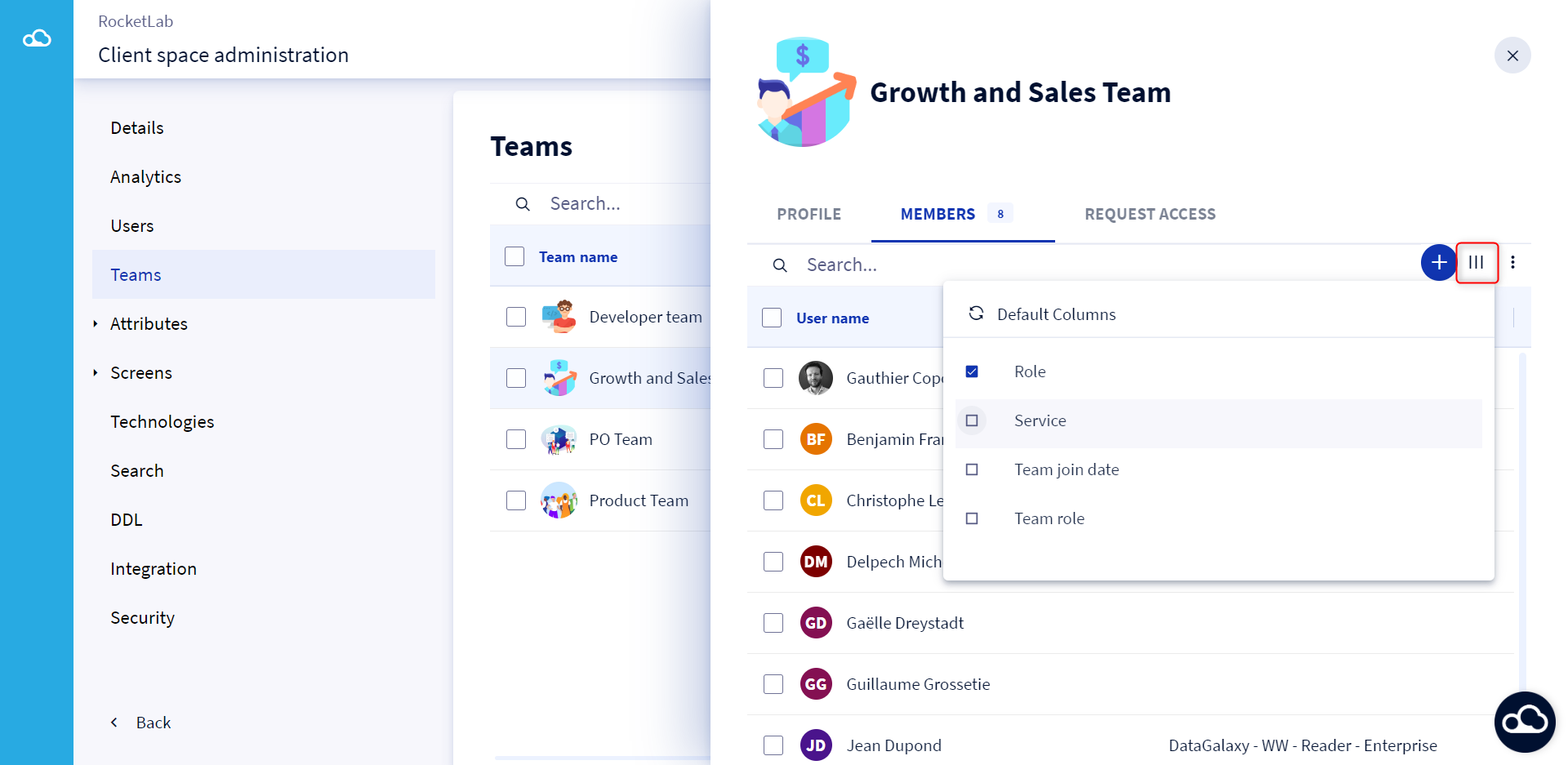
The members list is updated. To view more information about the members, click on the 3 bars at the top right of the screen to manage the columns of the members table.
2 - Set a team owner
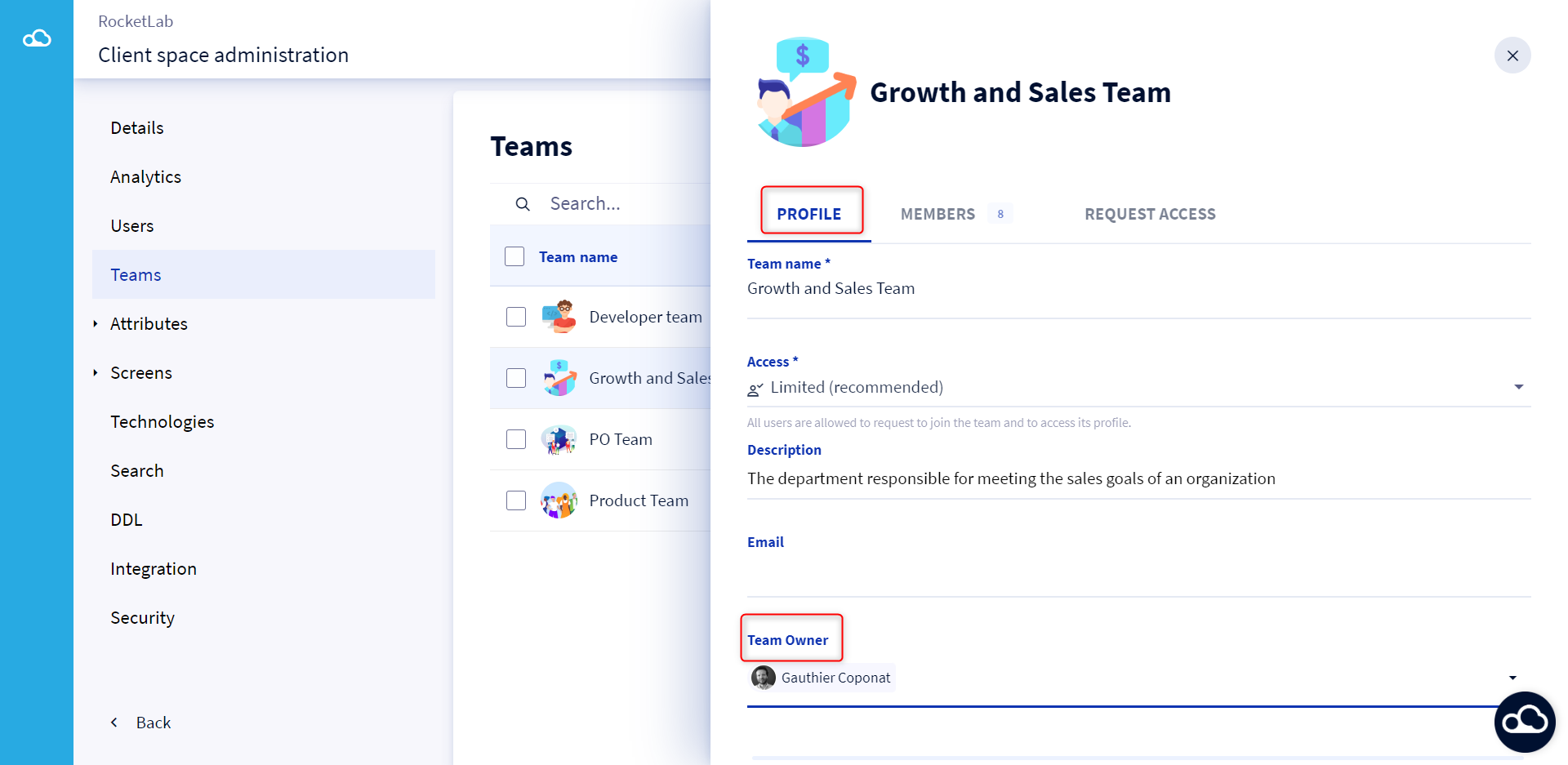
To assign a team owner, 2 options are possible:
- Click on a team from the list of teams
- Edit the team owner from the Profile in the team card that opens on the right of the screen
From Members :
- Click on a team from the list of teams
- Click on the Members tab from the team's card that opens on the right of the screen
- Check the box in front of the member you want to assign as the team owner
- Click on the 3 dots at the top right of the team
- Click on Set as team owner
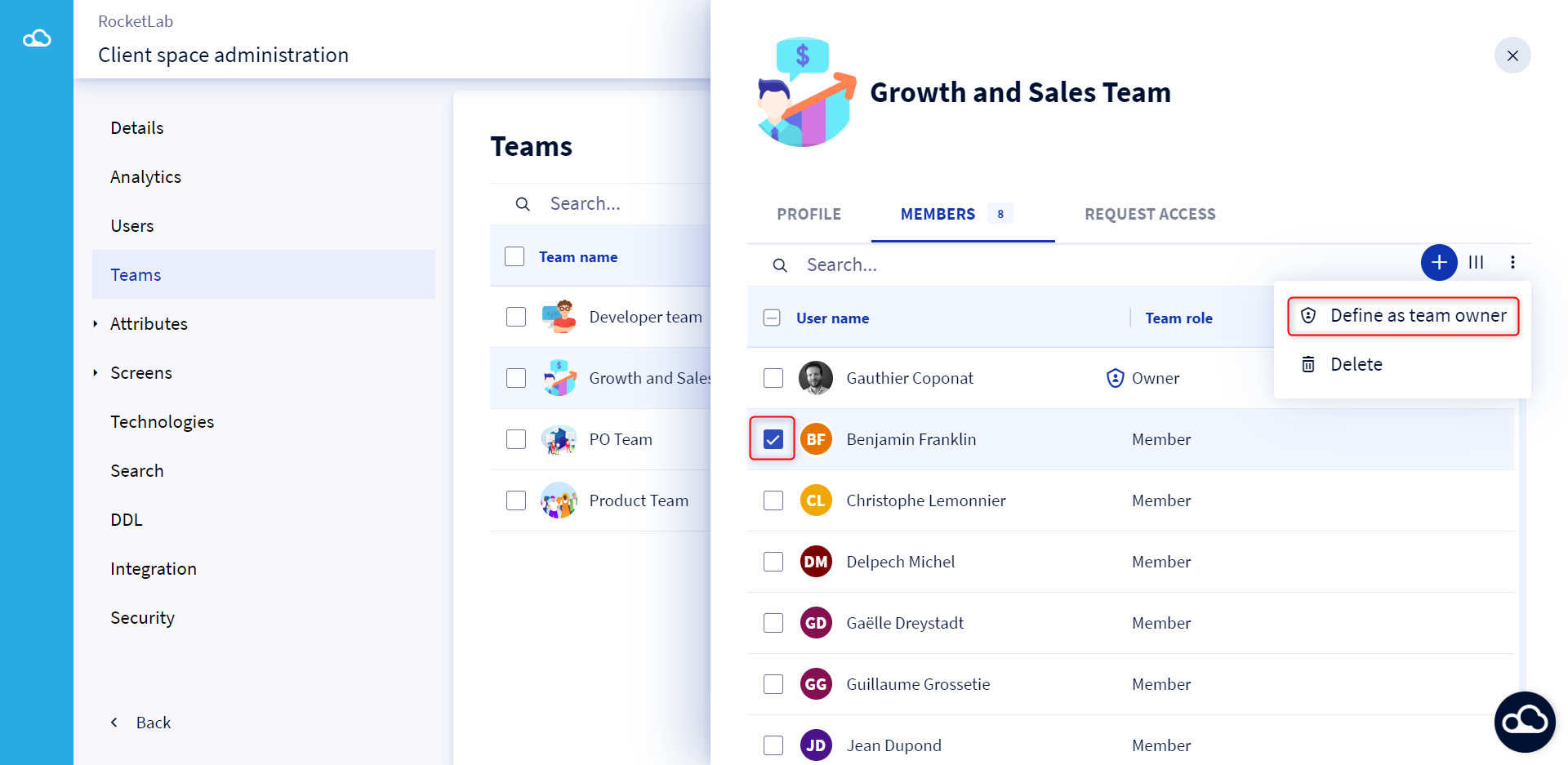
3 - Delete members from a team
To remove members from a team, you must :
- Click on a team from the list of teams
- Click on the Members tab in the team's card that opens on the right of the screen
- Check the box in front of the member you want to remove from the team
- Click on the 3 dots at the top right of the team
- Click on Delete
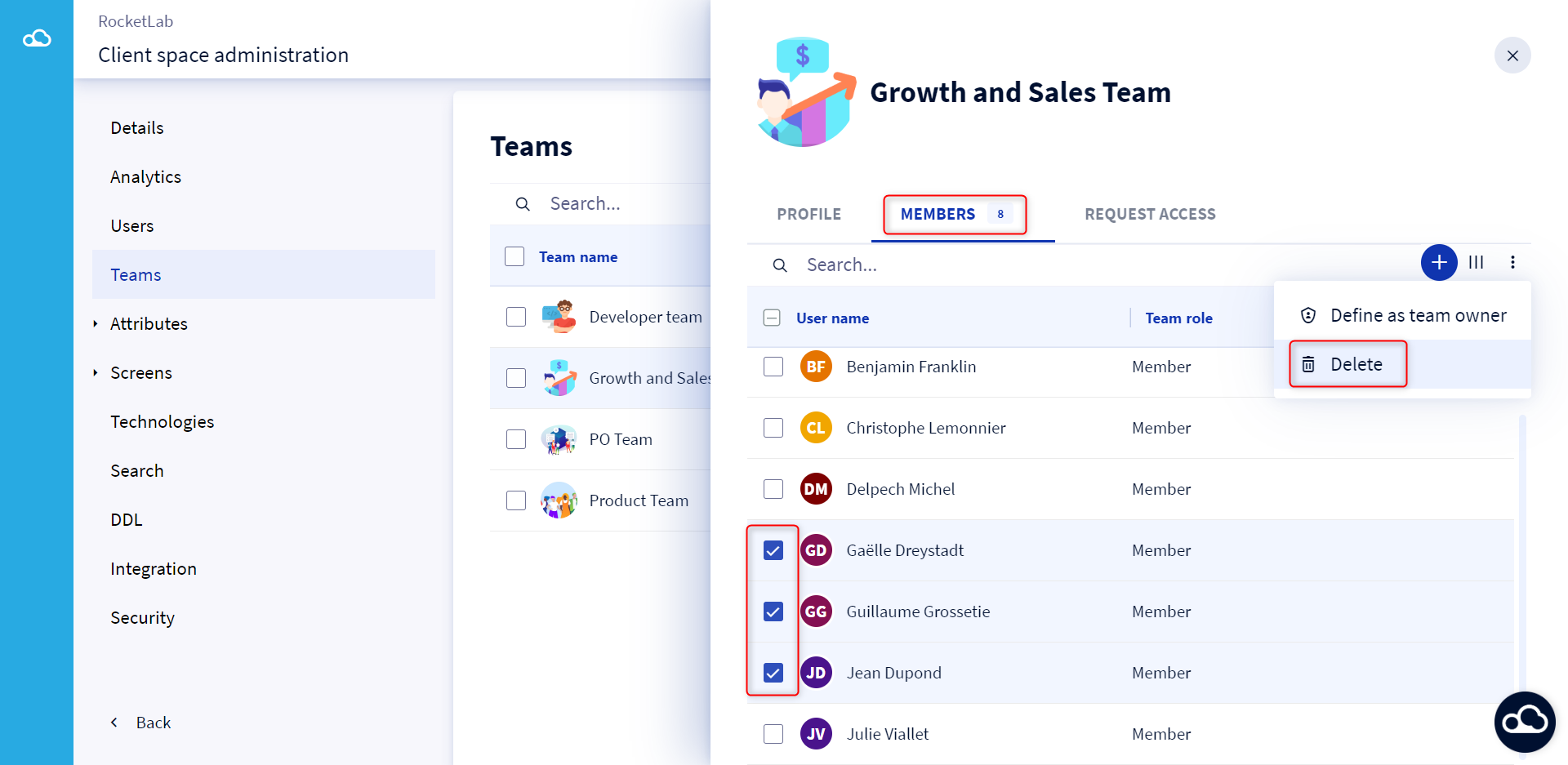
How to manage access requests?
All administrators of the client space can check and manage access requests to teams, even if they are not the owners of the team.
To identify new access requests to a team, the system shows a blue dot in front of its name in the team list. 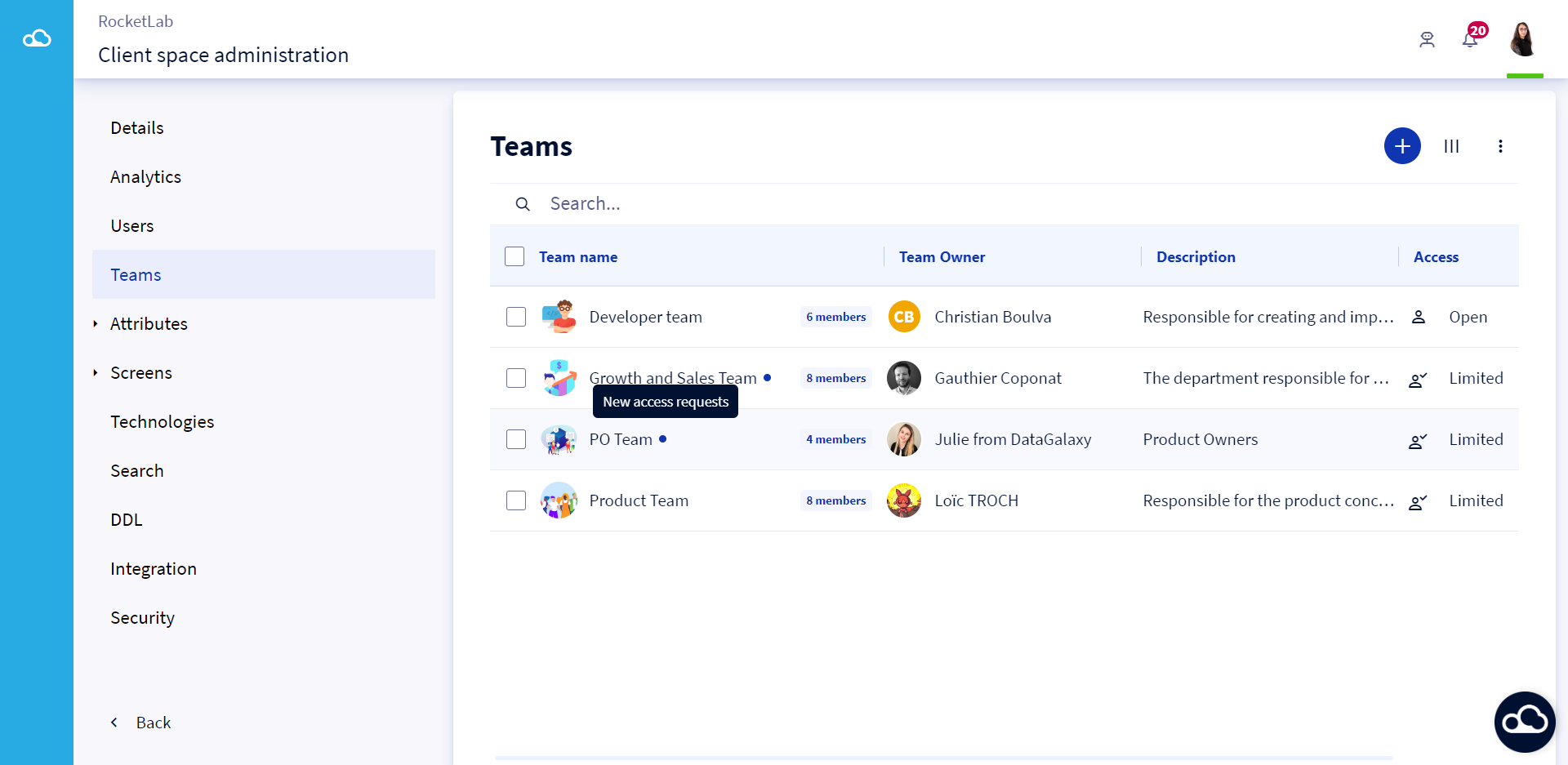
To manage a new access request, you need to:
- Click on a team from the list of teams having a blue dot
- Click on the Members tab in the team's card that opens on the right of the screen
- Accept or Refuse the request for access to the team
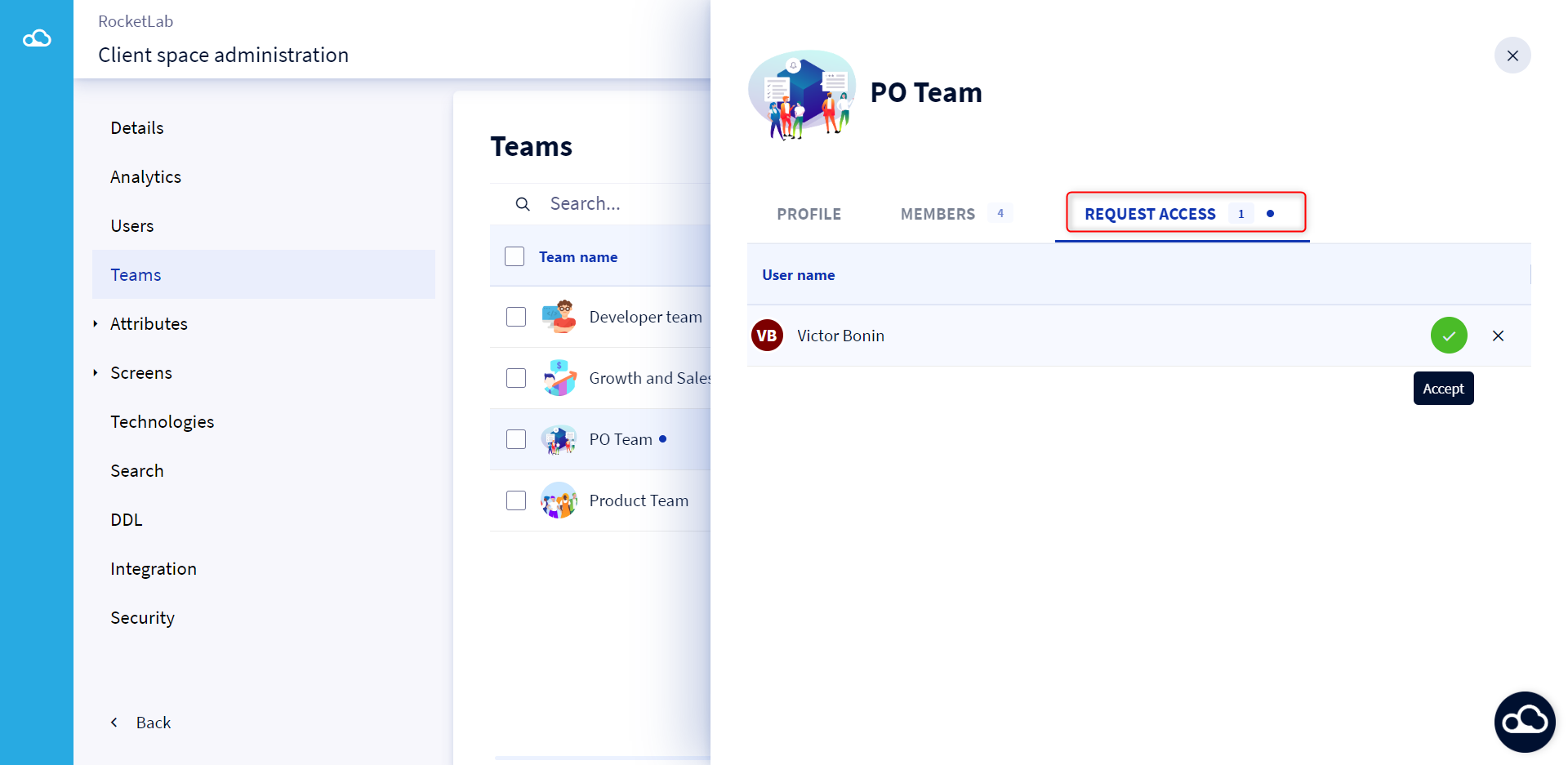
To learn more about team access requests, you can read this article : Manage your teams.