
This article explains teams import and export in the client space administration. To learn more about the team notion, you can read this article : Teams presentation.
Who can import and export teams ?
To manage teams imports and exports, you have to be an administrator of the client space. To check if you have these rights, go to your profile and when clicking on the drop-down menu, the "Administration" option should appear. If it does not appear, you are not an administrator.
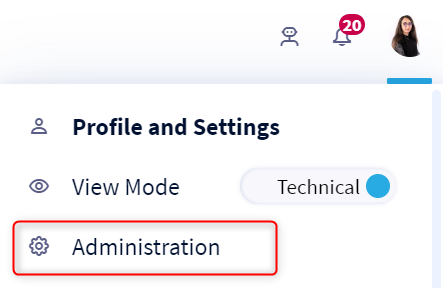
To learn more about the administrator profile and how the permissions and licenses provided by DataGalaxy operate, you can read this article.
How to export and import teams ?
All client space administrators can create and modify their teams massively by exporting and importing via csv files. This can be very useful if you have several teams to create or if your team has many members and it is difficult to add them one by one manually via the "add members" button.
1 - Export teams
To export all teams :
- Click on the 3 small dots at the top of the team list
- Click on export
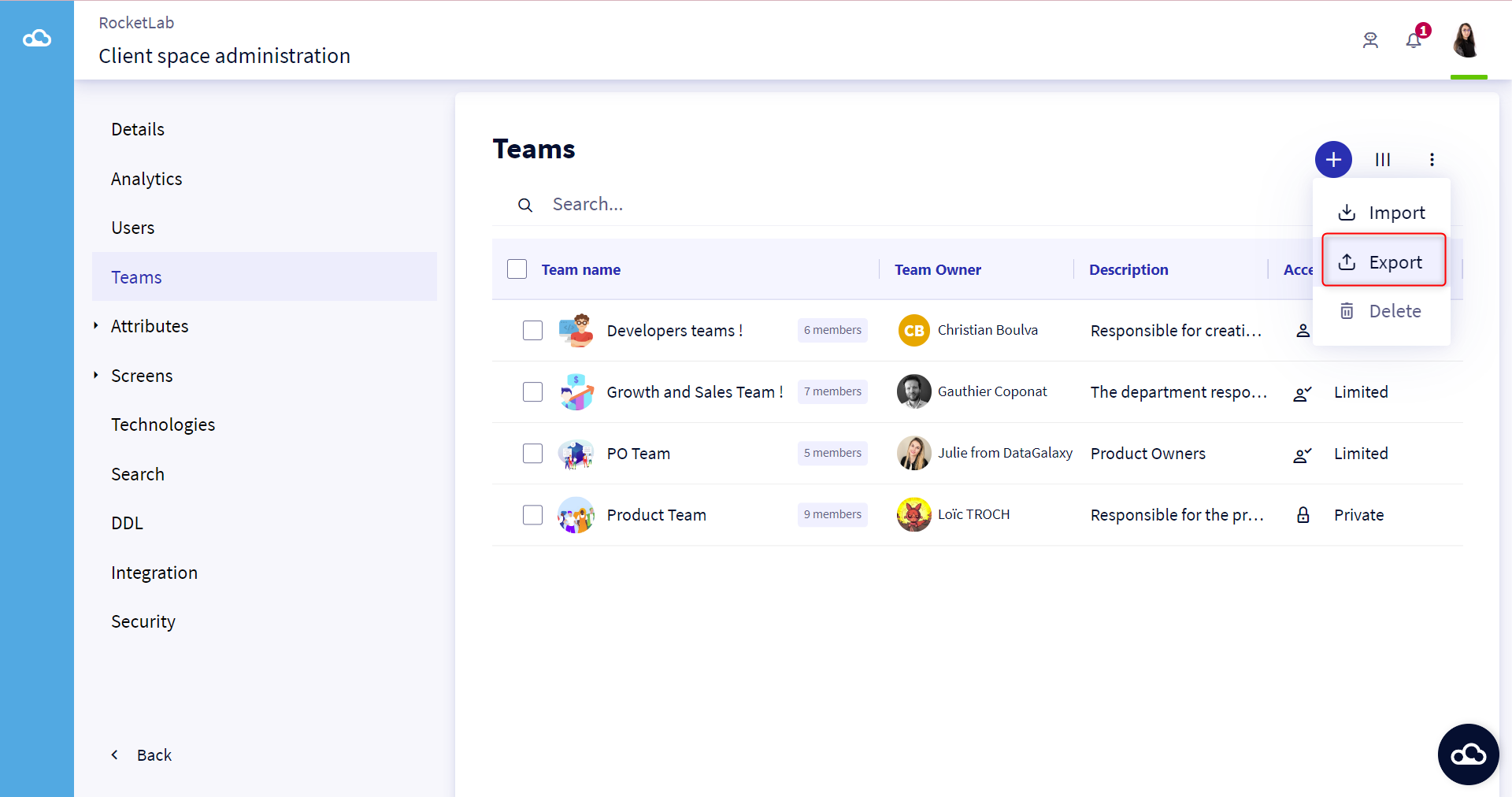
A csv file is generated with all the information about the selected teams and their members.
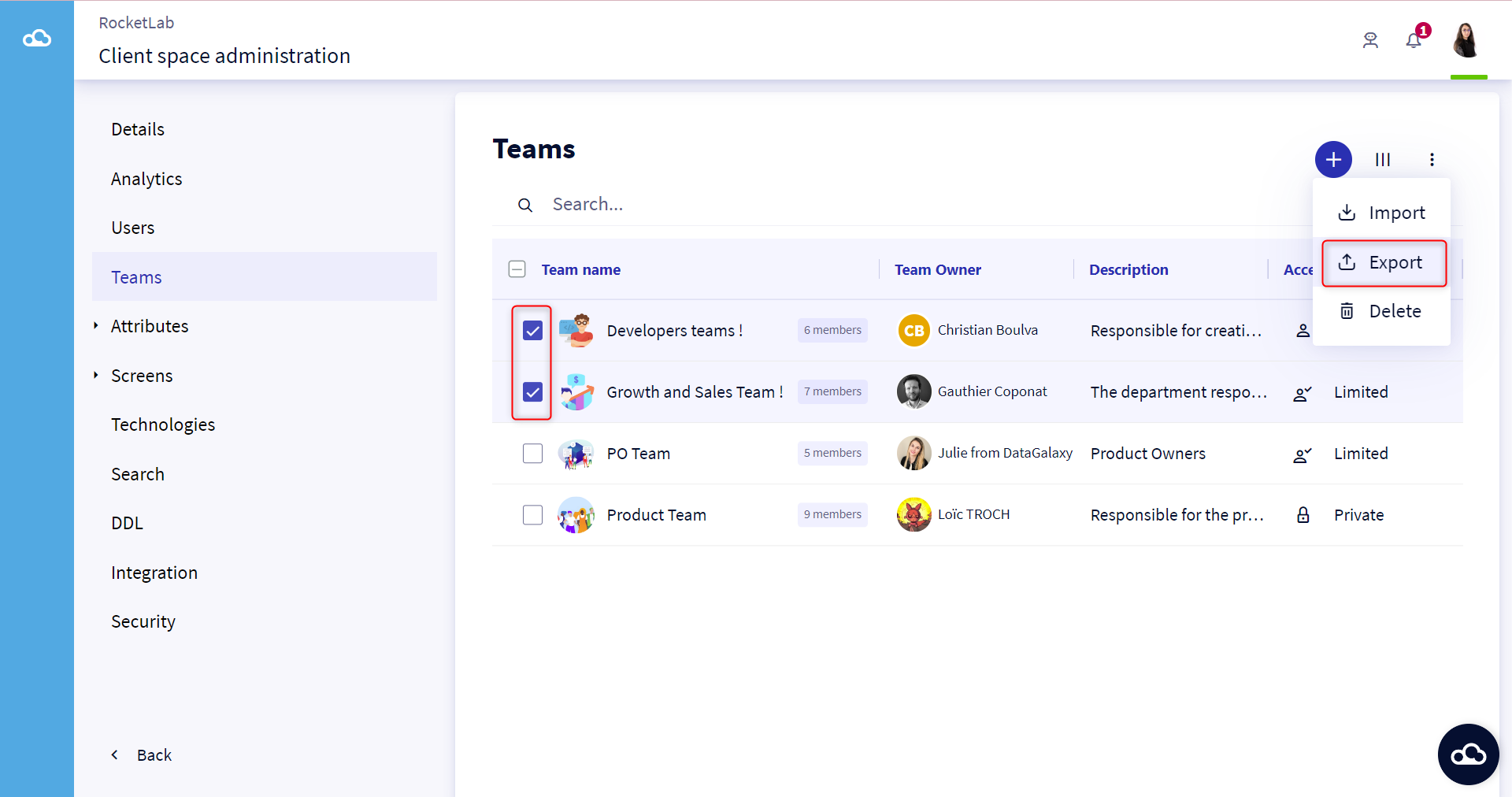
To export one or more teams:
- Select one or more teams you wish to export
- Click on the 3 small dots at the top of the team list.
- Click on export
A csv file is generated with all the information about the selected teams and their members.
The generated csv file is composed of 6 columns :
- Path with possible and mandatory values:
- "\Teamname" : for the team name
- "\Teamname\useremail" : for a team member
- Typewith possible and obligatory values :
- "\Team" : for a team
- "\TeamMember" : for team member
- TeamAccesswith possible and mandatory values :
- "Open
- "Limited
- "Private".
- TeamDescription optional field dedicated to the team description
- TeamEmail optional field dedicated to the team's email address
- MemberRolewith possible but optional values:
- "Member"
- "Team Owner
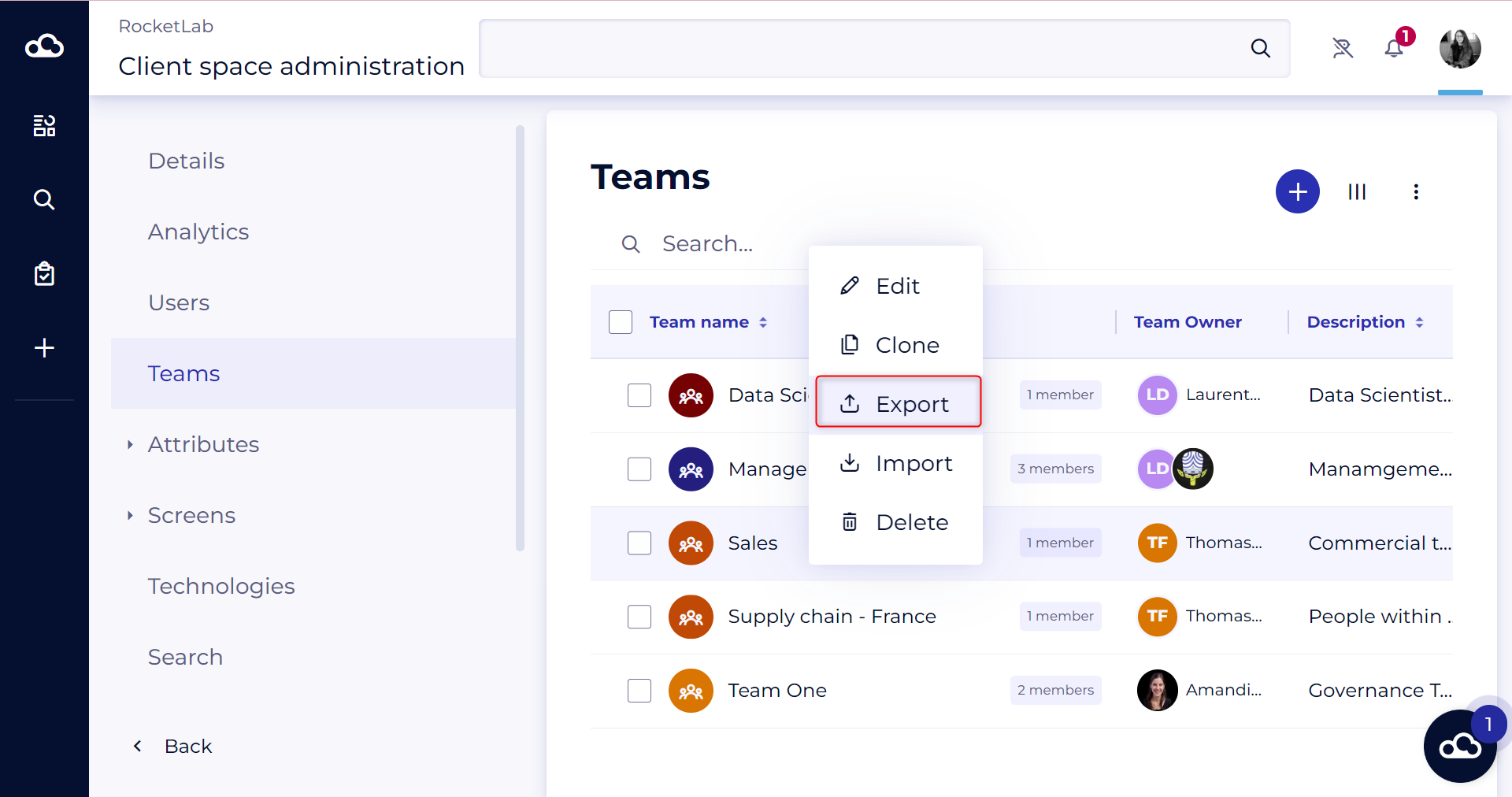
To export a specific team :
- Click on the burger menu that appears over the team you wish to export
- Click on Export
2 - Import teams
To import teams and members:
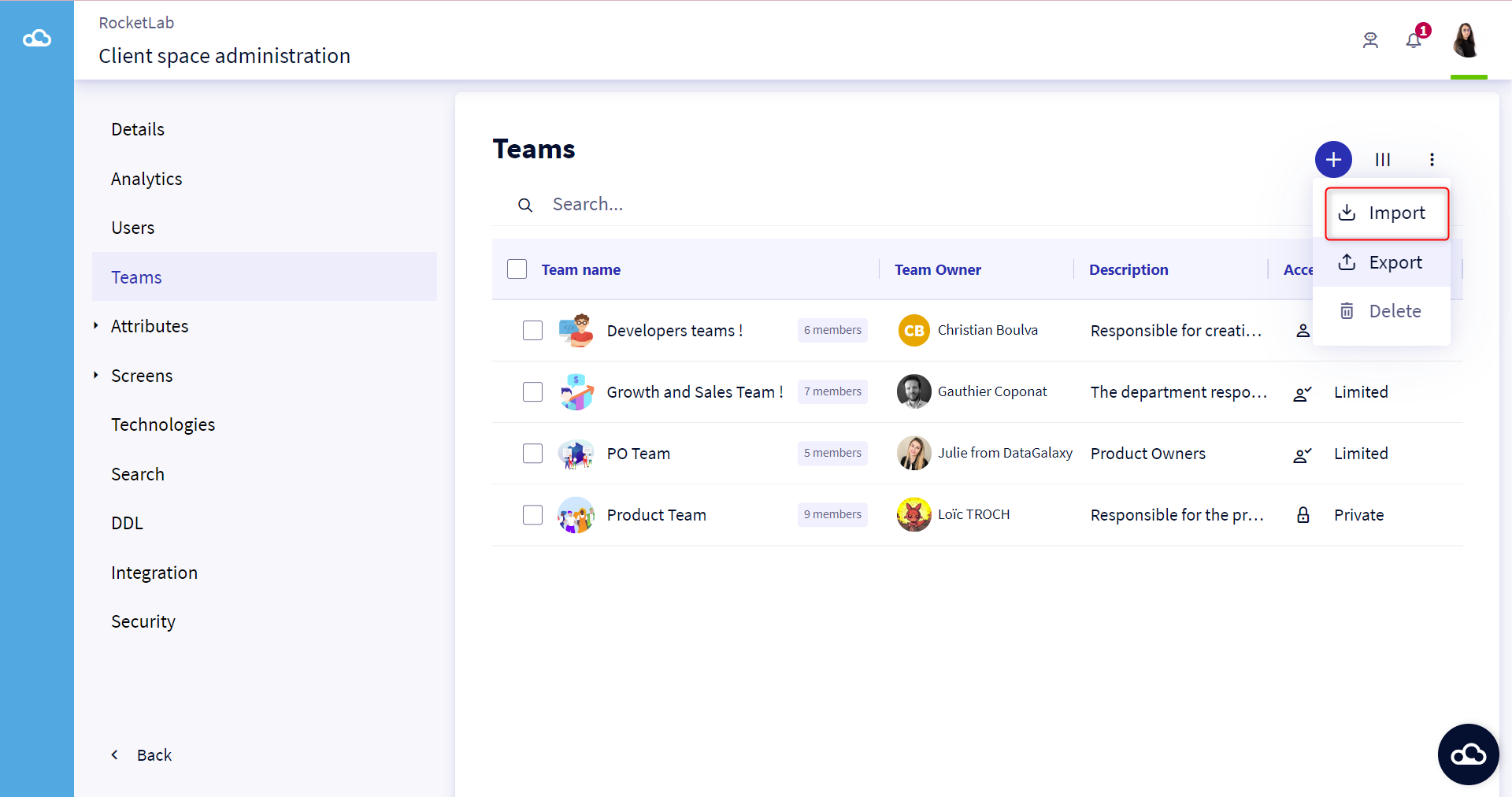
- Click on the 3 small dots at the top of the team list.
- Click on import
- Select the csv file to import
- Click on Next then Import then Close
The csv file that allows you to create teams and members must contain at least the following 3 columns :
- Path :
- Path of the team : "\Teamname"
- Path of the team member : "\Teamname\usermail"
- Type:
- Type of the team : "\Team"
- Type of a team member : "\TeamMember"
- TeamAccess: "Open" or "Limited" or "Private
It is not possible to create a team wirhin a team, members within members or a team within members. The access type of the team cannot be changed via the import.