
To obtain access, please contact your account manager.
A lot of data/business analysts are using Python for the day-to-day analysis. Our data is accessible via Python also. See below the step-by-step guidenance.
Step 1. Enable assess to you data and copy your token
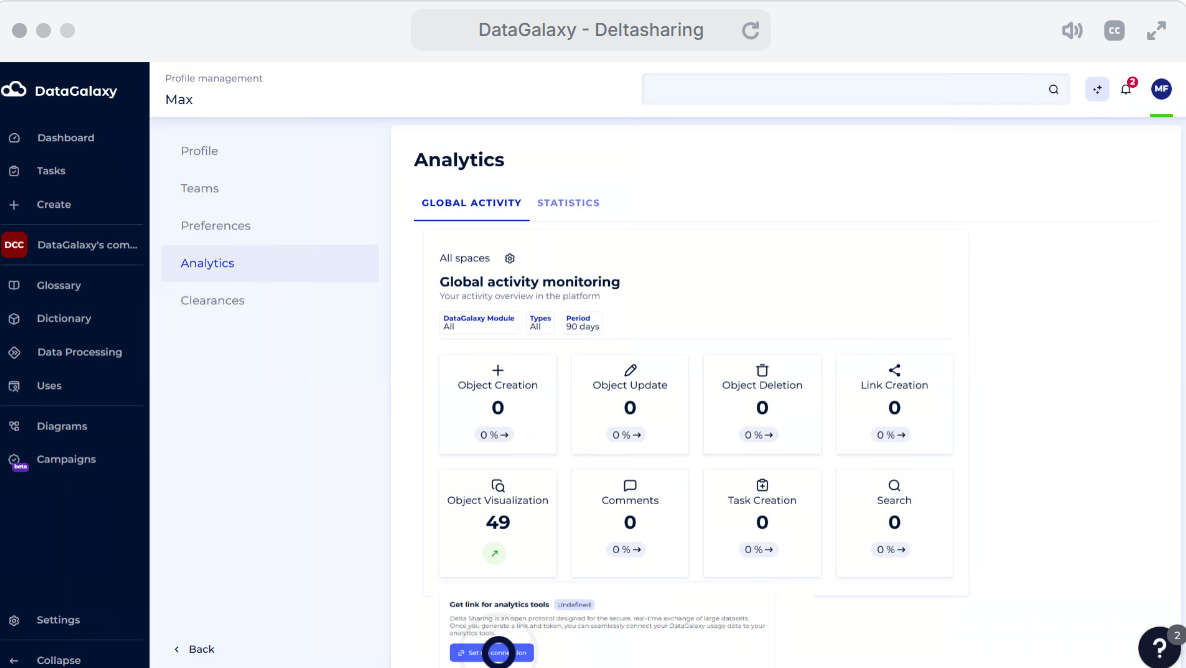
1. Navigate to the Settings menu for Workspace Admins or the Account/Administration menu for Clientspace Admins.
2. Generate the token (Set up connection button).
3. Copy your token to your tool or to the separate file (depends on the connection needed).
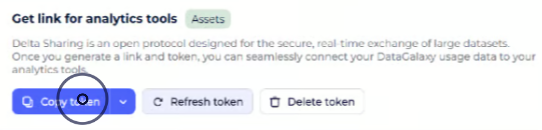
4. If you suspect that your token was compromised, please:
- re-generate the token by pushing the button "Refresh"
- delete your token by pushing the button "Delete"
Step 2. Create a profile file
Profile file it is a json-format file that contains of yout token info.
- Create a text file (via NotePad, for example)
- Paste your token there
- Save this file in json format
Step 3. Enable DeltaSharing in your Python
- InstallDeltaSharing library
!pip install delta-sharing pandas
2. Enable it.
import delta_sharing
Step 4. Get access to your data
- Access profile file from Python to retrive your connection info
profile_file='path'
sharing_client = delta_sharing.SharingClient(profile_file)
Step 5. Check the tables you have
You may want to check the list of tables you can access:
shares = sharing_client.list_shares()
print(shares)
for share in shares:
    schemas = sharing_client.list_schemas(share)
    for schema in schemas:
        tables = sharing_client.list_tables(schema)
        for table in tables:
            print(f'name = {table.name}, share = {table.share}, schema = {table.schema}')
The output of this step will look like:
[Share(name='ccfe0e34-1bac-3425-9655-56c9d93b03be--852d8eaf-7529-455b-a34k-8d666aeb2938_platform_aggregated_usage')]

name = platform_aggregated_usage, share = ccfe0e34-1bac-3425-9655-56c9d93b03be--852d8eaf-7529-455b-a34k-8d666aeb2938_platform_aggregated_usage, schema = datagalaxy
Step 6. Retrive your data
# Specify the table URL
table_url = "<share><shema><name>"

# Load the table into a Pandas DataFrame
df = delta_sharing.load_as_pandas(f"{profile_file}#{table_url}")

# Preview the data
df
We prepare an example of Python code for simplifying the process.
As soon as you have your dataframe, you can follow the usual steps in analytics with Python.