Submit a ticket My tickets
Welcome
Login  Sign up

How to add your data to PowerBI

To obtain access, please contact your account manager.


Self-service analytics enables business users to explore data and gain insights independently, without heavily relying on IT or data engineering teams. By leveraging Delta Sharing (an open-source protocol) and Power BI, organizations can provide secure, scalable, and transparent access to analysis-ready datasets. Here’s a step-by-step guide for implementing this solution.


What is Delta Sharing?

Delta Sharing is an open-source protocol that allows organizations and platforms to securely share data. Its key benefits include:

  • Seamless interoperability with various analytics tools.
  • No vendor lock-in, as it is open-source.
  • Scalable performance for large datasets.


What is Power BI?

Power BI is Microsoft’s business intelligence platform that provides interactive visualizations and business analytics tools. It connects to a wide range of data sources, enabling users to quickly create reports, dashboards, and analyses.

How to access your data

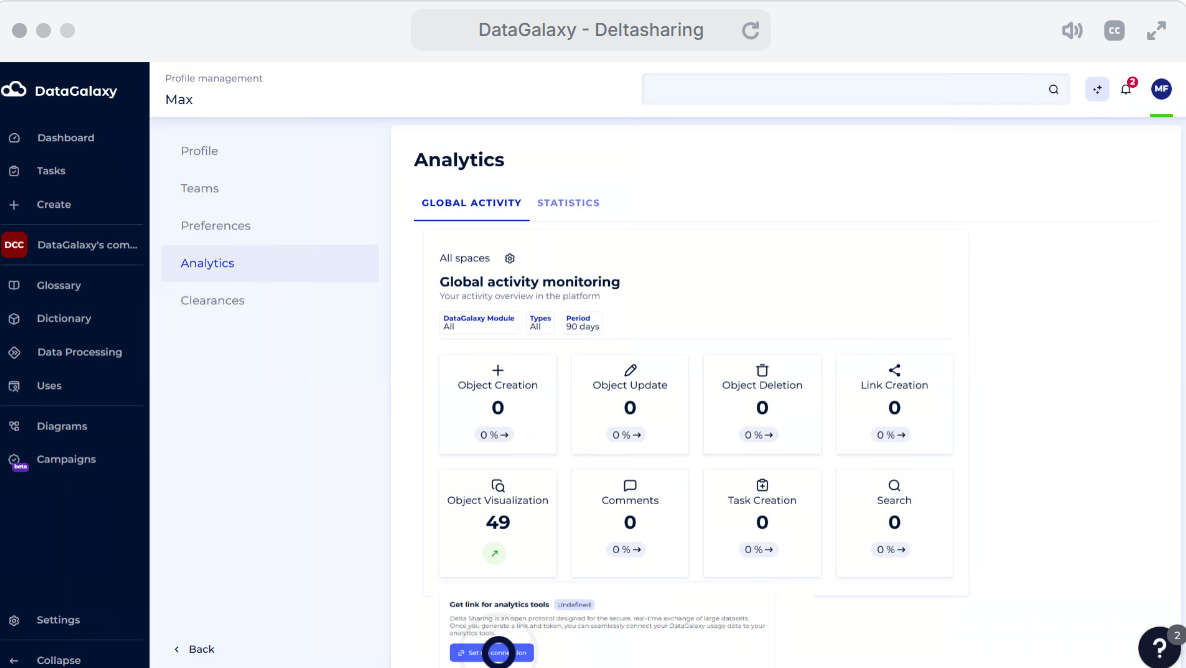
1. Navigate to the Settings menu for Workspace Admins or the Account/Administration menu for Clientspace Admins.

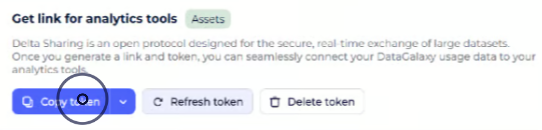
2. Generate the token (Set up connection button). 

3. Copy your token to your tool or to the separate file (depends on the connection needed).


4. If you suspect that your token was compromised, please:

- re-generate the token by pushing the button "Refresh"

- delete your token by pushing the button "Delete"


How to Access Data via Power BI
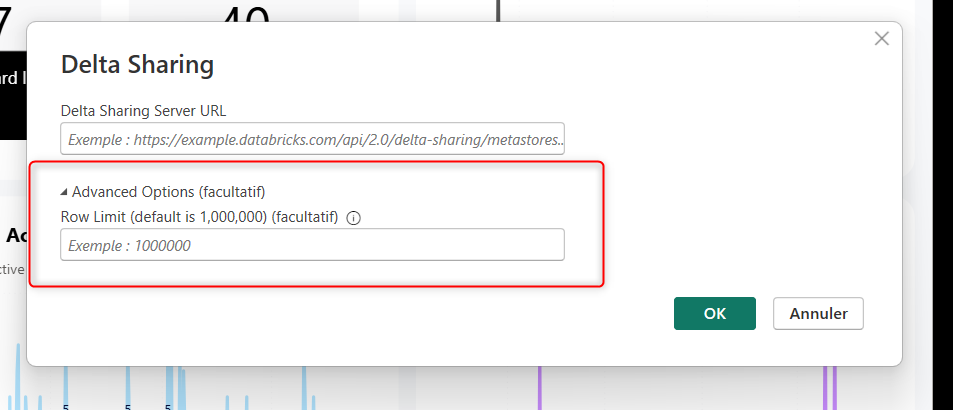
  1. Open Power BI Desktop and go to Home > Get Data > Other > Delta Sharing.
  2. Paste the Delta Sharing URL or upload the Delta Sharing token file provided by the data provider.
  3. Authenticate if required.
  4. Select the tables you want to import and load them into Power BI.


How to Accelerate the Adoption of Best Practices for Data Governance Analytics

  • If you already have an analytics system set up: Connect your data and calculate/visualize the necessary key performance indicators (KPIs).
  • If you need to set up an analytics system first: Follow best practices from experienced users of data catalogs.

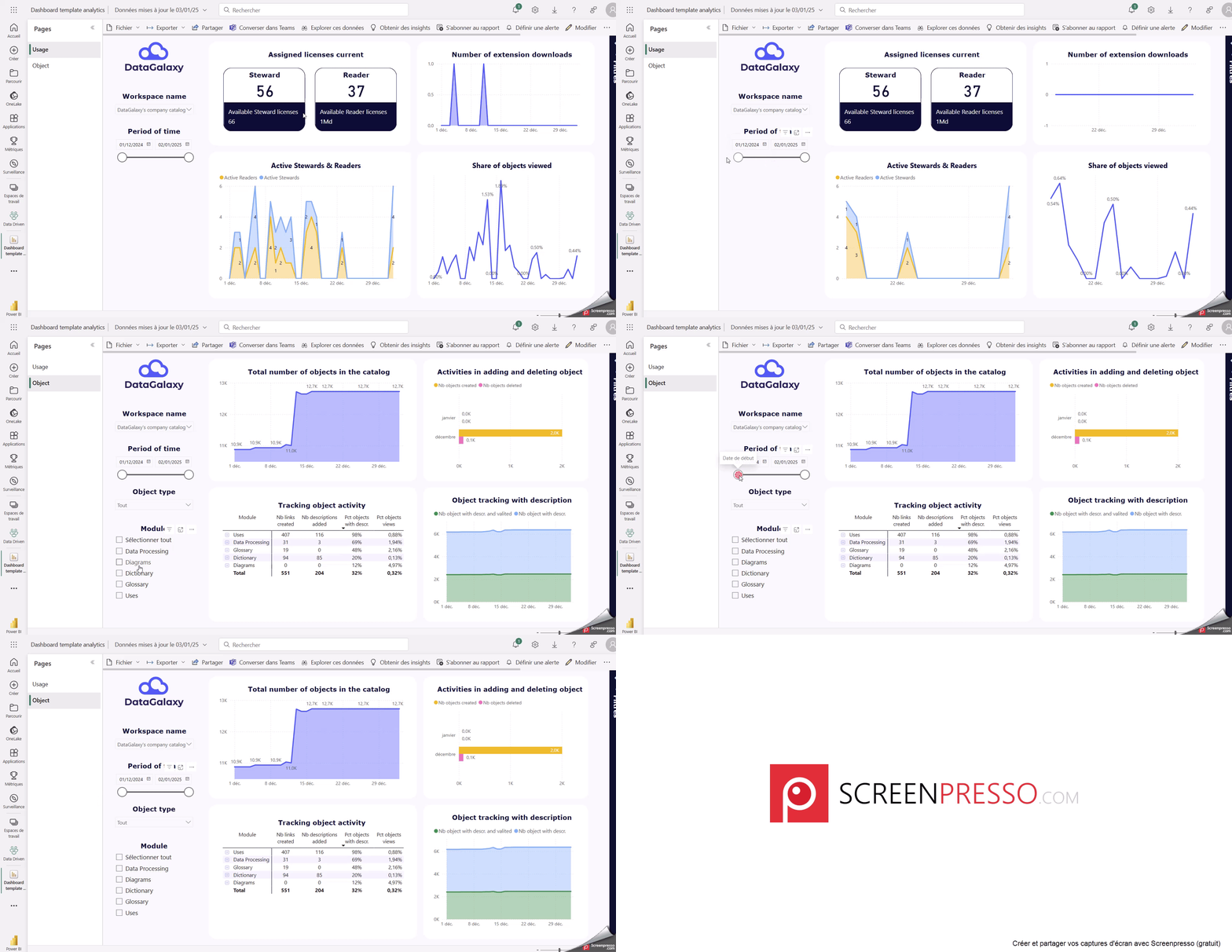
We provide you with  templates that include the most common KPIs, helping you quickly set up and monitor performance metrics. This templates are designed to simplify implementation and align with best practices for data governance and analytics. 


Note on PowerBI Limitation

There is a limitation on the Power BI side. Even though the full dataset is available, Power BI can only process up to 1 million rows per dataset, which means not all data is being displayed.

PowerBI allows to change the default limitation for a connection: 

1. for initial set up


2. for existing connection: 

  1. Go to"Transform data"
  2. Chose the table needed and click "Advanced editing"
  3. Modify the first line by adding parameter  [rowLimitHint=600000000]
Example of the resulting line: Source = DeltaSharing.Contents("https://francecentral.azuredatabricks.net/api/2.0/delta-sharing/XXXX", [rowLimitHint=600000000]),


Download  templates for PowerBI:
1. detailed usage analytics

2. General analytics


Did you find it helpful? Yes No

Send feedback
Sorry we couldn't be helpful. Help us improve this article with your feedback.