To understand the concept of attributes, you can consult the article Presentation of attributes.
The purpose of this article is to explain how to manage attributes:
- Create an attribute,
- Disabling a list attribute value
- Delete an attribute.
NB: Only client space administrators can manage the attributes.
Create a custom attribute
Administrator users can create custom attributes that can be used for object screens:
- Click on your avatar to access the administration
- In the drop-down menu, click on Administration
- Go to the Attributes section
- In the sub-sections you have the possibility to choose between a common attribute (available for all modules), or a specific module
- Click on the create button
- Select the type of your choice
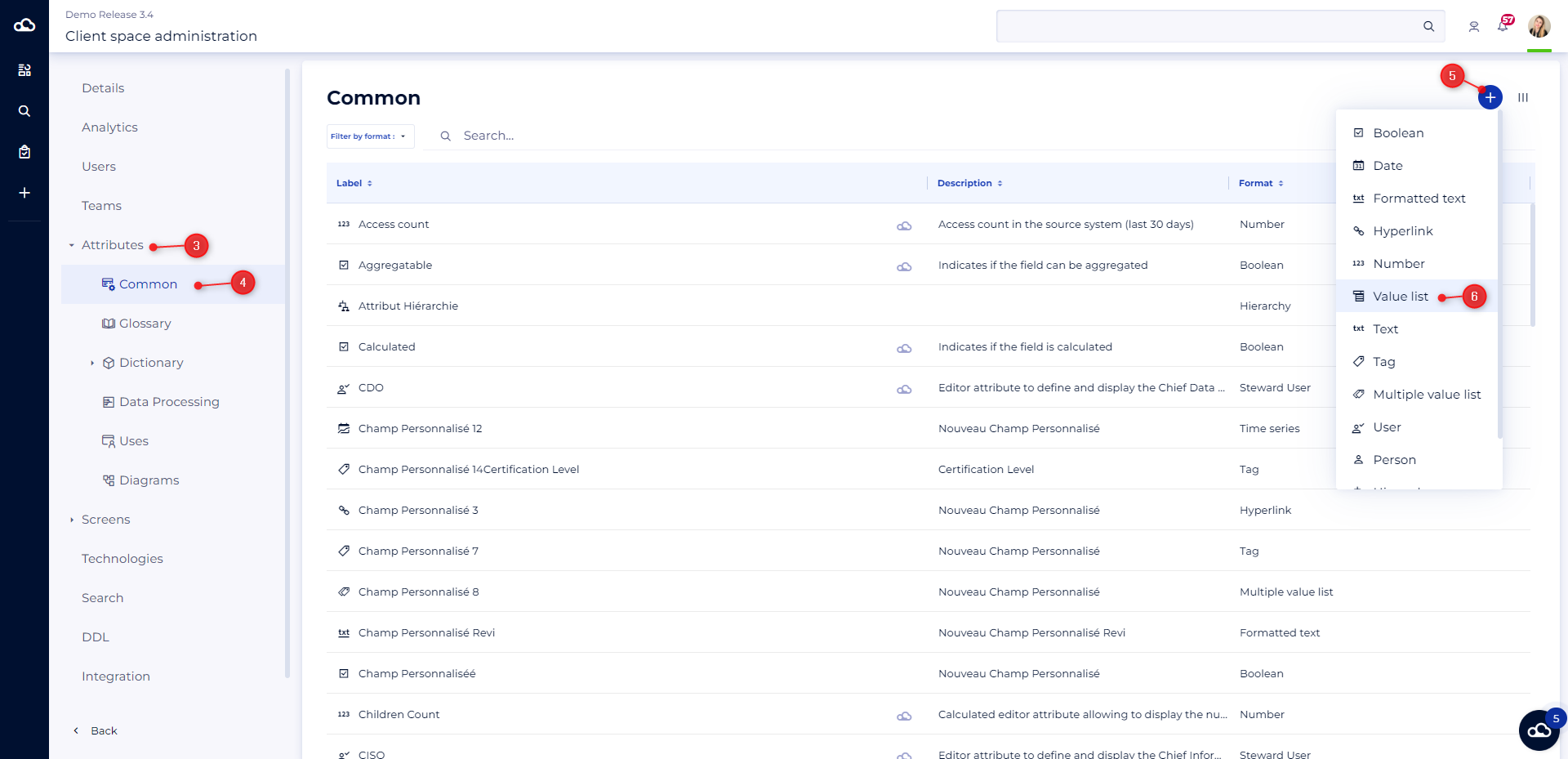
- A side panel opens on the right, you can fill in the information for this attribute (name, description, default value...).
Tips
Some good practices are to be taken into account when defining an attribute:
- Display name: it is important that the attribute name be as clear and explicit as possible because it is the one that will later appear on the screens for users.
- The description: it allows to explain the context and will appear when hovering over the attribute. It must, therefore, explain in a concise way the definition of the attribute and its usefulness.
- Recommended option: this option must reflect the importance/urgency of the attribute's curation. Indeed, if the attribute is recommended, it means that it is included in the calculation of the completeness rate of your metadata. Thus, it is preferable to have a reasonable number of recommended fields to track the curation of your metadata.
- The default value (optional): Allows you to initialize the field as soon as it is created with the value of your choice. This is ideal to avoid entering the most common information.
Deactivate a value
Deactivating a value will hide this value wherever it has been added in the object cards. This value will also not be visible in the list of available values in the users' screens.
The deactivation of values is available for all attributes of type :
- List of values
- Multi-value list
- Tags
- Hierarchies
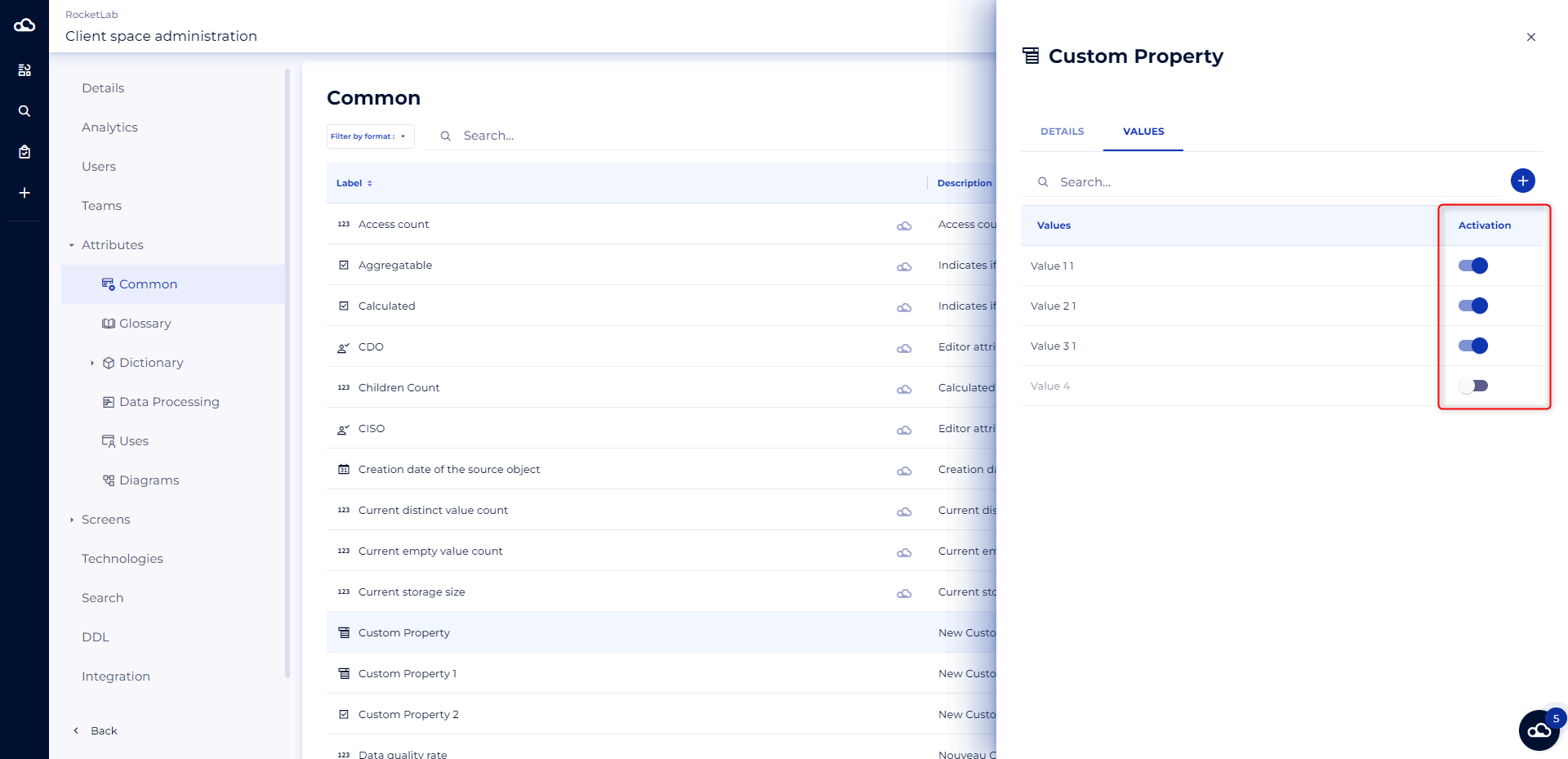
To deactivate a value in a value list, you need to :
- Open the panel of the attribute for which you would like to deactivate the value
- Go to the Values tab
- Click on the toggle of the value you want to deactivate
To deactivate a value in a multivalue list, a label, or a hierarchy
- Open the panel of the attribute for which you want to disable the value
- Go to the Values tab
- Click on the pencil button of the value you wish to deactivate
- An edit mode for the value opens
- Click on the toggle
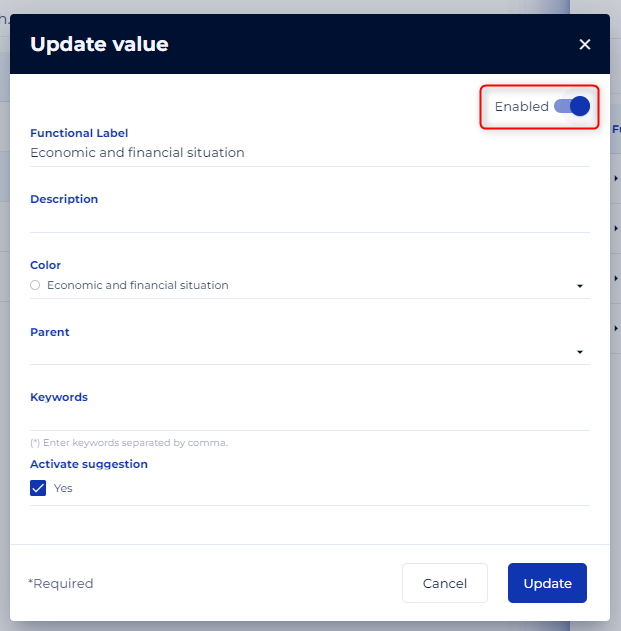
- Confirm your choice by clicking on the Update button
Delete an attribute
As an administrator, you can delete a custom attribute in order to make it invisible to the entire client space. Any suppression is final. All the information associated with this attribute will be deleted (the values entered in the object records, the filters using this attribute, etc.).
- Click on your avatar to access the administration
- In the drop-down menu, click on Administration
- Go to the Attributes section
- Then access the attributes of the module of your choice
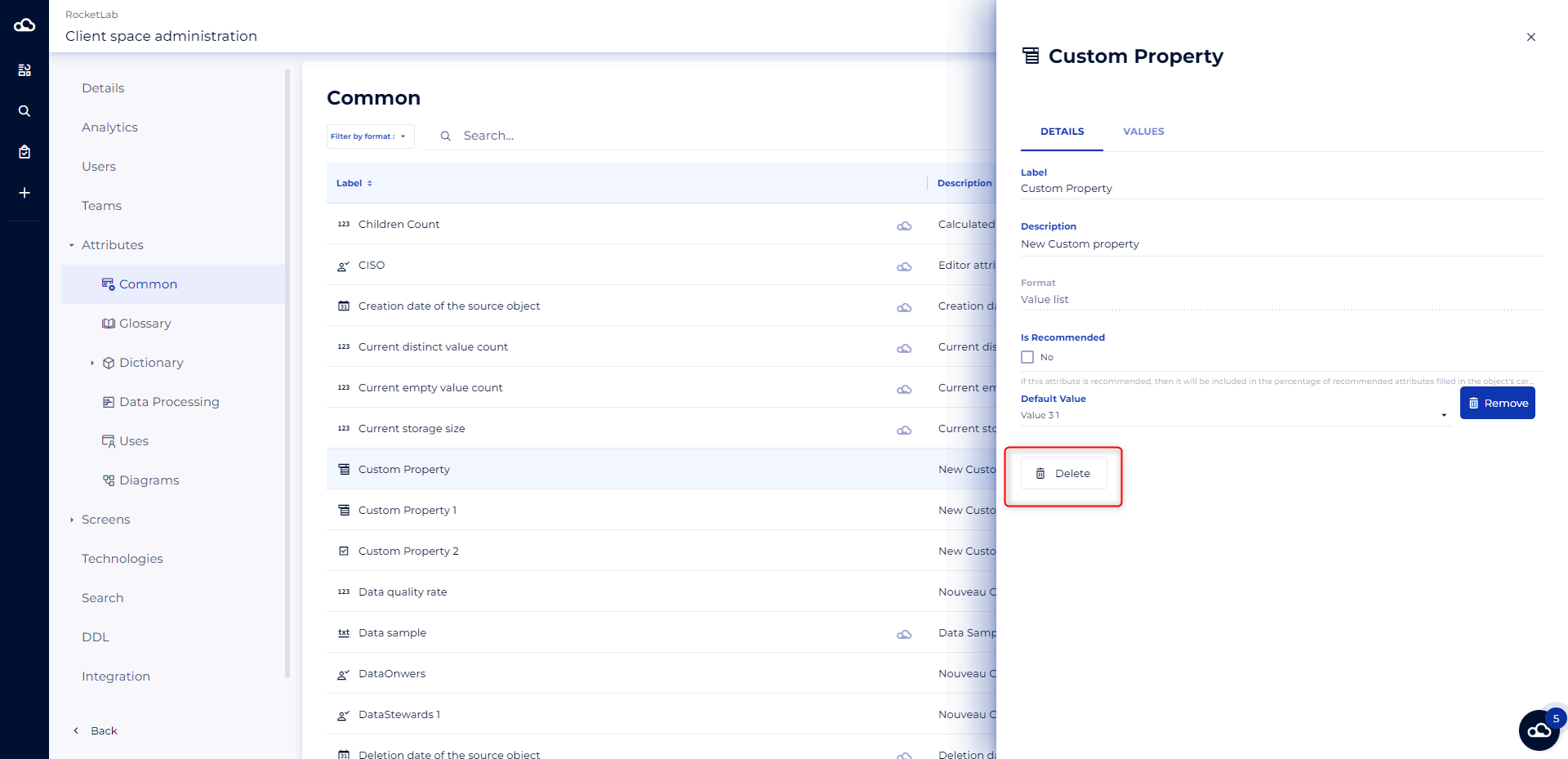
- Click on the attribute you want to delete
- Click on the Delete button