
The purpose of this article is to familiarize you with the notion of tag: what it means and how to use it properly.
What are tags and why use them?
Tags are part of the attributes, i.e. a field among those proposed by DataGalaxy and which, when grouped into categories, making it possible to establish an identity map of the objects, also called the object record.
For a more detailed list of all the attributes and how they work, you can consult the article [Basics] Presentation of attributes.
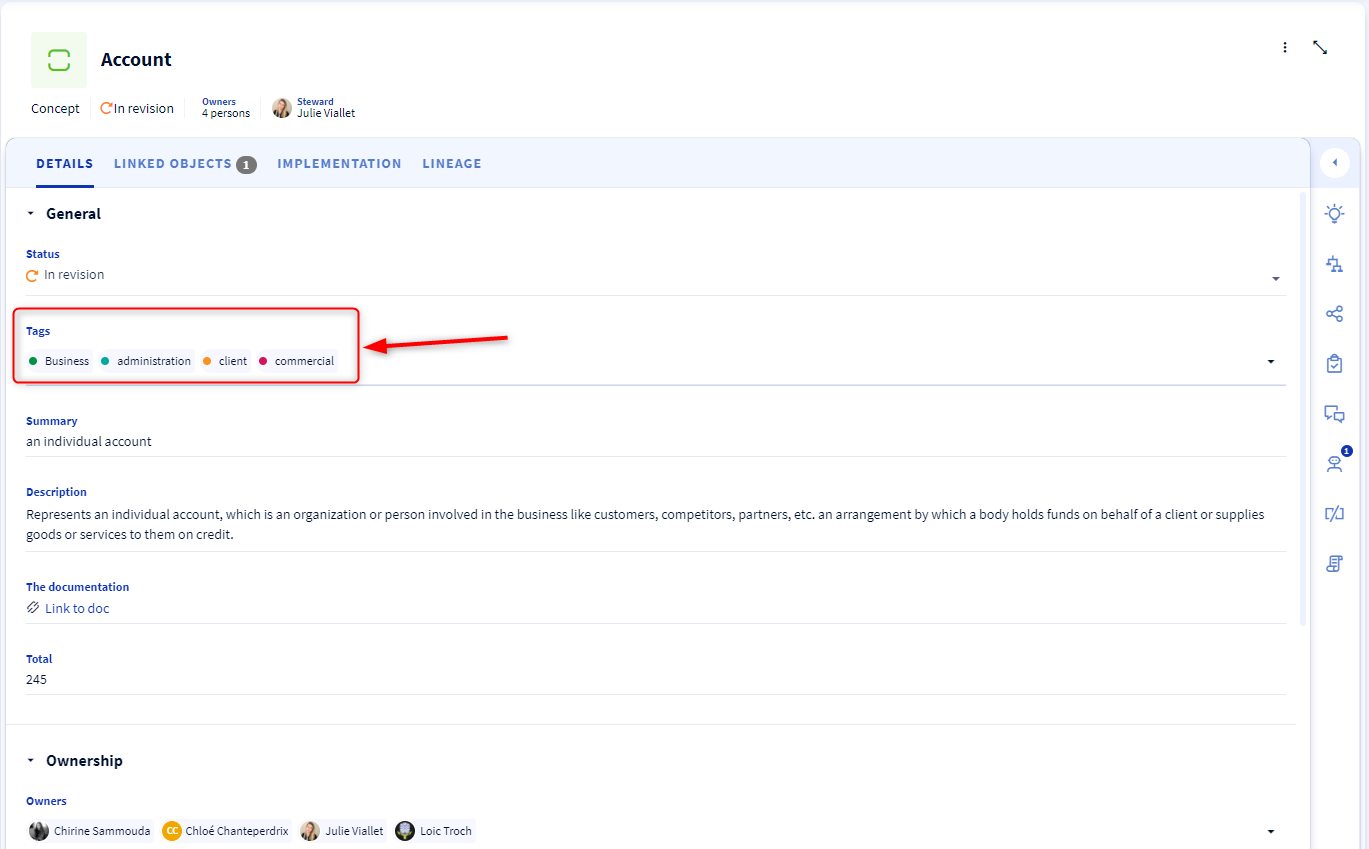
Tags are therefore an attribute format and are intended to help you classify your data. Each tag has a color, which you can choose from a wide palette, which allows you to easily identify the group to which the object tagged with this tag belongs.
Several classifications are possible depending on your project with DataGalaxy. For example, you can choose a classification by field: Marketing, Sales, Finance, HR.
For more precision in classification, it is also possible to create a hierarchy in tags. For example, you can create a "Marketing" category, then create several "e-commerce", "CRM" categories that will belong to the main category.
Who can create tags?
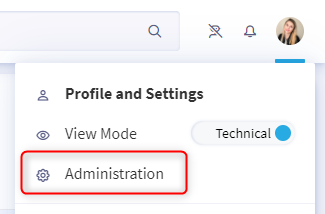
To be able to create tags, you must be a clientspace administrator. To check if you have these rights, go to your profile and when you click on the drop-down menu, the "Administration" tab should appear. To learn more about the administrator profile and how Datagalaxy's authorizations and licenses work, you can read this article.
How to manage tags?
- Create tags
- Click on your avatar to access the Main Administration.
- Click on the Attributes tab in the menu on the left.
- In the vertical navigation bar, click Attributes and then on the object for which you want to add custom fields.
- Click on the Create button and select the "tag" type. If you want to create a hierarchy with several tags, select the type "hierarchy" and then create the tags that will belong to this hierarchy.
- You can fill in the information in this field (name, description, default value...).
- Import and export tags
- Click on your avatar to access the Main Administration
- Click on the Attributes tab in the menu on the left
To export tags:
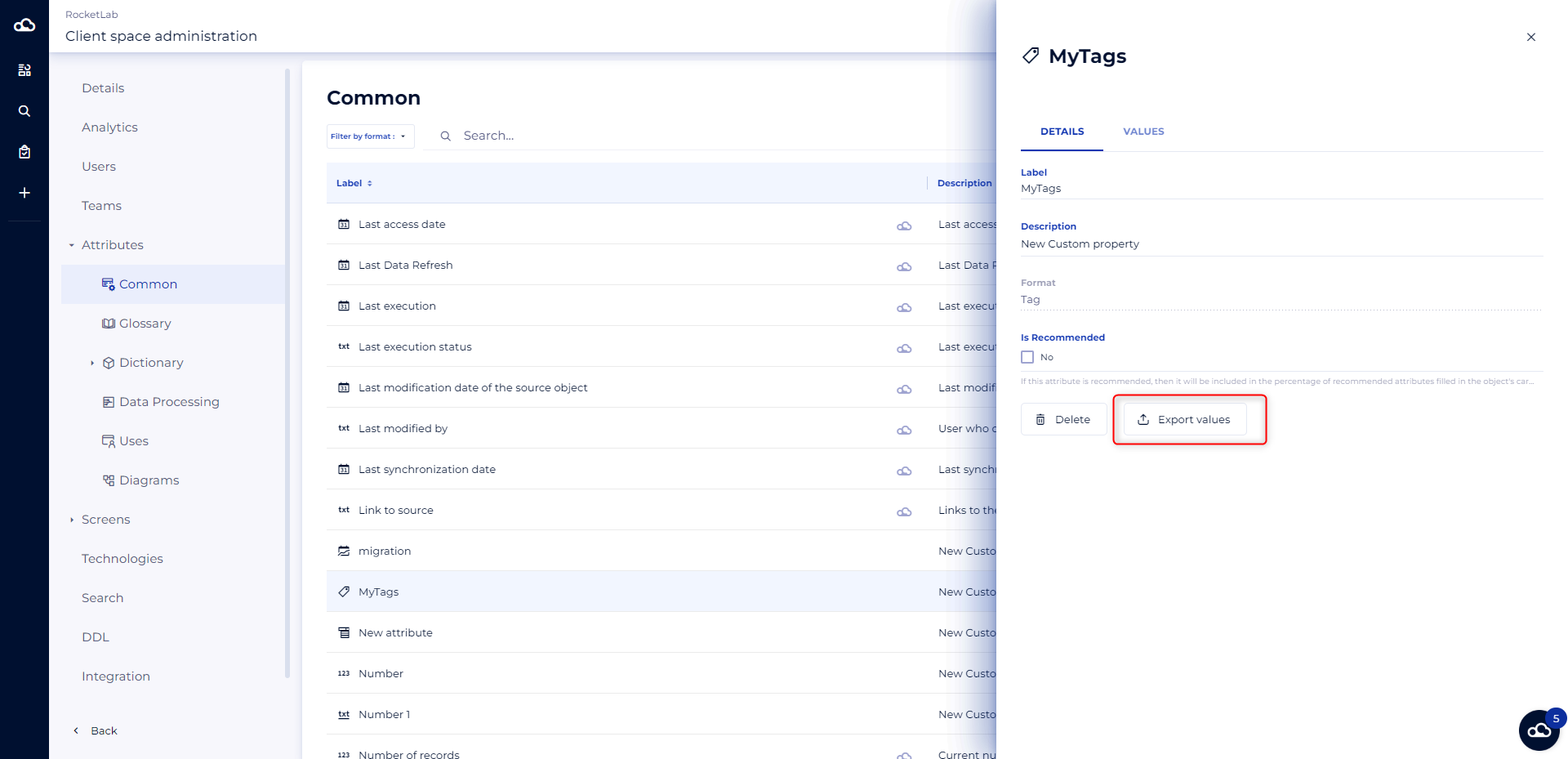
- Choose the hierarchy you want to export.
- Click on "export values".
To import tags from a CSV file :
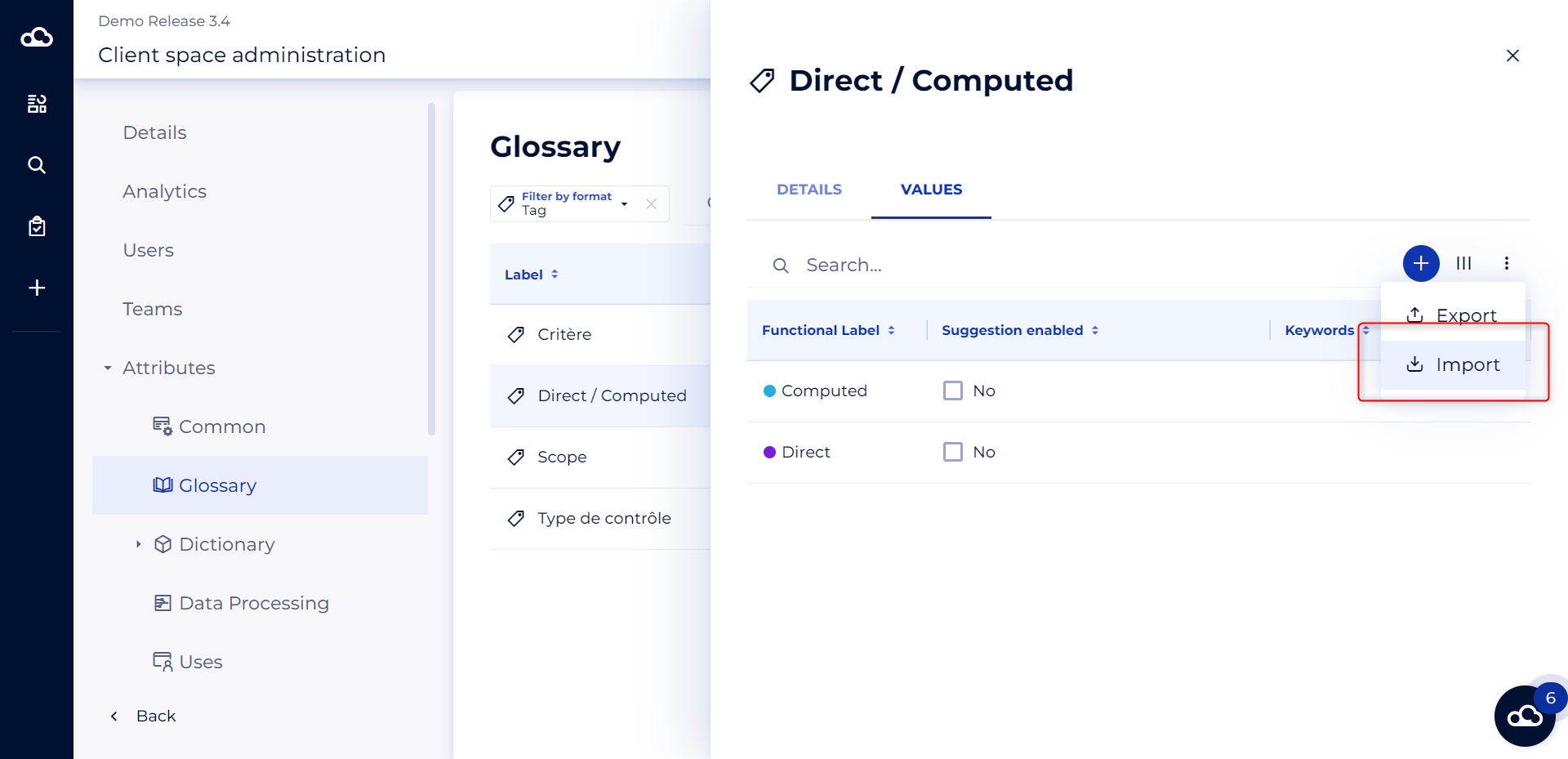
- Choose the hierarchy/tag into which you would like to import data
- Go to the Values tab
- Click on the three dots and choose Import
- Tag suggestions
Thanks to our suggestions tool, DataGalaxy is able to detect data that is a priori linked to each other and will, therefore, generate suggestions that will suggest you create the link between your data.
Suggestions are generated based on keywords that describe your attributes such as "tag" or "hierarchy". That is why it is important that these keywords be as relevant and explicit as possible.
To learn more about how the suggestions work, you can read this article.