
The purpose of this article is to present the "time series" attributes: what are they and how to use them?
What is a time series in DataGalaxy?
A time series is an attribute type allowing the capture and storage of a value and its evolution in time.
Time series can be used for example to monitor the variations of a quality indicator.
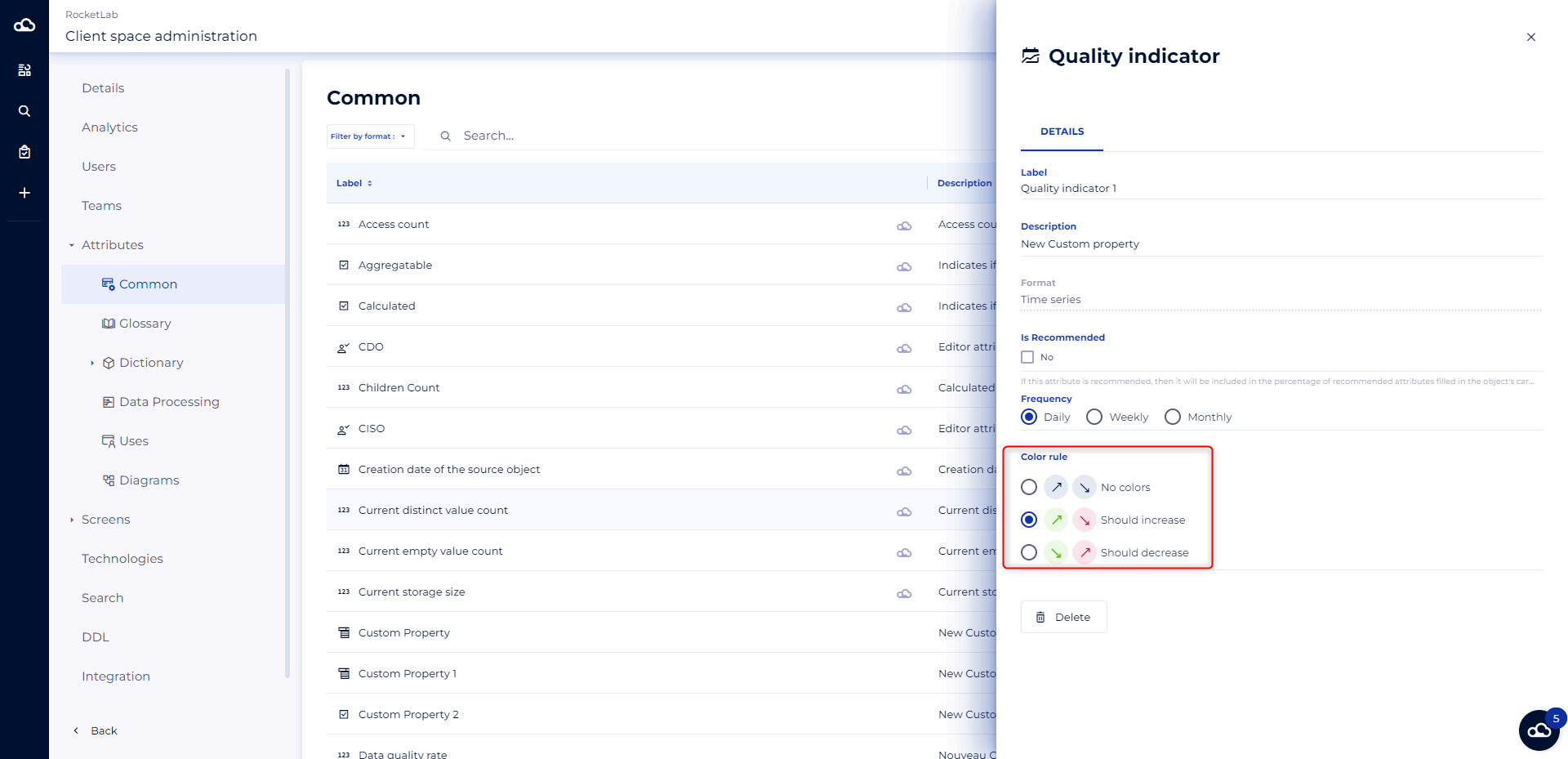
In the attribute administration, you have the option to define the range of the values:
- Daily
- Weekly
- Monthly
If you choose weekly, for instance, it means that you can only capture one value per week of the calendar for this time series.
You can also define the objective of the evolution of your time series which will have a visual impact:
- Should increase: the percentage of evolution between the last two values will appear:
- In green if greater than or equal to 1%.
- In red if less than or equal to -1%.
- In gray if between -1 and 1% excluded
- Should decrease: the percentage of evolution between the last two values will appear :
- In red if greater than or equal to 1%.
- In green if less than or equal to -1%.
- In gray if between -1 and 1% excluded
- No colors: the percentage change between the last two values will appear in gray in all cases
Who can manage time series?
To be able to create time series, you should be client space administrator. To check if you have these rights, go to your profile and click on the drop-down menu, "Administration" option should be present. If not, you are not an administrator.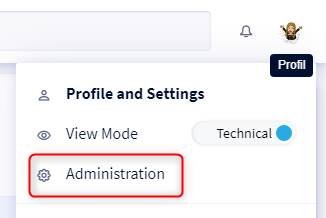
To learn more about the administrator profile in DataGalaxy, please read this article.
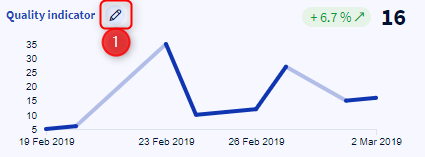
Time series in object cards
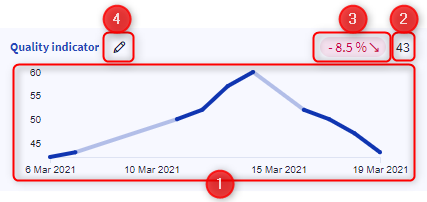
In the object card, the following information is displayed:
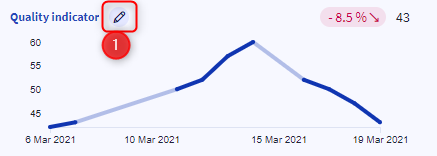
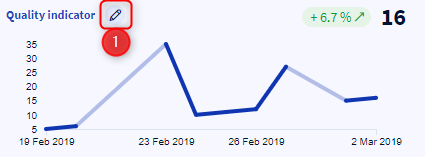
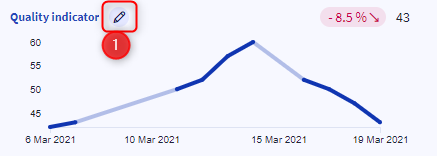
- A graph to monitor the evolution of the time series over its last ten values points: between consecutive values -> the evolution is represented by a solid line, and between non-consecutive values -> the evolution is represented by dotted lines.
- The last value
- The evolution between the last two values in percentage
- An edit button allowing you to access
- the detailed history of the values of the time series
- a graph of all the values in the time series
- the import and export of the values of the time series
How to manage time series?
1 - Importing values
To import values you need to:
- Open the history panel of a time series
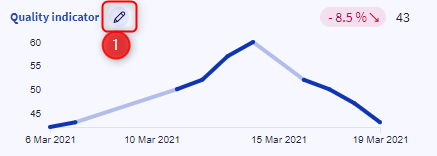
- Click on the three small dots
- Select Import values from the drop-down menu
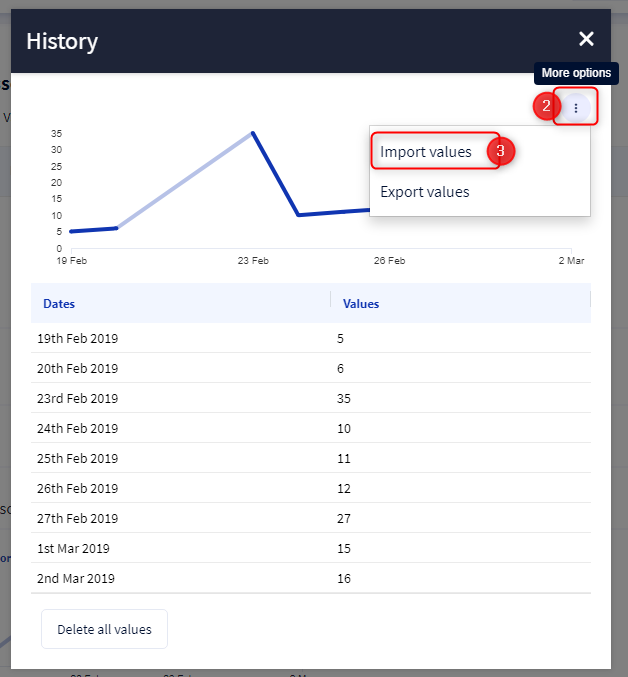
- The import window opens
- Choose the option: add values
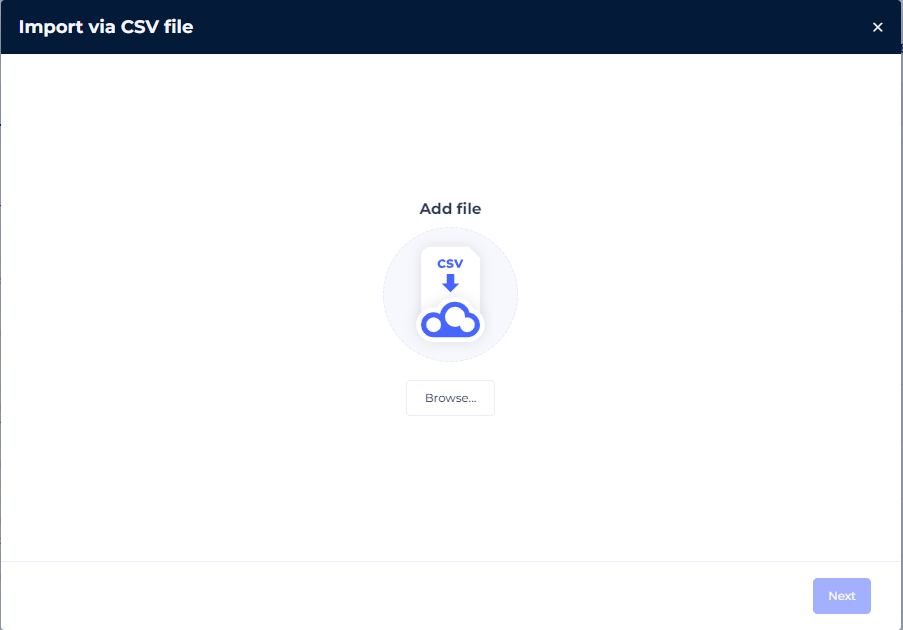
- Choose the CSV file to import: the file must contain a header (whatever its name) for the following columns:
- Dates // expected format of the values in this column: yyyy-mm-dd
- Values // expected format of the values in this column: integer or decimal
- Associate the column headers of your CSV file with the corresponding parameters:
- Date
- Value
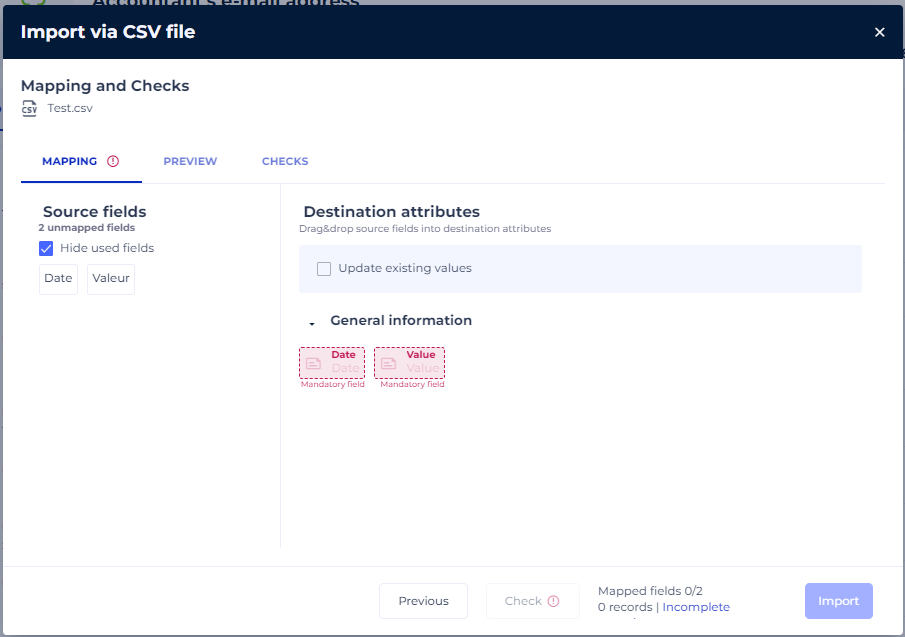
- Click on Import
NB: Example of the content of a file containing 2 values for a daily time series:
Date;Value
2020-02-01;3
2020-02-02;4
2 - Importing objects from a module/source containing time series
When you import objects into a module/source, you can only import the latest value of the time series your objects contain. If a value already existed for the imported date, then it is automatically updated with the imported one.
The values must be imported in this format: "Date::Value", with the date in the format "yyyy-mm-dd".
NB : Example of the content of an import file from the Glossary module containing 2 objects with 1 time series attribute each:
Functional label;Summary;Status;Time series
Address;Client address;Proposed;2021-04-30::28
Date of birth;Client date of birth;In validation;2021-03-23::78
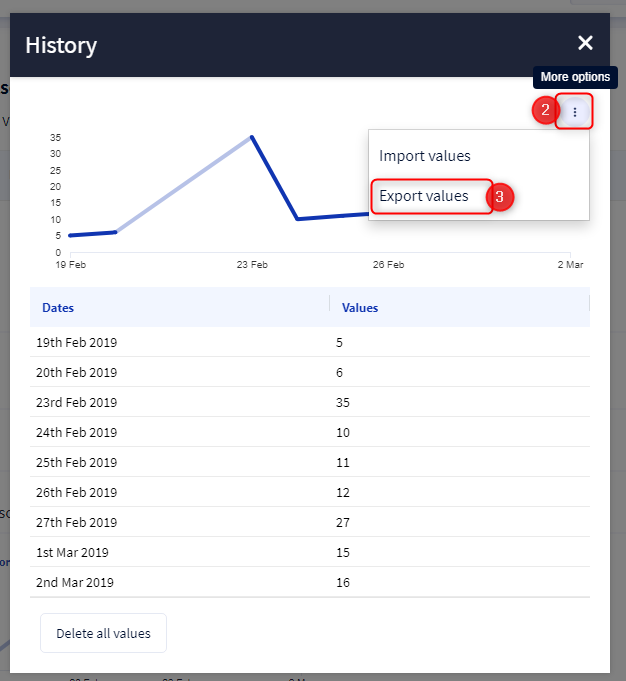
3 - Exporting values
To export values you need to:
- Open the history panel of a time series
- Click on the three small dots
- Choose Export values in the drop-down menu
4 - Add a value
To add a value from the interface you must:
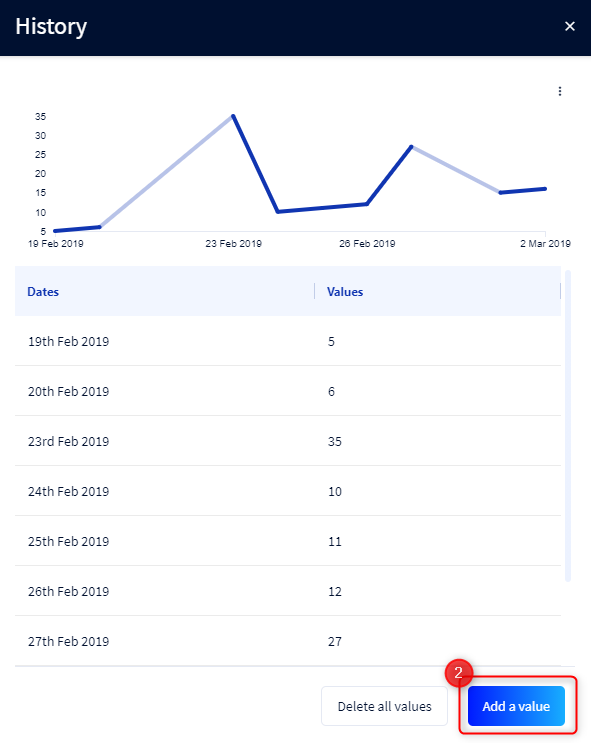
- Open the history modal of a time series
- Then click on the Add a value button
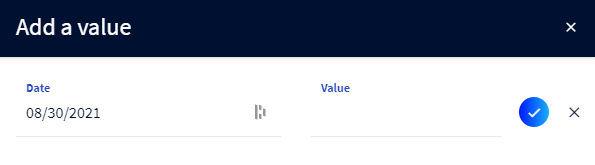
- Choose a date and fill in a value, then validate
5 - Modify a value or a date
To modify a value or a date from the interface, you must:
- Open the history mode of a time series
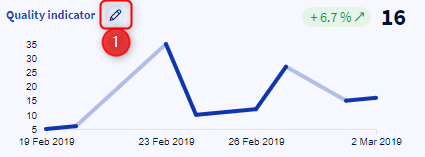
- Click on the pencil icon that appears over the line to be modified
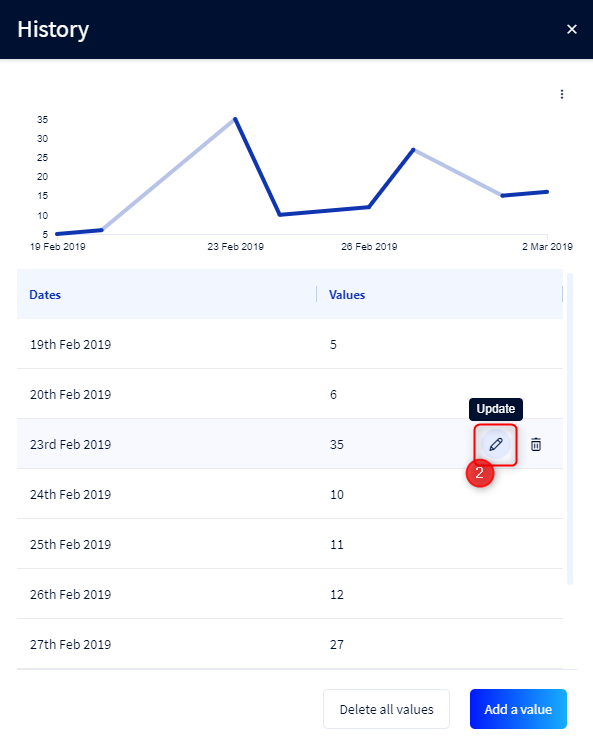
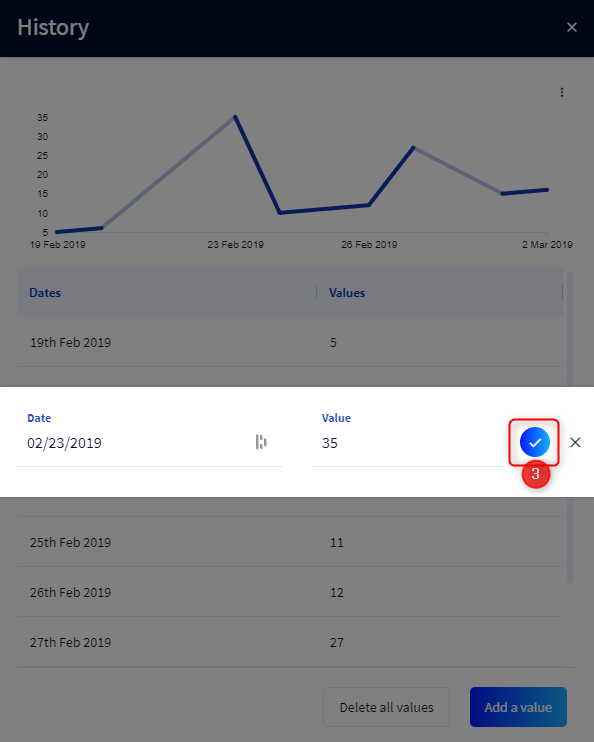
- Modify the date or the value (or both) then click on the validation button
6 - Delete a value
To delete a value from the interface, you must :
- Open the history modal of a time series
- Click on the trash can icon that appears when hovering over the line to be deleted
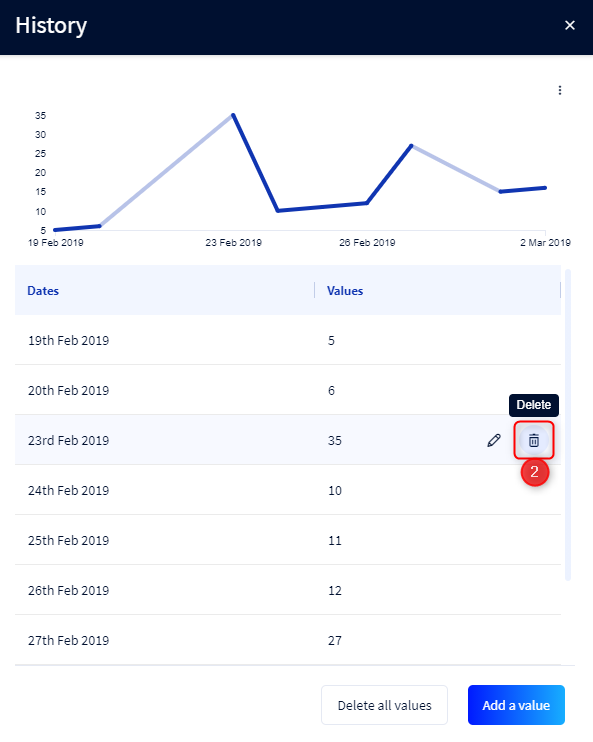
- In the confirmation mode, click on the Delete button
7 - Delete values
To delete all the values in a time series, you must:
- Open the history panel of a time series
- Click on the Delete all values button
- Click on the Delete button in the confirmation mode
8 - From the public API
The CRUD actions are available on the time series at the object card level:
- Recovery of all the time series entries when reading an object card.
- Possibility to add/remove time series entries when creating or updating an object.
- e.g.: when creating an object in the Glossary (cf https://api.datagalaxy.com/v2/documentation#tag/Glossary/operation/CreateProperty ), possibility to add/remove the values of a time series.
- Custom attribute routes now support the time series type.
- e.g.: custom attribute creation route (cf https://api.datagalaxy.com/v2/documentation#tag/Attributes/operation/CreateAttribute )