
This article aims to explain how to create objects in the dictionary.
The dictionary can be loaded in several ways:
- Via an automatic upload: using the connector, online or desktop: for more information you can check this article.
- Via a CSV file import: using the import wizard. For more information, you can check this article.
- Via a manual creation: this is the focus of this article.
To better understanding the different objects which are available in the dictionary, you can refer to this article.
Creating a database
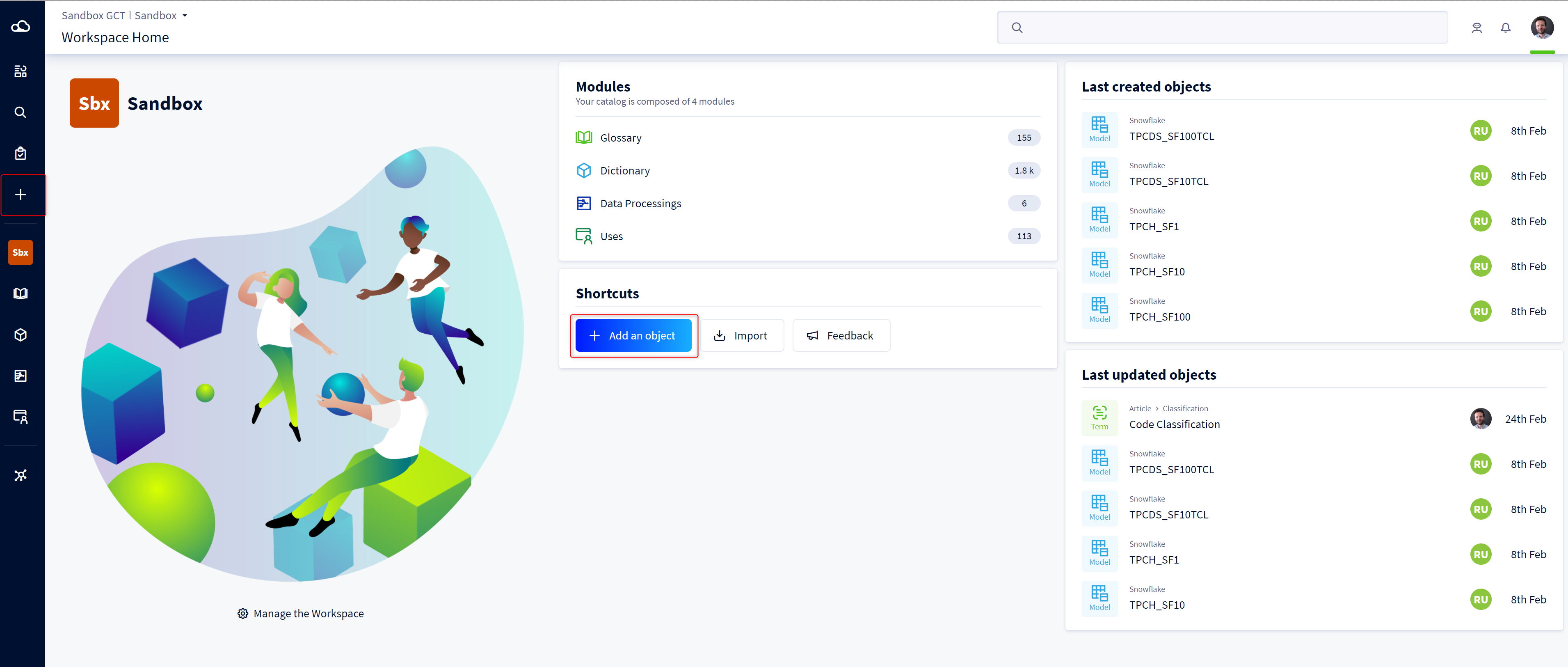
The first step is to create a database. To do this, you can use two buttons on the home page of your workspace:
- The More button in the navigation menu
- The button to add an object in the shortcut menu
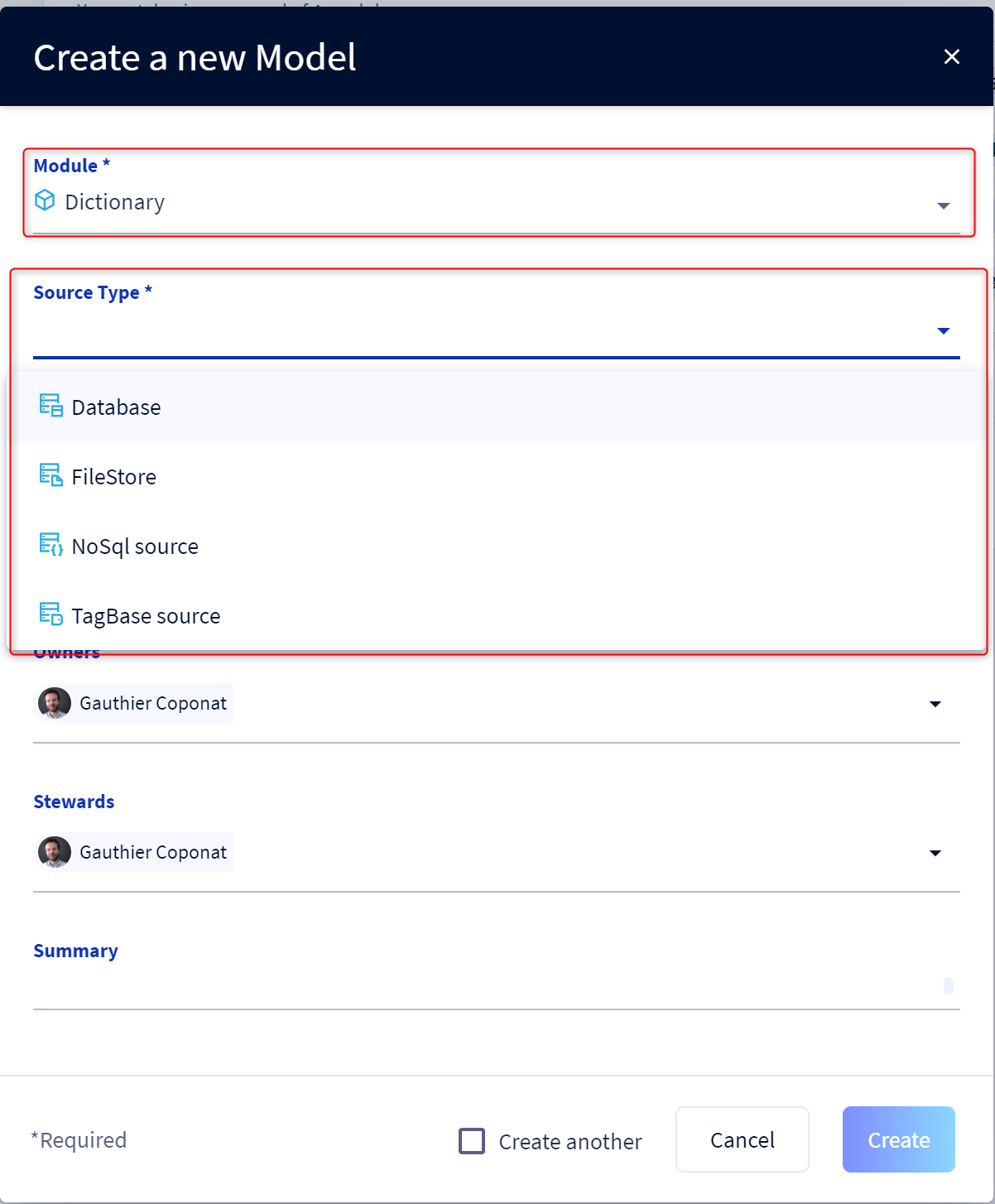
A window pops up allowing you to choose the type of database you would like to create.
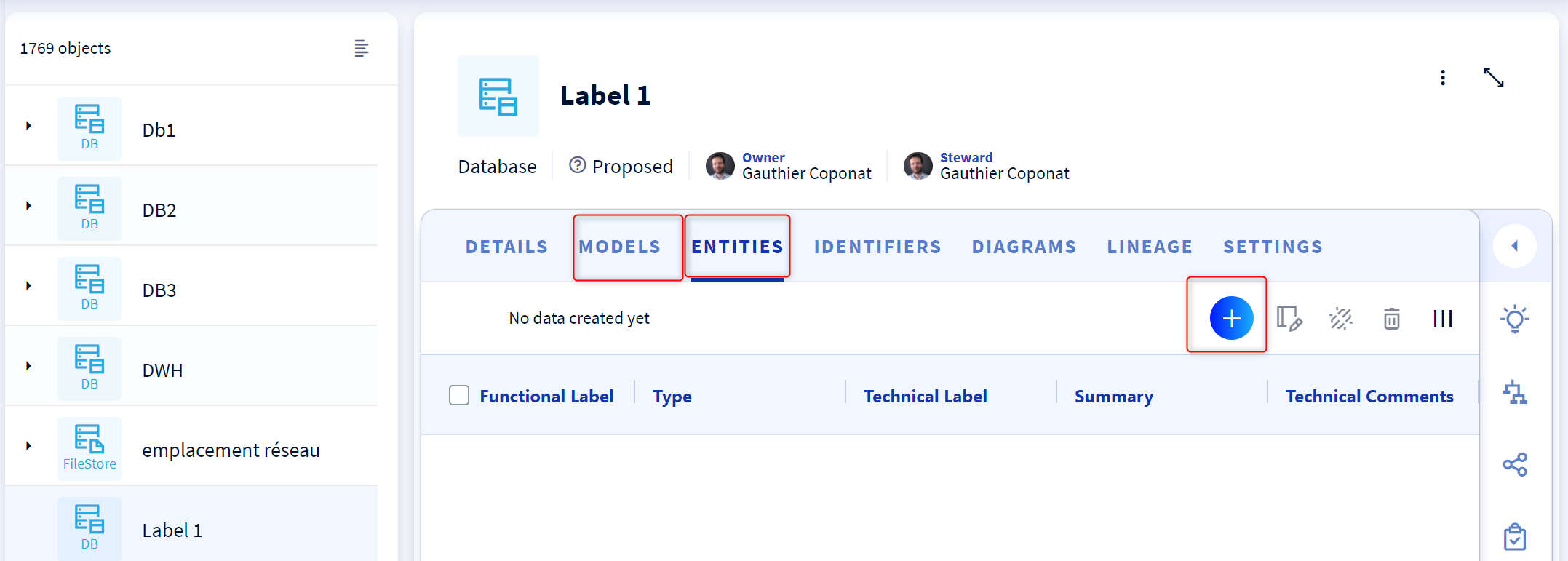
After clicking on the "create" button you are directed to the object's card in the dictionary module. You can then create the related objects.
Creating objects in a database
After having created your database, you can create its direct children.
- Containers : This type of object is used to describe in an abstract way the data representation in a database. It allows you to group tables and views in a hierarchical format.
- Structures : either tables, i.e. a set of data stored in a table, or views, i.e. a result of a database query.
From tabs
You can create these objects right from the object card of your database by clicking on the models or entities tabs.
From the service panel
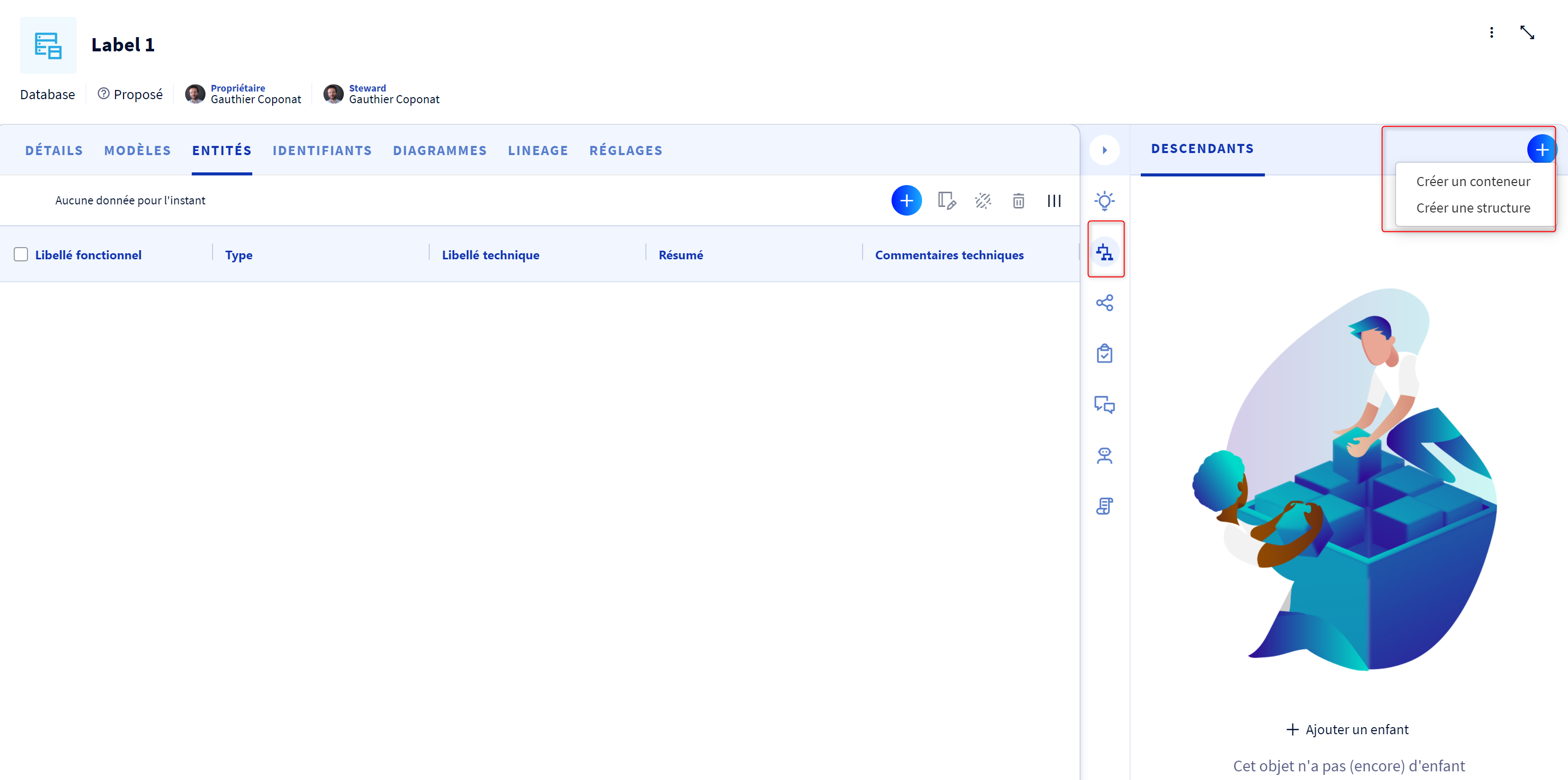
You may also choose to create objects using the service panel on the right side of your screen.
 From the navigation menu
Also, you have the possibility to create direct children from the burger menu (the 3 little dots) to the right of your base name.
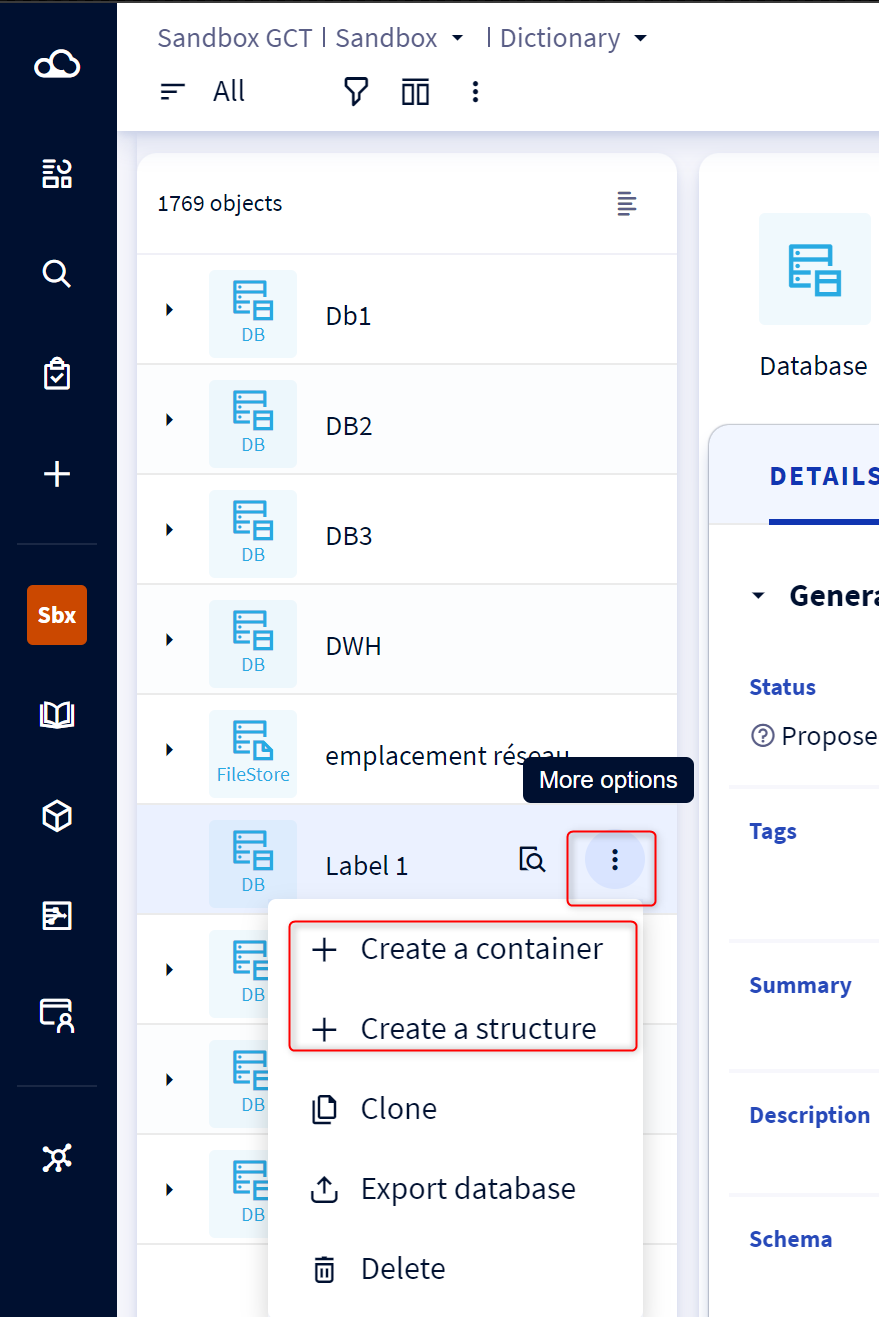
Afterwards, you can continue this process to create the children of the tables for example (the columns).
Using the diagram
A third tab, the diagram, allows you to create physical representations of your data (MPDs).
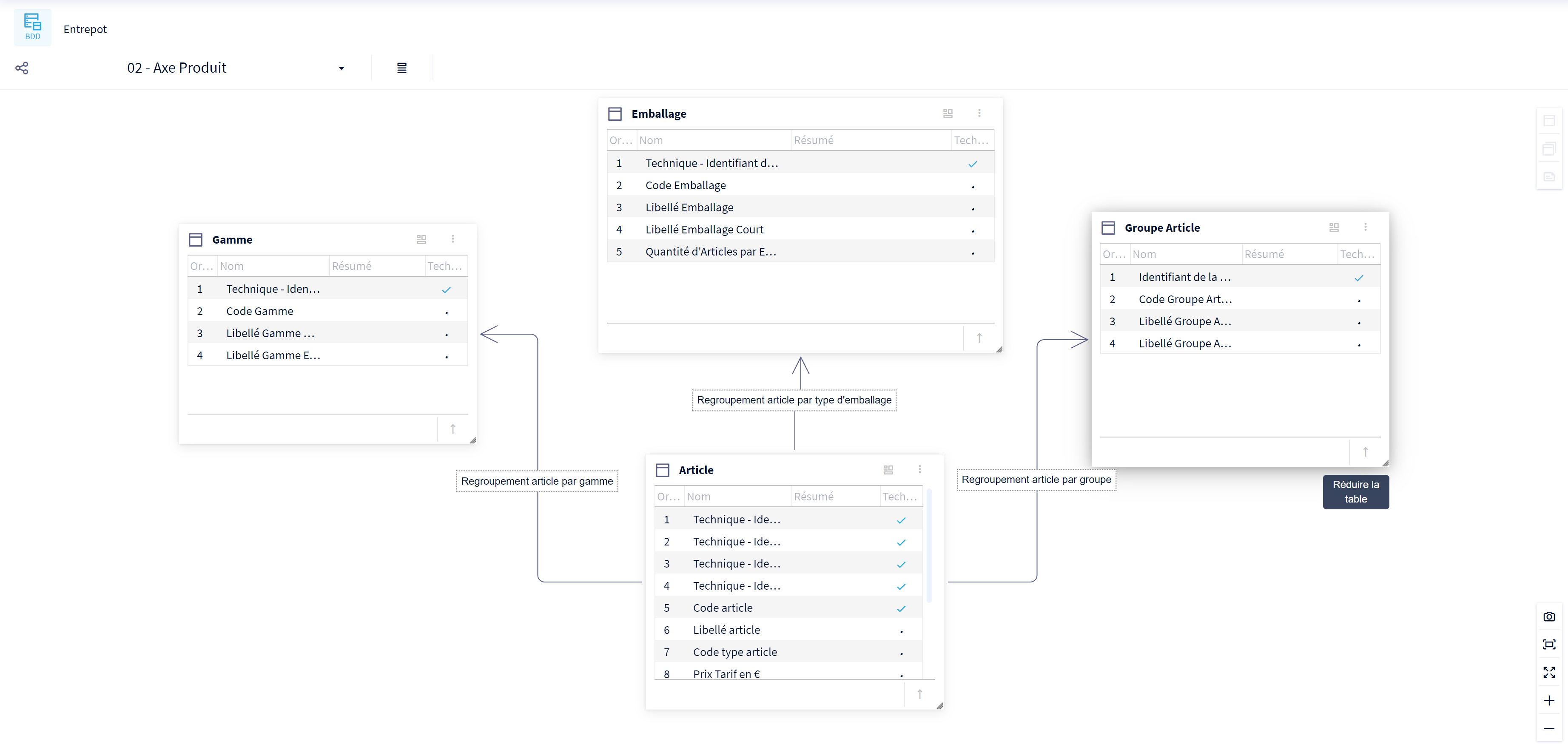
To learn more about diagrams, you can refer to this article