
The purpose of this article is to explain how to export data from the glossary, uses, dictionary and data processing module.
If you need to customize the export, please, read the article Export filtered views.
If the export of objects is needed, please, consult this article: Export objects individually.
Export glossary
You can export all the properties of the glossary (CSV format) by following these steps:
- Access to the glossary module
- Click on the contextual menu of the glossary module represented by the 3 small dots, on the right of the filtered views
- In the drop-down list, choose Export glossary
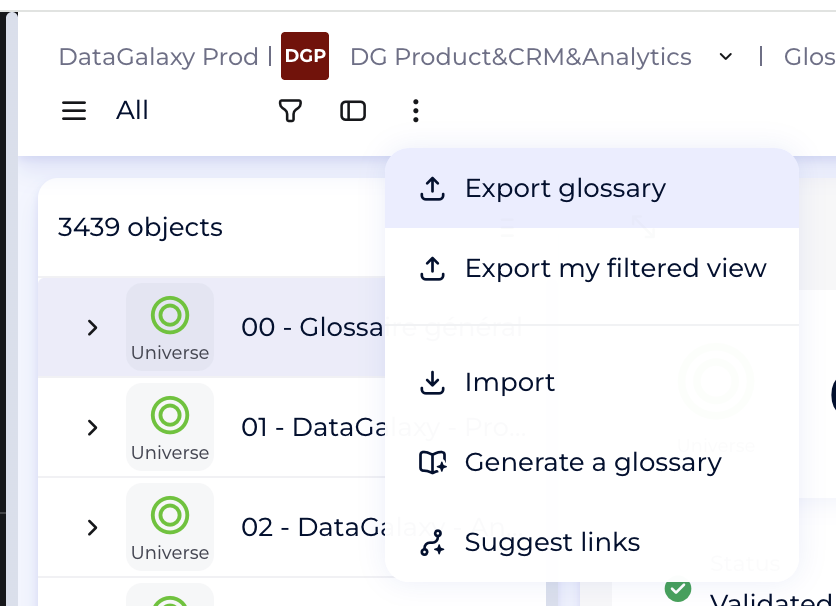
- As output, you receive a .zip folder containing:
- File Glossary 1 general : This is the set of your glossary objects and their attributes
- File Glossary 2 linked objets : These are all the relationships of your glossary objects
NB: Your files will be in the folder set by default in your browser preferences.
Export uses
You can export all uses (CSV format) by following these steps:
- Access to the uses module.
- Click on the contextual menu of the uses module represented by the 3 small dots, on the right of the filtered views
- In the drop-down list, choose Export uses
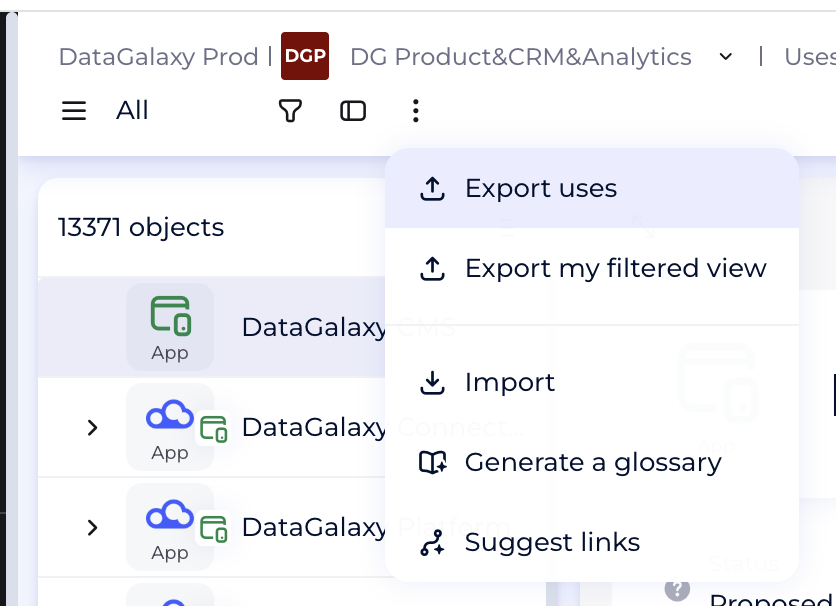
- As output, you receive a .zip folder containing:
- File Uses 1 general: This is all your usage objects and their attributes
- File Uses 2 linked objects: These are all the relations of your uses objects
NB: Your files will be in the folder set by default in your browser preferences.
Export dictionary
1 - All sources
You can export all the dictionary (CSV format) by following these steps:
- Access to the dictionary module
- Click on the contextual menu of the dictionary module represented by the 3 small dots, on the right of the filtered views
- In the drop-down list, choose Export dictionary
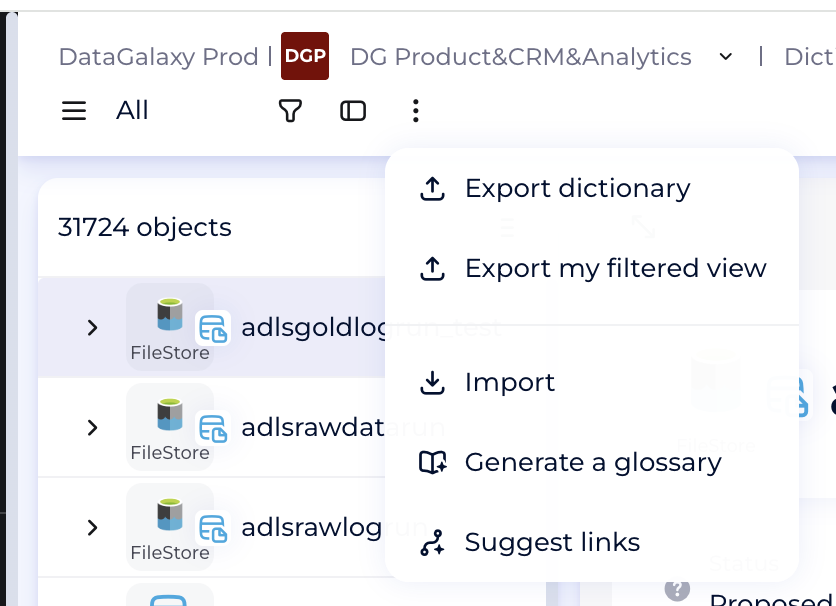
- As output, you receive a .zip folder containing the following files for each of your sources:
- File source 0 source: This is your source object and its attributes
- File source 1 containers: These are the containers of the source and their attributes
- File source 2 structures: These are the structures of the source and their attributes
- File source 3 fields: These are the fields of the source and their attributes
- File source 4 primary keys: These are the primary keys contained in the source
- File source 5 foreign keys: These are the foreign keys contained in the source
- File source 6 relations: These are the functional foreign keys contained in the source
NB: Your files will be in the folder set by default in your browser preferences.
2 - A single source
You can export all the data of a source (CSV format) by following these steps:
- Access to the dictionary module
- Click on the contextual menu of the source you wish to export, represented by the 3 small dots
- In the drop-down list, choose Export source
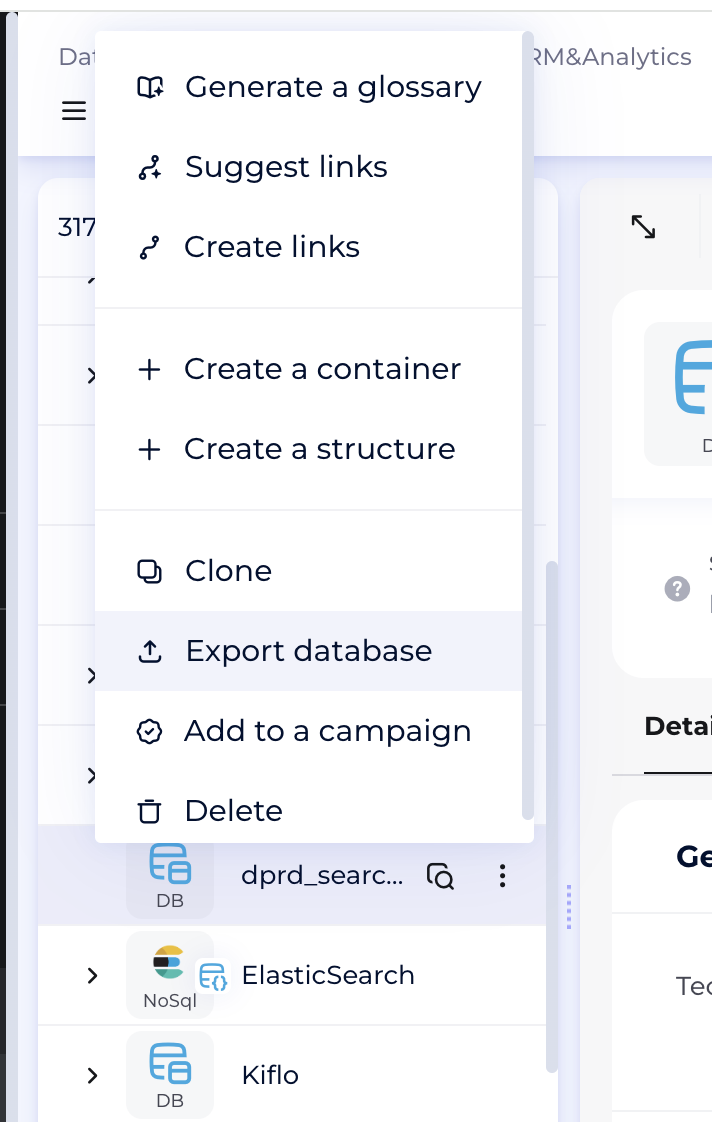
- As output, you receive a .zip folder containing:
- File source 0 source: This is your source object and its attributes
- File source 1 containers: These are the containers of the source and their attributes
- File source 2 structures: These are the structures of the source and their attributes
- File source 3 fields: These are the fields of the source and their attributes
- File source 4 primary keys: These are the primary keys contained in the source
- File source 5 foreign keys: These are the foreign keys contained in the source
- File source 6 relations: These are the functional foreign keys contained in the source
NB: Your files will be in the folder set by default in your browser preferences.
Export data processings
You can export all the data processings (CSV format) by following these steps:
- Access to the data processing module.
- Click on the contextual menu of the data processings module represented by the 3 small dots, on the right of the filtered views
- In the drop-down list, choose Export data processings
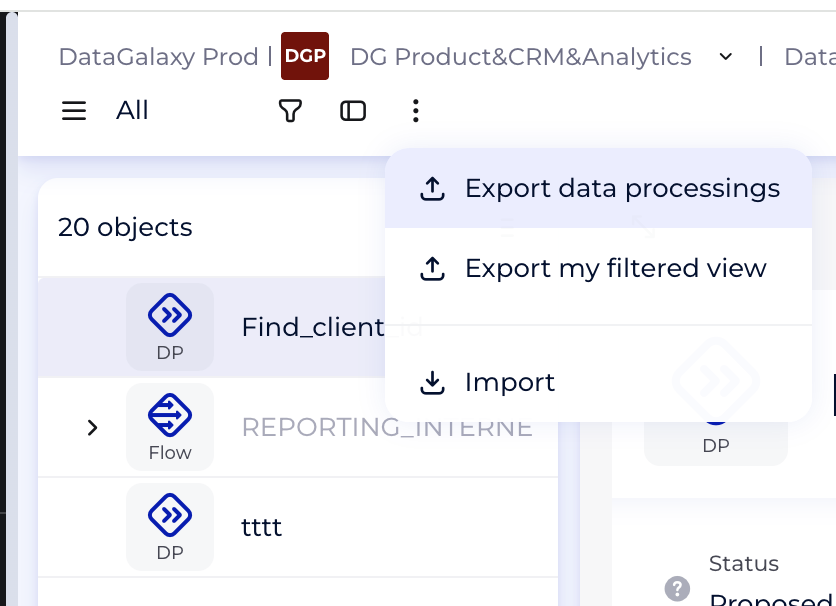
- As output, you receive a .zip folder containing:
- File data processing 1 general: This is the set of your data processing objects and their attributes
- File data processing 2 in: These are all the relations in input of your data processing
- File data processing 3 out: These are all the relations in output of your data processing
- File data processing 4 data processing items: These are all the data processing items that the module contains
- File data processing 5 linked objets: These are all the relations of your data processing objects
NB: Your files will be in the folder set by default in your browser preferences.
Export notifications and your file download
If you download more than 10000 objects, you will receive the notifications and the link to be used for accessing your export file.
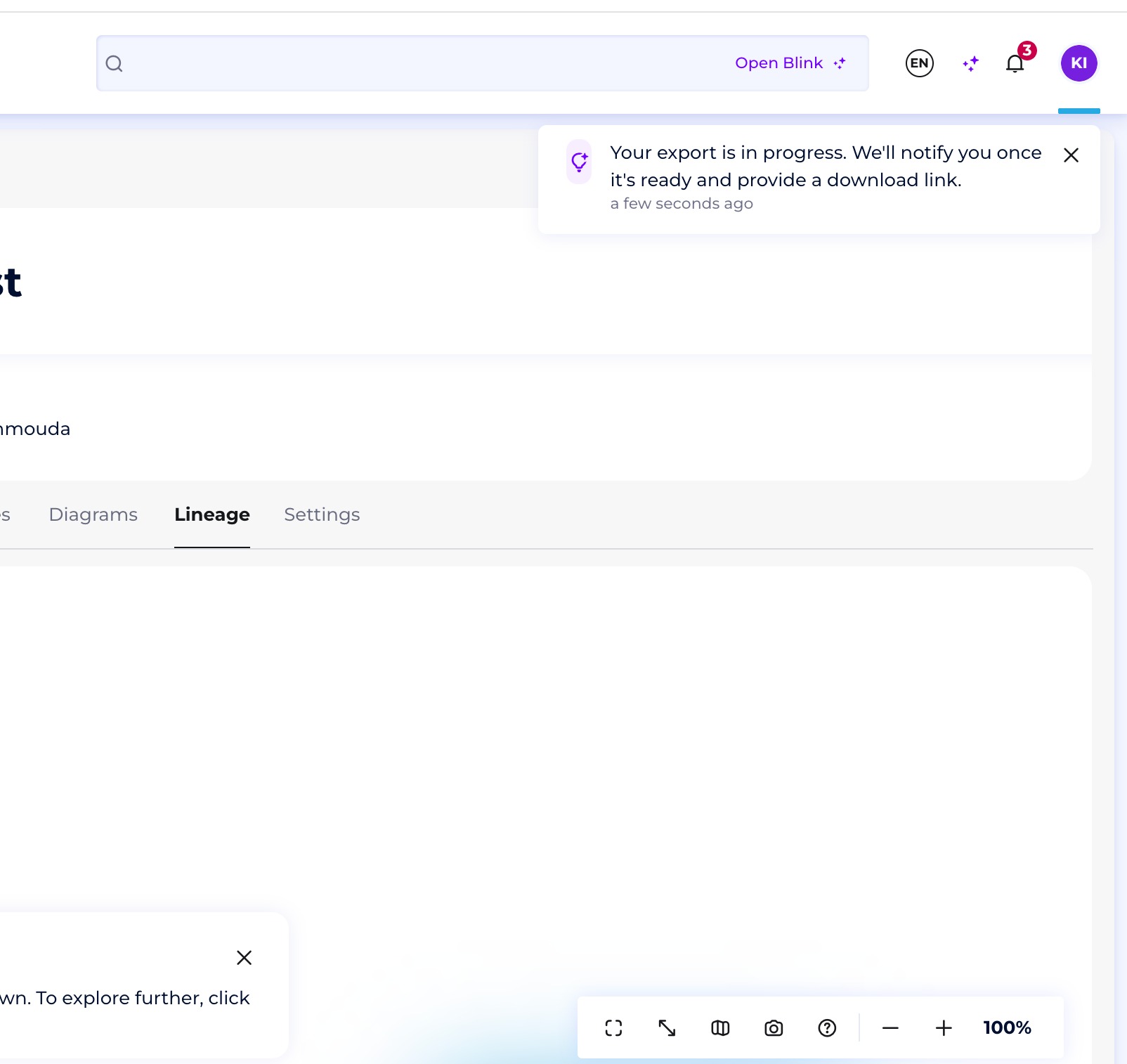
When your export is started you will receive a notification
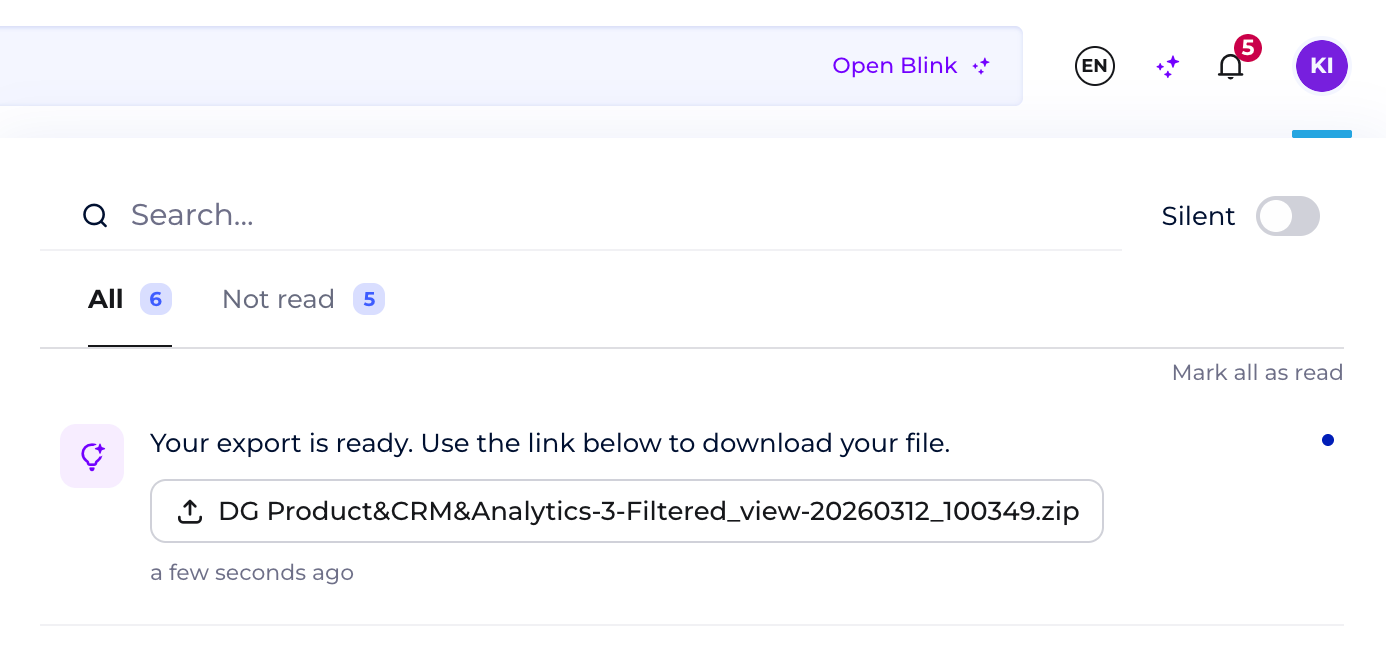
As soon as export is ready, you will be notified as well as the link to your file will be provided.
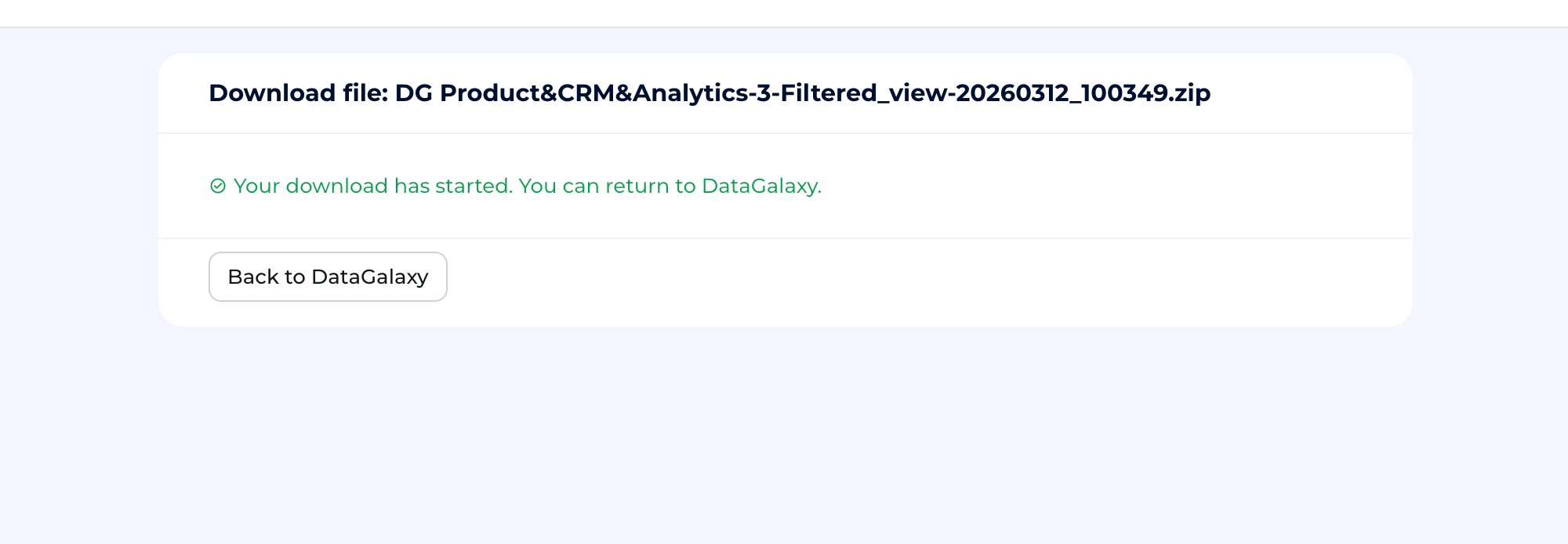
Download your file using the link
Post-processing of your exported data
1. Some system attributes, such as Summary, URN, and Tags, are always included in the export by default.
If you don’t use them in your data catalog, these fields will remain empty in the exported files. You can delete them if needed.
2. If an attribute has been added to an object's screen, it will be included in the export of related objects (both linked and potentially linkable) for consistency.
Feel free to delete any empty columns in your exported file if needed.
If you have multilingual functionality enabled
If multilingual functionality is enabled for your account, renaming an object will trigger a popup asking whether you want to apply the name change across all languages configured in your DataGalaxy environment.
If you choose not to apply the change to all languages, the update will only apply to the language you’re currently using.
Keep in mind: CSV exports use the "Original Language" set in the Multilingual Administration settings. So, if you rename an object in a different language without updating the original, the export will still show the original name.