
We offer the ability to export data according to your preferences using filtered views.
To understand the concept of filtered views and to learn how to use them, please, consult this article: [How to] Manage the filtered view.
What filtered views can be exported?
There are filtered views in each module, as well as cross-module filtered views available in the search.
All these filtered views are exportable.
How to export filtered views?
To export a filtered view, you need:
1. Access the filtered view of your choice
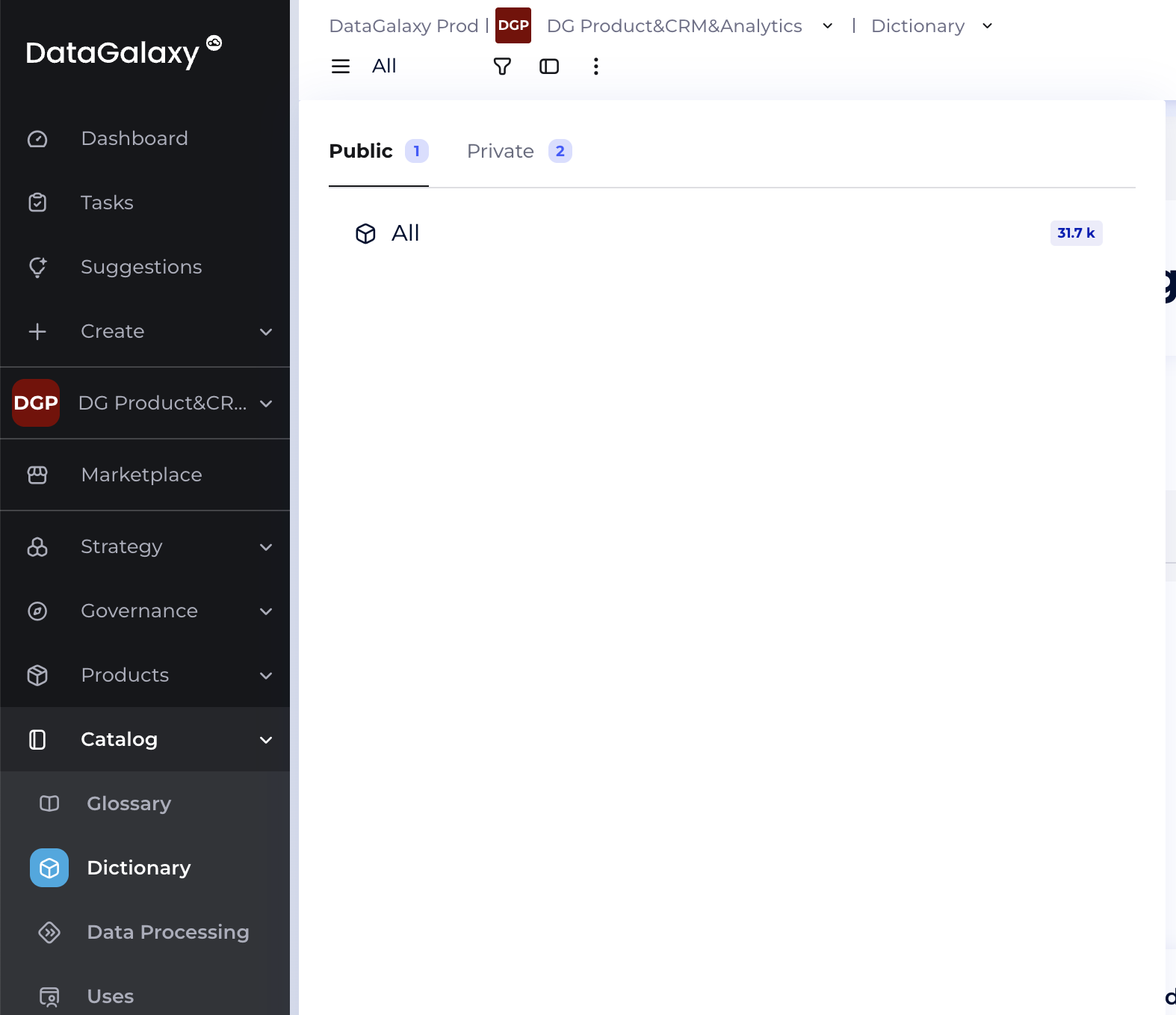
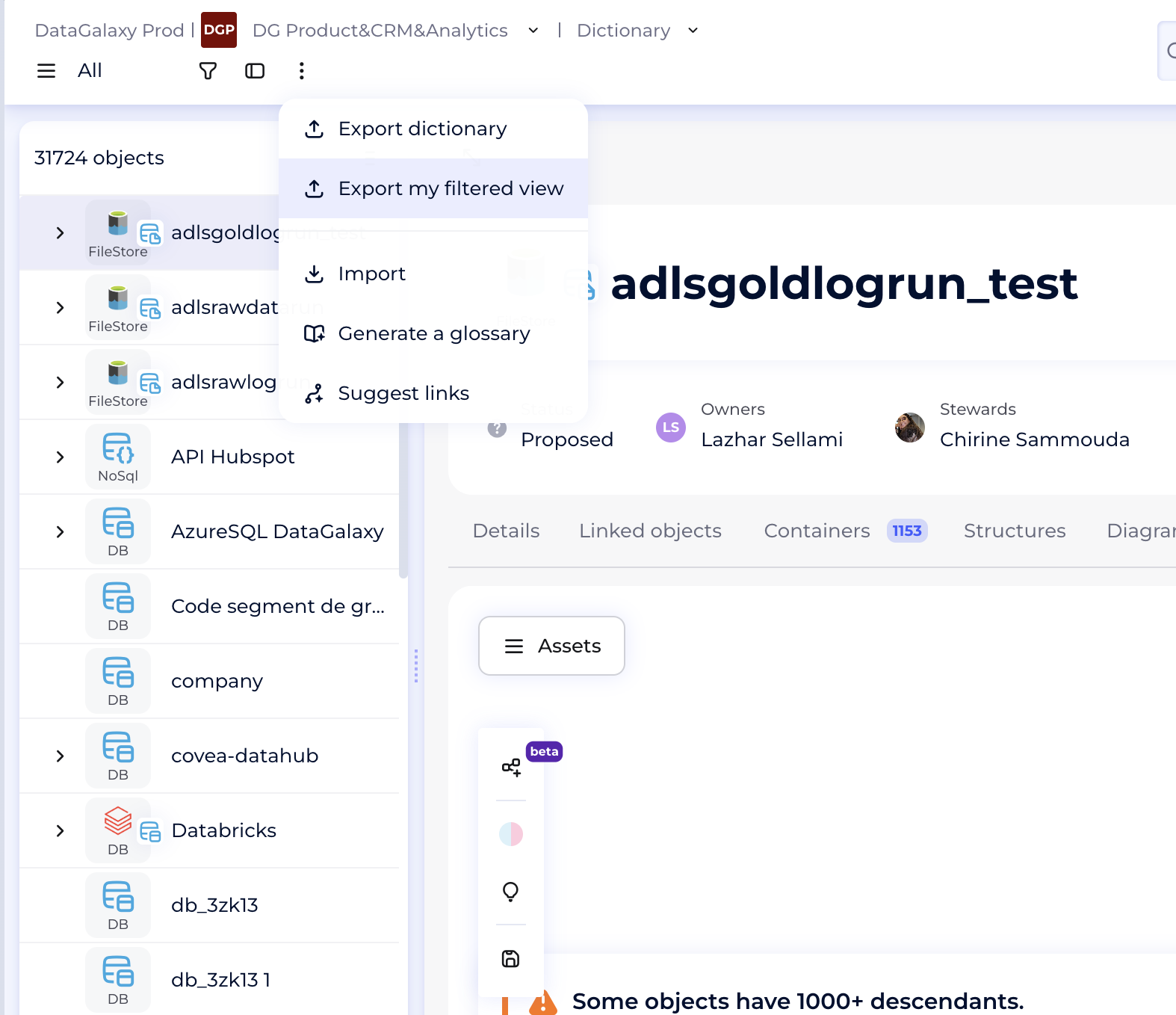
2. Once on the filtered view, click on the More Options button
- In the drop-down list, click on Export filtered view
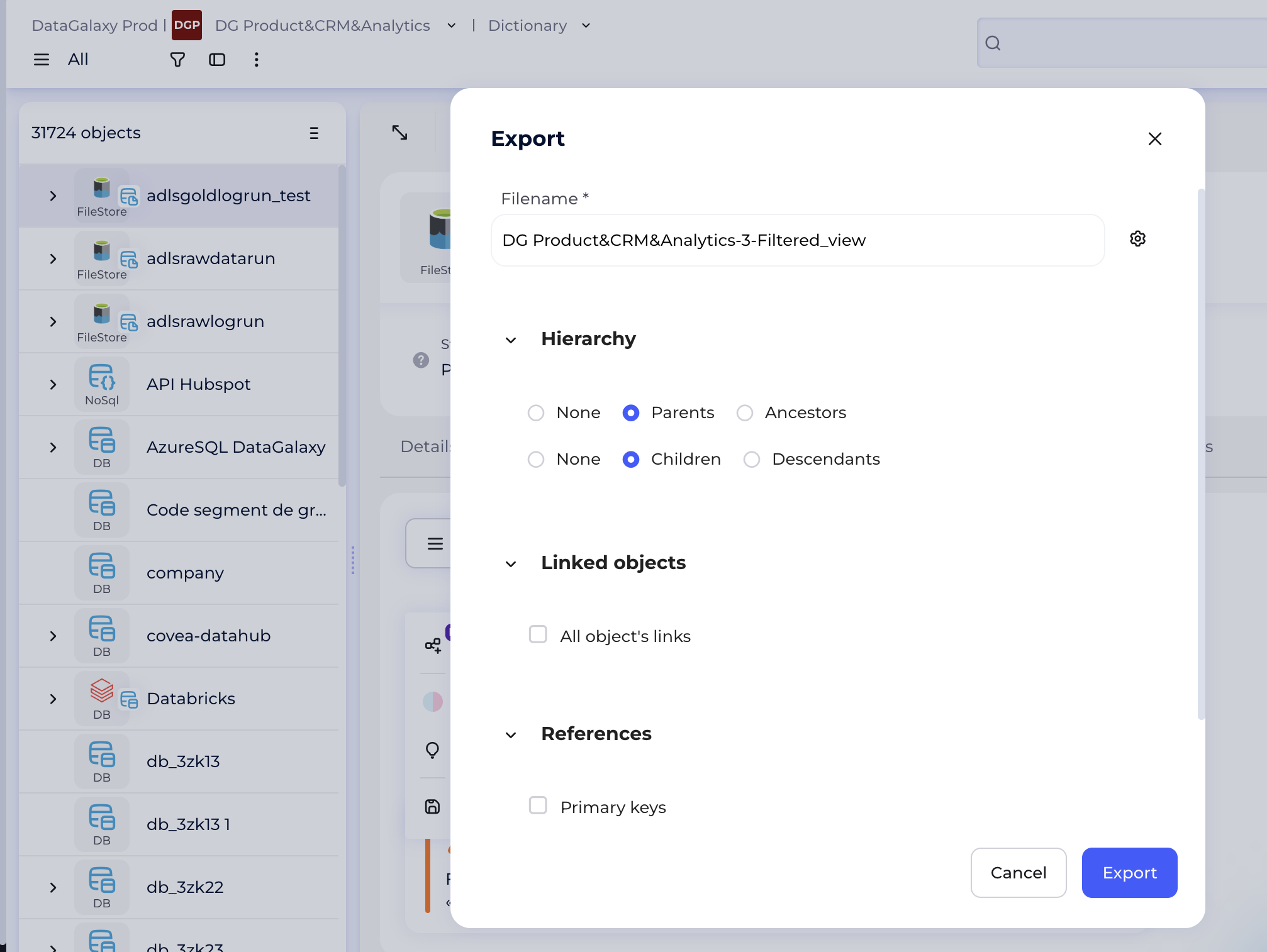
- A modal opens
- Enter the name of the export ZIP file
- Click on the wheel icon on the right to open the separator, carriage return and encoding settings
- Choose to export also
- The parent of the object
- All the ascendants of the object
- The children of the object
- All the descendants of the object
- Check the box to export also the links of the exported objects
- Click on Export
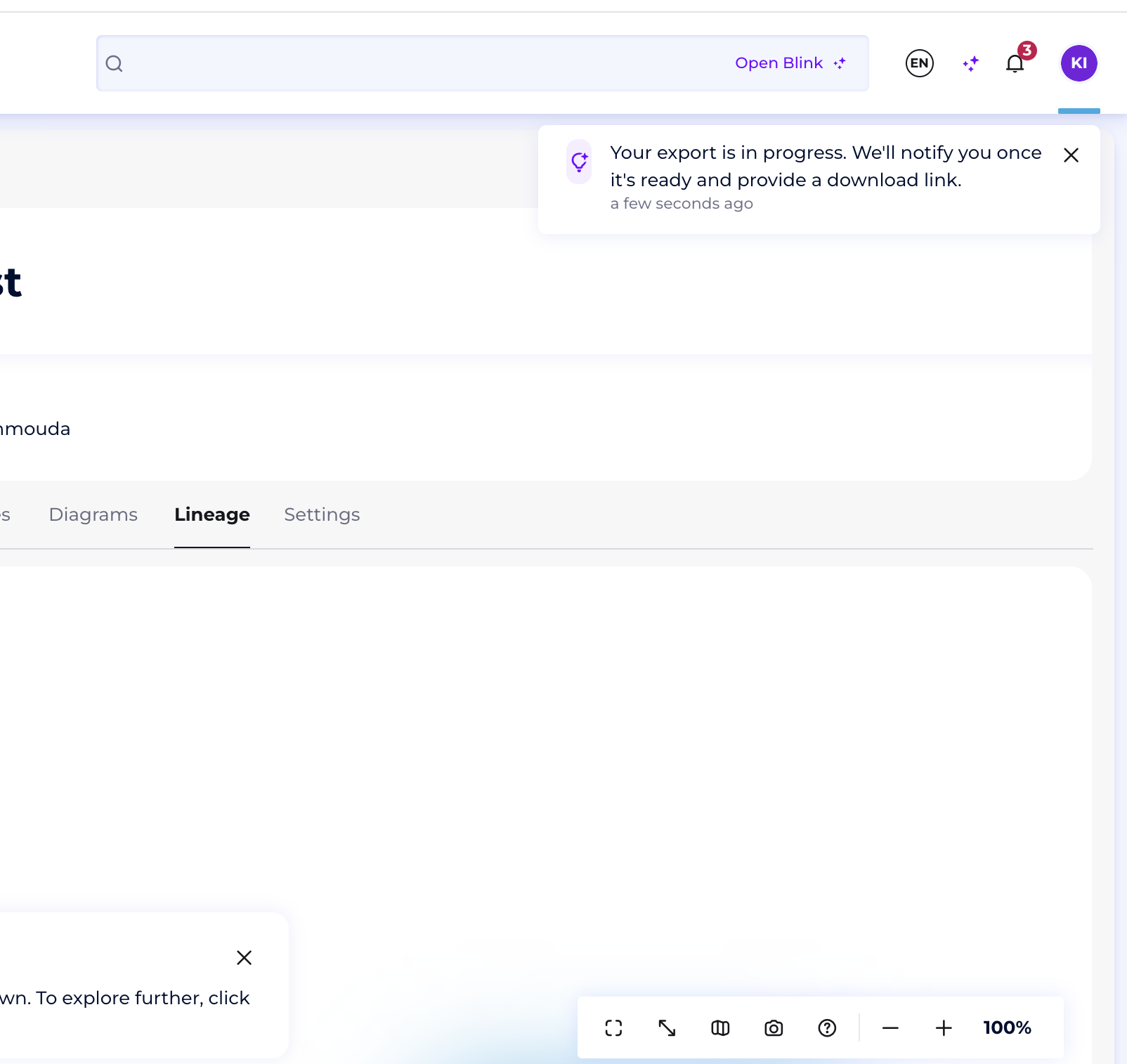
3. If you download more than 10000 objects, you will receive the notifications and the link to be used for accessing your export file.
The notification appears about your export started.
4. As soon as export is ready, you will be notified as well as the link to your file will be provided.
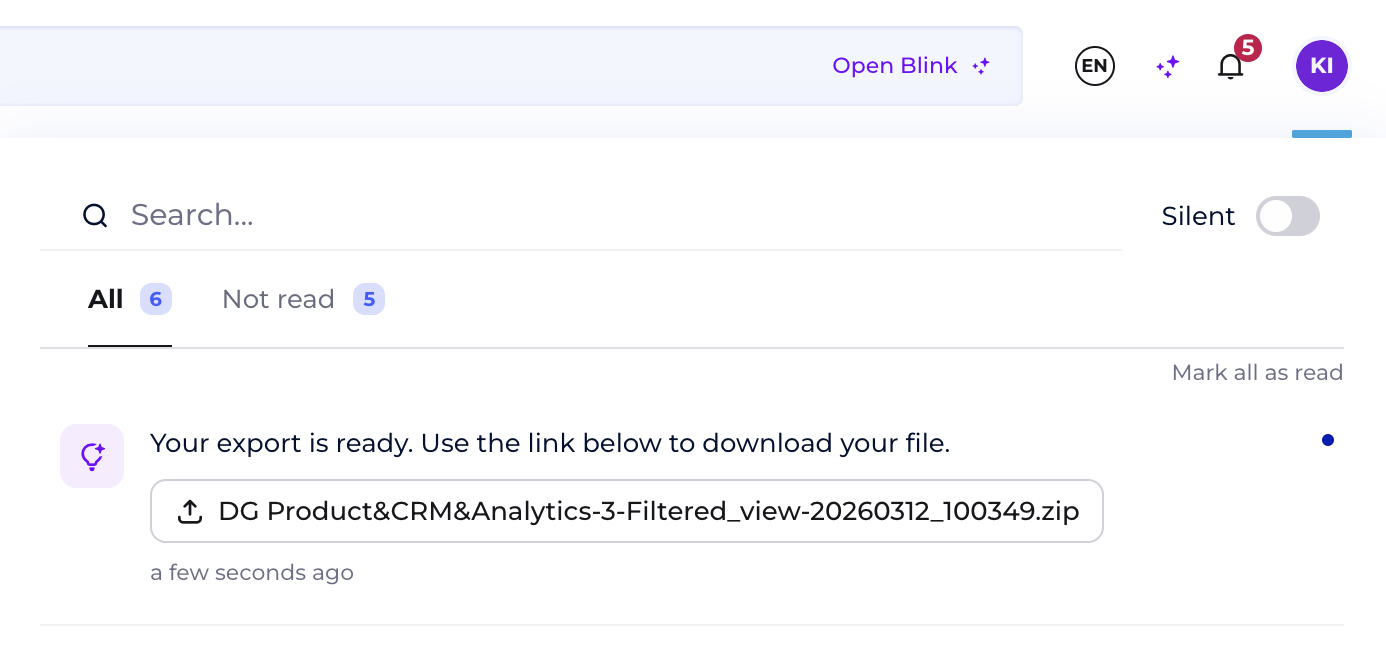
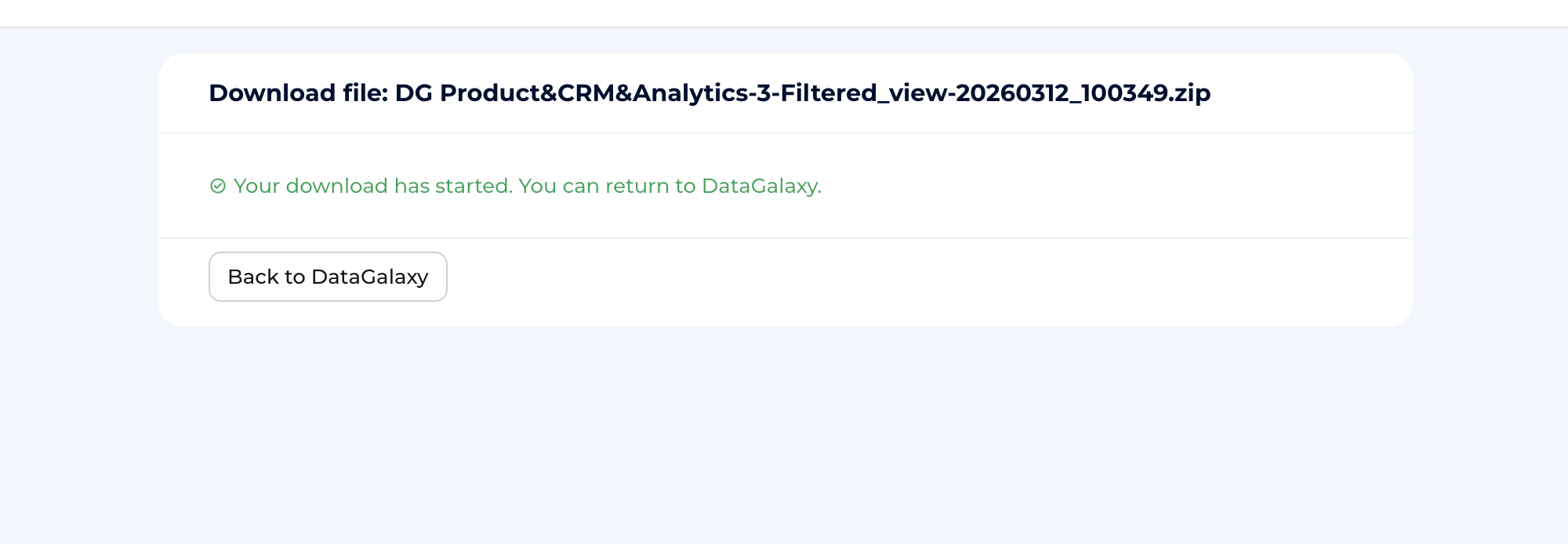
5. Download your file:
Post-processing of your exported data
1. Some system attributes, such as Summary, URN, and Tags, are always included in the export by default.
If you don’t use them in your data catalog, these fields will remain empty in the exported files. You can delete them if needed.
2. If an attribute has been added to an object's screen, it will be included in the export of related objects (both linked and potentially linkable) for consistency.
Feel free to delete any empty columns in your exported file if needed.