The purpose of this article is to explain how to index text attributes so that you can search for these attributes directly from the search bar.
The indexing settings are only available for the administrators of the clientspace.
Indexing rules
It is possible to index all attributes, editors and custom, which are in text or formatted text formats.
By default, the search is already indexed and not removable on the following criteria :
- The functional labels of the objects
- The technical labels of the objects
- Synonyms
You have the possibility to index 8 additional attributes.
There are 2 types of attribute indexing in DataGalaxy:
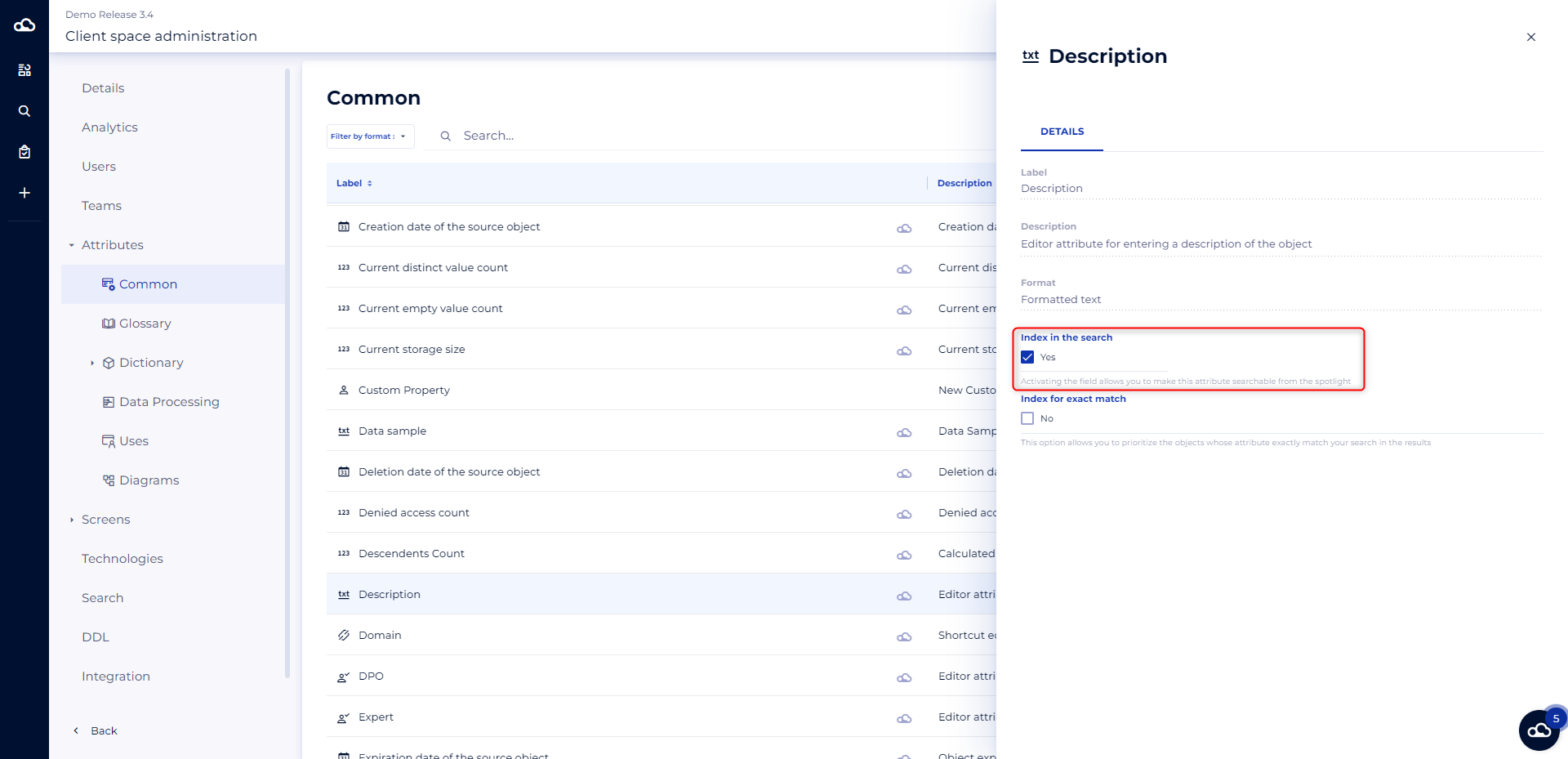
- Indexing for search: this allows you to search on the content of the indexed attribute directly from the spotlight.
Example: I type "report" in the spotlight. In my glossary, I have an object A that contains the summary "monthly activity report". If I index the summary attribute for the search, then I will get object A in my search results.
- Indexing for exact match: only available for attributes already indexed for the search, this allows to bring up an object in the "Exact matches" category if the content of an attribute indexed for exact match matches exactly the string entered in the spotlight.
Example: I type "sale" in the spotlight. In my glossary, I have a "purchase" object that contains the synonym "sale". Since synonyms are by default indexed for the exact match, this means that my object "purchase" will be displayed in the "Exact match" section in my search results.
How to index attributes
To enable or disable the indexing of an attribute in the search:
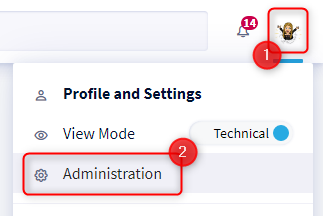
- Access your profile by clicking on your icon at the top right of the screen.
- Click on Administration in the drop-down menu
- Click on "Attributes" then select the category in which the attribute you want to index is located.
- Once you are on the attribute of your choice, you will just have to check or uncheck the Index in the search box to activate or deactivate it. If the box is inactive, it means that you have already activated the search on 8 other attributes.