
This article explains how to use the Bigeye connector for DataGalaxy.
This connector is available in the following modes:
| Desktop mode ✅ | SaaS Online mode ✅ |
This connector suppports the following import modes:
| Standard mode ❌ | URN mode ✅ |
Technology
Bigeye is a data observability platform that enables you to follow metrics on your data, especially regarding data quality, and be alerted in case of an issue.
Scope
⚠ Warning, this connector is available in URN mode only.
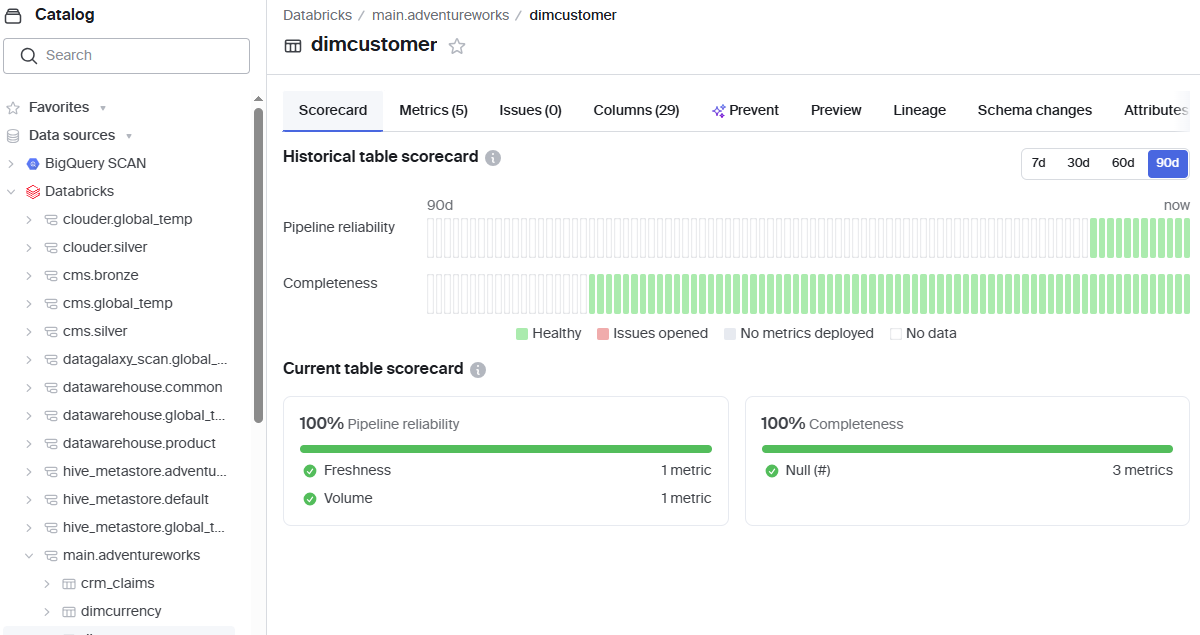
The connector provides you with the following metadata from Bigeye SaaS version:
- List of databases, schemas, tables, views, columns for Snowflake, Databricks, Google BigQuery connections (only objects on which Metrics have been created)
- Observability Metrics on these objects
- Metrics Runs
Objects retrieved and corresponding ones in DataGalaxy are detailed in the following table:
Bigeye Object | DataGalaxy Object | Attributes |
| Snowflake account / BigQuery Project / Databricks Instance | Source | |
| Schema | Model (Container) | |
| Table | Table (Structure) | |
| Vue | Vue | |
| Metric | Data Quality Rule | code statement description severity URL category column |
| Metric Run | Data Quality Check | date/time status message detail |
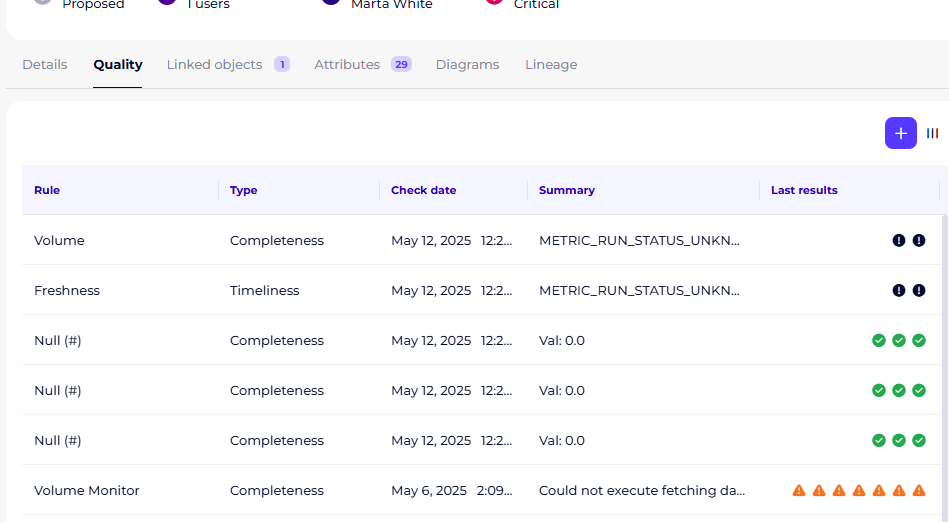
Once imported, these observability metadata are available in the Quality tab of the corresponding objects:
Setting up a connection
Bigeye connector is built on Bigeye REST API.
The following information are necessary to setup a connection:
| Parameter | Mandatory | Description |
| Bigeye Workspace ID | Yes | Bigeye Workspace ID, available in Settings > Workspaces |
| Password | Yes | Personal API Key |
| Technology | No | Limit the scope to this technology |
| Database | No | Limit the scope to this database |
| Schema | No | Limit the scope to this schema |
| Historical depth | No | To be configured according to Metrics' and DataGalaxy connector's scheduling. By default 0 = gets only the last run of each Metric. ⚠ Warning, retrieving the Metrics execution history can considerably lenghten connectors execution duration. |
| Import objects associated with rules | No | If checked, the connector will create objects before creating Data Quality Rules. Can be unchecked to speed up connector's execution only if object's creation is handled by other connectors. |
Execution of the connector
To create a connection via the Online connector, the entry points are as follows:
From the Import button of the "Shortcuts" widget on the home screen of a client space or workspace
From the Import button of one of the modules when it is empty
From the Import button in the contextual menu of one of the modules, on the right side of the filtered views
From the Add a connection button in the Connector tab available in the workspace setup screen
You can optionally filter (by module, connector type or by using the search bar), then click on the desired technology: 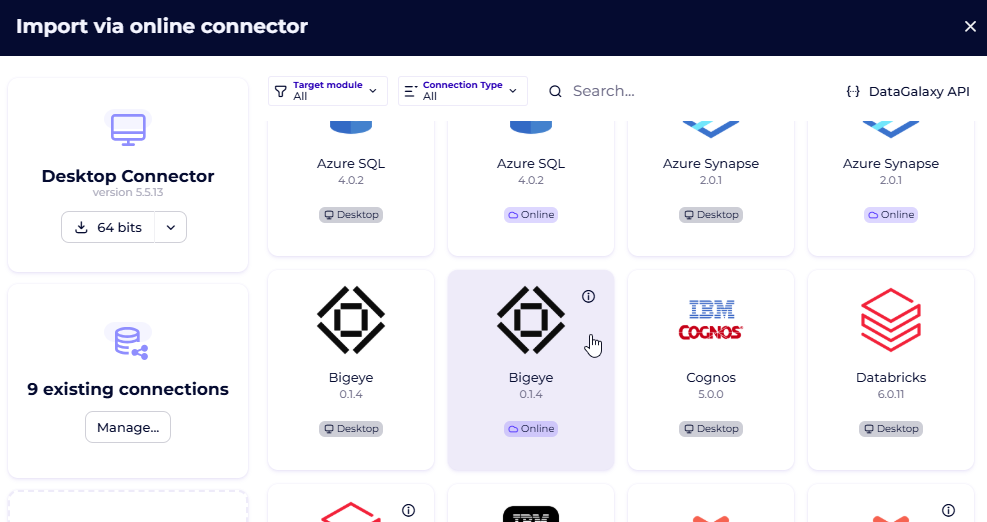
You then need to complete the login form using the login information described above to perform an import. For more details on the steps involved in running the Online connector, you can consult the following article: [HowTo] Running the Online Connector.
This technology is also available via the Desktop Connector, you can find more information on the procedure here: [How to] How to use the connector.
Releases
| Date | Version | DataGalaxy Version | Desktop Connector version (minimum) | Description |
| 24/03/2026 | 1.1.2 | 3.323.1 | 5.15.7 | Fixed a bug related to verbose logs |
| 20/05/2025 | 0.1.6 | 3.171.0 | 5.5.13 | First GA version of the connector |