
Bulk preinstallation of our extension is a good step to accelerate adoption, save time, ensure consistency, reduce costs, and minimize disruption when scaling. Thus, we publish this 'How-to' for sharing the key knowledge for adoption.
How to pre-install extension via MS Intune
1. In MS Intune : Devices -> Configuration
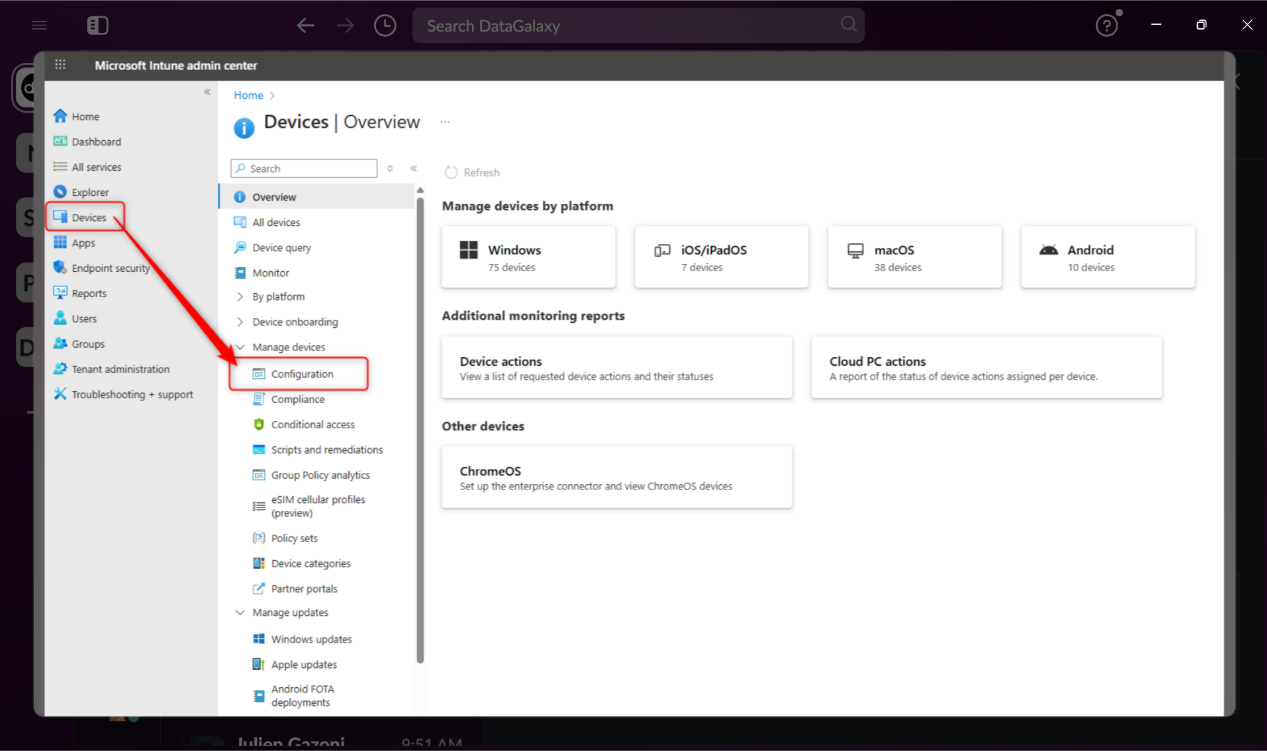
2. Create or update a Policy of type "Administrative templates" for Windows 10 and later platform
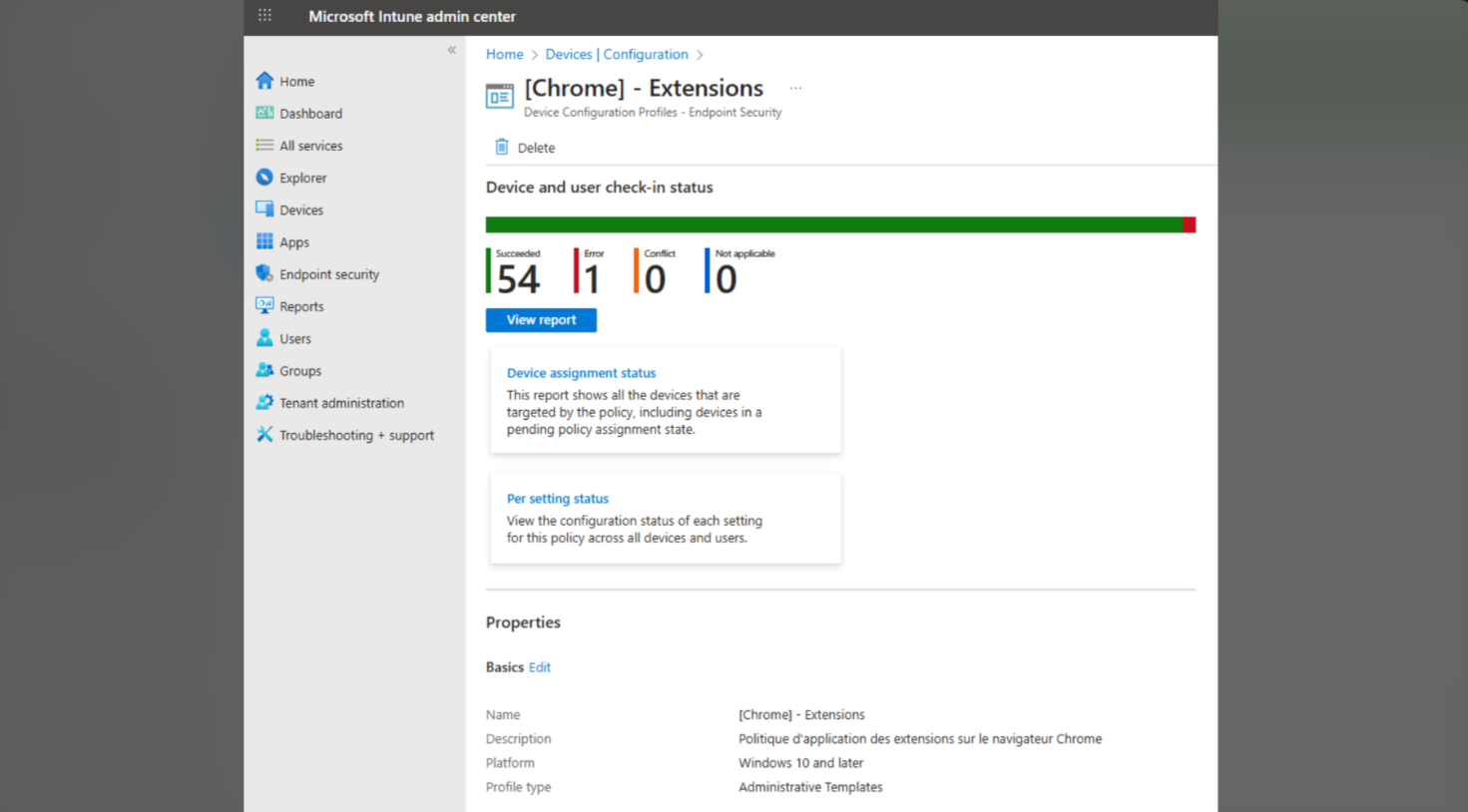
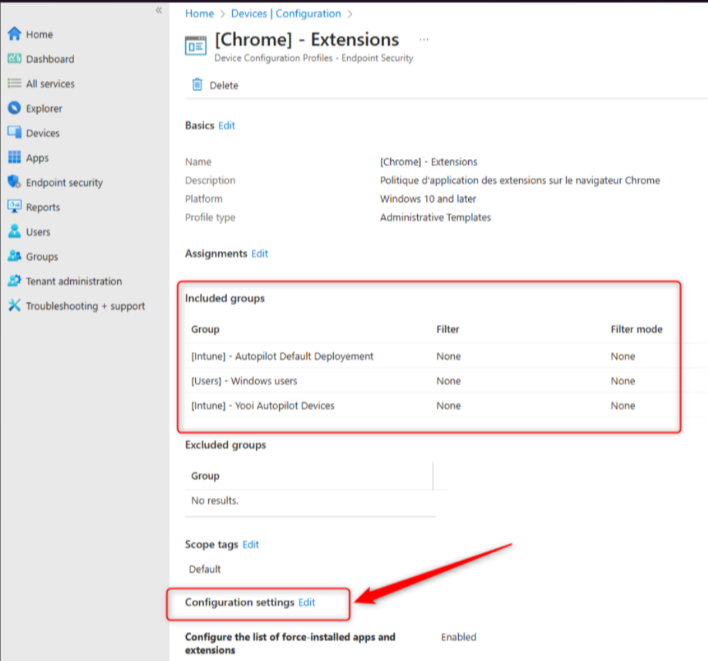
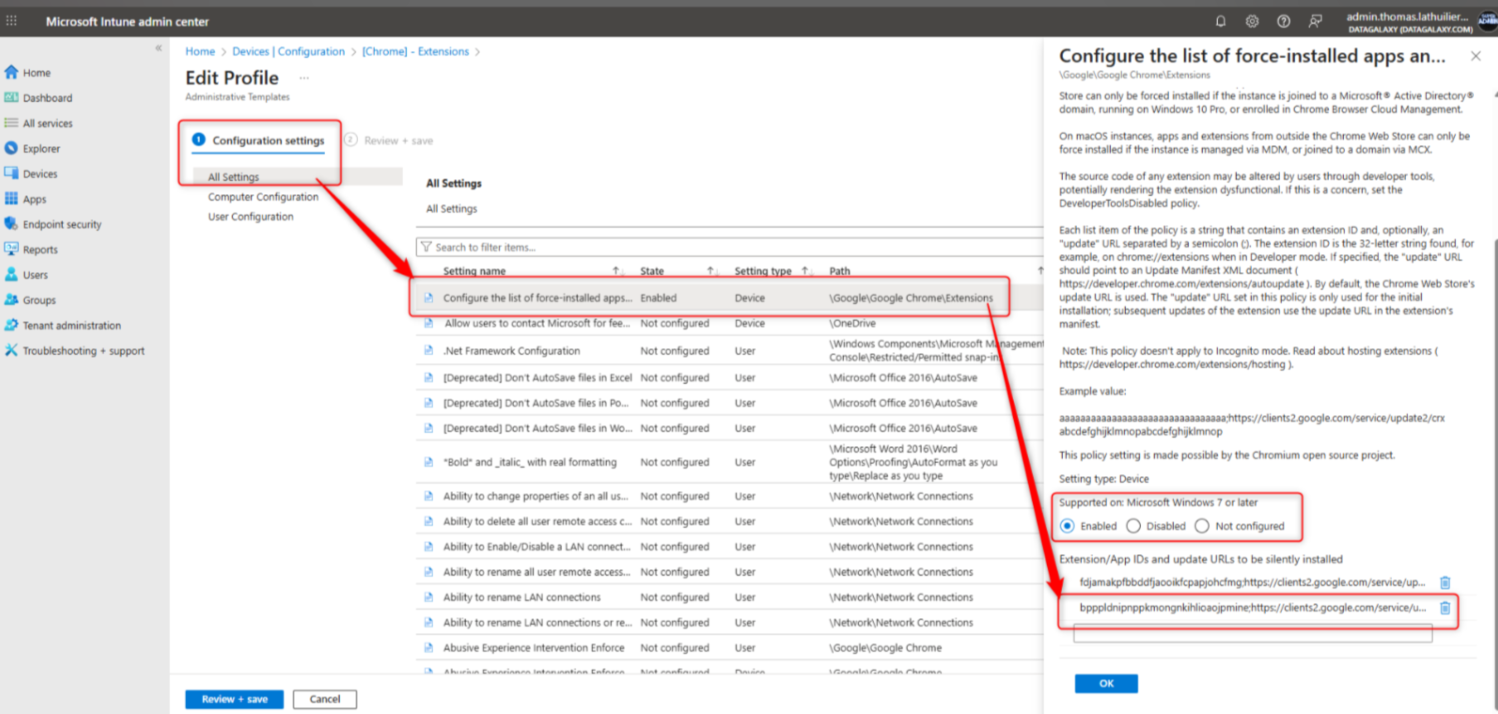
4. And then Edit the Configuration settings
How to pre-install extension via MS Intune with adding domain
In this case, your domain will be automatically populated for DataGalaxy extension, so no need for user to add it during the first login attempt.
1. Create a new Template >Custom policy in Intune
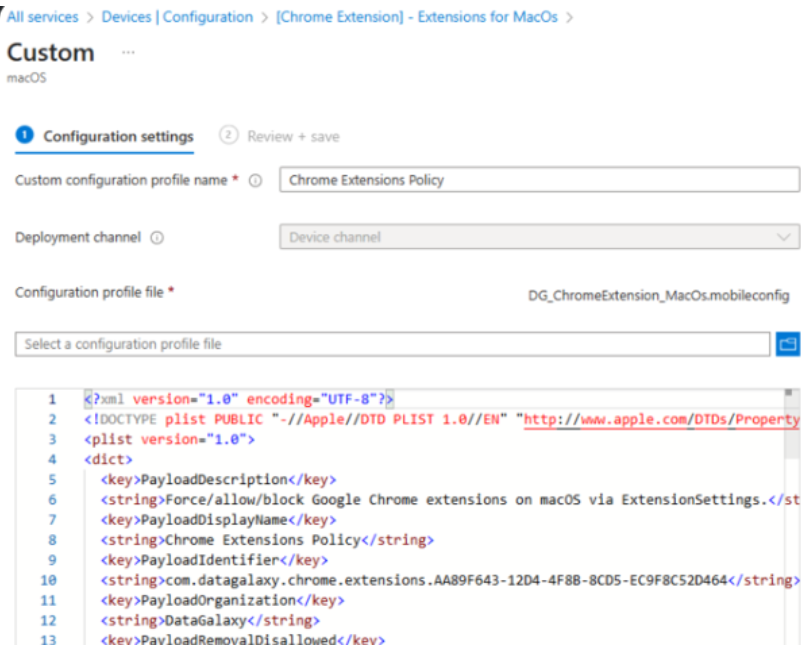
2. Add there a config file with the code as below:
<?xml version="1.0" encoding="UTF-8"?>
<!DOCTYPE plist PUBLIC "-//Apple//DTD PLIST 1.0//EN" "http://www.apple.com/DTDs/PropertyList-1.0.dtd">
<plist version="1.0">
<dict>
  <key>PayloadDescription</key>
  <string>Force/allow/block Google Chrome extensions on macOS via ExtensionSettings.</string>
  <key>PayloadDisplayName</key>
  <string>Chrome Extensions Policy</string>
  <key>PayloadIdentifier</key>
  <string>com.datagalaxy.chrome.extensions.AA89F643-12D4-4F8B-8CD5-EC9F8C52D464</string>
  <key>PayloadOrganization</key>
  <string>DataGalaxy</string>
  <key>PayloadRemovalDisallowed</key>
  <false/>
  <key>PayloadScope</key>
  <string>System</string>
  <key>PayloadType</key>
  <string>Configuration</string>
  <key>PayloadUUID</key>
  <string>AA89F643-12D4-4F8B-8CD5-EC9F8C52D464</string>
  <key>PayloadVersion</key>
  <integer>1</integer>

  <key>PayloadContent</key>
  <array>
    <dict>
      <key>PayloadType</key>
      <string>com.apple.ManagedClient.preferences</string>
      <key>PayloadVersion</key>
      <integer>1</integer>
      <key>PayloadIdentifier</key>
      <string>com.datagalaxy.chrome.mcx.529E8028-99E5-4C0F-8434-8347AECC5BF2</string>
      <key>PayloadUUID</key>
      <string>529E8028-99E5-4C0F-8434-8347AECC5BF2</string>
      <key>PayloadDisplayName</key>
      <string>Managed Preferences for com.google.Chrome</string>

      <key>PayloadContent</key>
      <dict>
        <key>com.google.Chrome</key>
        <dict>
          <key>Forced</key>
          <array>
            <dict>
              <key>mcx_preference_settings</key>
              <dict>
                <key>ExtensionSettings</key>
                <dict>
                  <!-- DG Production Extension :allowed only -->
                  <key>bpppldnipnppkmongnkihlioaojpmine</key>
                  <dict>
                    <key>installation_mode</key>
                    <string>allowed</string>
                    <key>update_url</key>
                    <string>https://clients2.google.com/service/update2/crx</string>
                    <key>toolbar_pin</key>
                    <string>force_pinned</string>
                  </dict>
                </dict>
              </dict>
            </dict>
          </array>
        </dict>
        <key>com.google.Chrome.extensions.bpppldnipnppkmongnkihlioaojpmine</key>
        <dict>
          <key>Forced</key>
          <array>
            <dict>
              <key>mcx_preference_settings</key>
              <dict>
                <!-- Clés définies par le managed_schema de l’extension DataGalaxy (Prod)-->
                <key>defaultDomain</key><string>DEFAULT_DOMAIN_HERE</string>
              </dict>
            </dict>
          </array>
        </dict>
      </dict>
    </dict>
  </array>
</dict>
</plist>
3, Specify your domain there: change DEFAULT_DOMAIN_HERE in the code to your domain.
4. Save.
Windows users issue:
The default extension setting requires the creation of a new key in the Windows Registry. Via Intune, basic configuration is not working for this registry update.
So it is needed to deploy and execute a powershell script.
To do that, in Intune, we need to go to Scripts & remediations section and create a new script.
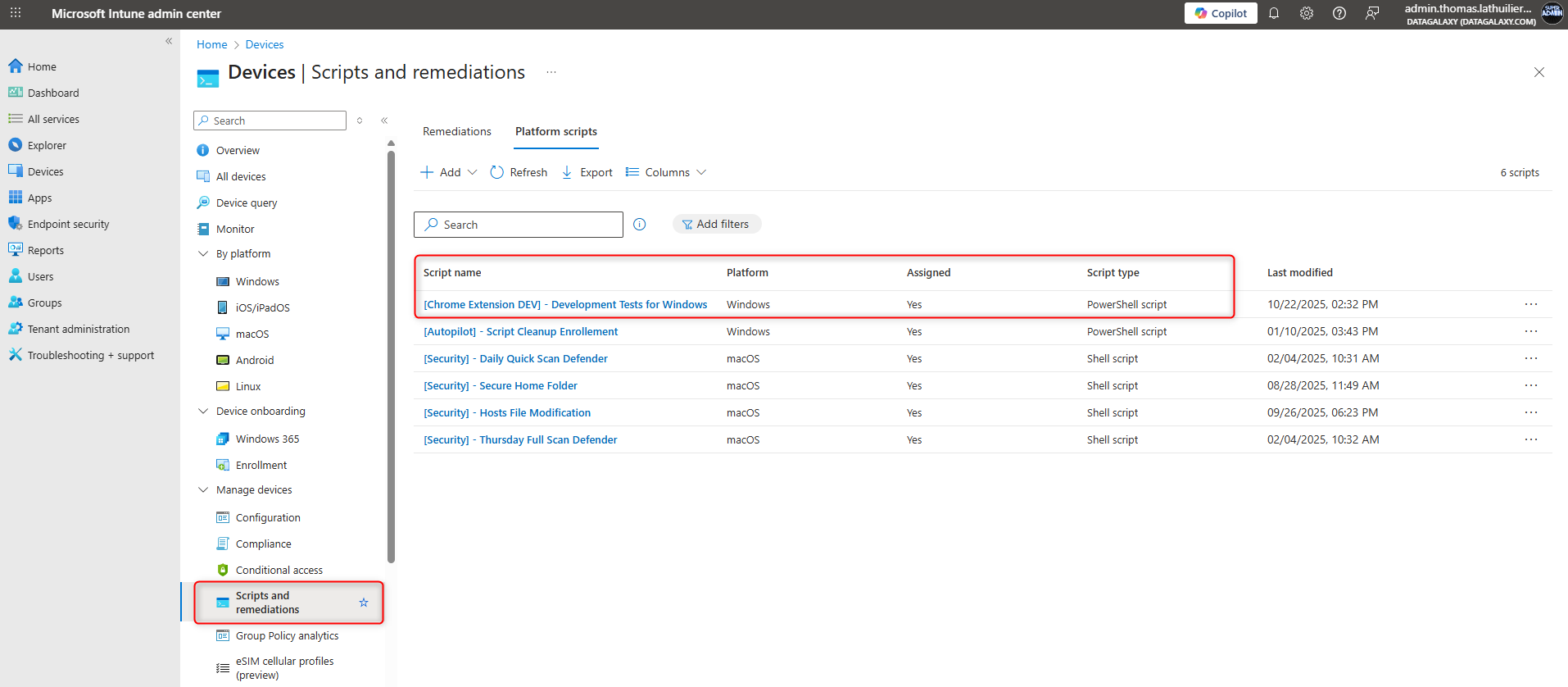
Please note, you will need the extension ID and the clientspace name:
Extension ID:
bpppldnipnppkmongnkihlioaojpmine
Client instance name
your client instance nameScript:
$Path = 'HKLM:\SOFTWARE\Policies\Google\Chrome\3rdparty\extensions\bpppldnipnppkmongnkihlioaojpmine\policy' New-Item -Path $Path -Force | Out-Null New-ItemProperty -Path $Path -Name 'defaultDomain' -Value 'your client instance name' -PropertyType String -Force | Out-Null
Please ensure you fill ‘your client instance name’ with the right info.
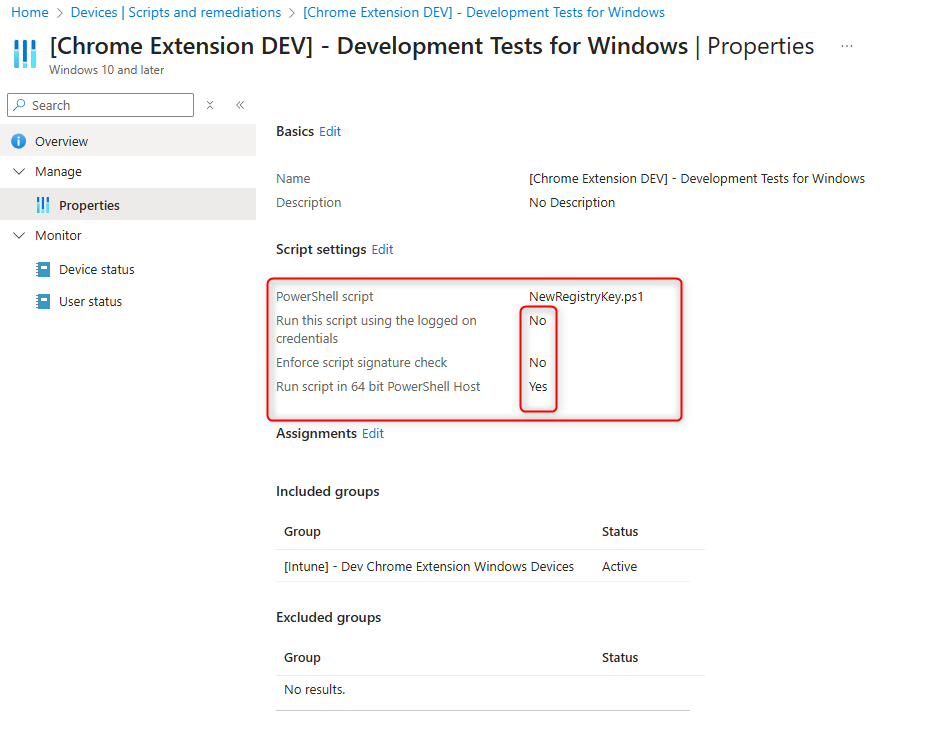
Script settings in Itune:
- Run this script using the logged on credentials : No
- Enforce script signature check : No
- Run script in 64 bit PowerShell Host : Yes
How to pre-install extension via Jamf Pro
The following option is used to set up Jamf for Auto Input of extension login on Chrome using a Jamf Pro account.
1. Go to Configuration Profiles → + New → Application & Custom Settings → Custom Settings
2. Upload or paste:
○ Preference Domain: com.google.Chrome
○ Property List (PLIST):
<dict>
  <key>ExtensionSettings</key>
  <dict>
    <key>bpppldnipnppkmongnkihlioaojpmine</key>
    <dict>
      <key>installation_mode</key>
      <string>allowed</string>
      <key>update_url</key>
      <string> https://clients2.google.com/service/update2/crx</string>
      <key>toolbar_pin</key>
      <string>force_pinned</string>
    </dict>
  </dict>
</dict>
3. Then add a second custom settings payload for:
○ Preference Domain:
com.google.Chrome.extensions. bpppldnipnppkmongnkihlioaojpmine
4. Create PLIST:
<dict>
  <key>defaultDomain</key>
  <string>example</string>
</dict>
NOTE: 'example' is the option that will appear in the input section of the extension where you login.
If youuse the structure clientname.
If you use the structure datagalaxy.clientname.com or any other variation: please replace 'example' with the your entire version of 'datagalaxy.clientname.com'