
You can export and import the local synonyms of glossary objects in CSV format. This lets you retrieve them, edit them in bulk, and import them back into DataGalaxy.
Why use local synonyms?
They make search results more relevant. When a user searches for a local synonym, the search returns the object linked to that synonym, so they find the right object even if they don't know its exact name.
Local synonyms are available for the following glossary object types:
- Universe
- Concept
- Business term
- Indicator
- Domain
- Dimension
1. Export local synonyms
Local synonyms can't be exported on their own. When you export glossary objects, they are automatically included in a separate CSV file. There are three cases.
1.1 Export the whole glossary
- Open the Glossary module.
- Click the ⋮ menu to the right of the filtered views.
- Select Export the glossary.
You get a ZIP folder that contains:
- the general glossary file: all glossary objects and their attributes;
- the linked objects file: all relationships between glossary objects;
- the local synonyms file: all local synonyms of Universe, Concept, Business term, Indicator, Domain and Dimension objects.

1.2 Export a glossary object
- Open the object's page in the Glossary module.
- Click the ⋮ menu at the top right of the page.
- Select the export option.
- In the export modal, check Include local synonyms.
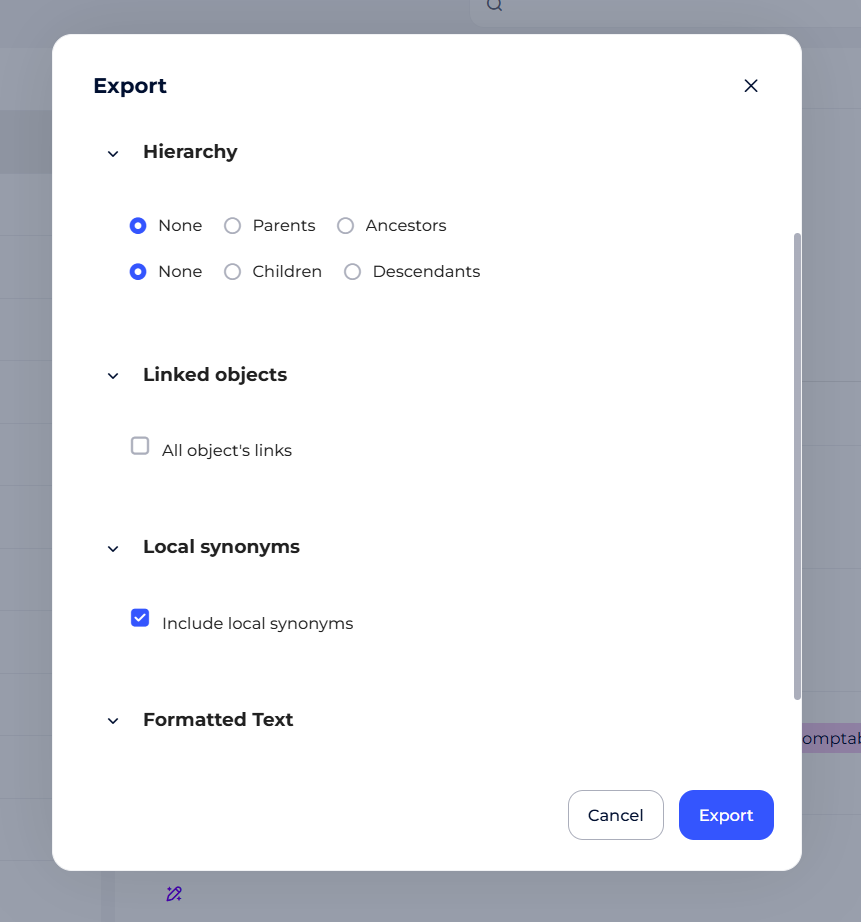
Along with the usual files, the ZIP folder contains the local synonyms file for the exported object.
1.3 Export a filtered view of the glossary
- Open a filtered view in the Glossary module.
- Start the export of the view.
- In the export window, check Include local synonyms.
Along with the usual files, the ZIP folder contains the local synonyms file for the objects in the view.
The local synonyms file is only created if the export contains at least one Universe, Concept, Business term, Indicator, Domain or Dimension object.
2. Import local synonyms
You import local synonyms with the object import wizard.
- Open the Glossary module.
- Start the CSV file import.
- Add your local synonyms CSV file.
- In the Select the items to import list, expand Glossary and select Local synonyms.
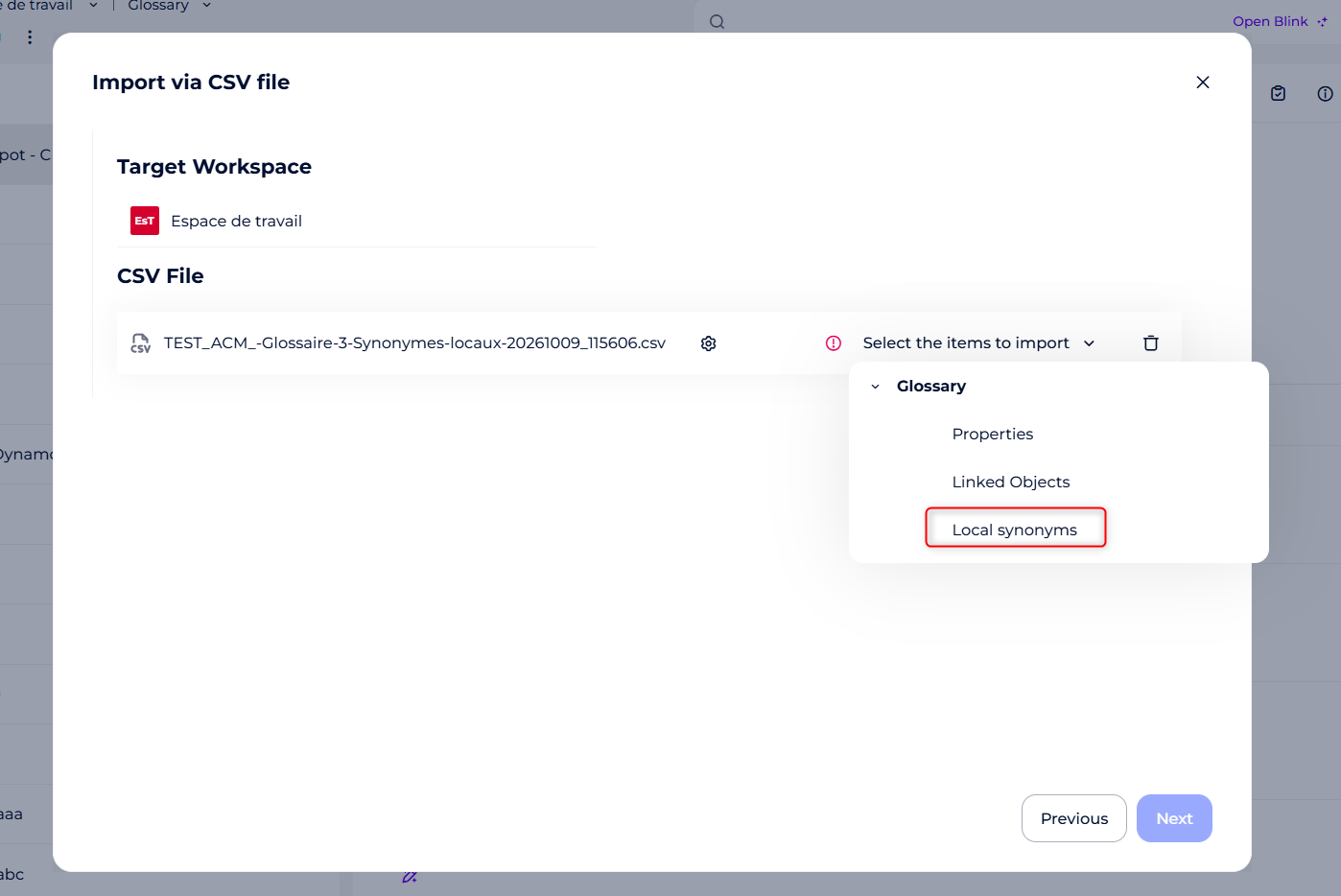
- Click Next and follow the wizard steps.
3. Downloading files
Exported files are saved to your browser's default download folder.
For exports of more than 10,000 objects, you get a notification when the export starts. A second notification, with a download link, tells you when the file is ready.