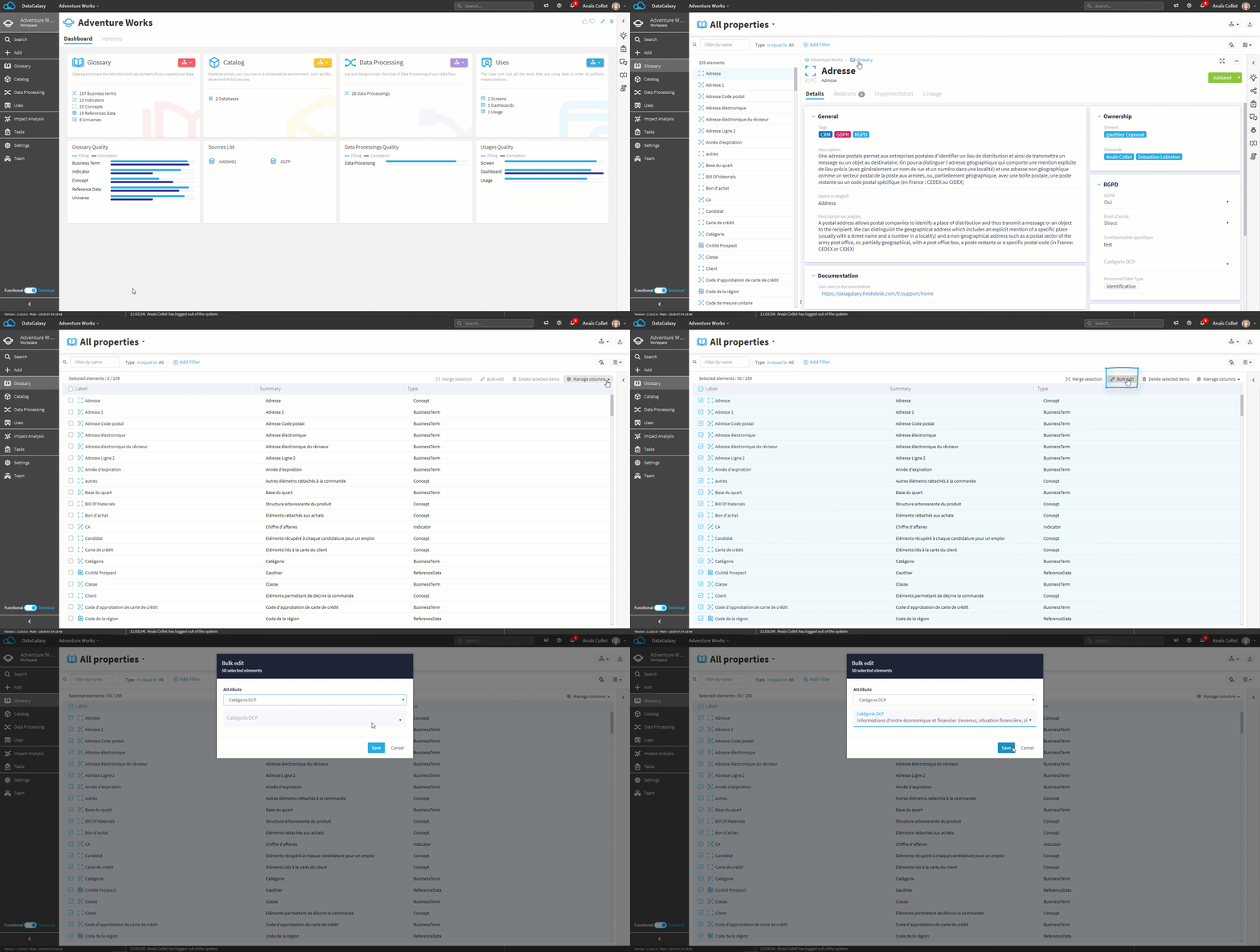
This article aims to explain how to bulk edit objects.
This feature concerns all modules when you are in the list view. It allows you to make changes to a set of selected objects.
Several options are possible.
Bulk edit
Attribute edit
It is possible to bulk edit the attributes of the selected objects. Several options are possible:
- For single-valued attributes:
- Update: Replaces the current value with the value filled in the modal (which can be empty).
- For multi-valued attributes:
- Add: Supplement existing values with the new values entered.
- Update: Replace existing values with the new values entered.
- Access the module of your choice,
- Click on "List view",
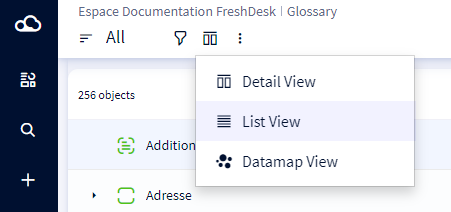
- Check the general box to select everything, or simply check the boxes of the objects you want to edit,
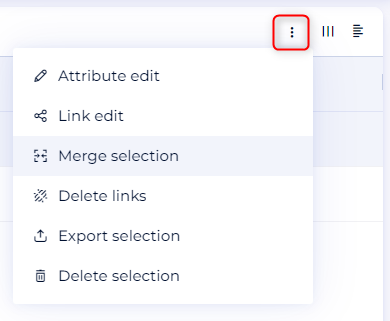
- Click on the options button, and then on "Attribute edit" in the dropdown,
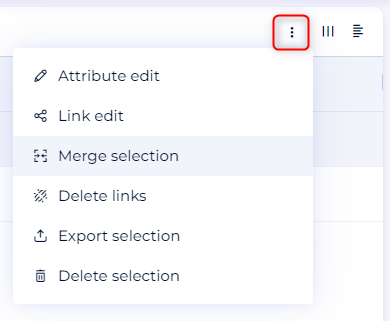
- In the new window, follow the instructions, and confirm.
Special case: It is mandatory to have workspace administration permission to perform a bulk edition in the dictionary module.
Link edit
It is possible to bulk edit the link of the selected objects. Several options are possible:
- Add: Supplement existing links with the new links entered.
- Update: Replace existing links with the new links entered.
- Access the module of your choice,
- Click on "List view",
- Check the general box to select everything, or simply check the boxes of the objects you want to edit,
- Click on the options button, and then on "Link edit" in the dropdown,
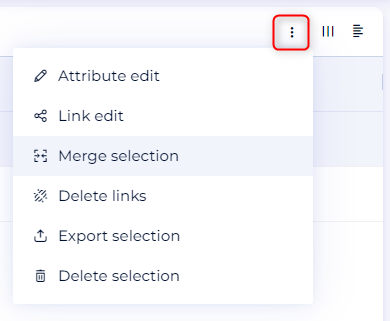
- In the new window, follow the instructions, and confirm.
Merge selection
You have the possibility to merge several glossary objects into one single object.
The single object then regains all the characteristics of all the cumulated objects and the source objects will be deleted.
It is possible to merge :
- Details: This merge replaces the empty CDPs of the source entity with the value of the CDP of the target entity, and unites the values of the two entities when the CDP allows it (multiple value fields).
- Relationships: This merger unites the relationships of the source entity and the original target entity.
- Implementations: This merges the implementations of the source entity and the original target entity.
==> After each merge, the source entities are deleted.
- Access the module "Glossary",
- Click on "List view",
- Check the boxes of the objects you want to merge as source objects,
- Click on the options button, and then on "Merge selection" button,
- In the new window, follow the instructions, and confirm.
Bulk delete
It is possible to delete objects in bulk.
- Access the module of your choice,
- Click on "List view",
- Check the general box to select everything, or simply check the boxes of the objects you want to edit,
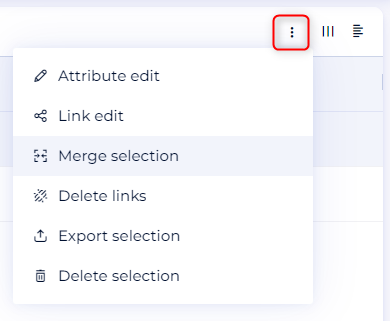
- CClick on the options button, and then on the "Delete selection" button",
- In the new window, follow the instructions, and confirm.