
If you’re using Cursor as your MCP client, please follow these steps to connect to the DataGalaxy MCP server:
Step 1.
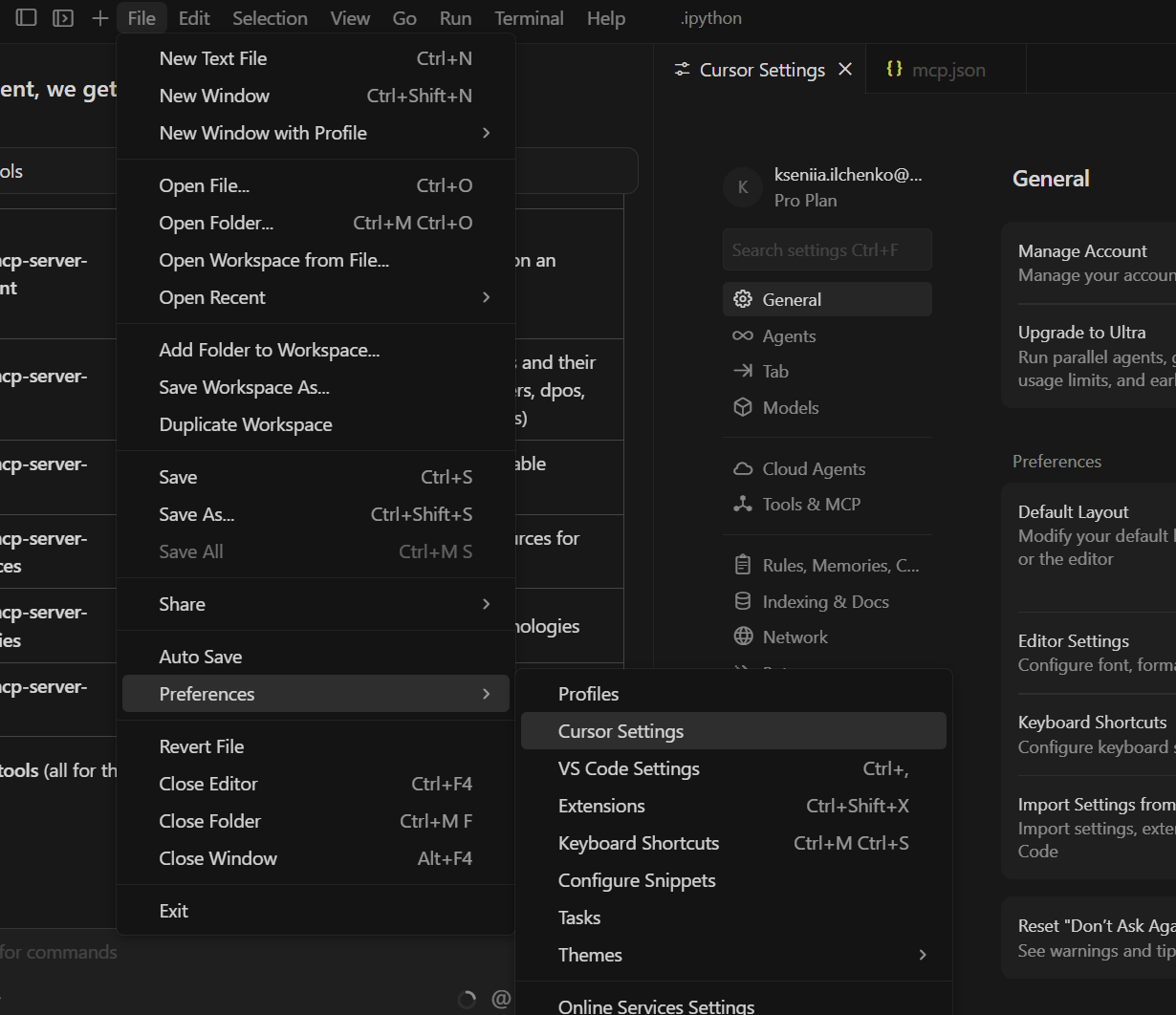
Go to File ->Preferences->Cursor Settings
Step 2.
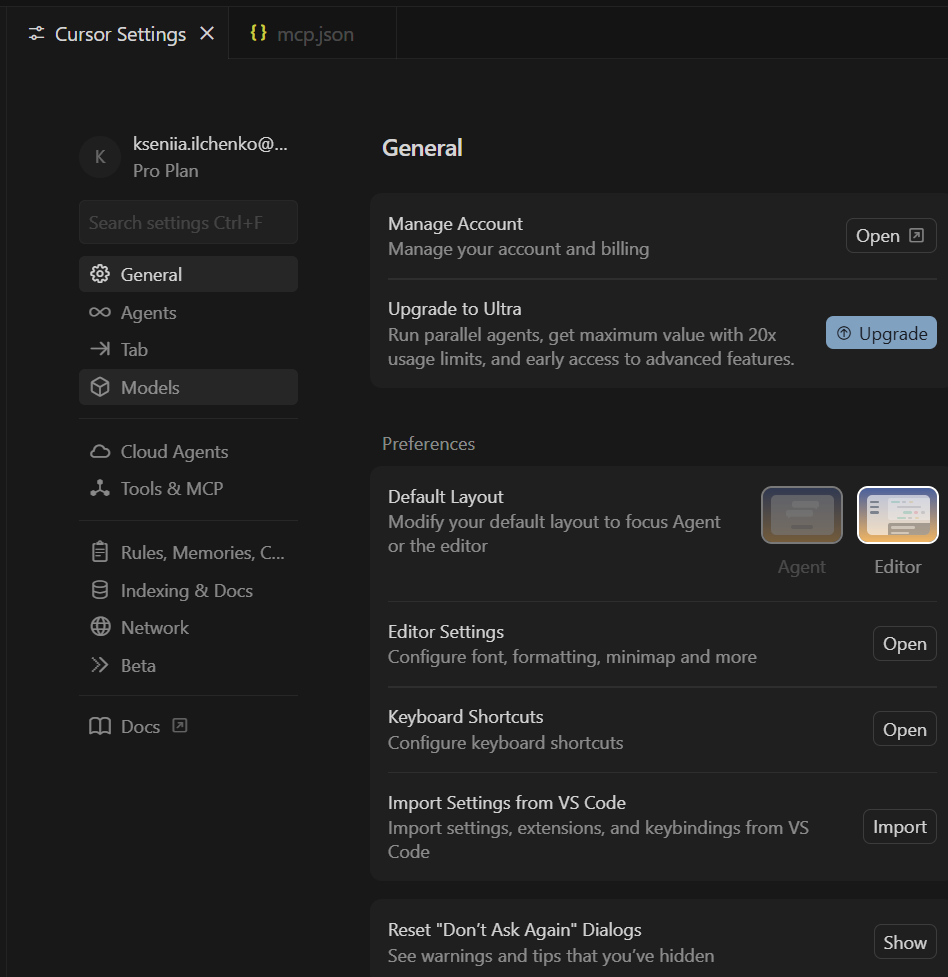
Choose Tools& MCP
Step 3.
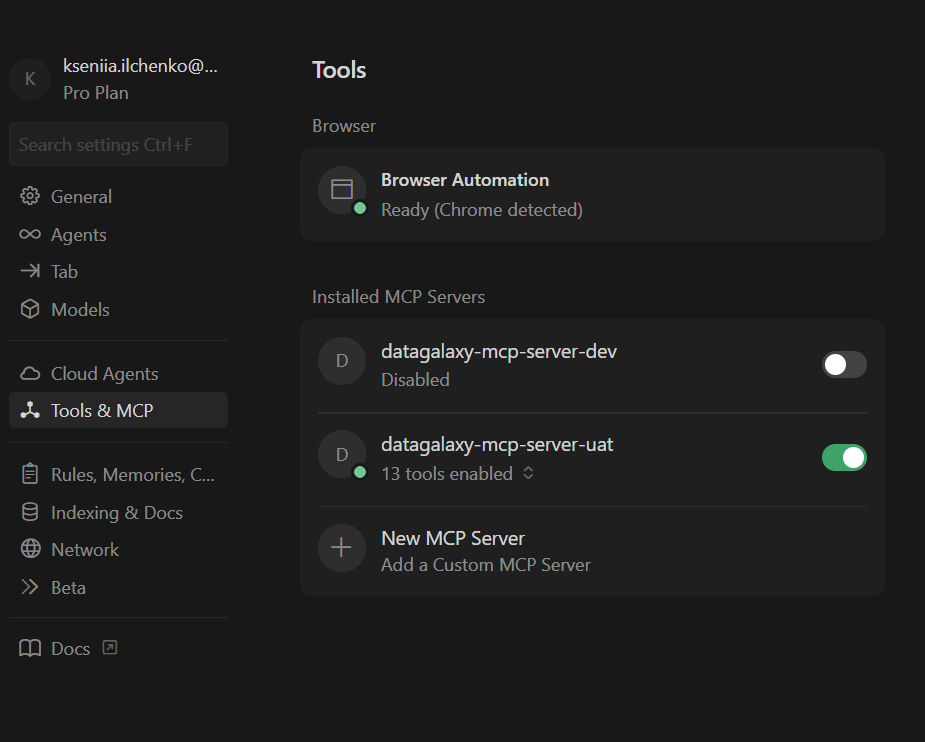
Choose to add a new MCP Server
Step 4.
Add the information needed:
{
"mcpServers": {

"datagalaxy-<name of your mcp server>": {
"type": "streamable_http",
"url": "<your mcp server url>",
"auth": null,
"headers": {
"Authorization": <Bearer your PAT>,
"X-API-Base-URL": "<your API>",
"X-Version-ID": <version ID>,
"X-Source-Request": "cursor-client",
"Accept": "application/json, text/event-stream"
}
}
}
}
where:
- <name of your mcp server>: name you give to your server. This name will be visible in your list of MCP Servers at Cursor.
- <your mcp server url>: https://<your instance name>.api.datagalaxy.com/mcp/ . To verify your MCP Server URL, please visit the DataGalaxy webapp -> Profile->DataGalaxy MCP Server and copy the provided URL
- <your PAT> - your personal access token. It can be found under Profile-> Profile and Settings-> Profile->Security. Do not forget the word Bearer.
- <your API> - URL in format https://<instance>.api.datagalaxy.com/v2/
- <version ID> - the second UUID from your DataGalaxy URLs:

Step 5.
Save your changes (you can press Ctrl+S or Cmd+S, for instance)
Step 6.
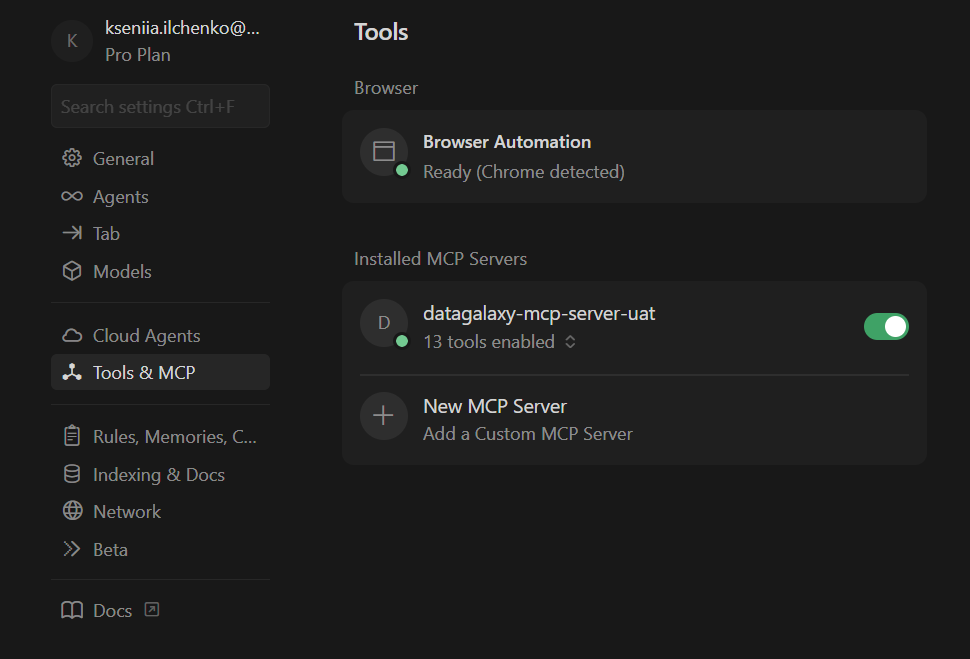
Ensure, that your DataGalaxt MCP server is activated.
Step 7.
Proceed with a simple question like 'Show the list of tools' to verify that everything is working.