This article explains how to combine metadata (DataGalaxy MCP Server) with data (a data storage MCP such as Databricks) in Cursor: find and understand assets in your catalog, then run their queries directly in your data platform.
What you get
- DataGalaxy MCP: Search the catalog, get object details (names, descriptions, owners, and many many more.
- Databricks MCP: Execute SQL in your Databricks workspace and get result sets.
Together you can:
- Find the right asset in DataGalaxy (e.g. a data processing object or a saved query).
- Read the query or logic stored in that asset.
- Run that query in Databricks (optionally with parameters like client name, date, etc.).
- Use the results in your analysis or in follow-up prompts.
Prerequisites:
- DataGalaxy MCP Server configured in your MCP Client (here we use Cursor) and connected to your DataGalaxy instance (with the right workspace/version).
- Databricks MCP Server (or another data storage MCP) configured and able to run SQL in your environment.
- Access to the relevant DataGalaxy workspace(s) and to the Databricks catalog/schemas used by the documented queries.
Step 1: Set up both MCP Servers
- See the DataGalaxy MCP Server setup here.
- For DataBricks MCP Server, please follow this instruction.
For Databricks MCP Server setup you will need:
- your DataBricks MCP Server URL: https://<your-workspace-hostname>.azuredatabricks.net/api/2.0/mcp/sql
- your token: it can be found under your profile settings ->Developer->Access tokens
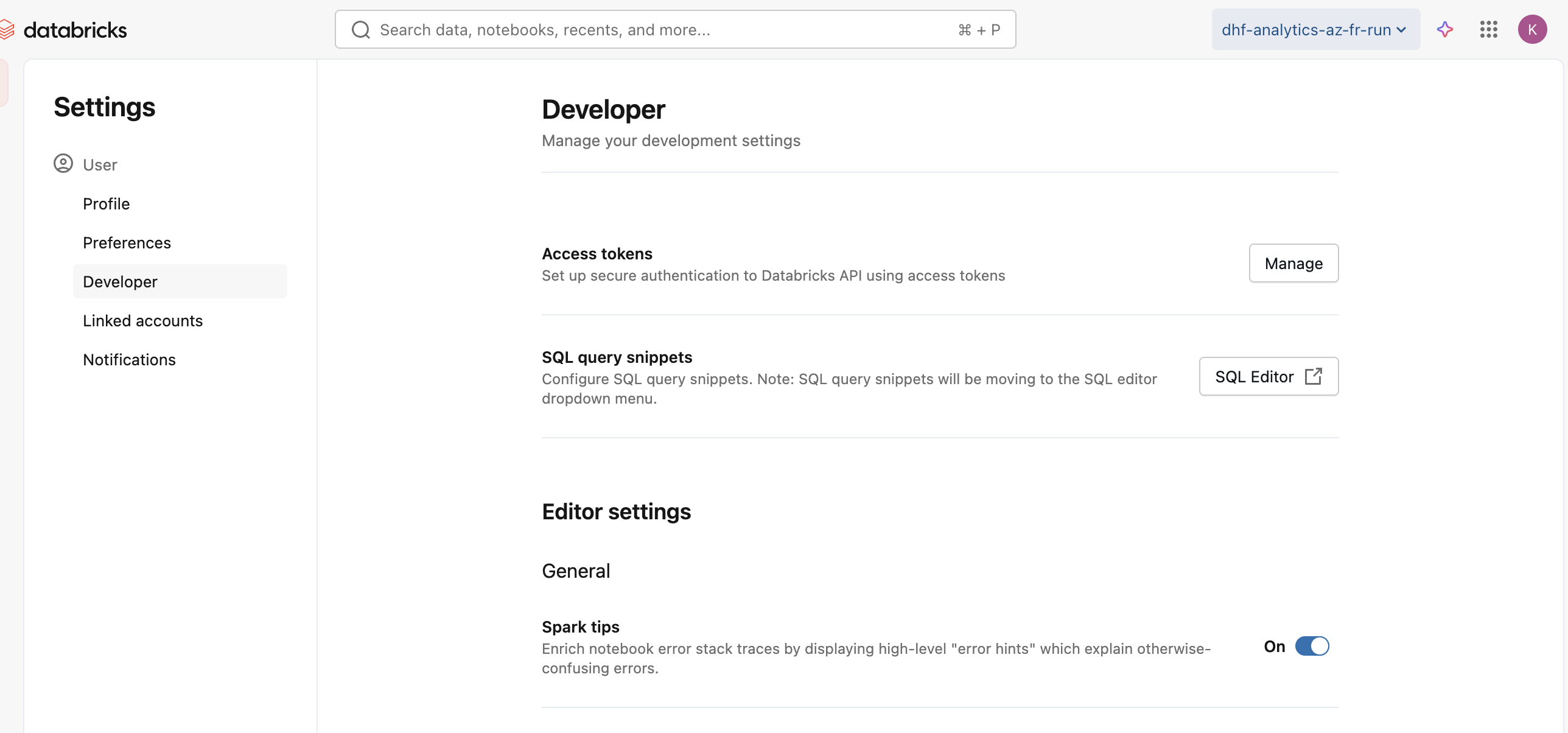
Datbricks MCP Server setup looks like:
{
  "mcpServers": {
    "name-mcp": {
      "type": "streamable-http",
      "url": "https://<your-workspace-hostname>/api/2.0/mcp/functions/{catalog_name}/{schema_name}",
      "headers": {
        "Authorization": "Bearer <YOUR_TOKEN>"
      },
      "note": "Databricks SQL MCP Server"
    }
  }
}
Step 2: Find the asset in DataGalaxy
Use the DataGalaxy MCP to search for the object that holds the logic or query you need.
Examples of what to search for:
- a data processing object (e.g. ETL/query documented as “Find_client_id”).
- a Databricks query or dataset (e.g. “Obtain customers with specific technologies”).
- any asset whose description or name indicates it contains a query or a way to get client ID, list of customers, etc.
Tip: Include both the purpose and the type of object in your request, for example:
- “Find_client_id data processing object”
- “Obtain customers with specific technologies”
- “query to get client id from client name”
Step 3: Get the query from the asset
Once you have the object (e.g. by name and workspace), retrieve its full details with the DataGalaxy. Many data processing and query objects store a query attribute (SQL text).
Step 4: Improve your query if needed
Ask LLM in your MCP Client (Cursor in our case) to improve, create or modify the query
Step 5: Execute the query in Databricks
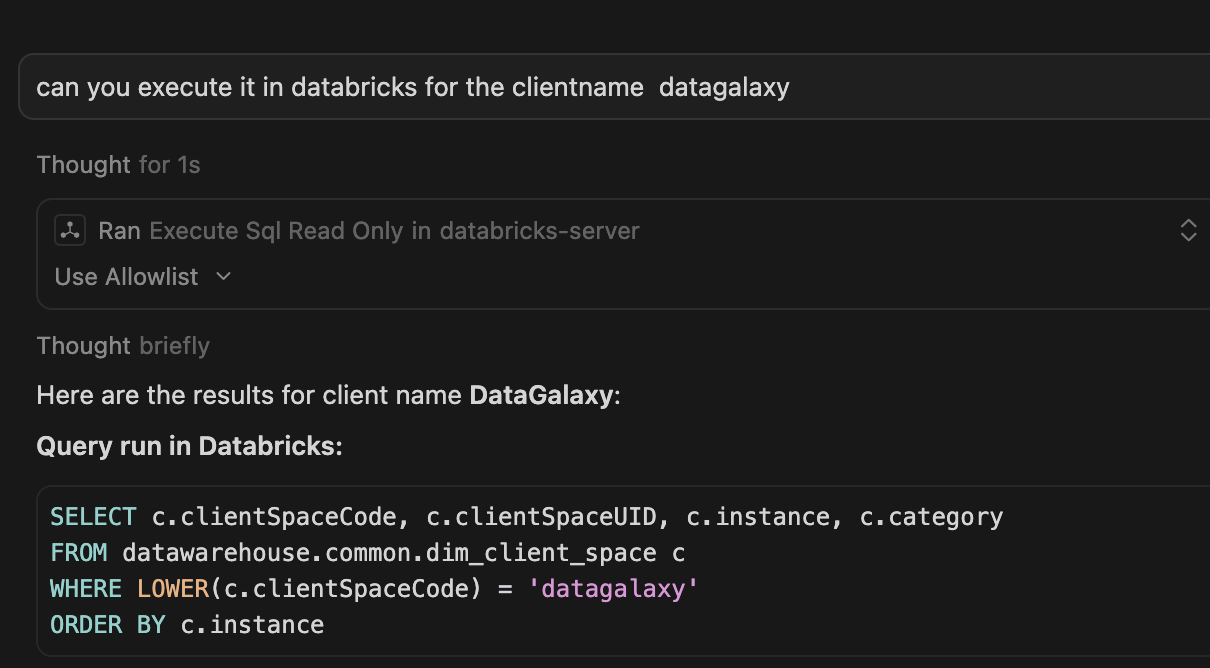
Use the Databricks MCP to do your data search
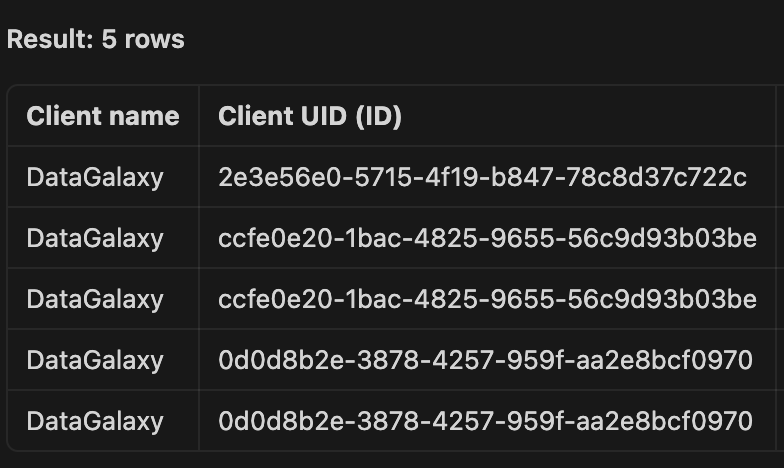
Step 6: Use the results
Analyse or aggregate you results for getting the insights.
Example
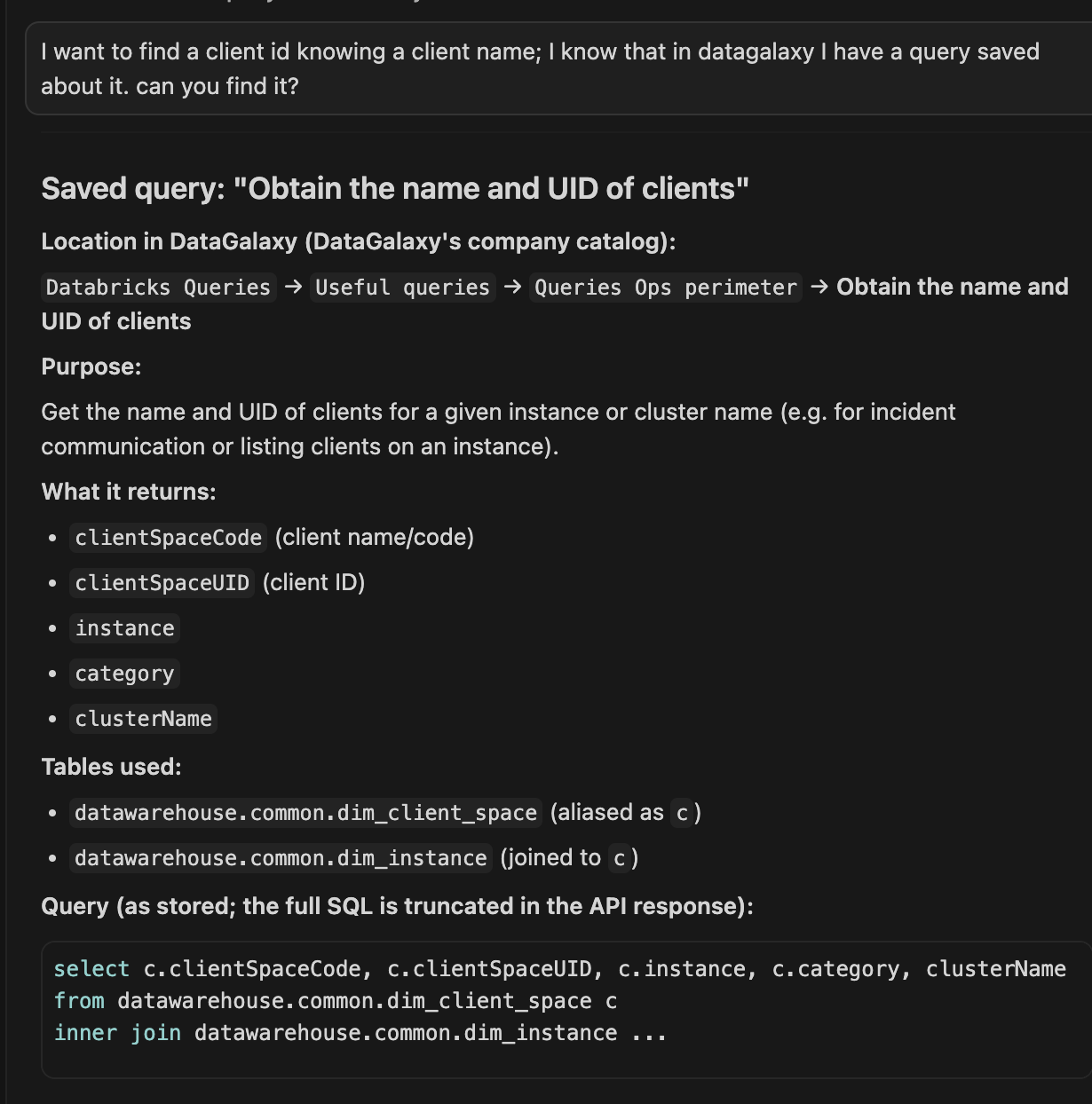
Our data catalog includes the data processing objectswith SQL queries users can use for searching information in the database:
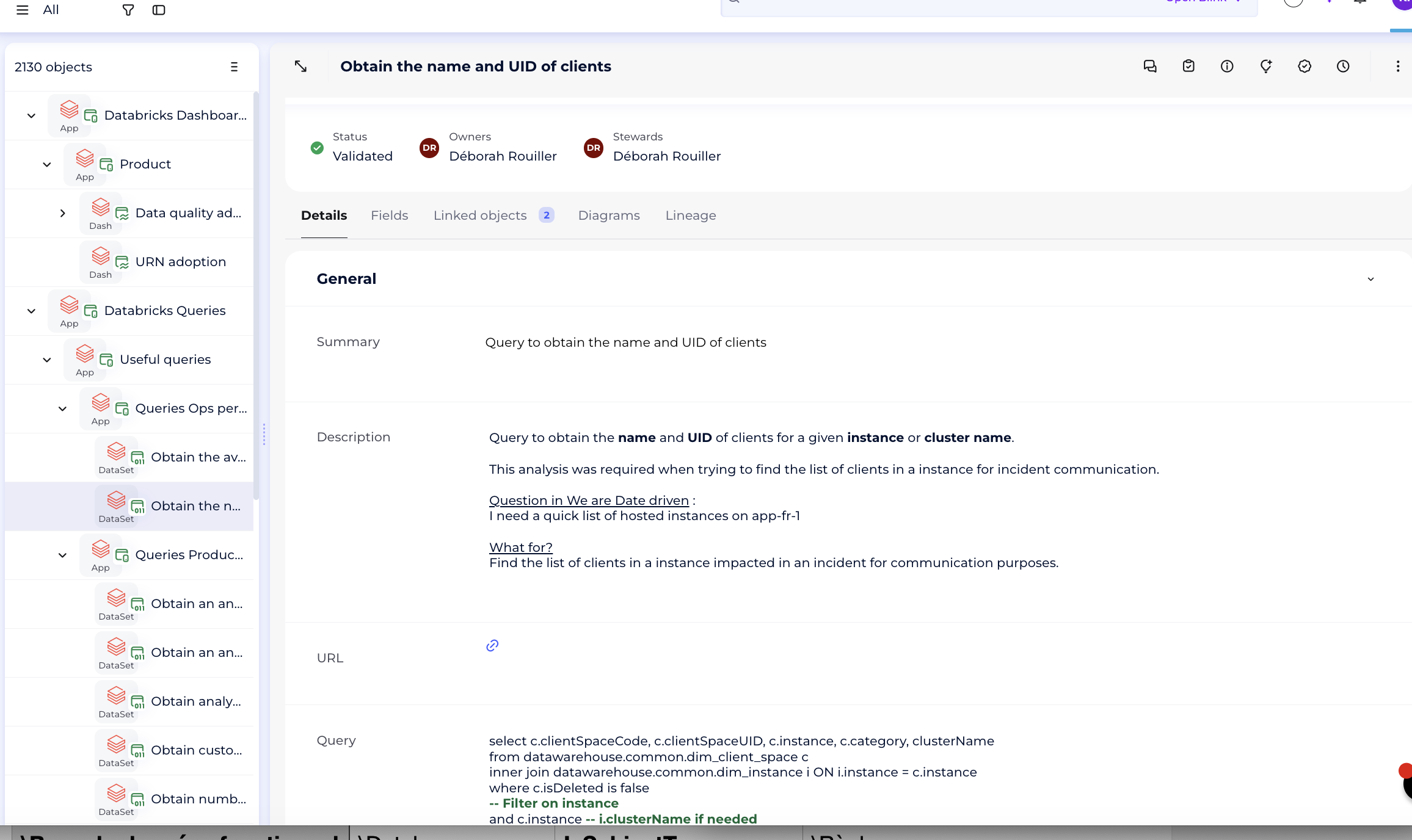
Without opening a webapp and searching there, we can ask in natural languages to find this query (DataGalaxy MCP Server will assist with the search). Then, we can modify it and query the data needed, using DataBricks MCP Server.