
Step 1.
Contact your account manager to enable MCP server for your company.
Step 2.
Check what is needed by your MCP client for being able to connect new MCP server.
Note: We coniniously update the 'how to instractions' to extend number of MCP Clients we describe. Do not hesitate to contact Support with your case
Step 3.
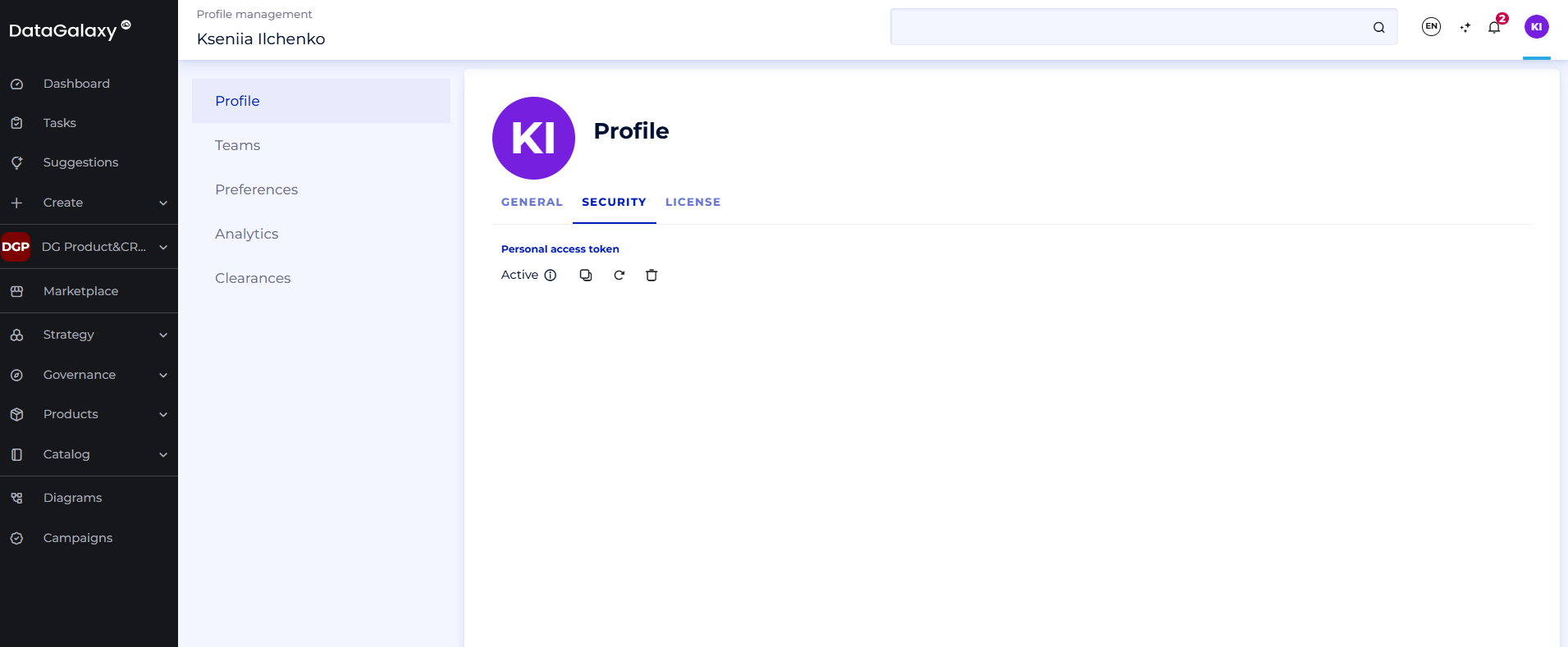
You will need your Personal Access Token (PAT) for being able to use DataGalaxy MCP Server How to find PAT at DataGalaxy platform: Go under Profile -> Security. Here you have a possibility to copy your PAT or to revoke it if needed.
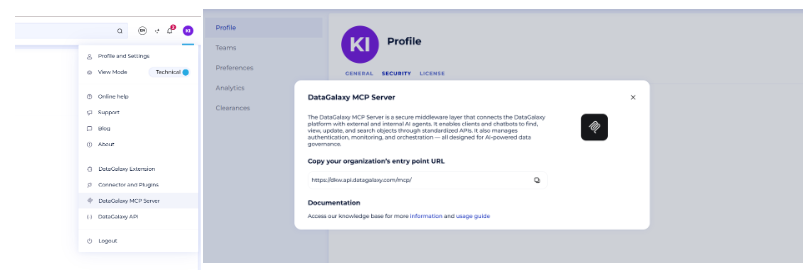
Step 5.
Add this information to your MCP client settings in accordance with MCP client's requirements
Step 6.
Ensure that DataGalaxy MCP Server is active.
Step 7.
Check the tools available.
Step 8.
Formulate and ask your questions
Check our How-to articles about setting up MCP Server for different clients: