
This guide walks you through connecting the DataGalaxy Model Context Protocol (MCP) server to a custom agent in Microsoft Copilot Studio, and then publishing that agent to Microsoft Teams and Microsoft 365 Copilot so your organization can query the DataGalaxy data catalog directly from Teams chat.
Once connected, users can ask the agent natural-language questions such as "Find all glossary terms tagged GDPR", "Show me the lineage of the Customer table", or "Who is the owner of the Orders dataset?", and the agent will answer using live, governed metadata from your DataGalaxy platform.
Prerequisites
Before you begin, make sure you have the following:
| Requirement | Details |
|---|---|
| Copilot Studio access | A Microsoft Copilot Studio license (standalone or trial) with maker permissions in your Power Platform environment. Sign in at https://copilotstudio.microsoft.com. |
| Generative orchestration | Your agent must have generative orchestration enabled — this is required to use MCP tools. New agents created in the current experience have it on by default. |
| DataGalaxy MCP server URL | The MCP endpoint URL for your DataGalaxy environment (Streamable HTTP transport). If you don't have it, contact your DataGalaxy administrator or DataGalaxy support. |
| DataGalaxy access token | A DataGalaxy Personal Access Token (Bearer token). You can find/generate it under your DataGalaxy profile. The MCP server inherits your DataGalaxy roles and permissions — the agent will only see metadata that the token's owner is allowed to see. |
| Microsoft Teams | A Microsoft 365 tenant with Teams. To publish the agent organization-wide, a Teams / Microsoft 365 administrator will need to approve it. |
| Data policies | Because MCP connectivity relies on Power Platform connectors, verify with your Power Platform admin that DLP policies in your environment do not block custom MCP connectors. |
Part 1: Create an agent in Copilot Studio
- Go to https://copilotstudio.microsoft.com and sign in with your work account.
- In the top-right corner, confirm you are in the correct Power Platform environment (the one where you're allowed to build and publish agents). Note that the default environment often has stricter data policies — if your organization has a dedicated environment for agents, switch to it here.
- Open the Agentspage from the left navigation. Then either:
- select + Create blank agent in the top-right corner, or
- describe your agent in the "Start building by describing what your agent needs to do" box and send it.
- Depending on your tenant, the interface may instead show Create > New agent in the left navigation — both paths lead to the same agent creation flow.
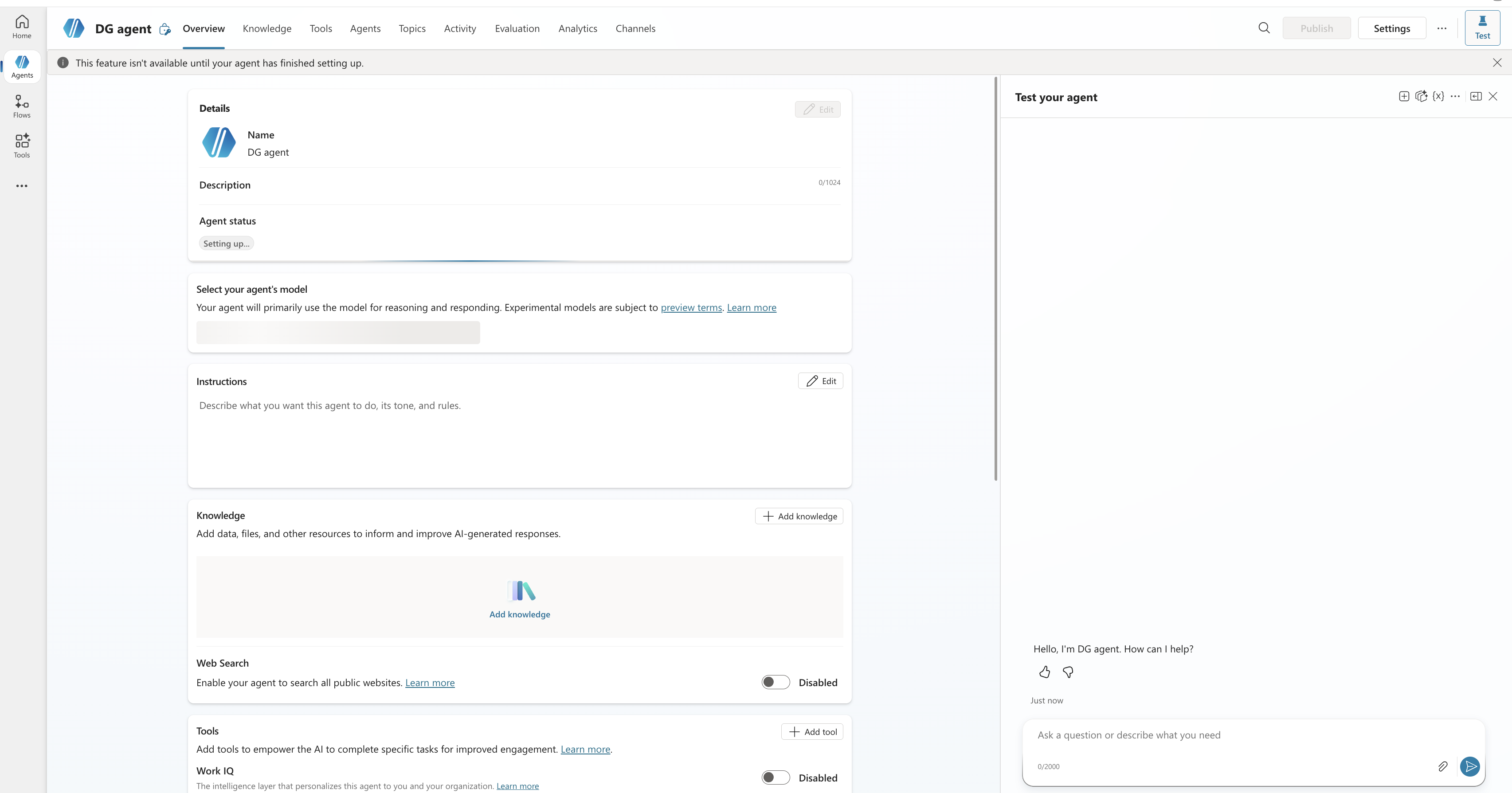
- The agent is created and provisioned directly — its Overview page opens with a confirmation banner ("Your agent has been provisioned") and the Details section shows Agent status: Ready. In the classic Create > New agent flow, you may instead be asked to fill in the agent's details and select Create before the Overview page opens.
- On the Overview page, set the agent's name (for example:
DataGalaxy Catalog Assistant), description, and instructions — select Editin the Details section, or the pencil icon next to the agent's name. Please note, instructions are customisable to your concrete use case and setup. You can find an example of the description in our knowledge base or add this option for testing:You are a data catalog assistant connected to the DataGalaxy MCP server. Workspace and version: most DataGalaxy tools require a version_id (workspace version). At the start of a conversation, or whenever no version_id is known yet, ALWAYS call the list_workspaces_and_versions tool first to discover the available workspaces and their versions. If there is only one workspace, silently use its default version. If there are several, show the user the list of workspaces and ask which one to use. Then reuse that version_id for all subsequent tool calls in the conversation — do not ask again unless the user wants to switch workspace. Never ask the user to type a raw version ID themselves. Use the DataGalaxy tools whenever the user asks about catalog content: sources, models, structures (tables, fields), glossary terms, lineage, links, tags, owners, comments, or tasks. Always ground your answers in the metadata returned by the tools. If a search returns no results, say so clearly instead of guessing. - Agents created in this experience use generative orchestration by default, so no action is normally needed — you won't see a dedicated orchestration toggle on the Overview page. If your tenant uses the classic experience, verify it under Settings > Generative AI, where generative orchestration must be enabled for MCP tools to work.
Part 2: Add the DataGalaxy MCP server as a tool
Copilot Studio includes an MCP onboarding wizard that connects to an existing MCP server in a few clicks.
- With your agent open, go to the Tools page (top navigation of the agent).
- Select Add a tool.
- Select New tool.
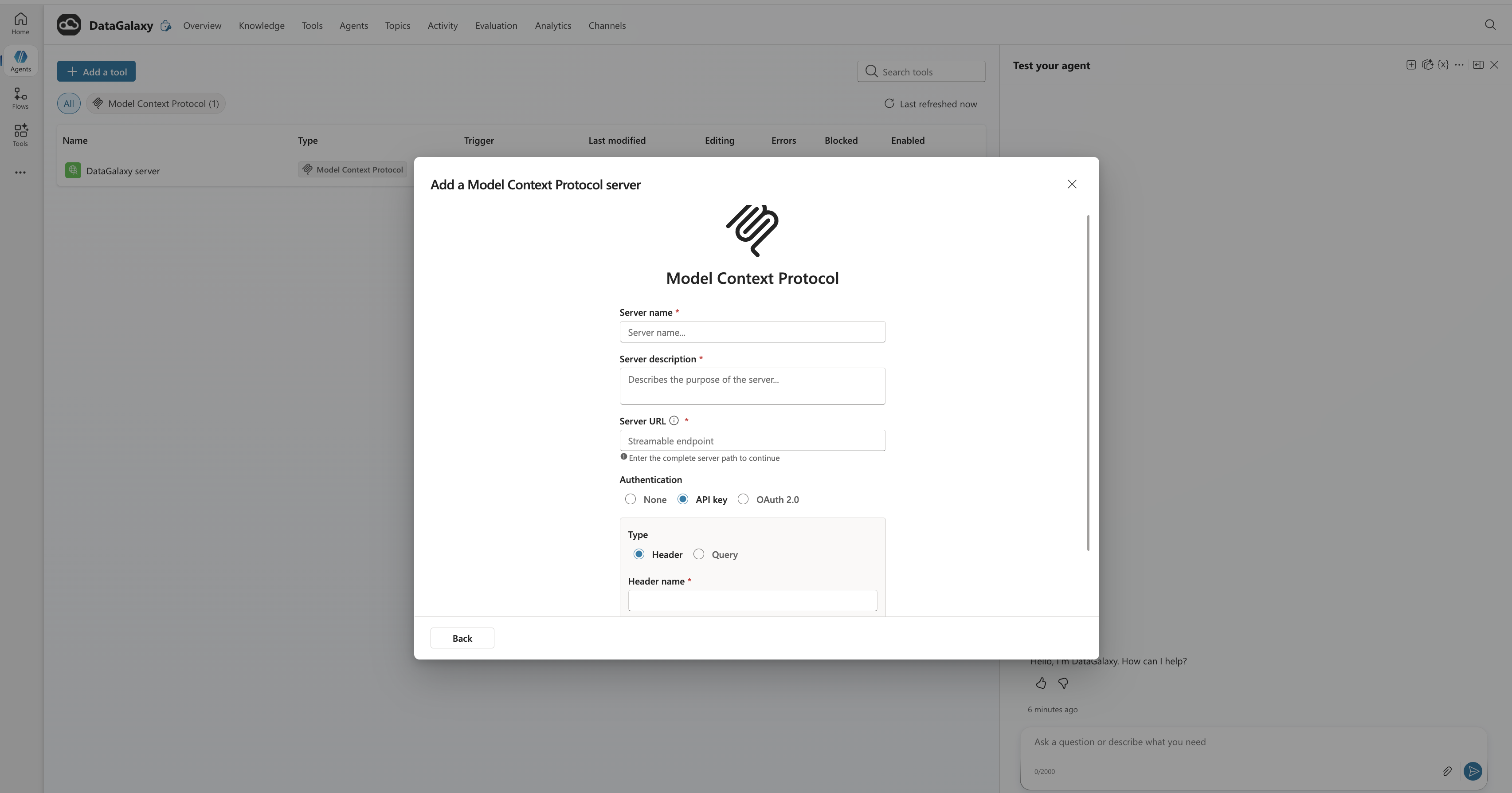
- Select Model Context Protocol. The MCP onboarding wizard appears.
- Fill in the required fields:
Server name DataGalaxyServer description Write a clear, functional description, the agent's orchestrator uses it to decide when to call the server. Example: "Searches and retrieves governed metadata from the DataGalaxy data catalog: sources, structures, fields, glossary terms, lineage, tags, owners, comments, and tasks." Server URL Your DataGalaxy MCP endpoint URL (as provided for your environment). - Under Authentication, select API key.
- Configure the API key so it is sent as an HTTP header named
Authorization.⚠️ Important — Bearer format: The DataGalaxy MCP server expects the header value in the formatBearer <your-token>. If the wizard offers a prefix field, enterBearer(with a trailing space) there and paste only the token in the key field. If there is no prefix field, enter the full valueBearer eyJhbGci...when the connection prompts for the key. - Select Create. Copilot Studio generates a connector behind the scenes — this can take a few seconds.
- In the Add tool dialog, select Not connected > Create new connection, enter your DataGalaxy token when prompted (respecting the Bearer format above), and complete the connection.
- Select Add and configure. The DataGalaxy MCP server is added to your agent as a tool, and its settings page opens.
Part 3: Review the tools and test the agent
- On the MCP server's settings page inside your agent, review the Tools section. You should see the DataGalaxy tools (for example: semantic search, natural-language search, get object details, get linked objects, get tags, get users, get comments, get tasks, list workspaces and versions).
- All tools are enabled by default. Use the individual toggles to turn off any tools you don't want the agent to use (for example, write operations such as creating comments or updating objects, if you want a read-only assistant).
- Open the Test your agent pane (right side of the screen) and start a new session with the + icon.
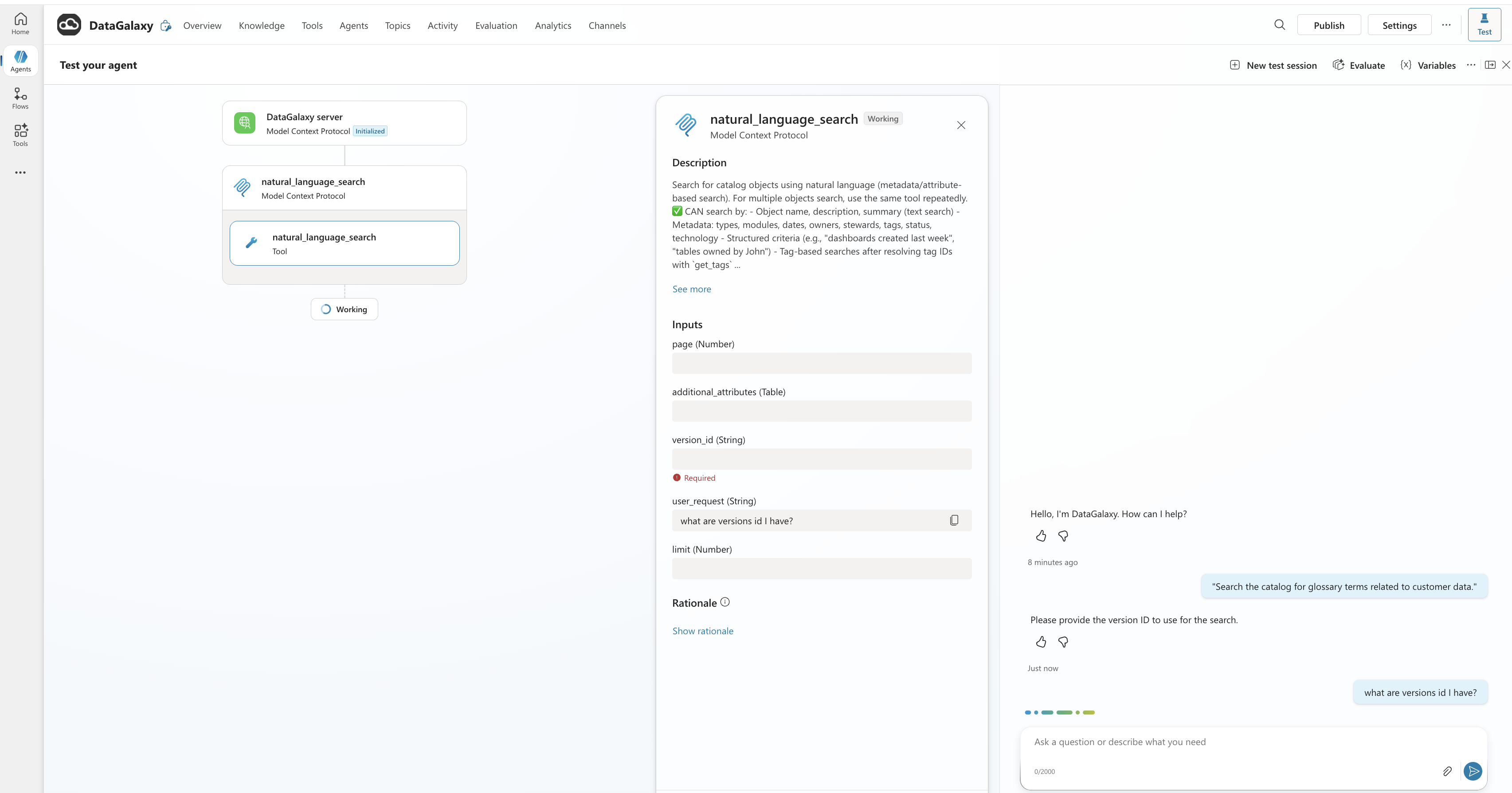
- Ask a test question, for example:"Search the catalog for glossary terms related to customer data."
- If prompted, authorize the connection (a Manage connections window opens — connect, then return to the agent and start a new test session).
- Confirm that the agent calls a DataGalaxy tool (you can see the tool invocation in the activity map of the test pane) and returns catalog metadata. With the instructions from Part 1, the agent's first action should be a call to list_workspaces_and_versions to resolve the workspace and version, followed by the search itself — it should not ask you to type a version ID.
Part 4: Publish the agent
- In Settings > Security > Authentication, keep the default Authenticate with Microsoft. This uses Microsoft Entra ID automatically for Teams and Microsoft 365 Copilot and ensures only signed-in users of your tenant can use the agent. (Do not select "No authentication" for an internal catalog assistant.)
- Select the Publish button at the top of the agent page.
- Confirm in the publish dialog. Publishing takes a few moments; you'll see a notification when it completes.
Part 5: Add the Teams and Microsoft 365 Copilot channel
- With the agent open, select Channels in the top navigation. If you don't see it, open the +N overflow menu at the end of the navigation bar (e.g. +3) — Channels may be listed there.
- Select the Teams and Microsoft 365 Copilot channel.
- In the pane that appears, if you also want the agent to be usable inside Microsoft 365 Copilot chat (in addition to Teams), make sure Make agent available in Microsoft 365 Copilot is selected. If you leave it unselected, the agent is available in Teams only.
- Select Add channel and wait for the green confirmation notification.
- (Recommended) Select Edit details to customize the agent's appearance before sharing it: icon (PNG, max 192×192 px), icon background color, short and long descriptions, and developer details (developer name, website, privacy statement, terms of use). A clear description and branding help users understand the agent's purpose.
Part 6: Make the agent available to users in Teams
We propose to start small, from testers and then widen the audience. There are four levels of distribution:
Option A. Install it for yourself (test first)
- In the Teams and Microsoft 365 Copilot channel pane, select See agent in Teams.
- Teams opens with the agent's install card. Select Add. The agent appears in your Teams app bar (and in Microsoft 365 Copilot if you enabled that option — invoke it there by typing
@and selecting the agent). - Ask a few DataGalaxy questions in Teams to validate end-to-end behavior, including the first-run connection consent.
Option B. Share an installation link with specific users
- First, share the agent itself: from the agent's top menu (⋯) select Share, add the users or security groups, assign them the Viewer role, and select Update. Only users the agent is shared with can use the link.
- In the channel pane, select Availability options > Copy link, and send the link to those users.
- Note: installation links don't work in the Teams mobile app — for mobile users, use Option C or D.
Option C. Show it in the Teams app store ("Built with Power Platform")
In Availability options, choose to show the agent in the Built with Power Platform section of the Teams app store. Only users the agent is shared with can find and install it there. This is a good way to pilot with a team, because it does not require admin approval.
Option D. Publish to the whole organization ("Built for your org")
- In Availability options, select Show to everyone in my org (submit for admin approval).
- The agent is submitted to your tenant's admin as a pending app/agent request.
- Do not reduce the agent's sharing/access to less than "everyone in your organization" after submitting — doing so can prevent users from chatting with the agent after they install it from the store.
Part 7: Admin approval (Teams / Microsoft 365 admin)
This part is performed by a Teams administrator or Microsoft 365 administrator.
- Open the Microsoft Teams admin center (https://admin.teams.microsoft.com) > Teams apps > Manage apps, or review the requested agent in the Microsoft 365 admin center (Copilot / integrated apps section).
- Locate the submitted agent (filter by "Submitted"/"Blocked pending approval").
- Review the agent's metadata — name, description, icon, publisher, and the connectors it uses (including the DataGalaxy MCP connector) — against your organization's policies.
- Approve/allow and publish the agent. It then appears in the Built for your org section of the Teams app store (and the Microsoft 365 Agent Store, if enabled for M365 Copilot).
- (Optional) Use app setup policies to pre-install the agent for specific users/groups or pin it to the Teams app bar for easy access.
Back in Copilot Studio, the maker can track the request under Availability options: the status moves from Submitted to Approved once the admin acts, and an "available in app store" banner appears.
Updating the agent after it's live
- Content/logic changes (instructions, topics, tools, knowledge): just re-publish — no new admin approval is needed.
- Agent details changes (name, icon, descriptions): re-publish and submit a new approval request — previously approved store listings only update after the admin approves again.
- Propagation delay: after publishing, it can take up to about an hour for the new version to reach all users. In an ongoing Teams conversation, type
start overto reset the session and load the latest published version immediately.
Troubleshooting
| Symptom | Resolution |
|---|---|
| The MCP option doesn't appear, or the tool never gets called. | Confirm generative orchestration is enabled for the agent (Settings > Generative AI). MCP tools require it. |
| 401 / authentication errors when the tool runs. | The token is missing, expired, or the header format is wrong. The value sent must be Authorization: Bearer <token>. Recreate the connection with a fresh token from your DataGalaxy profile. |
| Connection is blocked when creating or running the connector. | A Power Platform DLP policy may be blocking custom MCP connectors in your environment. Ask your Power Platform admin to classify/allow the connector. |
| Agent works in the test pane but not in Teams. | Make sure the agent was published after the MCP tool was added, the channel is connected, and the user has been shared on the agent (Viewer role) or the org-wide approval is complete. |
| Users see an old version, or icon/description changes don't appear in Teams. | Metadata changes require a new admin approval. If the store still shows a stale version: in the Teams admin center disable then re-enable the app; in Copilot Studio remove and re-add the Teams channel and re-publish; then sign out/in of Teams (or refresh the browser) to clear the client cache. |
| The agent answers, but without catalog data. | Improve the server description and the agent instructions so the orchestrator knows when to call DataGalaxy tools, and verify the relevant tools are toggled on. Also confirm the token's owner has access to the workspaces being queried — the MCP server enforces DataGalaxy permissions. |
The agent asks the user for a version ID, or a tool call fails because version_id is required. | Most DataGalaxy tools need a version_id (workspace version). Make sure the agent's instructions tell it to call list_workspaces_and_versions first to resolve the workspace and version (see the example instructions in Part 1), and that this tool is toggled on in the MCP server settings. |
References (Microsoft documentation)
- Extend your agent with Model Context Protocol — Copilot Studio
- Connect your agent to an existing MCP server — Copilot Studio
- Add tools and resources from an MCP server to your agent — Copilot Studio
- Key concepts — Publish and deploy your agent — Copilot Studio
- Connect and configure an agent for Teams and Microsoft 365 Copilot — Copilot Studio
- Publish agents for Microsoft 365 Copilot
If you run into issues not covered above, please contact DataGalaxy Support with your MCP server URL (never share your token), the Copilot Studio environment name, and a screenshot of the error.