
This guide walks you through connecting the DataGalaxy Model Context Protocol (MCP) server to Onyx AI so your Onyx agents can search your data catalog, fetch metadata, and use DataGalaxy tools directly in conversations.
DataGalaxy MCP exposes read-only access to your DataGalaxy platform: search, get objects, links, users, tags, and more.
Onyx AI acts as an MCP client: it discovers and runs actions from your MCP server. Once connected, DataGalaxy tools appear as Onyx Actions that users can enable in chat.
Prerequisites
1. Onyx AI instance where you have Admin access.
2. DataGalaxy instqnce with MCP enabled.
Step 1: Open the Actions Dashboard
1. In Onyx, click your user profile icon.
2. Select Admin Panel.
3. In the sidebar, open the MCP Actions tab.
You’ll see existing actions and the option to add new ones.
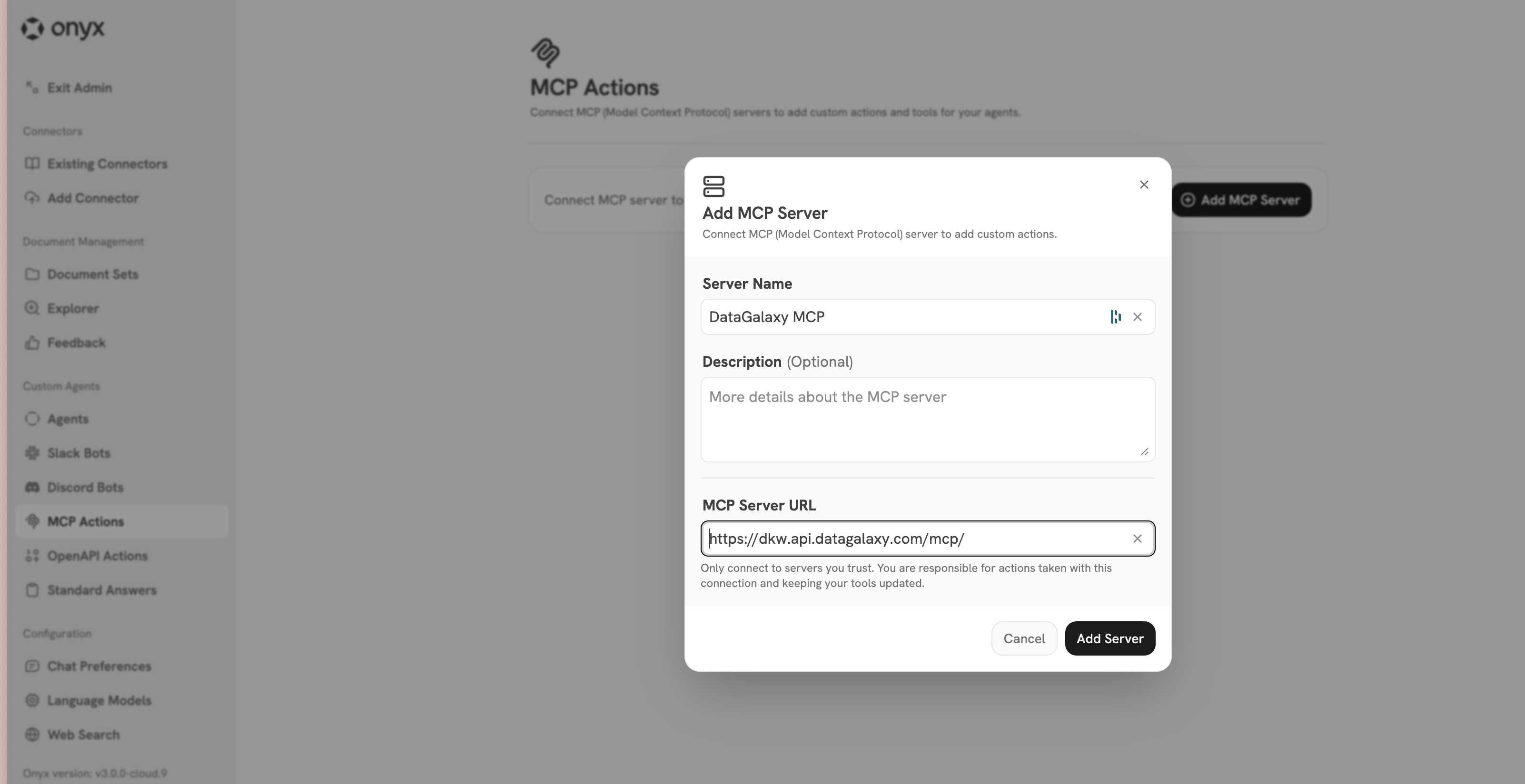
Step 2: Add a DataGalaxy MCP Server
1. Under Add MCP Server, add Server Name
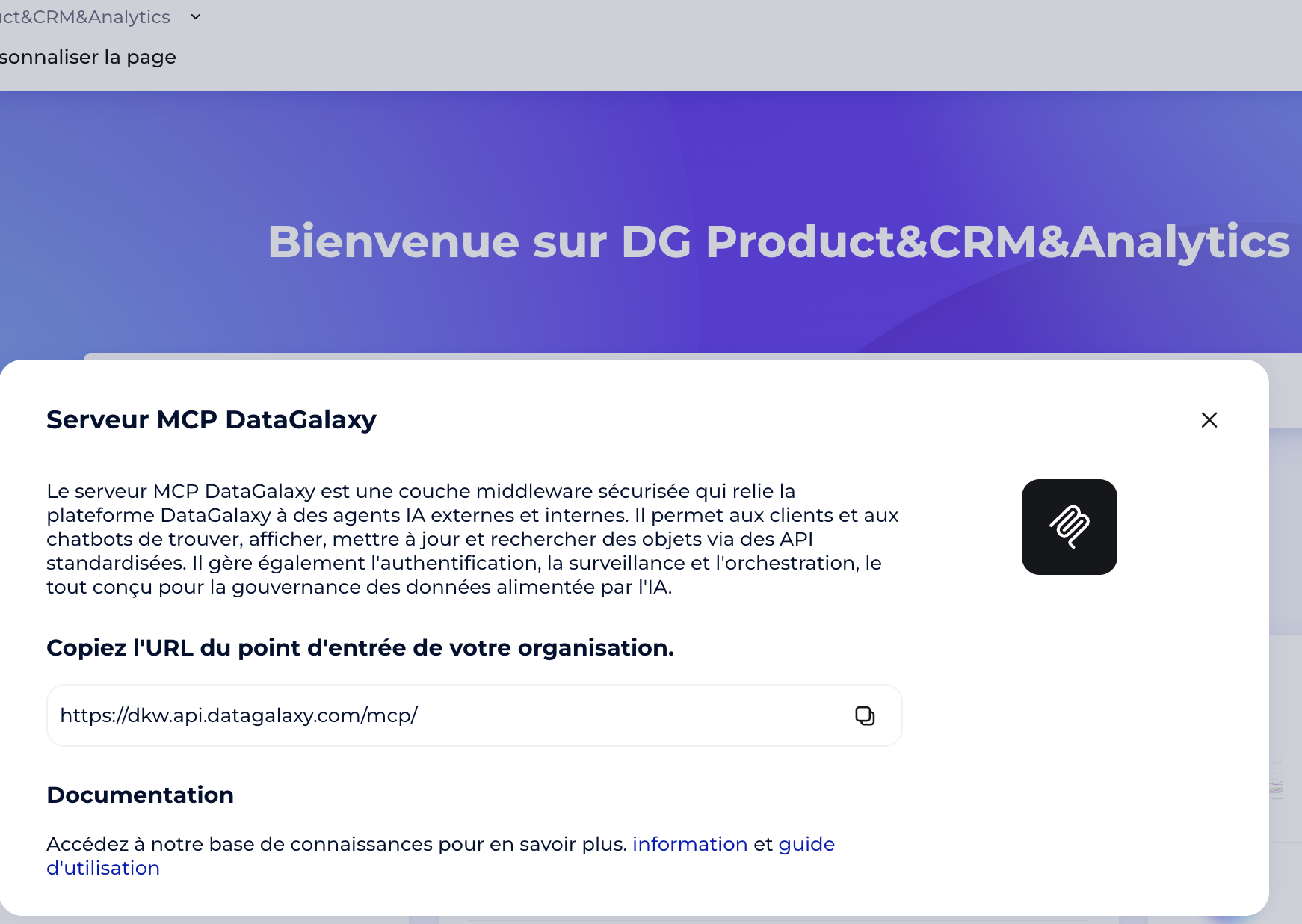
2. Add McCP Server URL: you can find it at your DataGalaxy instance
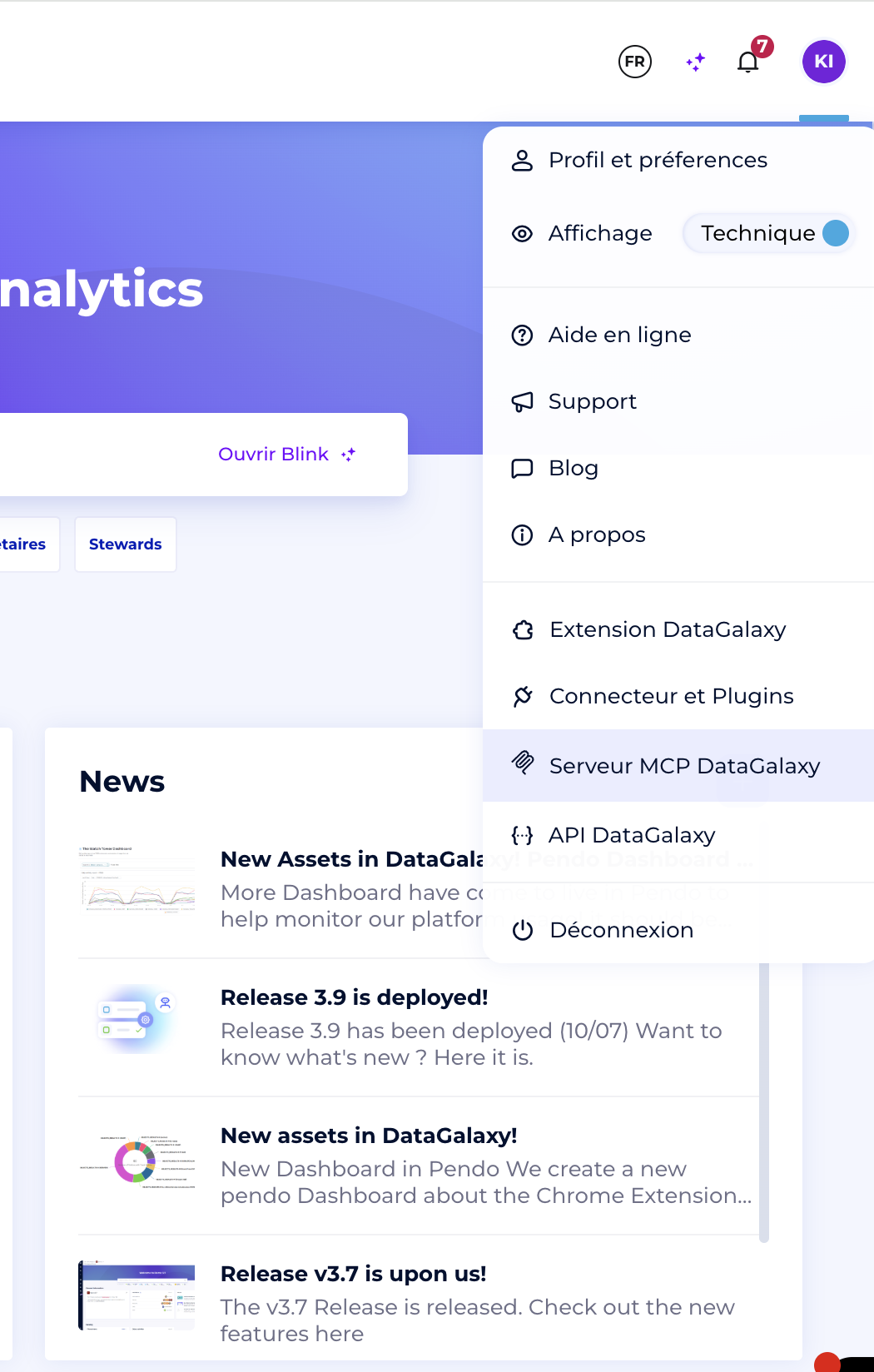 .
.
3. Press a button Add Server.
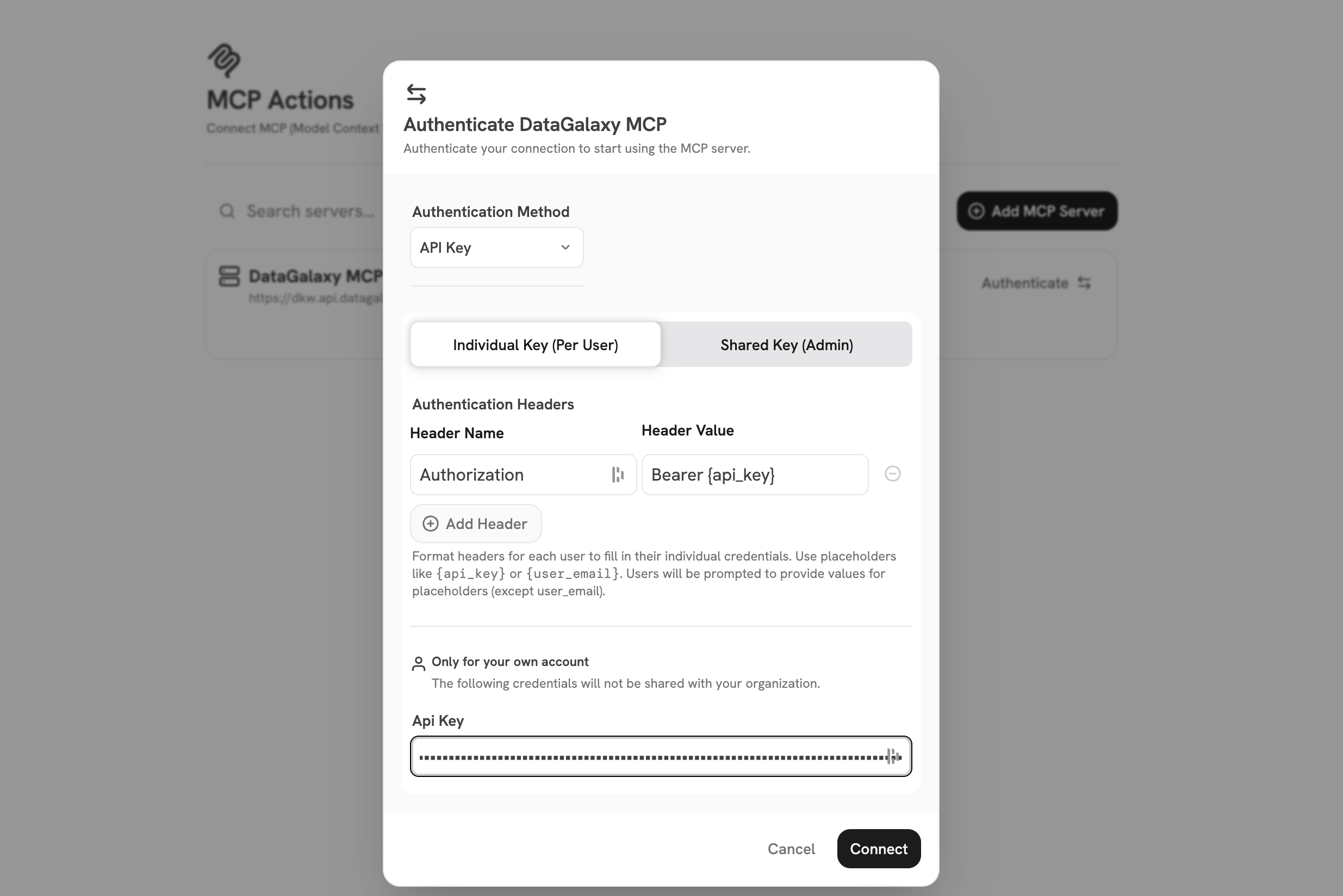
4. You will see the next tab Authebticate MCP. Choose API Key as authebtification method and press Connect
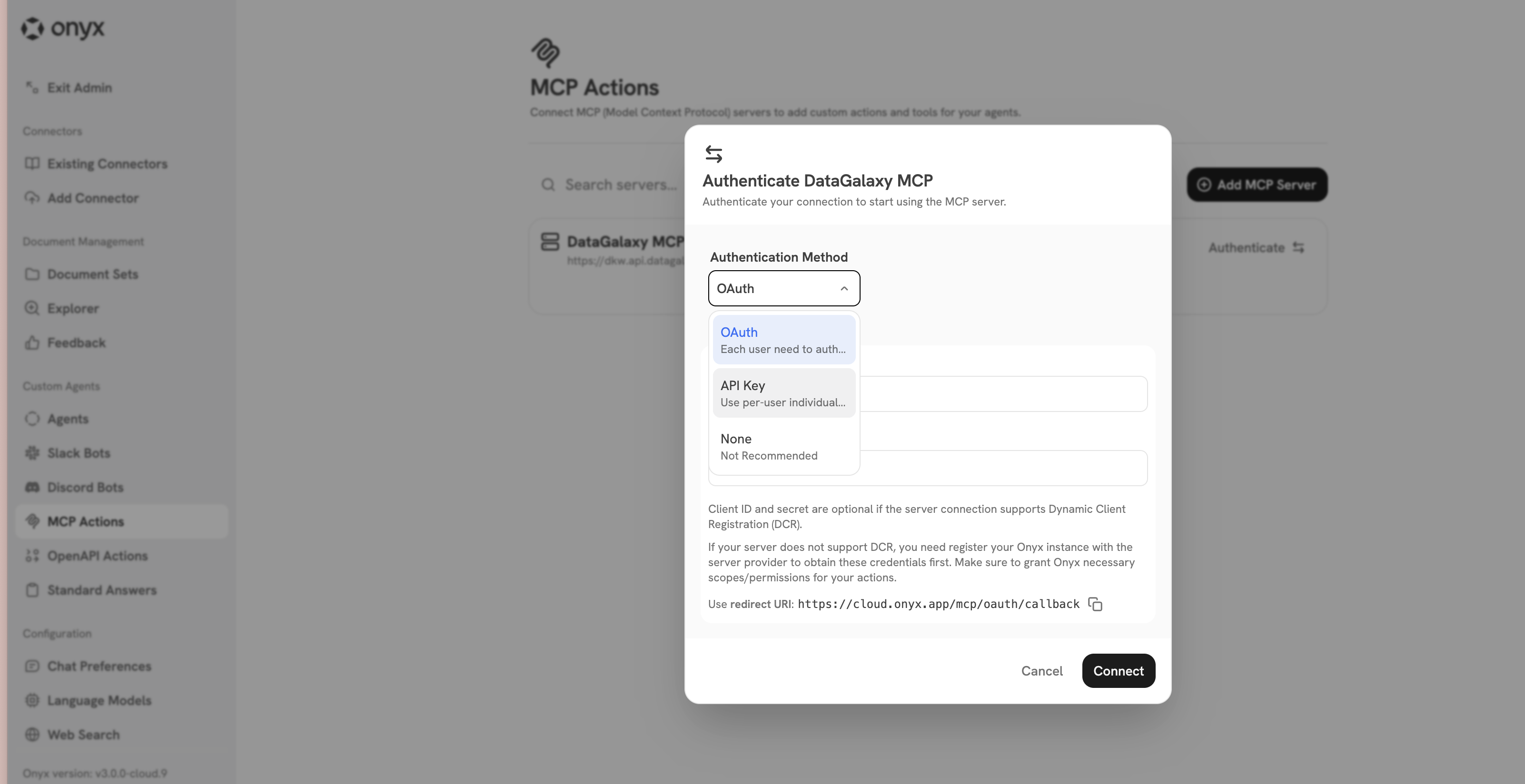
5. Default Header value corresponds with the format we need. Add your Barear Token to API Key field and press Connect.
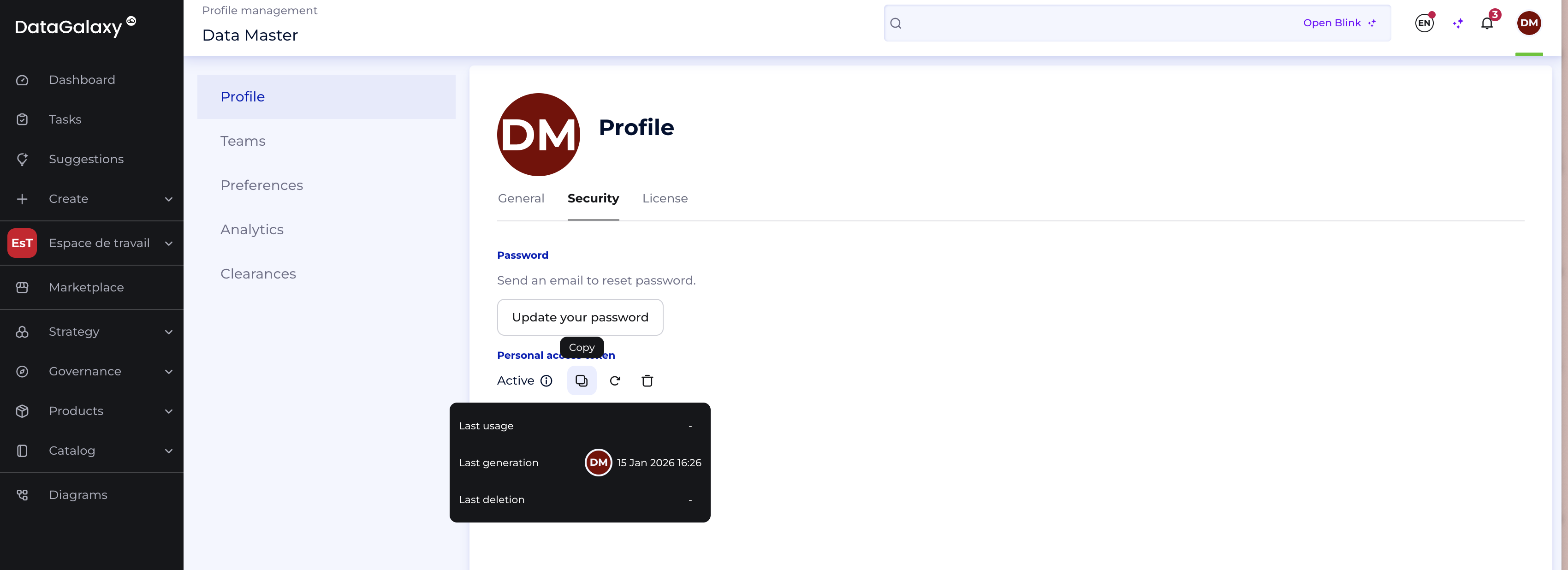
You can find your token under your DataGalaxy profile:
6. After the DataGalaxy Server is connected you will see it in the list of MCP Server, as well as all the tools we provide.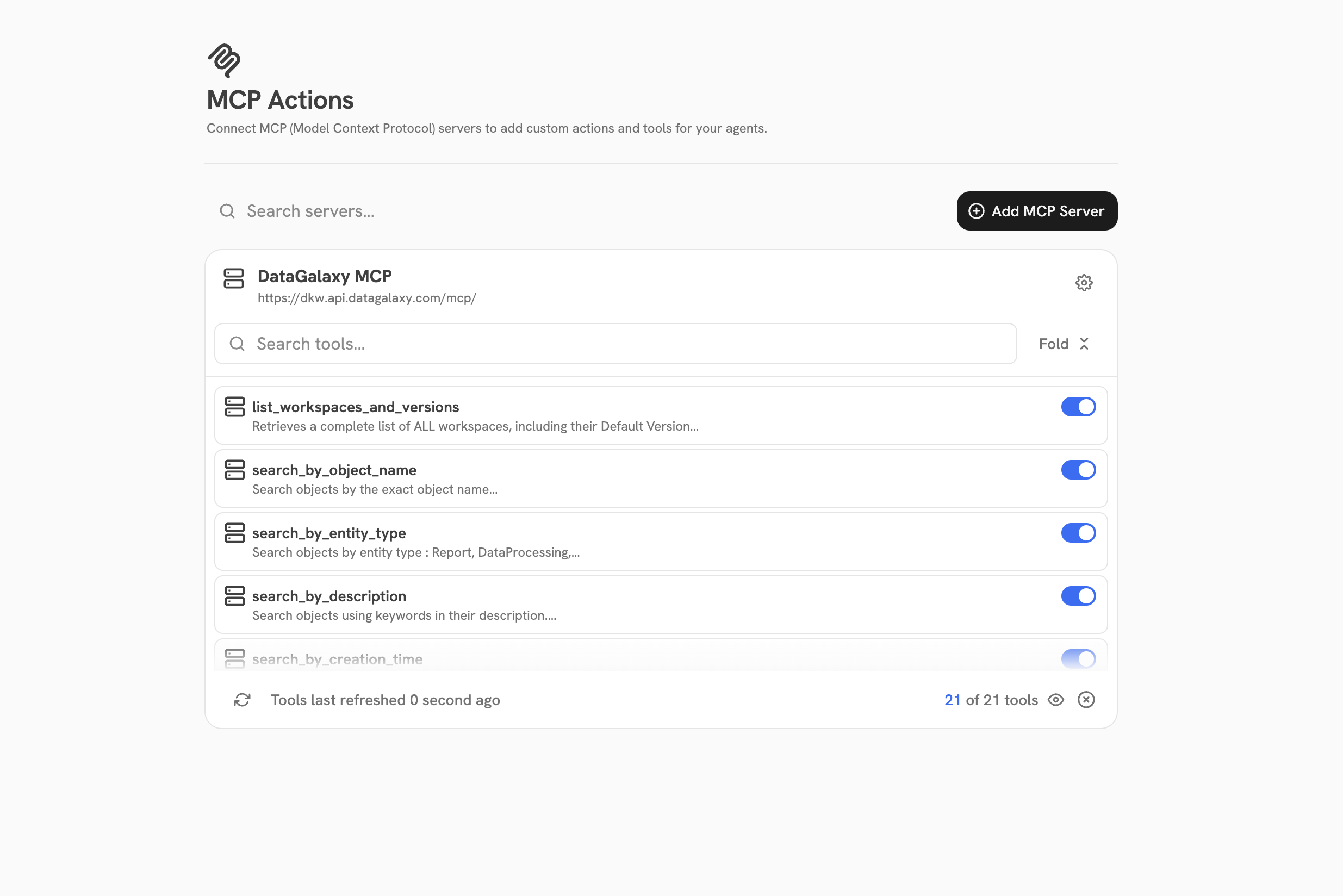
Next steps
- connect your model to Onyx AI or
- connect other MCP Server