
Overview
DataGalaxy provides a ready-made Claude Desktop Extension (.mcpb file) that connects Claude directly to your DataGalaxy catalog. Once installed, you can ask Claude questions about your data catalog — objects, glossaries, lineage, data sources, stewards, tasks, and more — in plain language, right from your Claude conversation. No exporting, no copy-pasting between tools, no manual lookups in the catalog UI.
This article explains why the extension is worth installing, and walks you through the (very short) installation process.
See the .mcpb file below.
Why install the DataGalaxy extension?
It puts your catalog one question away. Instead of navigating DataGalaxy's UI to find an object, check its stewards, or trace its lineage, you can simply ask Claude - for example: "Who owns the customer_orders table?" or "Show me every field tagged as PII in the sales workspace." Claude queries your live catalog and answers with real data, not guesses.
It saves time on repetitive catalog work. Searching for objects, checking attributes, reviewing tasks and comments, or summarizing what a workspace contains are all things Claude can now do for you, on demand, in seconds.
It works alongside everything else Claude already does. Once installed, catalog lookups sit in the same conversation as the rest of Claude's capabilities — for example, pulling context from DataGalaxy and then drafting documentation, a summary, or an email based on it.
It's genuinely easy to set up — no config files. This used to require manually editing a JSON configuration file (claude_desktop_config.json) and getting the paths, syntax, and command exactly right. As a packaged Desktop Extension, none of that applies: you download one .mcpb file from DataGalaxy, install it with a couple of clicks, and enter your credentials in a normal settings form. No JSON, no terminal, no dependency installs.
Before you start
- You'll need Claude Desktop installed (Desktop Extensions are a Claude Desktop feature, not currently available on claude.ai or mobile).
- You'll need the DataGalaxy
.mcpbfile, provided by DataGalaxy or your DataGalaxy administrator. - You'll need your DataGalaxy credentials/API key to authenticate the extension once it's installed.
- Team and Enterprise plans: check with your Owner or Primary Owner first — organizations can restrict which desktop extensions are allowed. If public/custom extensions are disabled for your org, an Owner will need to upload the
.mcpbfile for the team before you can install it.
Step 1: Get the .mcpb file
Download the DataGalaxy .mcpb file provided by DataGalaxy (this article attachment).
Step 2: Install the extension in Claude Desktop
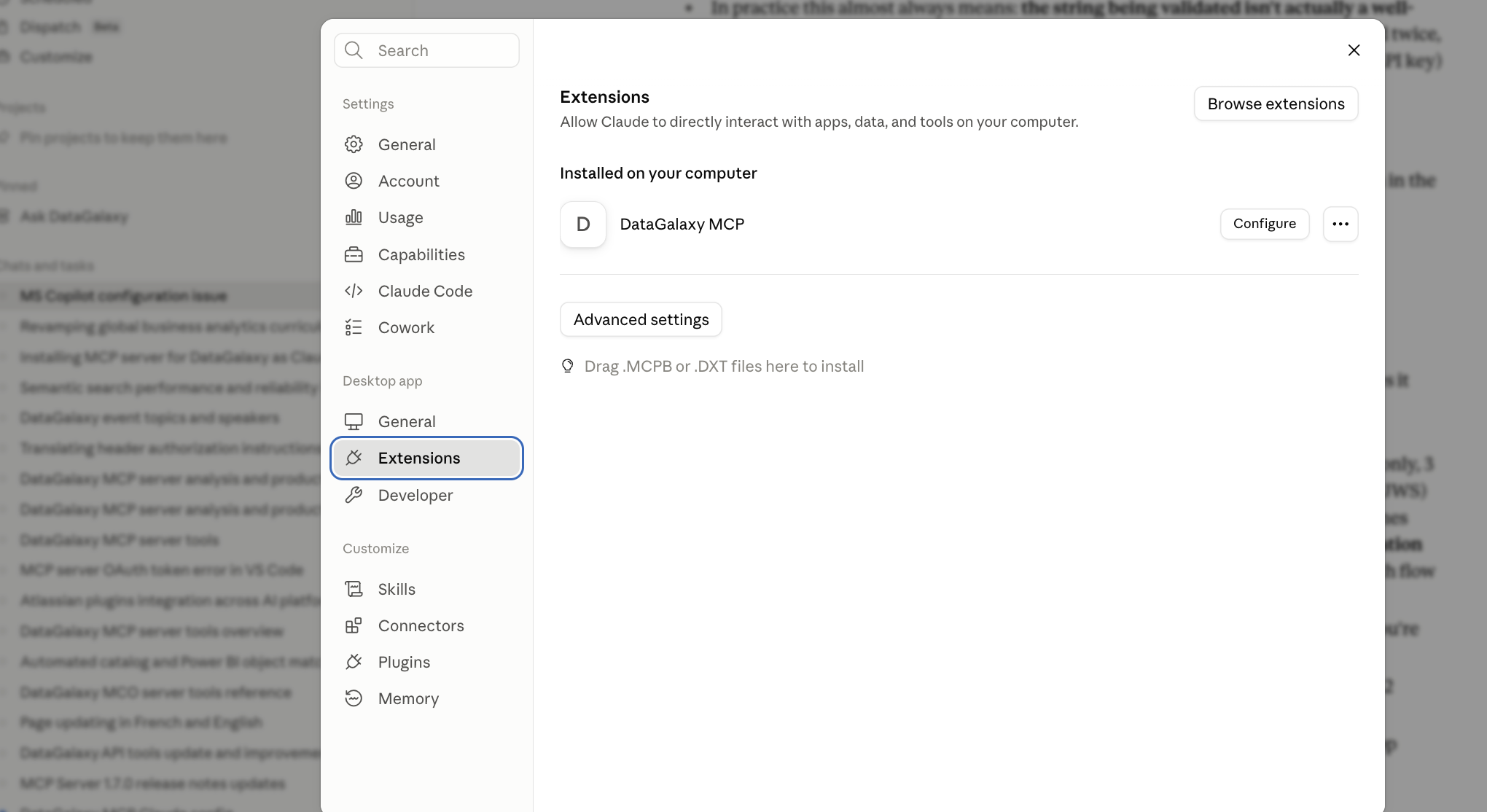
- Open Claude Desktop and go to Settings > Extensions.
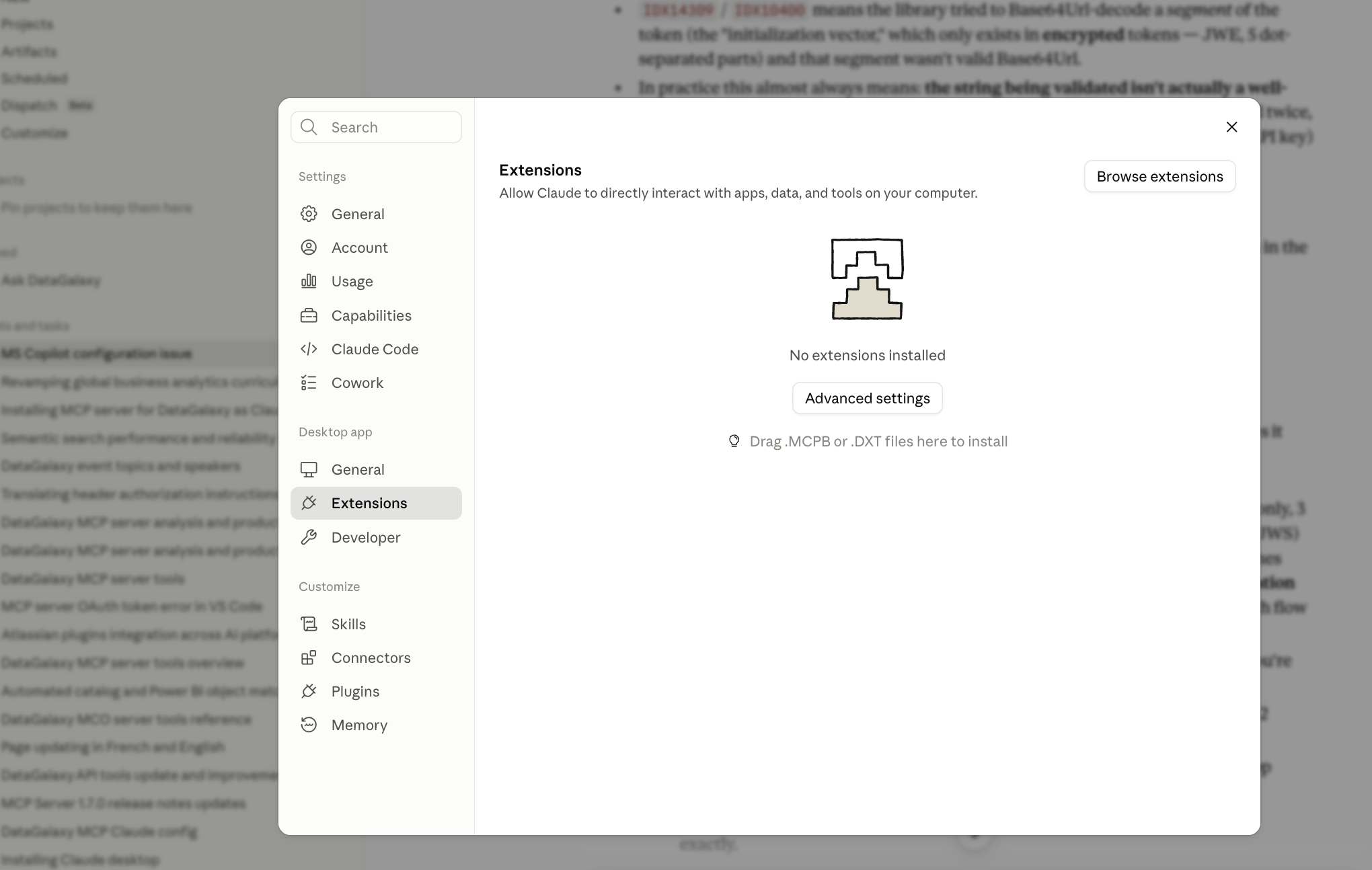
- Click Advanced settings, then find the Extension Developer section.
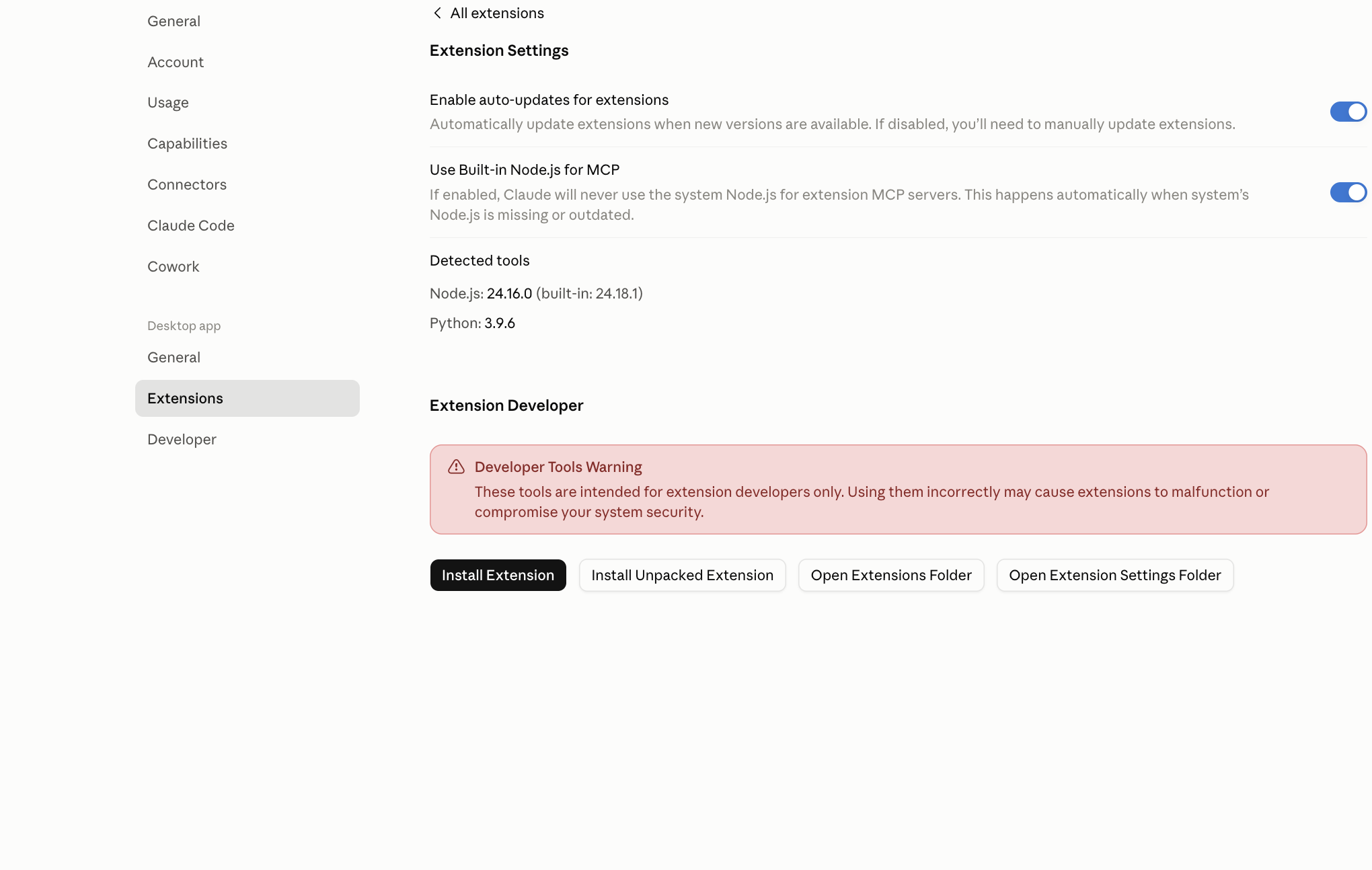
- Click Install Extension
- Select the DataGalaxy
.mcpbfile you downloaded.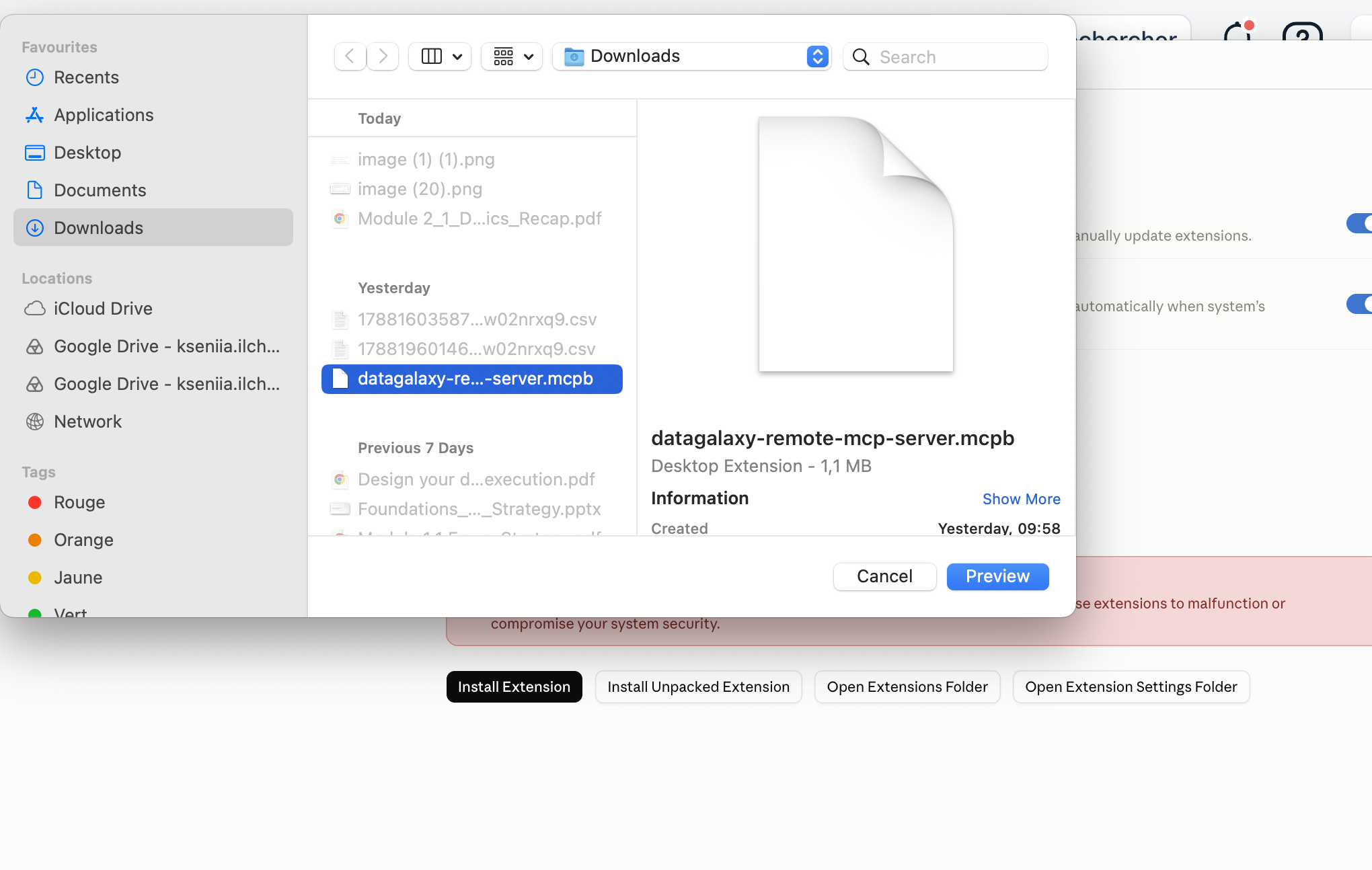
- Enter your DataGalaxy credentials: MCP Server URL and PAT in the configuration fields provided.
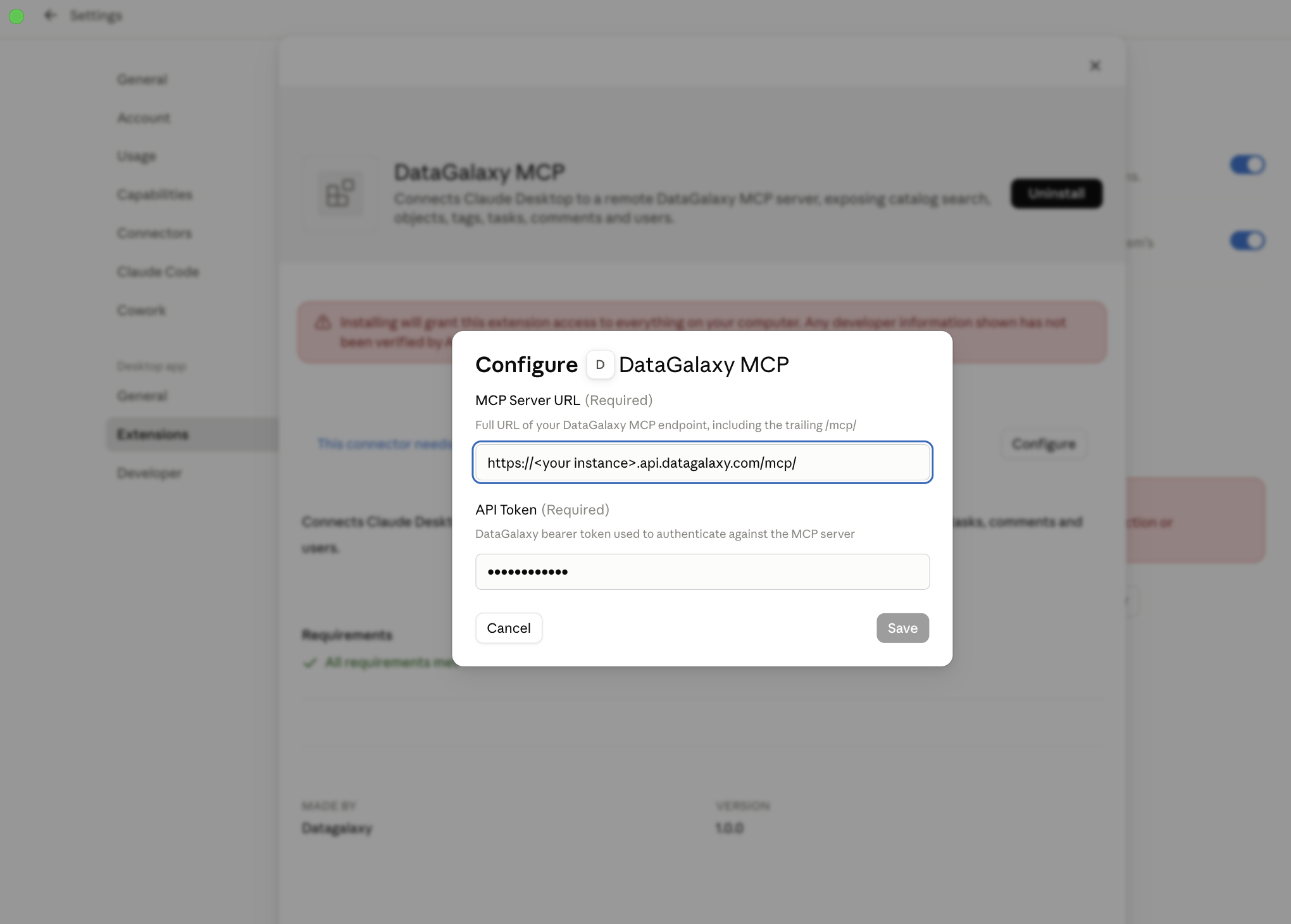
- Save your settings.
- Enable MCP Server if needed.
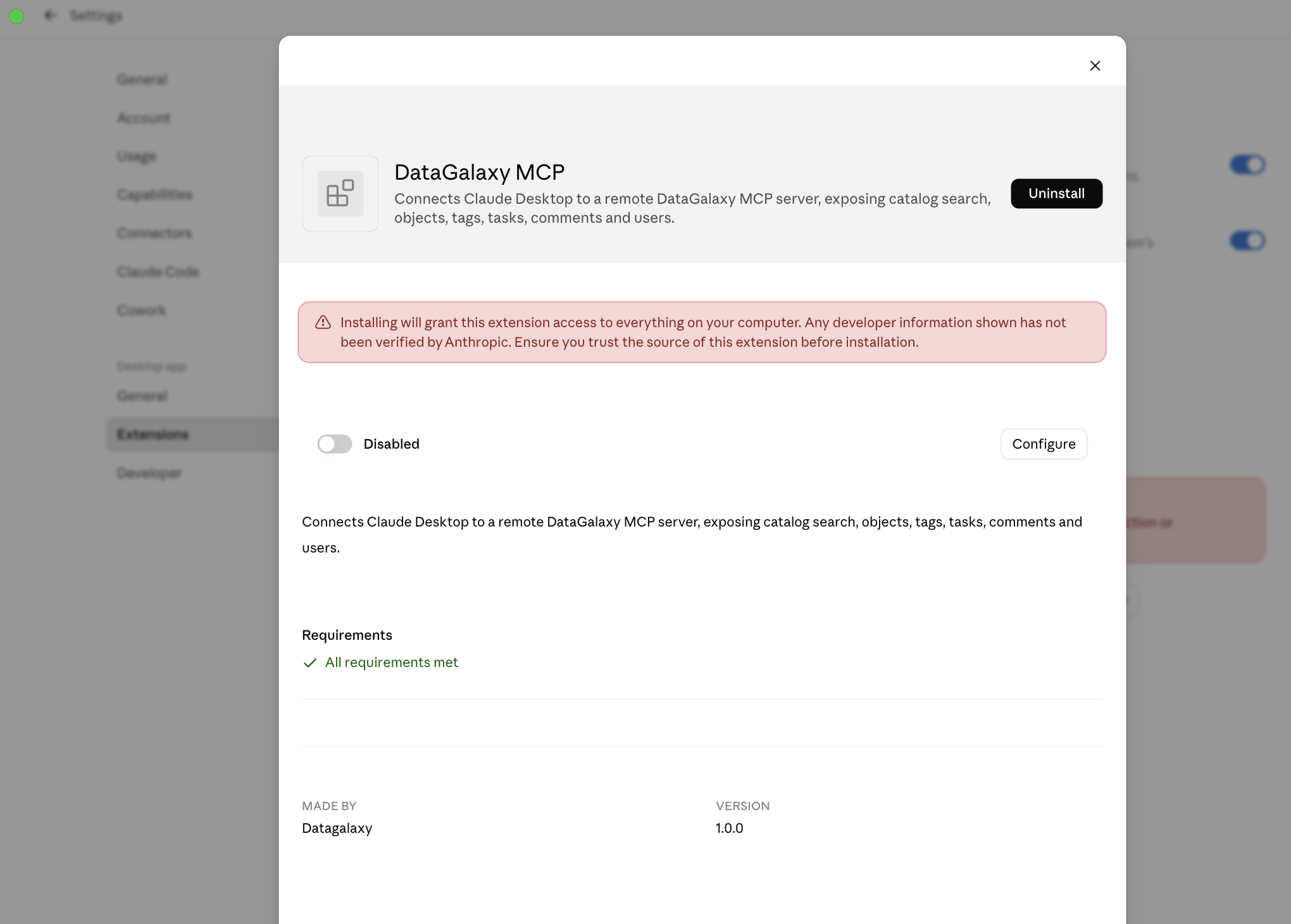
- It may take several minutes till MCP Server is added.
Step 4: Start using it
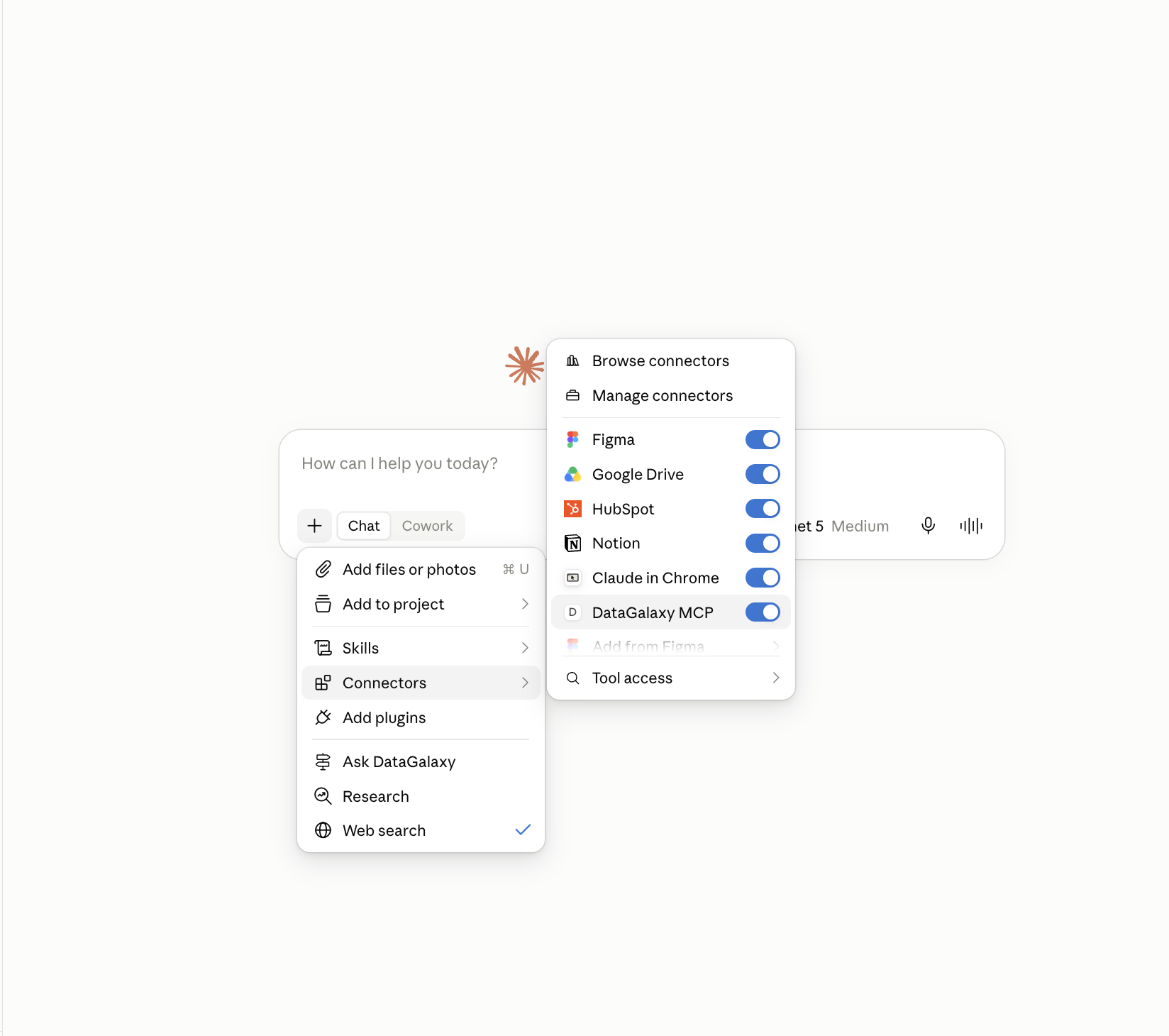
The extension is now available in your conversations automatically — no per-chat toggle needed. You can check it's connected anytime by clicking the "+" button on the chat box and selecting Connectors, which lists connected MCP servers and their available tools.
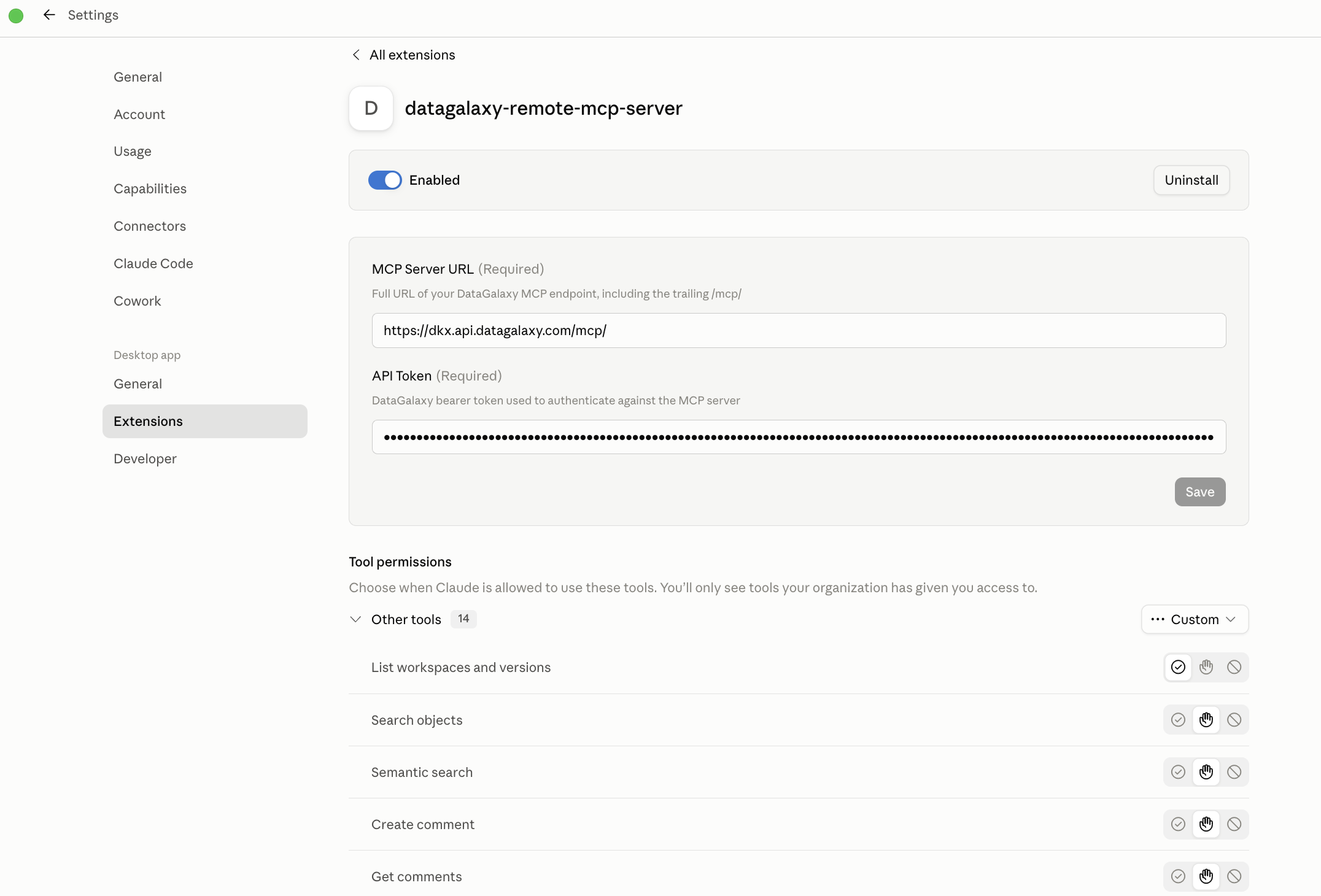
You can enable or disable some tools, update your token or uninstall DataGalaxy MCP extension
Try asking Claude things like:
- "Search the catalog for objects related to invoicing."
- "What workspaces and versions exist in our catalog?"
- "Who are the stewards for the customer_orders table, and what tasks are open on it?"
- "List every tag currently defined in the catalog."
Troubleshooting
The extension won't install.
Confirm you're running the latest version of Claude Desktop, that the .mcpb file isn't corrupted (try re-downloading it), and that you have enough free disk space.
The extension shows as installed, but tools aren't available.
Restart Claude Desktop to refresh the extension registry. Then check Settings > Extensions, click into DataGalaxy, and confirm all required configuration fields (like your API key) are filled in correctly.
I'm getting a permissions or security warning.
On macOS, check System Preferences > Security & Privacy. On Windows/Linux, confirm Claude Desktop has permission to access the required directories.
My organization blocks extension installs.
Team/Enterprise Owners control this via an allowlist. Ask your Owner to either enable custom extensions org-wide or upload the DataGalaxy .mcpb file centrally so it's available to the team.
I need to update to a newer version of the extension.
Since this is a privately distributed extension (not from Anthropic's public directory), updates won't install automatically — download the new .mcpb file from DataGalaxy and repeat Step 2. Please note, this case is rare as the extension does not need frequent versions update.