
The purpose of this article is to explain to you how to connect objects between modules.
This article is related to these:
- The relationships between objects are explained in this article.
- The links between modules are explained in this article.
- The Data Galaxy metamodel is explained in this article.
It is possible to link objects in several ways:
- Via tabs of the object card,
- Via the import of properties from a source,
- Via suggestions,
- Via shortcut attributes.
Via tabs of the object card
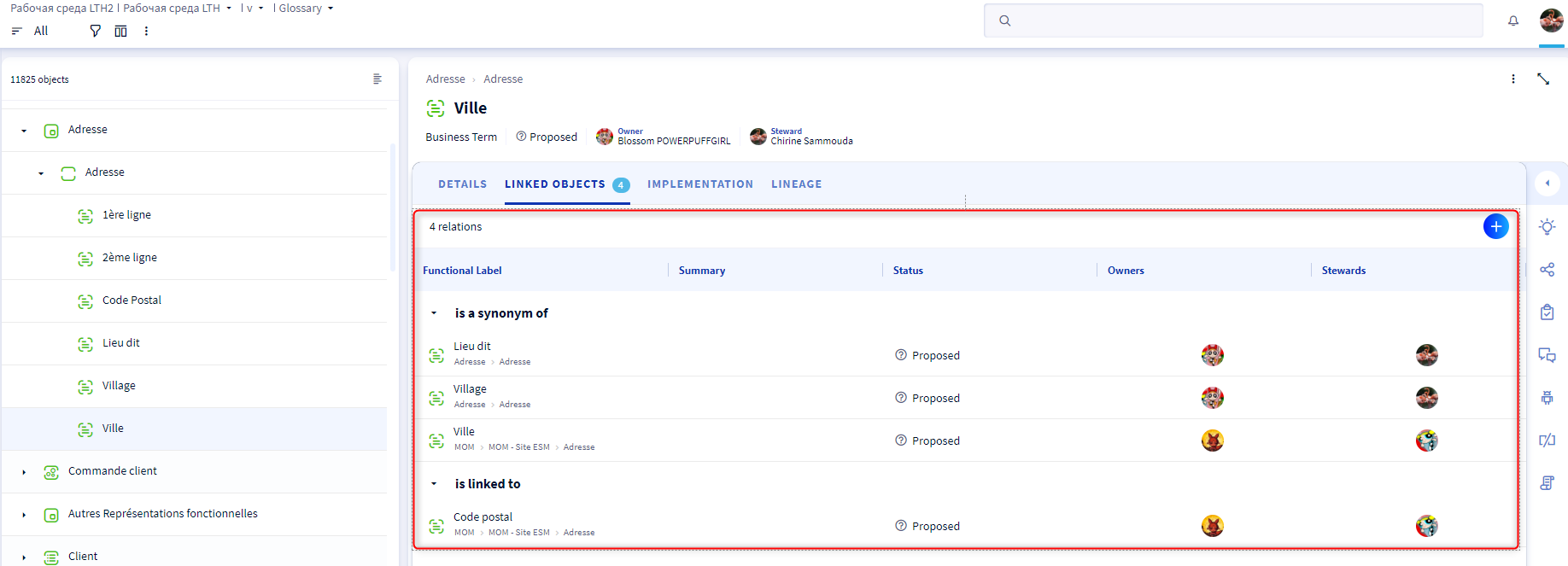
Relationship between the objects in the glossary
This function allows users to trace and document the simple or complex relationships that exist between the properties of the "Glossary" (your data) to structure understanding and share knowledge.
- Click on the object for which you want to create a relationship.
- Click on the "Linked objects" tab.
- Click on the "+"
- A pop-up opens: select the type of relationship (synonym, specialization, generalization...).
- Search for the object to link.
- Click on "Add" to create the relationship.
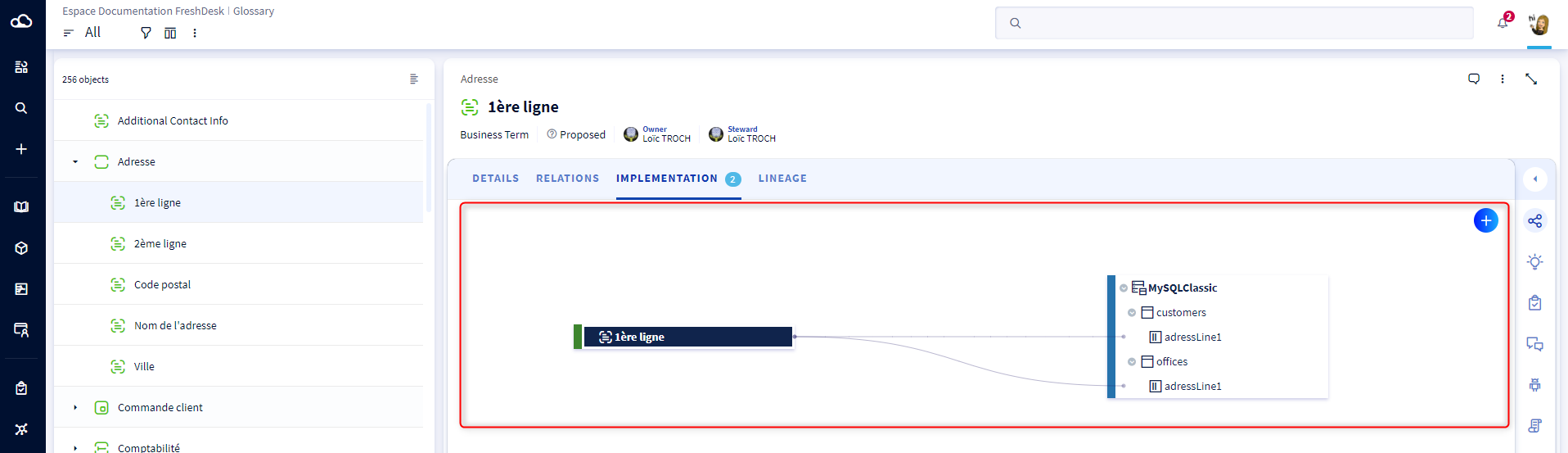
Glossary => dictionary
Use the following steps to link a glossary object to a dictionary object:
- Click on the object for which you want to create a relationship,
- Click on the "Implementation" tab,
- Click on the "+",
- A pop-up opens: select the type of relationship (is implemented by, has for recording system),
- Search for the object to link,
- Click on "Add" to create the relationship.
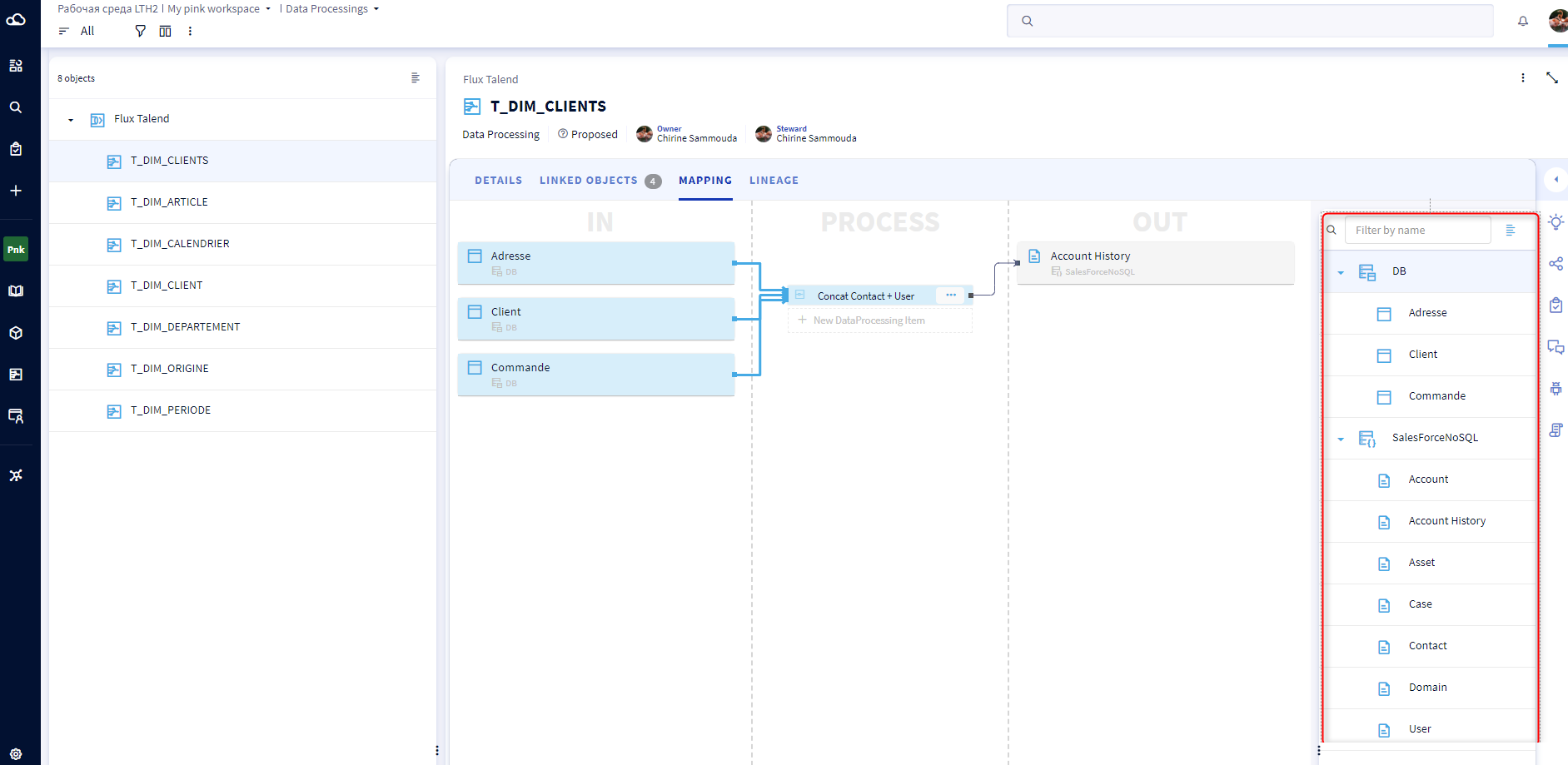
Dictionary => dictionary via Data processing mappings
Use the following steps to link a processing operation to a dictionary object:
- Click on the data processing object for which you want to create a mapping relationship between to dictionary object,
- Click on the "Mapping" tab,
- Thanks to the search bar, reduce the basic number, table & field displayed and search for the necessary object.
- Click the target object to put it in the IN or OUT column.
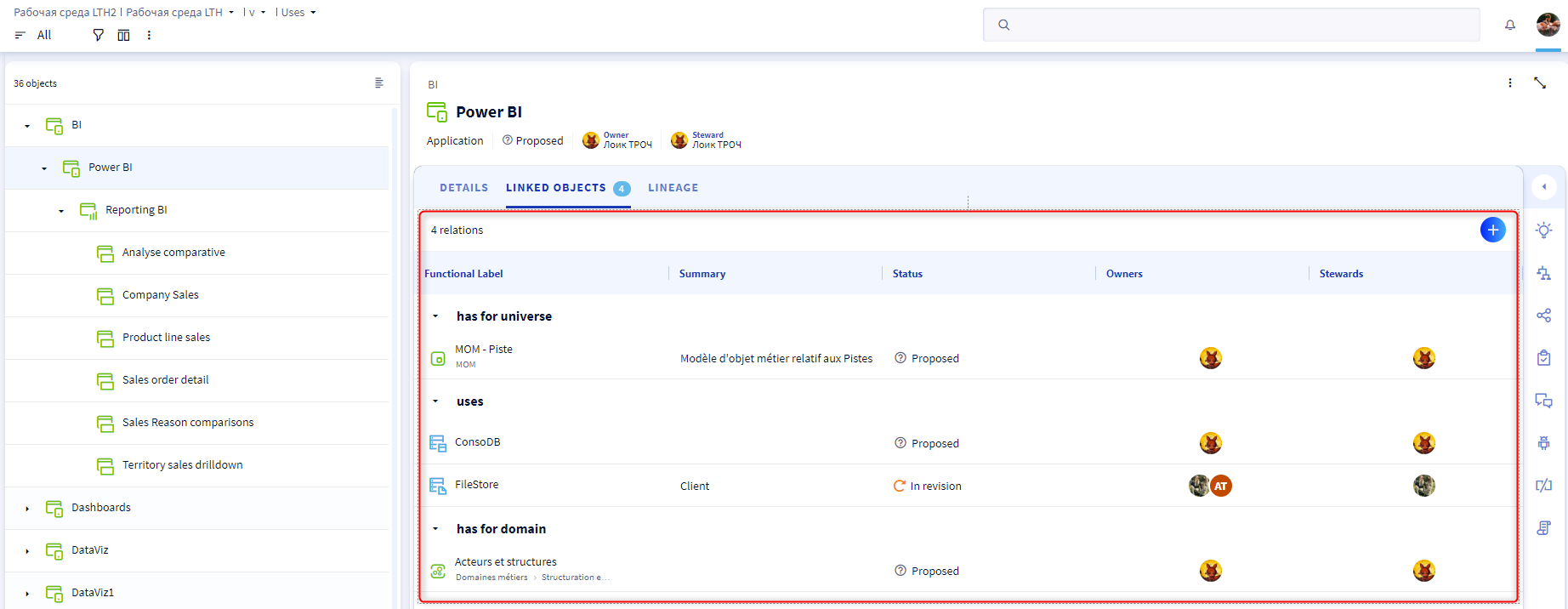
Uses => dictionary & glossary
Use the following steps to link a usage to an object in the glossary or dictionary:
- Click on the object for which you want to create a relationship.
- Click on the "Linked Objects" tab.
- Click on the "+"
- A pop-up opens: search for the object to link.
- Click on "Add" to create the relationship.
Linked objects section (available on certain objects, including Policies, Rules, Monitors, and Products)
Follow the steps below to link objects via the linked objects sections
- Click on the processing object for which you want to create a relationship.
- Click on the Details tab until you reach the Linked Objects section (as shown below).
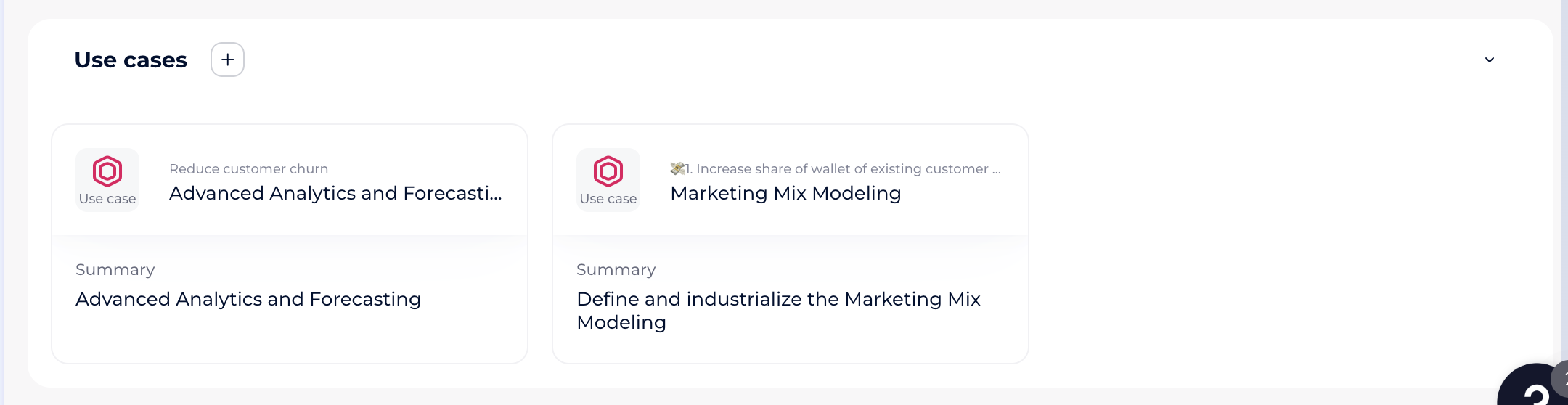
- Click on the "+"
- In the "Add a linked object" modal, select an object and click on "Add"
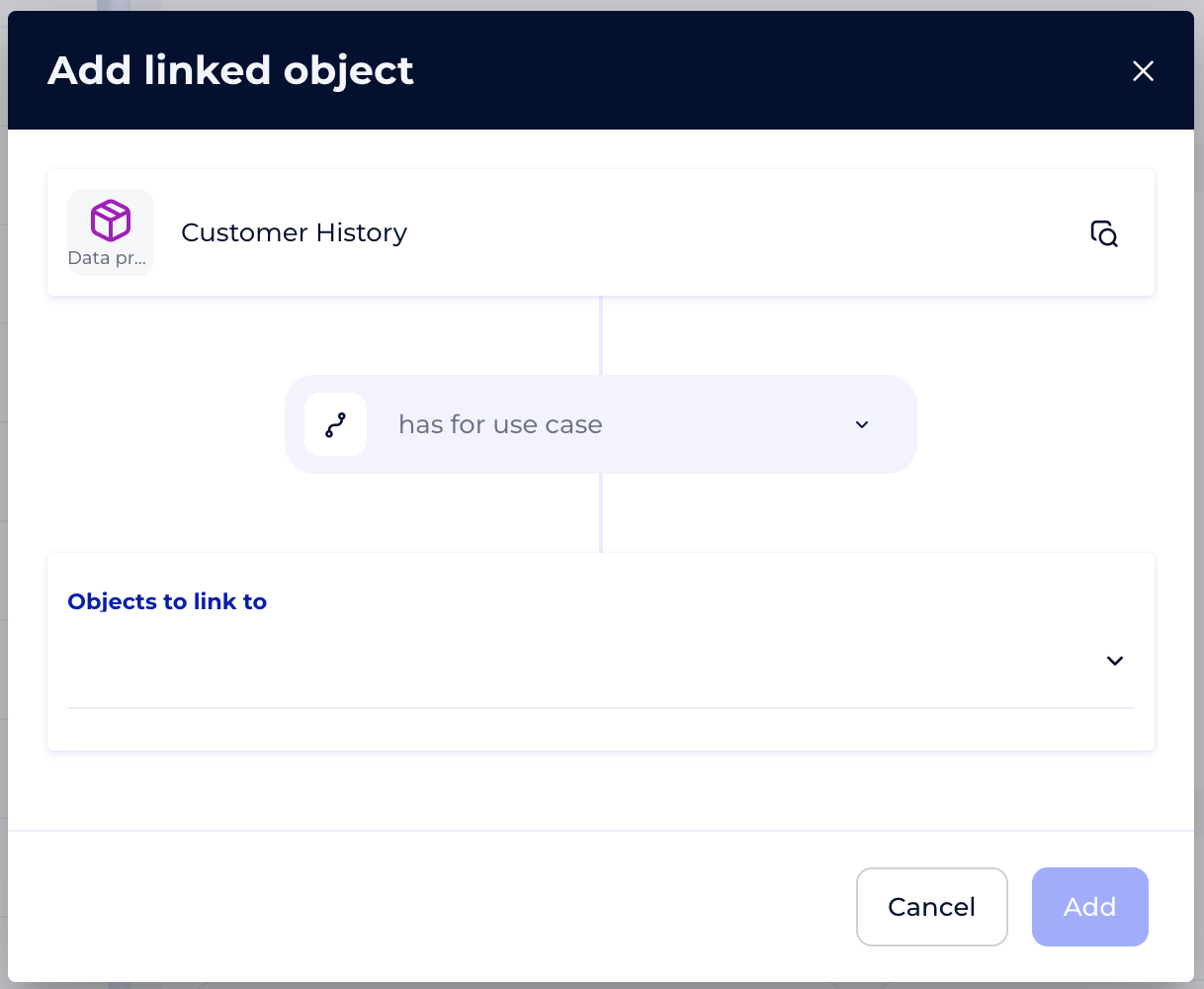
Note: the link type is pre-selected depending on the Linked Objects section you are in, and cannot be changed.
Note: the type of object that can be selected depends on the pre-selected link type