
The purpose of this article is to explain how to use exploratory analysis, which is a feature of impact assessment.
To understand more precisely the concept of impact analysis, you can consult this article.
Launch an exploratory analysis
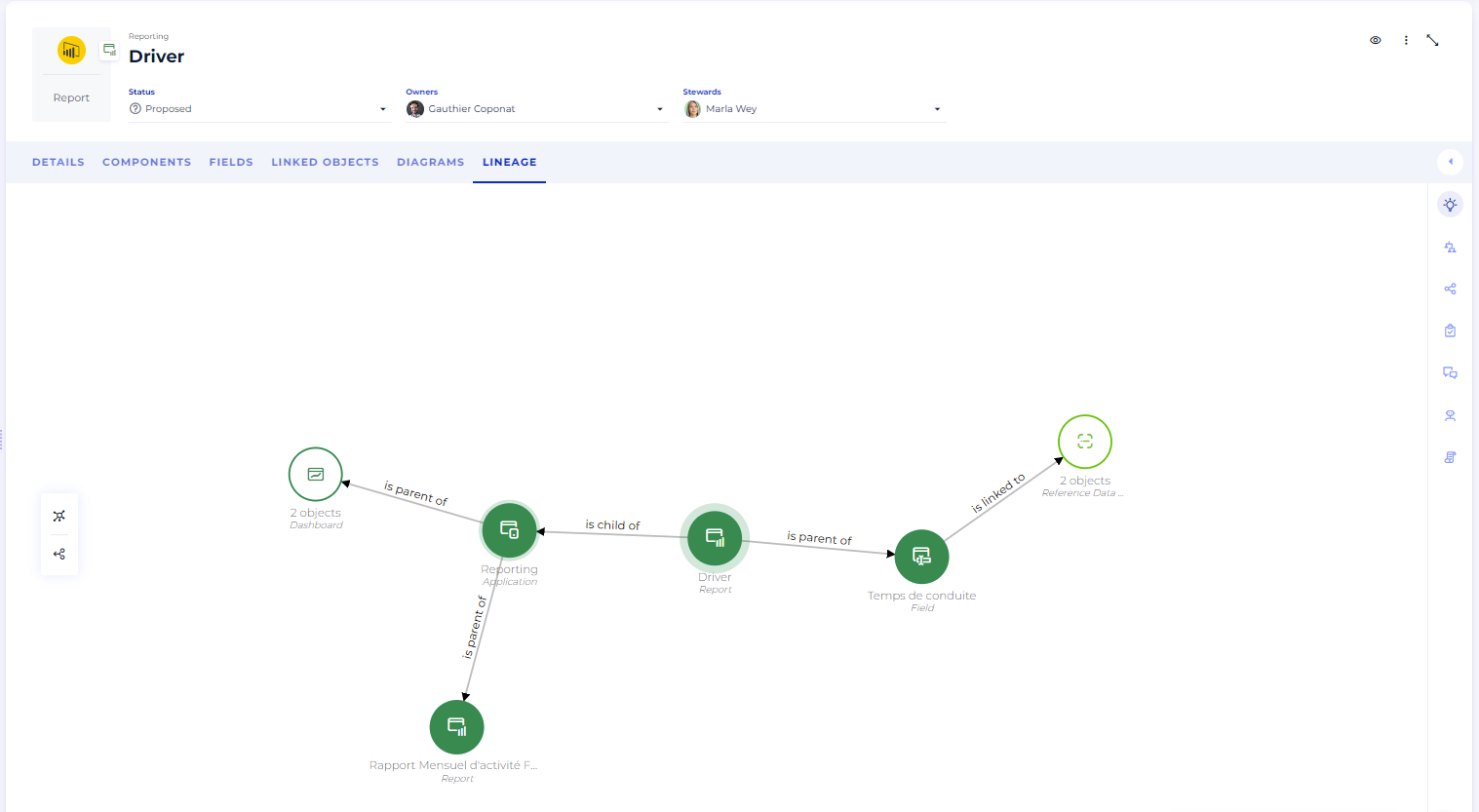
The exploratory analysis covers both the semantic and technical scope of the data.
- In the search bar type the name of an object of your choice: as soon as 3 characters are added, the search starts, and proposals for objects are displayed.
- In the drop-down menu, click on the object of your choice.
- The object you are looking for is displayed in the center of the screen with its different links to other objects
You can restrict your search to certain types of data via the star wheel icon at the end of the search bar.
You can also start an exploratory analysis directly from the object card.
Group or ungroup similar objects
On the cluster representing the results of an exploratory analysis you have the possibility to group or ungroup similar objects:
- Click on the object of your choice while pressing the Alt key.
- Objects of the same type are then grouped into a single bubble or dissociated into several different bubbles.
Load the links of the element
On the cluster representing the results of an exploratory analysis you have the possibility to load links to other objects:
- Click on the object of your choice while pressing the Ctrl key.
- Linked objects deploy.
Adapt the display to your screen
These different buttons allow you to optimize the display of your exploratory analysis.

- Screenshot: This allows you to save an image of your exploratory analysis at time T in .png format.
- Ideal Zoom: This allows you to resize and center your display to fit your screen perfectly.
- Full-screen mode: This allows you to display your exploratory analysis on your entire screen for more comfort.
- Zoom in
- Zoom out